
02 · Guides
Playbooks: write the rules your trades are graded on
Create a trading playbook in Limbix, add gradeable rules and risk parameters, archive or delete safely, handle a plan downgrade and compare setups side by side.
A trading playbook in Limbix is one setup written down: a name, the rules you must follow to take it, and the risk it is allowed. Every trade you link to a playbook is checked against its rules, and that ratio is your Discipline Score. On this screen you create, edit, retire and compare them.
Before you start#
Open Playbooks from the sidebar under Core. The page ranks your setups under Your edge, ranked., with EXPECTANCY, WIN RATE, PROFIT FACTOR, NET P&L and ADHERENCE on each row.
Create a trading playbook#
You write down one setup, with the rules you will be graded on and the risk it may take.
Open the create sheet
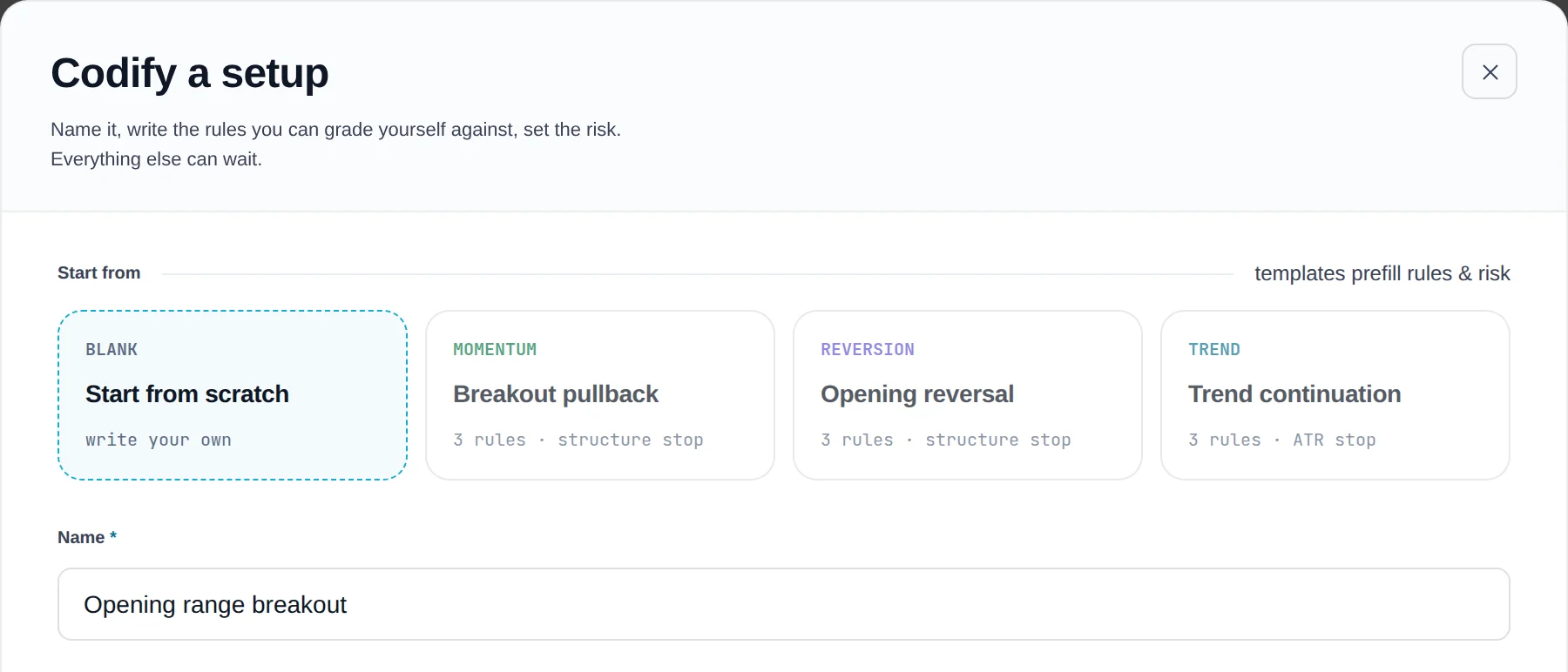
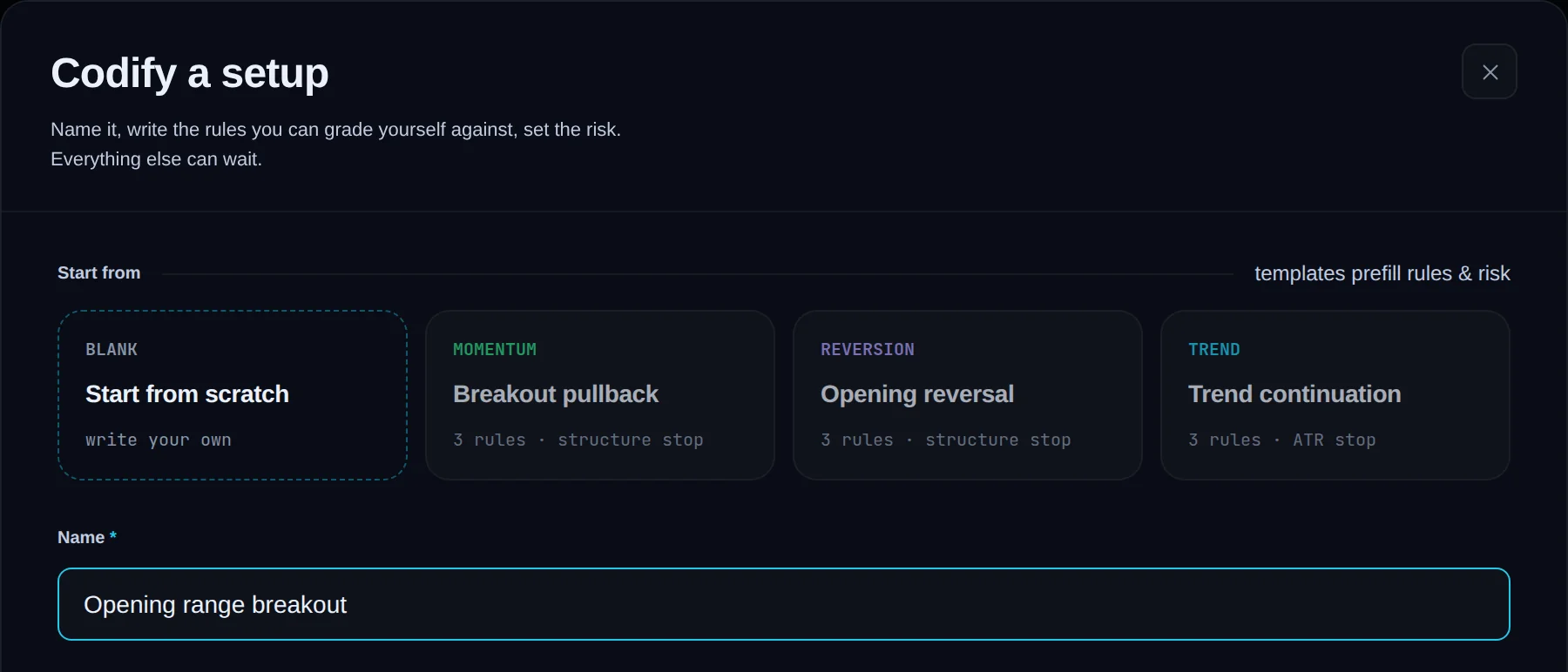
Click New playbook in the top bar, or + New playbook on the page. The sheet opens, titled Codify a setup.
Start from a template
Under Start from (templates prefill rules & risk), pick Start from scratch, Breakout pullback, Opening reversal or Trend continuation.
Name and describe it
Type the name in the field that reads Name this setup. Under Description, write what has to be true before you take this trade.
Write the rules
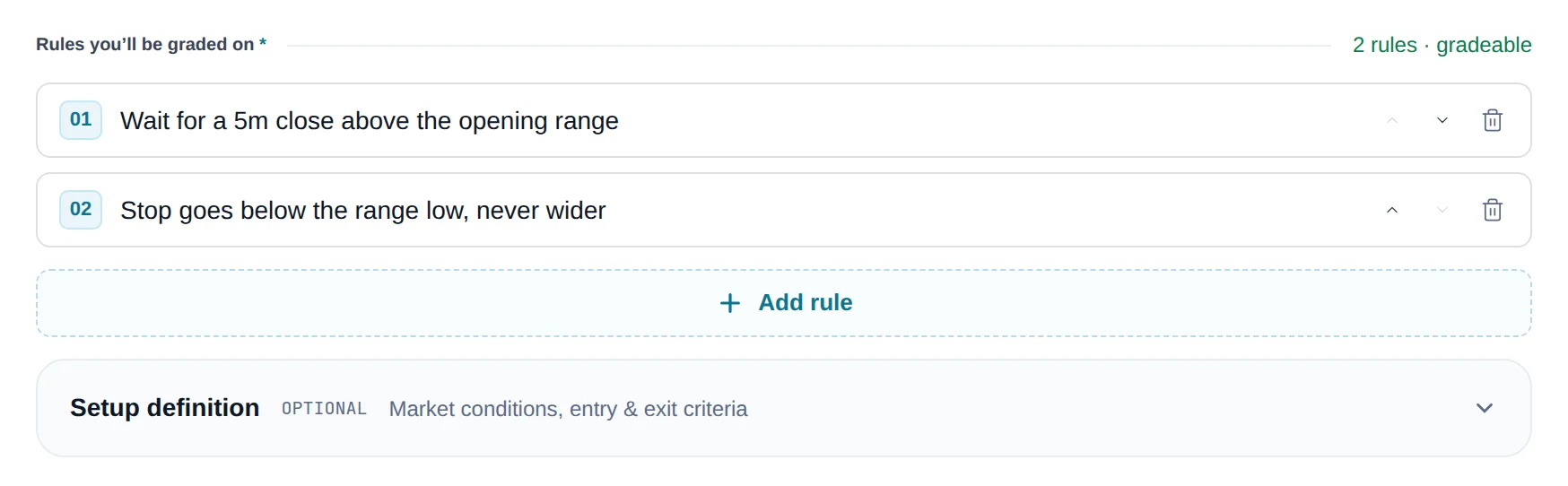
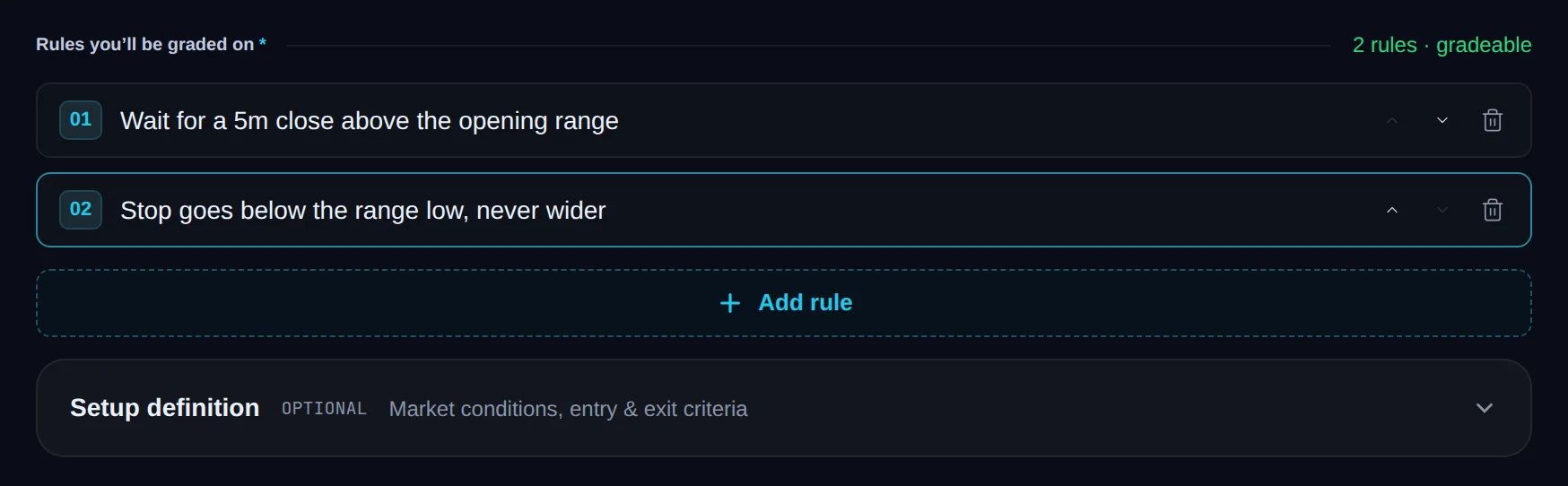
Under Rules you'll be graded on, write one rule per line. Click Add rule for another. The hint reads "answerable yes or no" until a rule is filled in.
Fill in the setup definition (optional)
Open Setup definition to add Setup type, Market conditions, Entry criteria and Exit criteria.
Check the risk parameters
Under Risk parameters (defaults shown — adjust any), set your limits. See set risk parameters.
Create it
Read How it scores, then click Create playbook. The footer says what is missing, such as "Name it and add one rule to save."
At the limit, the button reads Upgrade for more playbooks and the sheet explains why it cannot save.
Add a rule to a playbook#
A new rule joins the checklist every linked trade is graded against.
Open the playbook
On Playbooks, click the playbook's row.
Click Edit rules
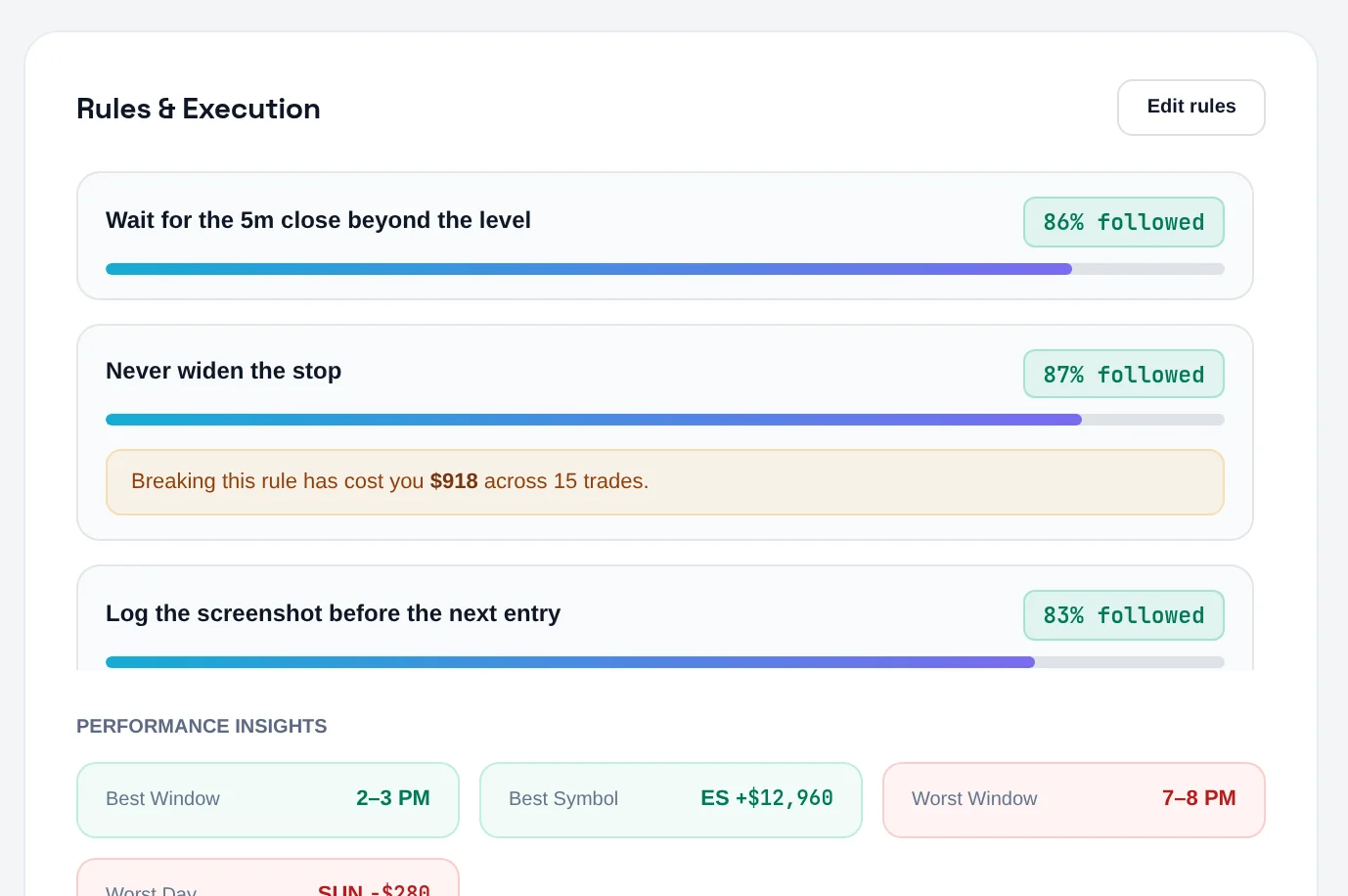
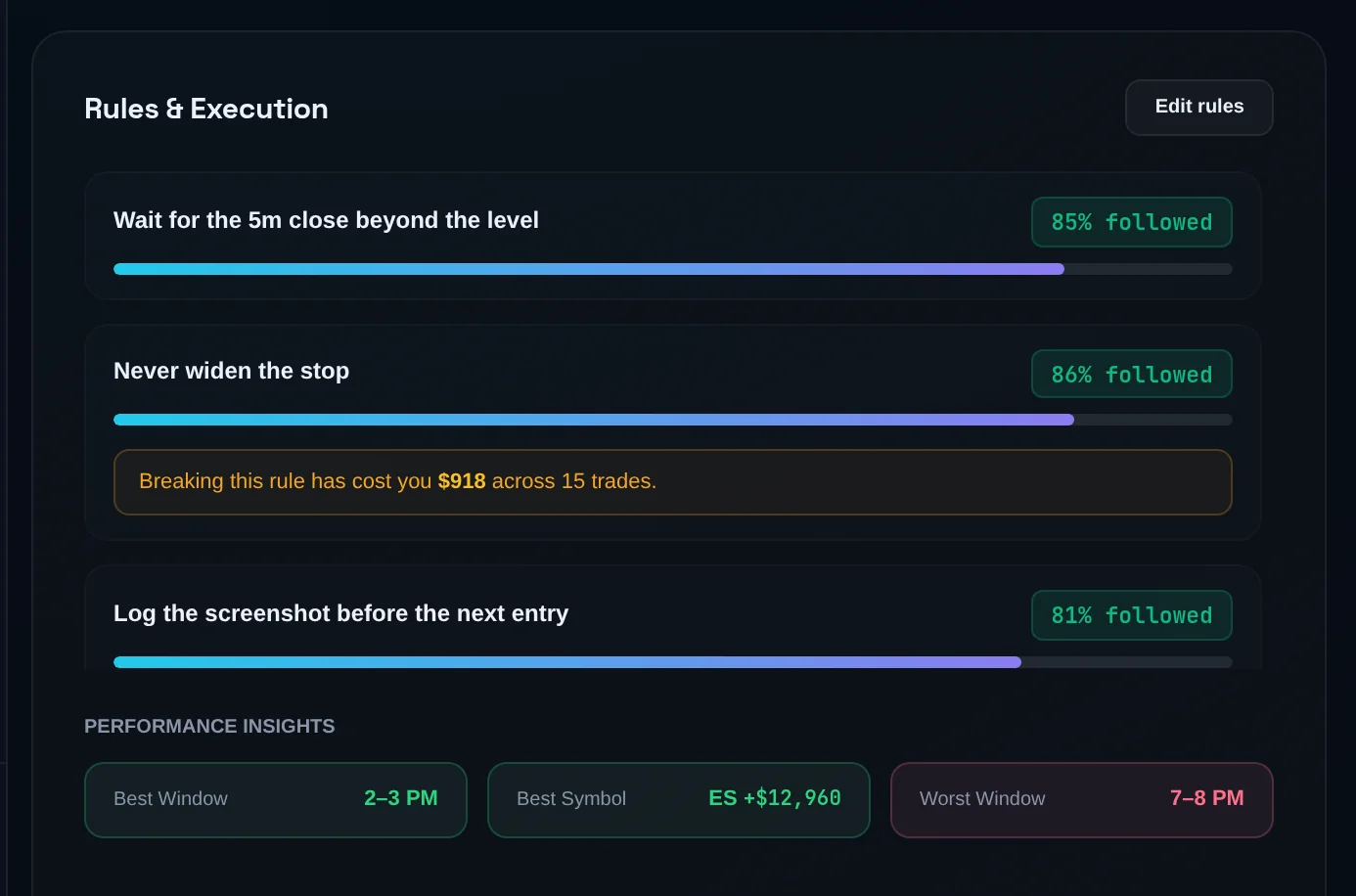
In the Rules & Execution card, click Edit rules. (Edit at the top opens the same sheet.)
Add the rule
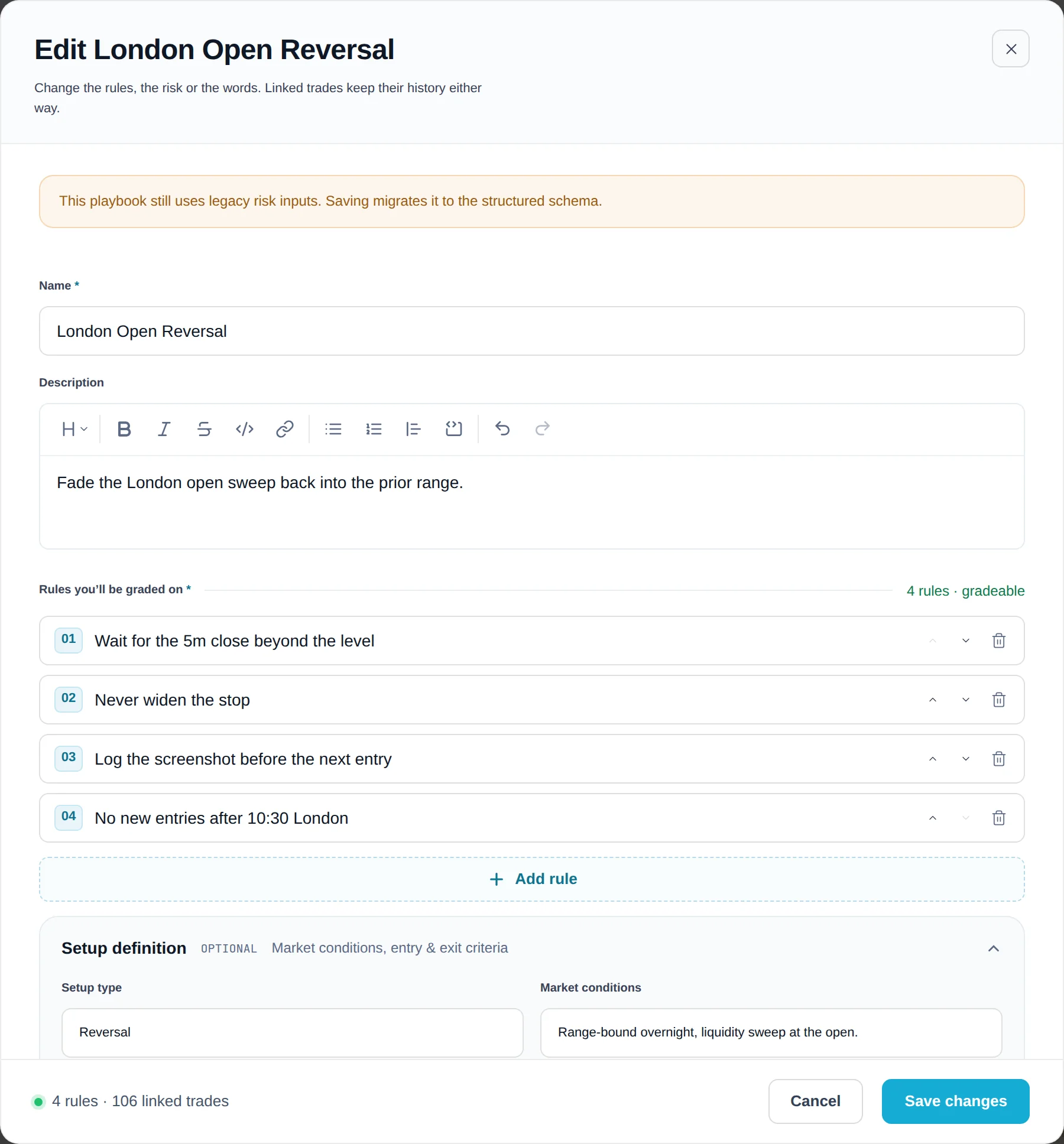
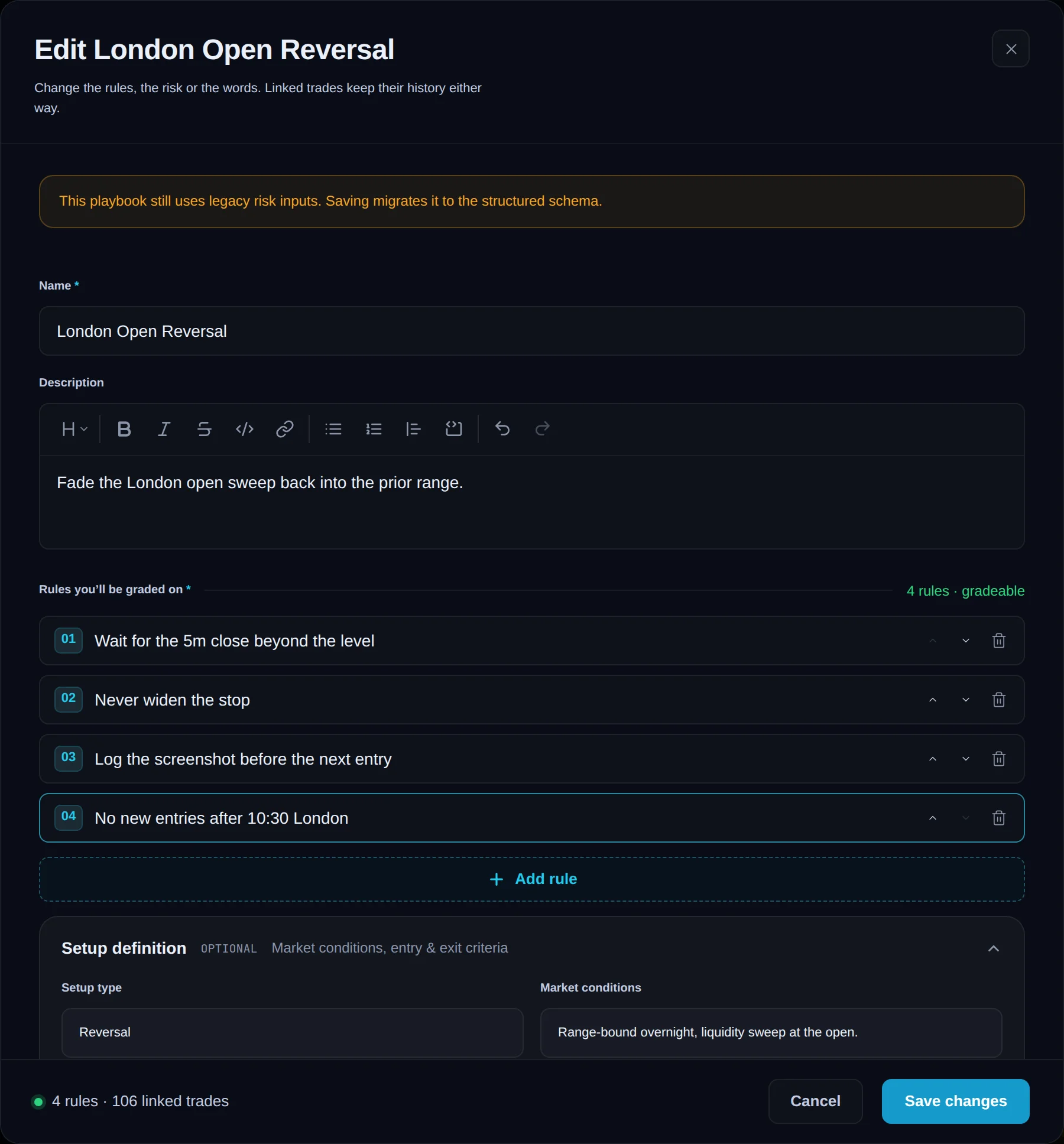
Under Rules you'll be graded on, click Add rule and type it. Use the arrows to move it up or down.
Remove a rule if needed
Click the remove control on a rule. On a playbook with linked trades, Limbix asks you to confirm, because it changes that playbook's review history.
Save
Click Save changes. The footer shows the rule count and the number of linked trades.
On Pro, the card lists each rule with its follow rate and marks the one you break most as MOST BROKEN. On Essential, the rules are listed without those rates.
Set risk parameters#
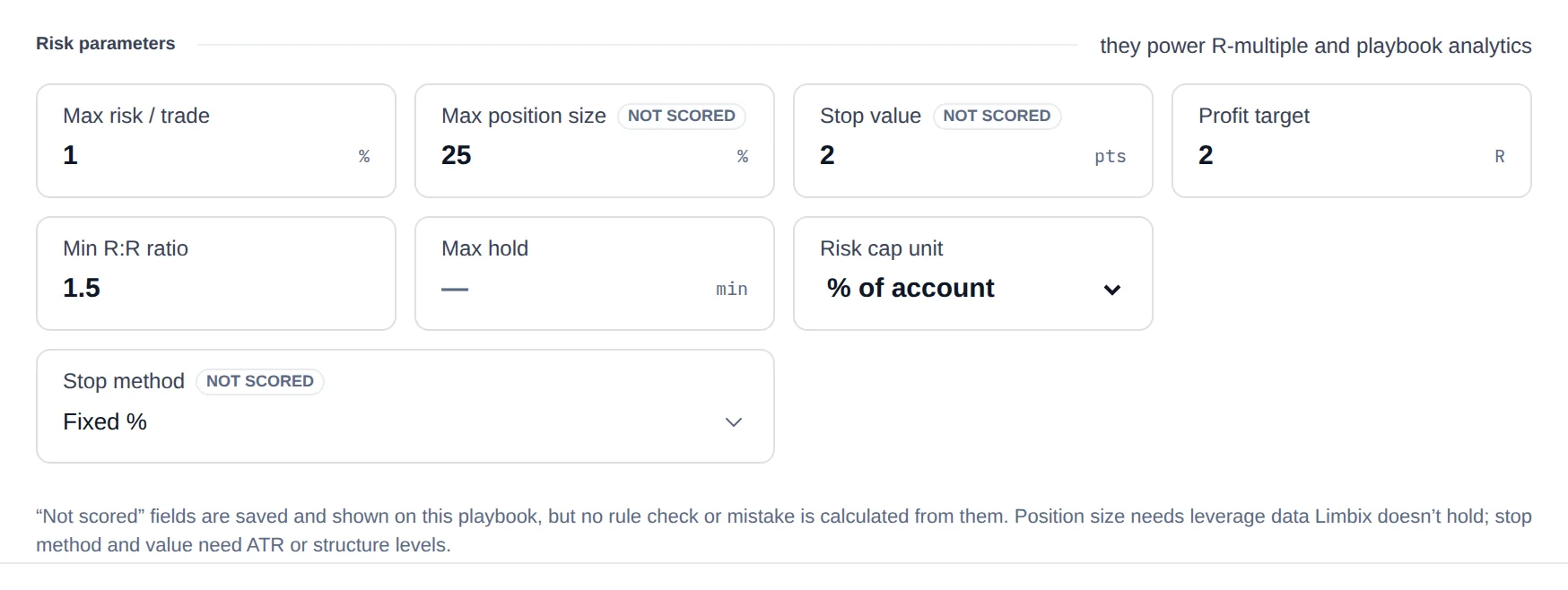
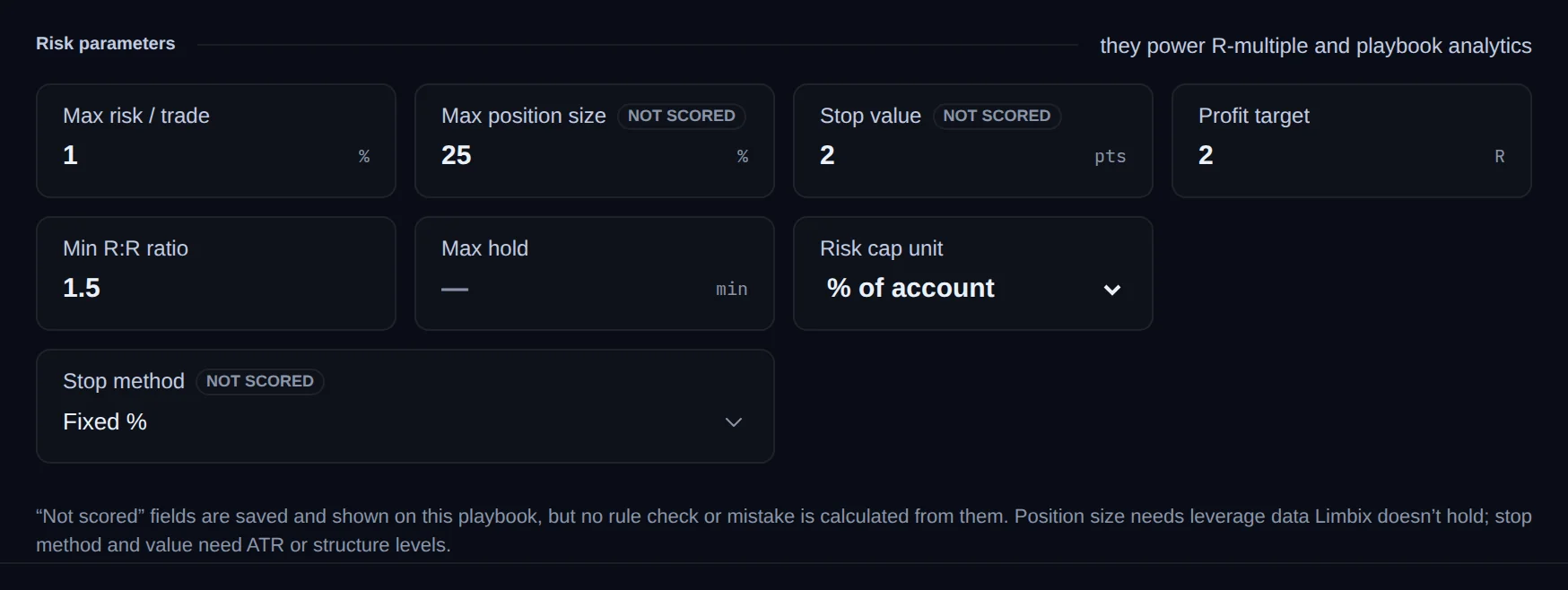
Your playbook gets its own risk cap, minimum reward-to-risk and maximum hold, and each linked trade is checked against them.
Open the sheet
Open the playbook and click Edit. Scroll to Risk parameters.
Set the max risk per trade
Enter Max risk / trade, then choose its unit under Risk cap unit: % of account or Currency amount.
Set reward and time limits
Enter Min R:R ratio, Profit target (in R) and Max hold (in minutes). Leave Max hold empty if you have none.
Fill in the rest if you want
Max position size, Stop method and Stop value are saved and shown, but marked not scored.
Save
Click Save changes.
What each parameter does to your numbers:
| Parameter | Checked against | Feeds |
|---|---|---|
| Max risk / trade | The trade's risk amount (needs a stop) | Risk Rule Adherence |
| Min R:R ratio | The trade's expected R:R (needs a stop and a take profit) | Risk Rule Adherence |
| Max hold | How long the trade was open | Risk Rule Adherence |
| Profit target | A winner's realized R, when the trade has no planned target of its own | The cut-winner-early mistake detector |
| Max position size, Stop method, Stop value | Nothing | Shown on the playbook only |
Archive or delete a playbook#
You retire a setup without losing the history, or remove it for good while its trades stay scored.
Archive it
Open the playbook and click Archive at the top. It leaves the ranked library, keeps its history, and stops taking new trades. You can still edit it.


Bring it back
Open an archived playbook and click Reactivate, or click Restore on its row in the library.
Delete it
Scroll to Delete playbook at the bottom of the playbook page. Type the playbook's name in the box to confirm.
Confirm the delete
Click Delete playbook. It moves to a read-only Deleted state and cannot be restored.


Or let Limbix archive for you
At the bottom of Playbooks, under Auto-Archive Playbooks, choose Never, After 90 days unused or After 180 days unused.
Choose what to keep after a downgrade#
You pick which playbooks stay usable on Essential, and the rest are kept safe but frozen.
Open Playbooks
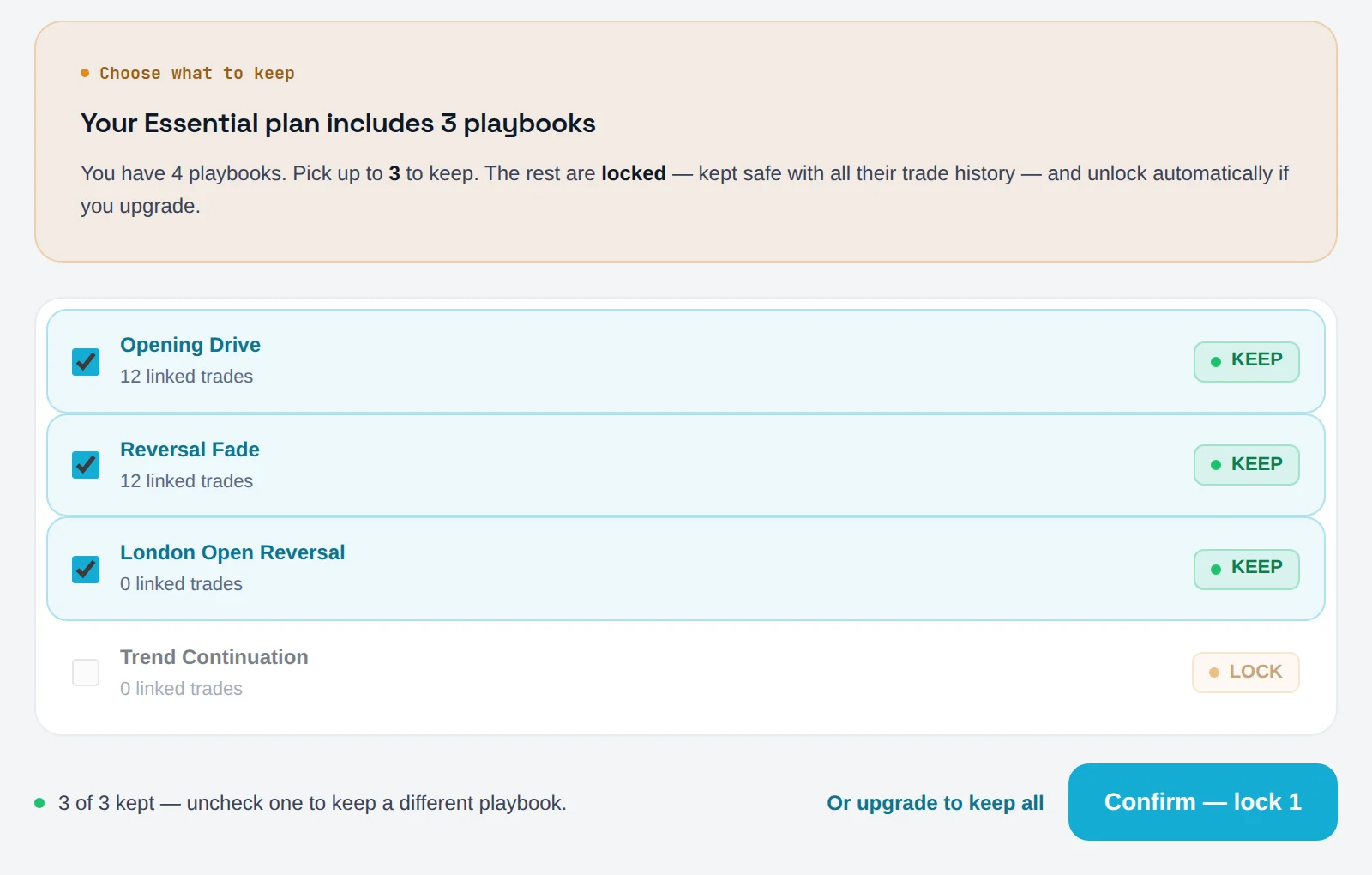
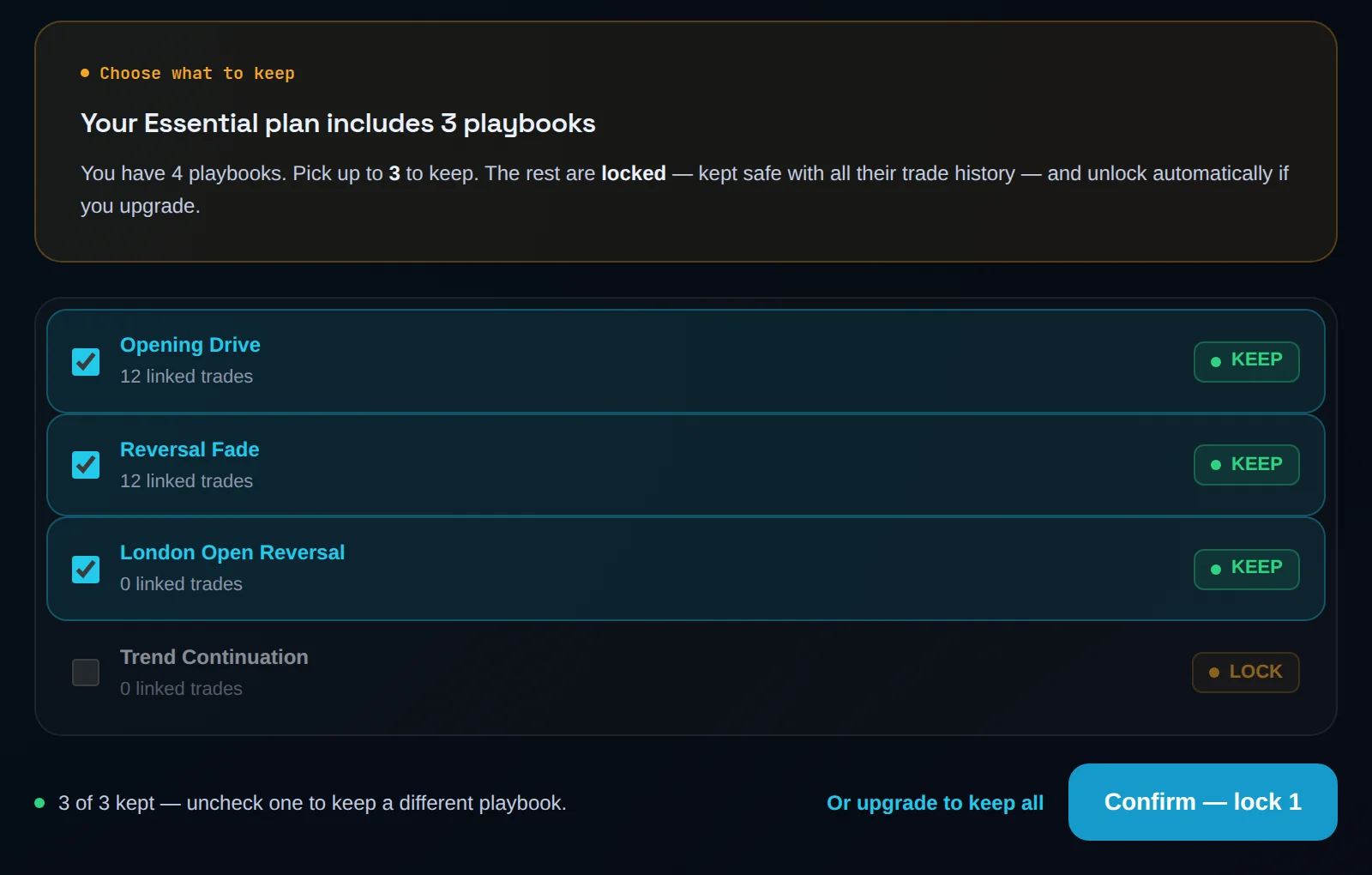
After moving to Essential with more than 3 active or archived playbooks, Playbooks opens on Choose what to keep.
Tick the ones to keep
The heading reads "Your Essential plan includes N playbooks". Tick up to that many. Each row shows its linked trades and reads Keep or Lock.
Confirm
Click Confirm — lock N. Or click Or upgrade to keep all.
Link trades again
Once you confirm, you can link trades to the playbooks you kept.
A locked playbook keeps all its trade history but cannot be edited or linked to new trades. Trades already linked to it keep the link. When you upgrade to Pro, every locked playbook returns as archived, and you Reactivate the ones you want.
Compare playbooks#
You see your setups side by side, so you know which ones earn their place.
Open a playbook
On Playbooks, click any playbook's row.
Click Compare
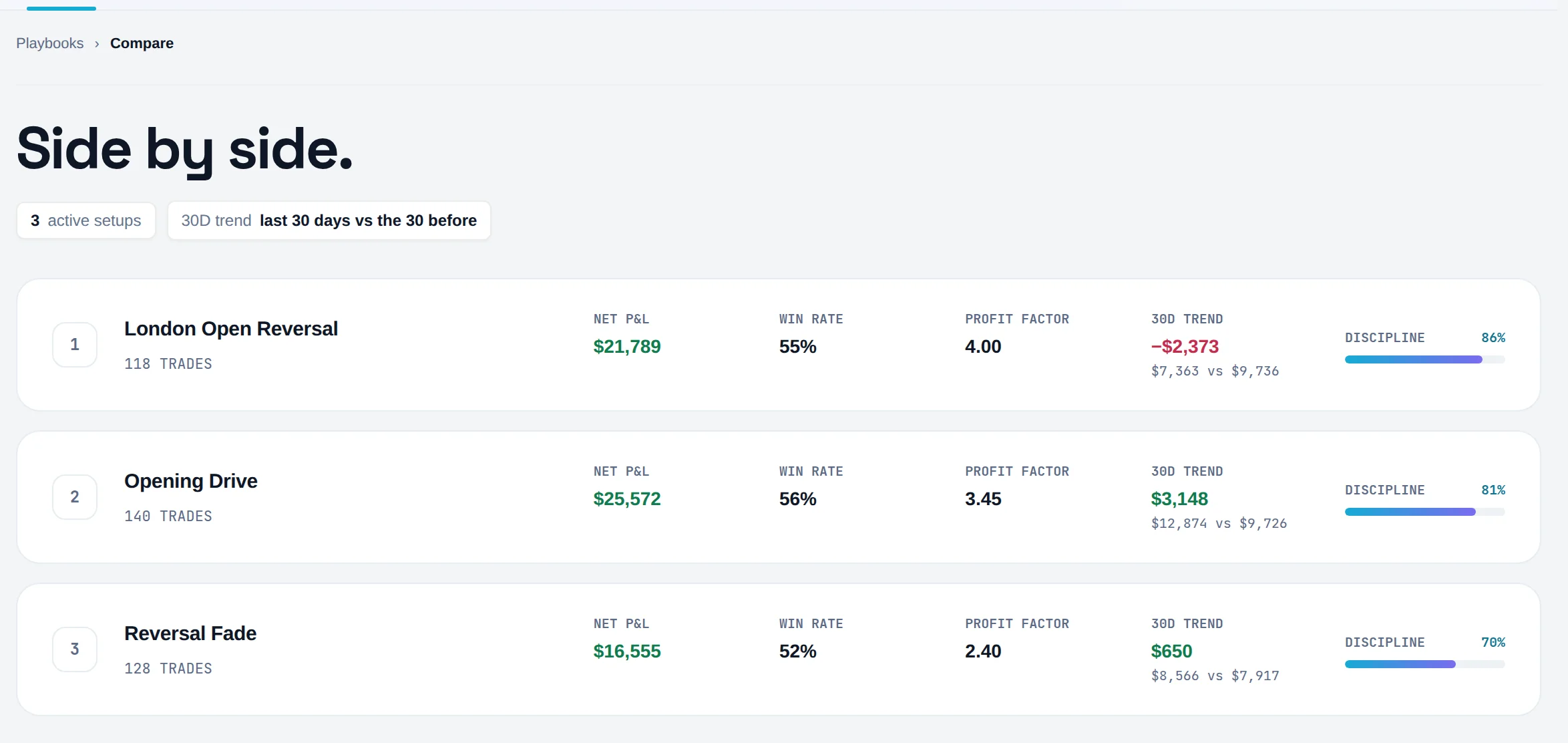
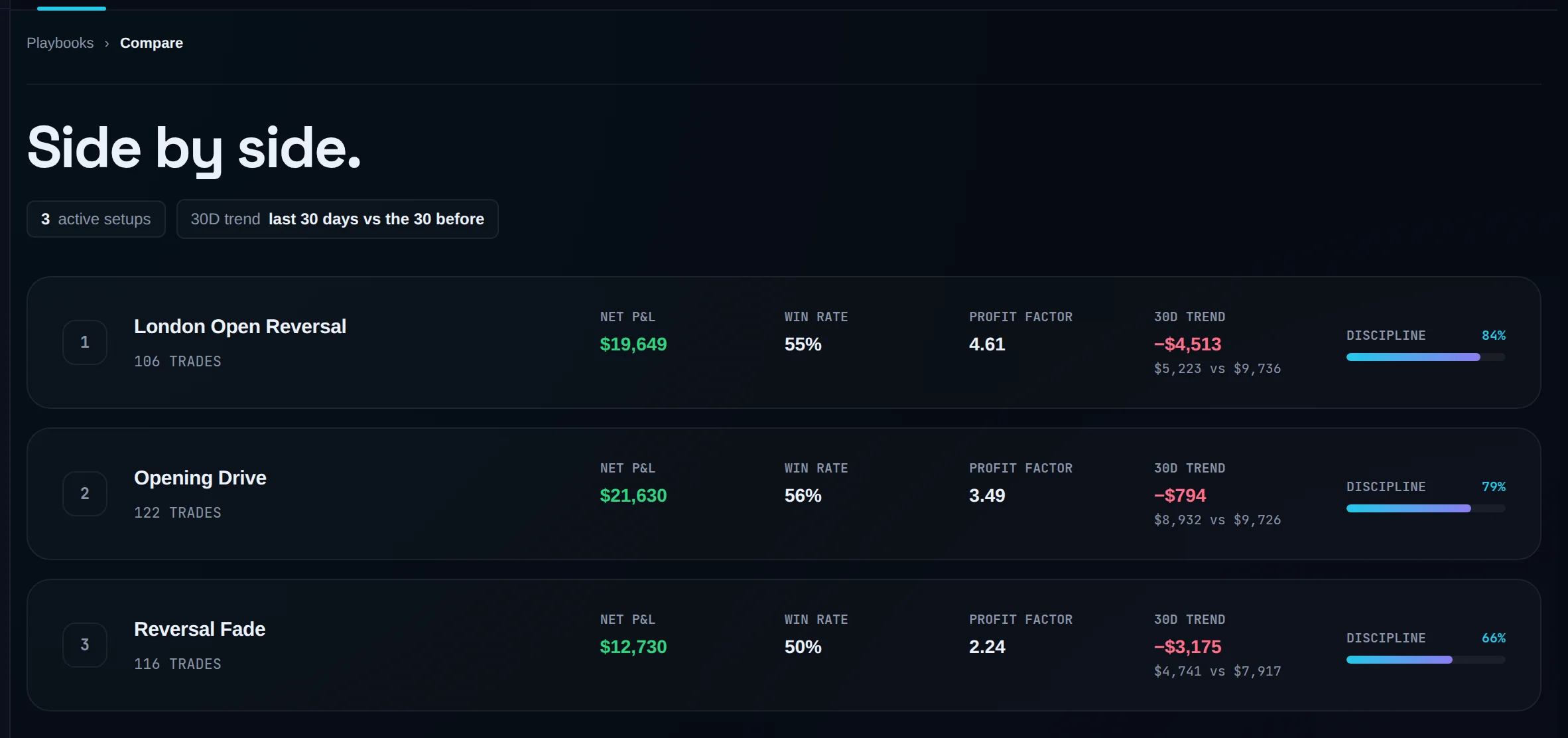
Click Compare at the top. The view reads Side by side.
Read the rows
Each active playbook shows its trades, NET P&L, WIN RATE, PROFIT FACTOR, 30D TREND (the last 30 days vs the 30 before) and DISCIPLINE.
Open one
Click a row to open that playbook.
On Essential, the view explains that comparing setups is part of setup-level analytics and offers Upgrade to Pro or Back to playbooks.
Common problems#
"You already have a playbook with that name." Names are unique across your active, archived and locked playbooks. Pick another.
"A name and at least one rule are required." Add a rule before saving.
I archived a playbook but still can't create one. Archived playbooks still count toward the Essential limit. Delete one, or upgrade.
"This playbook is locked because you're over your plan limit." It was locked after a downgrade. Upgrade to Pro to use it again.
"This playbook still uses legacy risk inputs." Save the playbook once to move it to the current risk fields.
The playbook doesn't appear when I link a trade. It is archived, deleted or locked. Only active playbooks can take new trades.
Frequently asked questions#
How do I create a trading playbook?#
Write down one setup you already trade: its name, what has to be true before you enter, and three to five rules you can answer yes or no after the trade. In Limbix, click New playbook, pick a template or start from scratch, add the rules, set the risk parameters and click Create playbook. Then link every trade of that setup to it, so each one is graded against those rules.
How many rules should a playbook have?#
Enough to describe the setup, and no more than you will actually check. Every rule is a check on every linked trade, so ten rules means ten chances to fail per trade. Most setups are covered by an entry rule, an exit rule and one risk or timing rule. Your average rules per playbook also sets the weight of phantom checks on impulsive trades, so bloated playbooks make impulsive trades cost more.
What happens to my trades if I delete a playbook?#
They stay exactly as they were. A deleted playbook becomes read-only, but its rules are kept, so every linked trade keeps its rule checks and its place in your Discipline Score. The trades show a Deleted badge. A deleted playbook cannot be restored or linked to new trades. If you might want the setup back, archive it instead.
How many playbooks can I have on Essential?#
Essential includes 3 playbooks, and Pro and Ultimate are unlimited. Active and archived playbooks both count. Deleted and locked ones do not. If you move to Essential with more than that, Limbix asks you to choose which to keep; the rest are locked with their history intact and come back as archived if you upgrade.
Does a playbook's risk cap override my account's max risk per trade?#
Both apply, and the stricter one wins. Risk Rule Adherence checks each trade's risk against the strictest cap that applies to it, from your account settings or its playbooks. A setup you trade smaller than usual can carry a tighter cap than your default. When a trade is linked to several playbooks, the strictest of each limit is used.