
02 · Guides
Onboarding: set up your Limbix trading journal
Set up your trading journal in two steps: pick a market, create your account and risk profile, then write the first playbook your trades are graded on.
Limbix onboarding sets up your trading journal in two steps. Trading account records your timezone, currency, account size, risk cap and the market you trade. First playbook writes the rules your trades will be graded on. It takes a few minutes, and every answer can be changed later.
Before you start#
Have three numbers ready: your account's starting balance, the most of it you allow one trade to risk (as a percentage), and your local timezone. The risk cap is optional. The balance is not.
The screen shows Step 1 of 2 at the top. On a wide window, the left rail lists both steps with a status: In progress, Saved or Optional.
Choose the market you trade#
Your first account is created for the market you pick, which decides whether you can import files and log trades by hand.
Scroll to the market cards
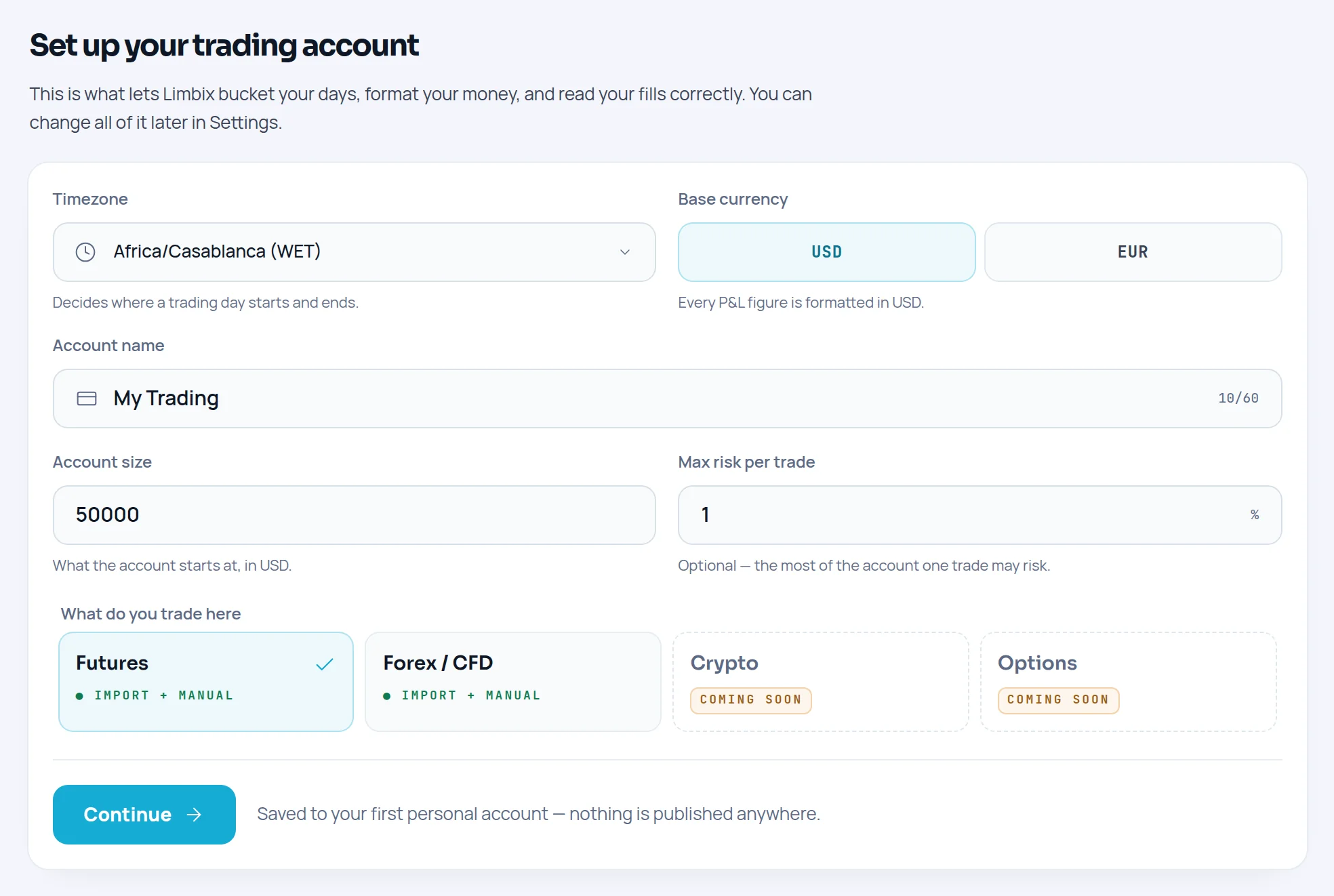
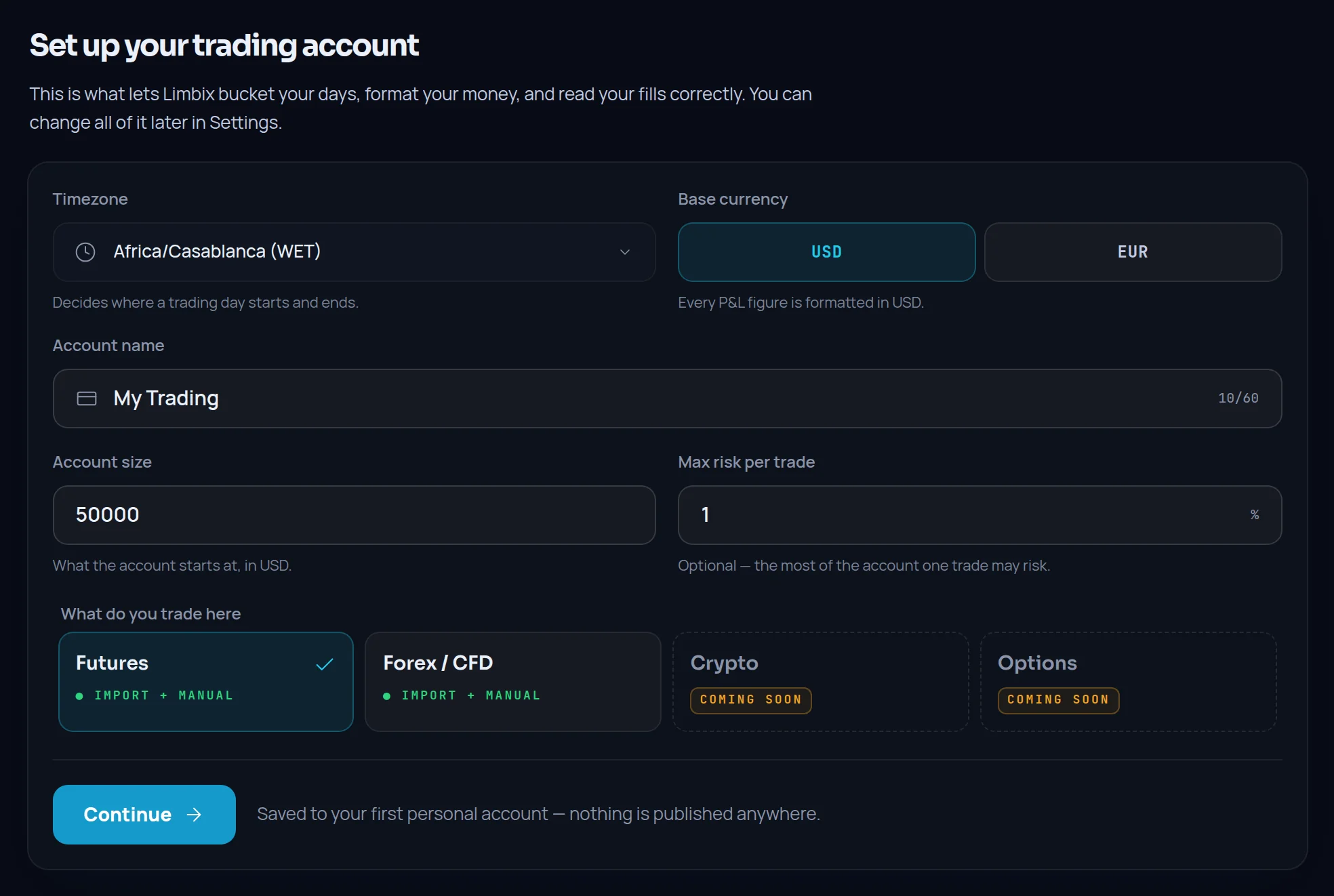
On Set up your trading account, find What do you trade here at the bottom of the form.
Pick Futures or Forex / CFD
Click Futures or Forex / CFD. Both cards read ● Import + manual, and a tick marks your choice.


Leave the others
Crypto and Options show Coming soon and cannot be selected. They are listed so you can see what is planned, not because they work today.
Set up your trading account for the journal#
Limbix learns where your trading day starts, which currency to show, and what one trade is allowed to risk.
Choose your timezone
Under Timezone, pick the zone you trade from. The hint reads "Decides where a trading day starts and ends."
Choose your base currency
Under Base currency, click USD or EUR. Every P&L figure is formatted in it. Currency display can be changed later in Settings › Appearance.
Name the account
Type an Account name, for example "My Trading". You can rename it later.
Enter your account size
Under Account size, enter what the account starts at, in your base currency. This field is required.
Set your max risk per trade
Under Max risk per trade, enter the most of the account one trade may risk, as a percentage. Leave it empty if you have not decided. Limbix will not pick a number for you.


Save the step
Pick your market (see above) and click Continue. The note beside it reads "Saved to your first personal account — nothing is published anywhere."
What each answer changes:
| Field | Why it matters to your scores |
|---|---|
| Timezone | Groups trades into trading days, so daily P&L, the calendar and daily discipline land on the right date |
| Base currency | How money is shown everywhere |
| Account size | The denominator for any percentage rule, such as a risk cap set as a percentage. Saved as the account's starting balance |
| Max risk per trade | Flags a trade as an oversized position when it risks more than this, and feeds Risk Rule Adherence |
Create your first playbook#
Your first playbook gives Limbix three yes-or-no rules to grade your trades against, so your first review means something.
Pick a template
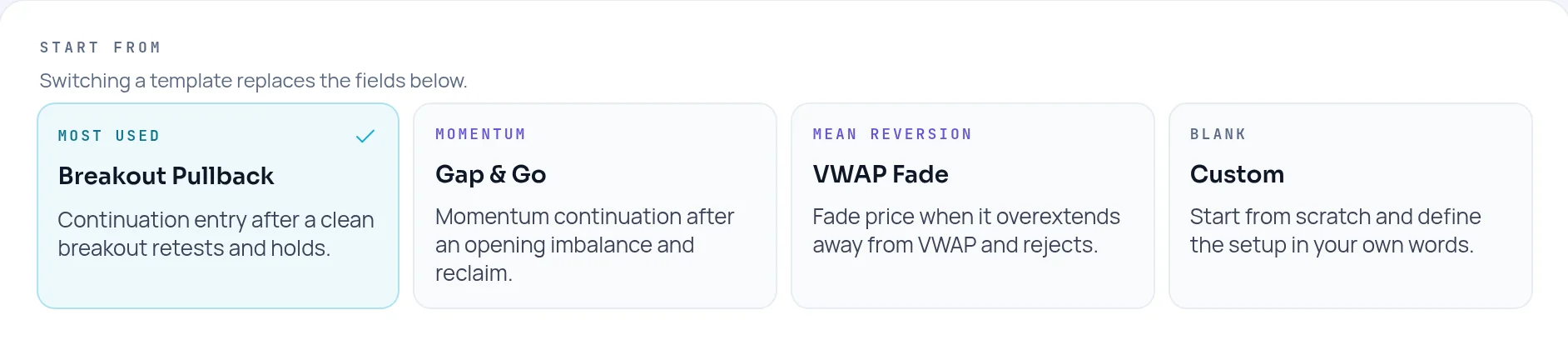
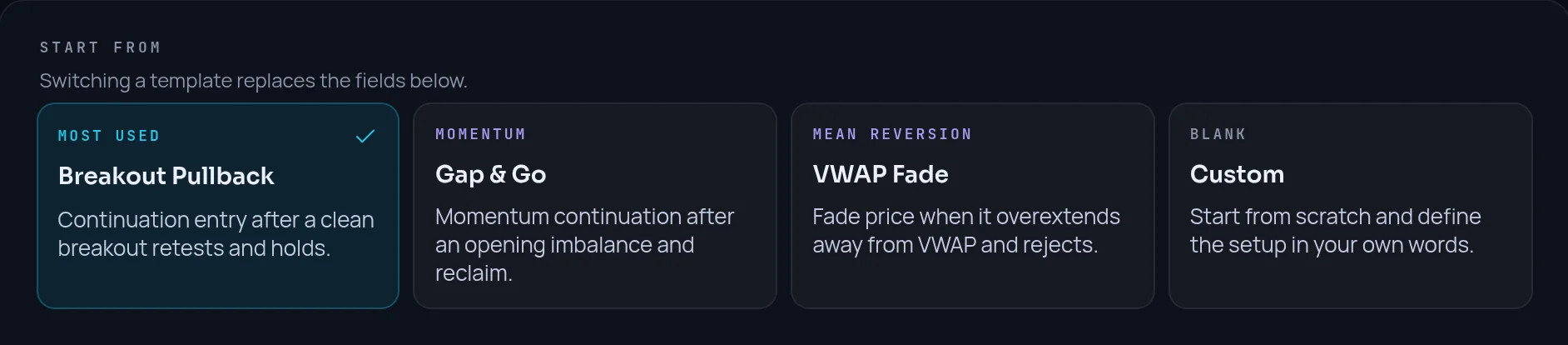
Under Start from, click Breakout Pullback (Most used), Gap & Go, VWAP Fade or Custom (Blank). Switching a template replaces the fields below.
Name and describe it
Edit Playbook name and Description. Describe what has to be true before you take the trade.
Write the three rules
Under The three rules you'll be graded on, fill in Entry criteria, Exit criteria and Rule. Each one has to be answerable yes or no.


Finish
Click Finish and import trades to go straight to the importer, or Finish and open dashboard.
The playbook starts with default risk parameters. Open it later from Playbooks to set your own max risk, minimum R:R and max hold. See set risk parameters.
Skip a step and come back later#
You can finish onboarding without a playbook, and you can leave halfway without losing what you saved.
Skip the playbook
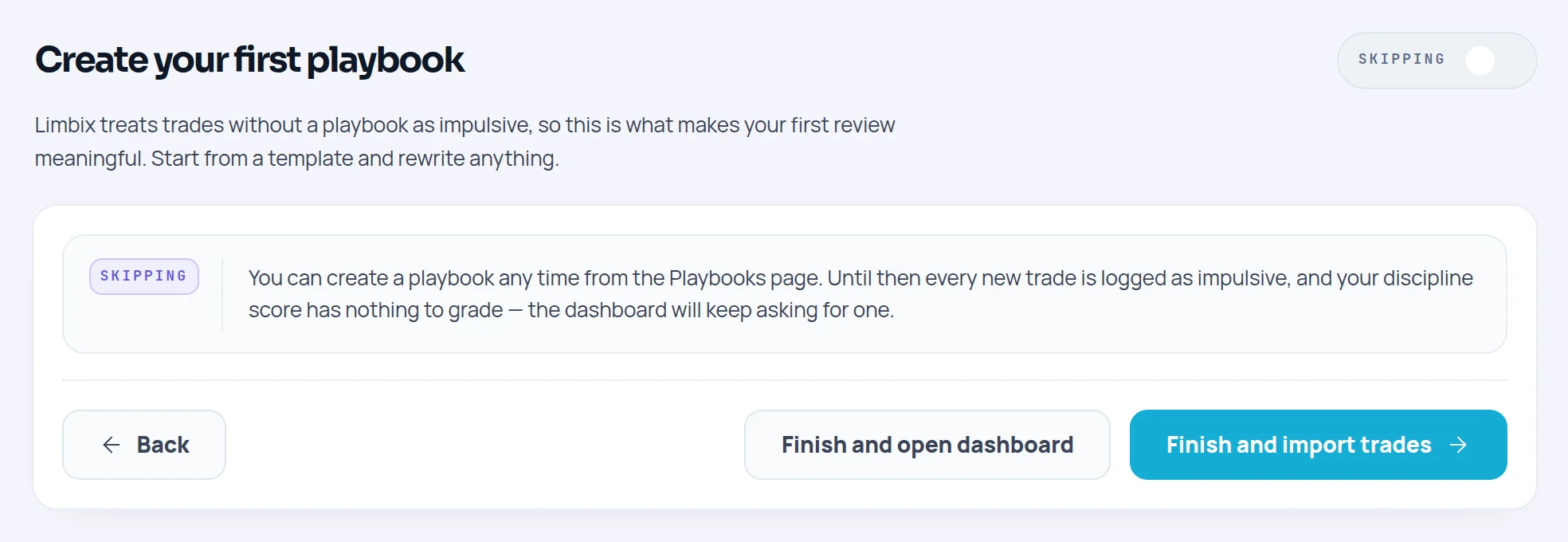
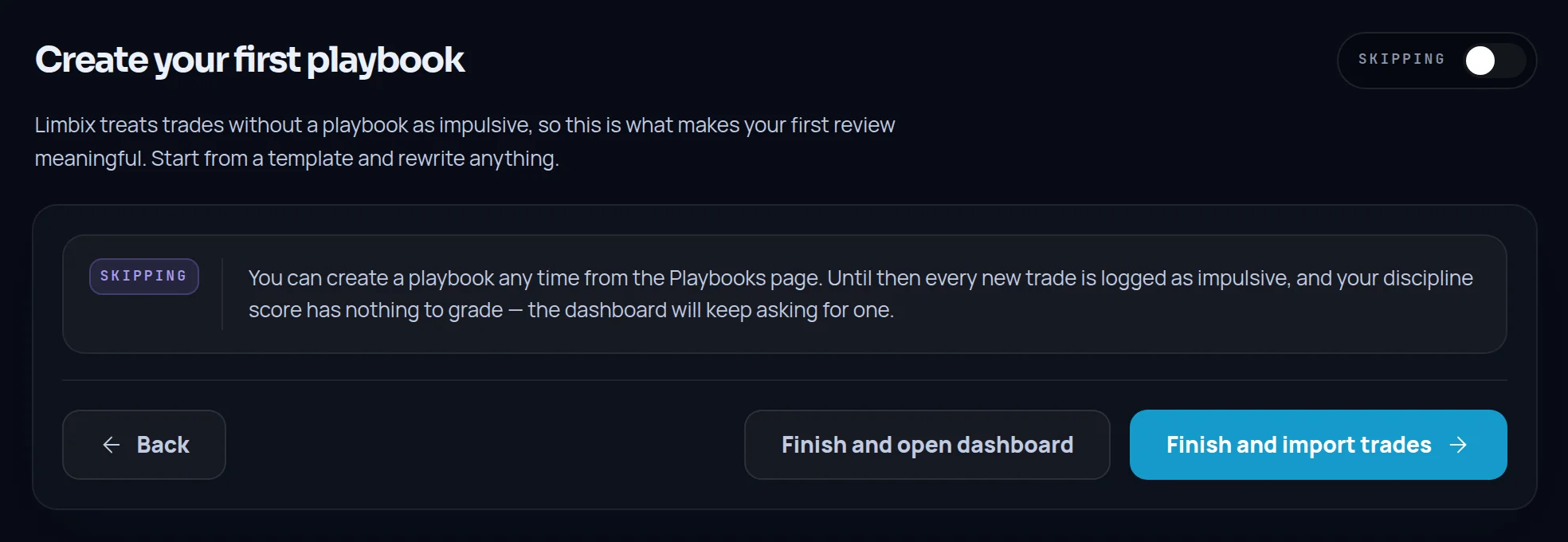
On Create your first playbook, click the switch that reads Creating one. It changes to Skipping, and the form is replaced by a note on what skipping means.
Finish without it
Click Finish and open dashboard or Finish and import trades.
Go back a step
Before finishing, click Back to return to Trading account. Your saved values are still there.
Leave and return
If you close the tab after step 1, your account is already saved. When you sign in again, Limbix brings you back to onboarding at First playbook. The rest of the app opens once you finish.
Add the playbook later
Open Playbooks from the sidebar and click New playbook. See create a playbook.
Onboarding runs once. After you finish, change your timezone in Settings › Profile, your account in Settings › Trading accounts, and your account size and risk cap in Settings › NEX.
Common problems#
"Account size is required." The balance field cannot be empty. Enter the account's starting balance in your base currency.
"That market isn't supported yet — pick futures or forex/CFD." Only Futures and Forex / CFD can be chosen. Pick the one closest to what you trade.
"You already have a playbook with this name. Pick another one." Rename the playbook, or skip it and create it later from Playbooks.
"Write this rule to continue." All three rule cards need text. Rewrite the template's rule or write your own.
I can't see Finish and import trades. The button only appears when your account can receive imports. Check the market on step 1.
Frequently asked questions#
Can I skip onboarding in Limbix?#
Not entirely. The app opens once onboarding is finished, and step 1 is required because it creates your trading account and saves your timezone and currency. Step 2, the first playbook, is optional: switch it to Skipping and finish. Until you add a playbook, new trades are logged as impulsive and your Discipline Score has nothing to grade. You can create it any time from the Playbooks page.
Can I change my timezone or account size after onboarding?#
Yes. Onboarding only runs once, but every answer lives in Settings. Change the timezone in Settings › Profile; Limbix regroups your history into trading days for the new zone. Change the account size and max risk per trade under Risk profile in Settings › NEX. Rename the account or add others in Settings › Trading accounts. Your first playbook is edited like any other on the Playbooks page.
Why does Limbix ask for my account size?#
Account size is the denominator for every percentage rule. If your max risk per trade is a percentage, Limbix needs the balance to turn it into money and compare it with what each trade actually risked. Without it, the oversized-position check and Risk Rule Adherence cannot run, and your Risk Score can stay blank. It is also saved as your first account's starting balance.
What makes a good first playbook rule?#
A rule you can answer yes or no after the trade. "Wait for the breakout to retest and hold before entering" works: either it held or it did not. "Be patient" does not, because nobody can grade it. Keep the three rules to the entry, the exit, and one risk or session rule. Your Discipline Score is the share of these checks you keep, so vague rules produce a vague score.
Can I trade crypto or options in Limbix?#
Not yet. Crypto and Options appear in onboarding marked Coming soon, and neither can be selected. Limbix currently rebuilds futures and forex/CFD trades only, for both file import and manual entry. Pick the market you trade most among the two supported ones. Additional markets will be selectable here when they ship.