
02 · Guides
Dashboard: read your trading day and P&L calendar
Read your trading day on the Limbix dashboard: net P&L, discipline and risk at a glance, a P&L calendar, period and unit switches, and any single day's summary.
The Limbix trading dashboard puts your day on one screen: net P&L and the equity curve, your discipline and risk scores, what drove your results, and a P&L calendar. You switch the period, filter by account or symbol, change the unit, and open any single day to see its trades and journal entries.
Before you start#
Open Dashboard from the sidebar under Core. Until your first trade, it shows a getting-started board instead of numbers: import or log a trade to fill it.
Every day on the dashboard is a trading day in the timezone on your profile. If the calendar puts a trade on the wrong date, fix the timezone in Settings › Profile.
Read your day on the trading dashboard#
In under a minute you know what today made, how disciplined it was, and how exposed your risk is.
Pick Today
In the period strip at the top, click Today.
Read net P&L and the curve
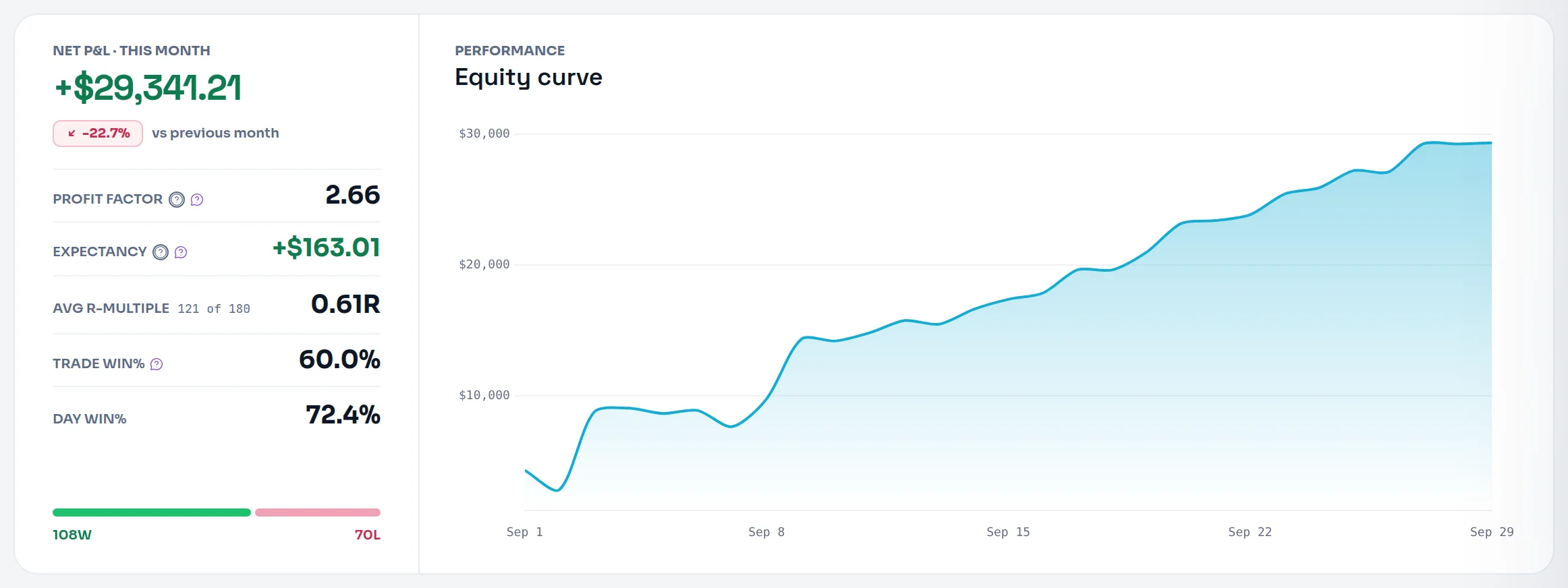
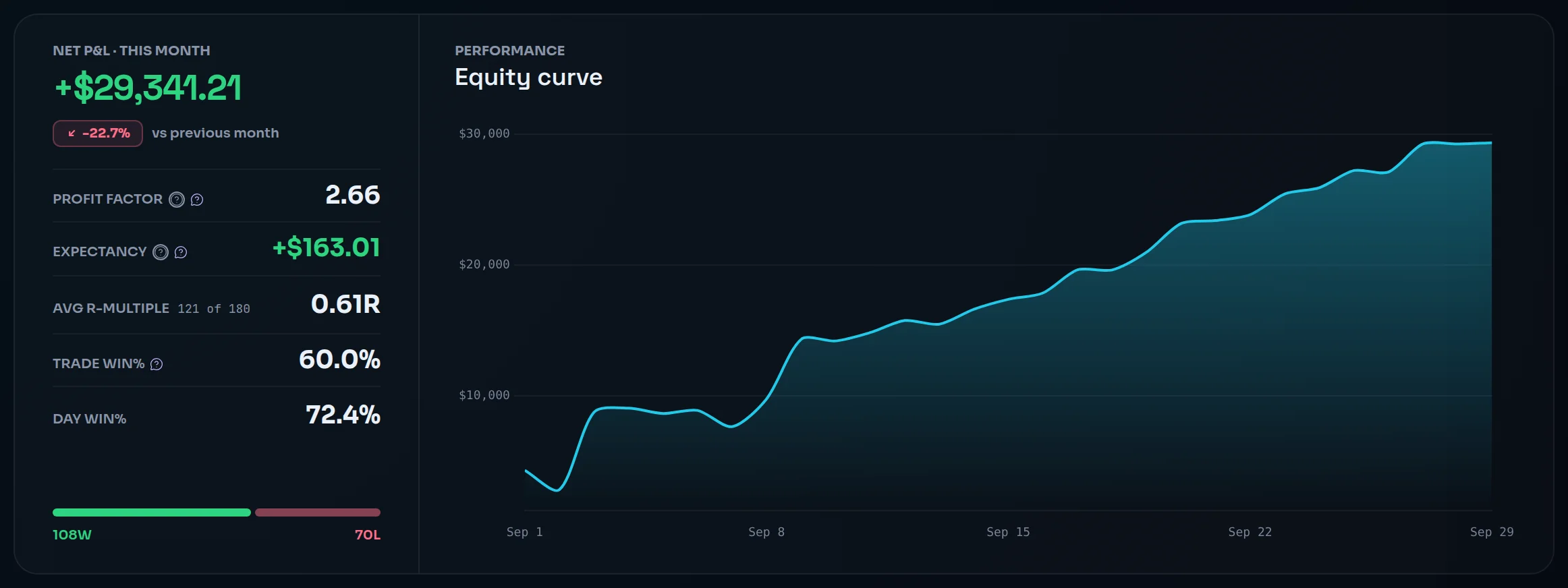
The main card reads Net P&L · Today, with the Equity curve under it. Beside it sit Profit factor, Expectancy, Avg R-multiple, Trade win% and Day win%. The screenshot shows the same card on Month, where it reads Net P&L · This month.
Read the Discipline card
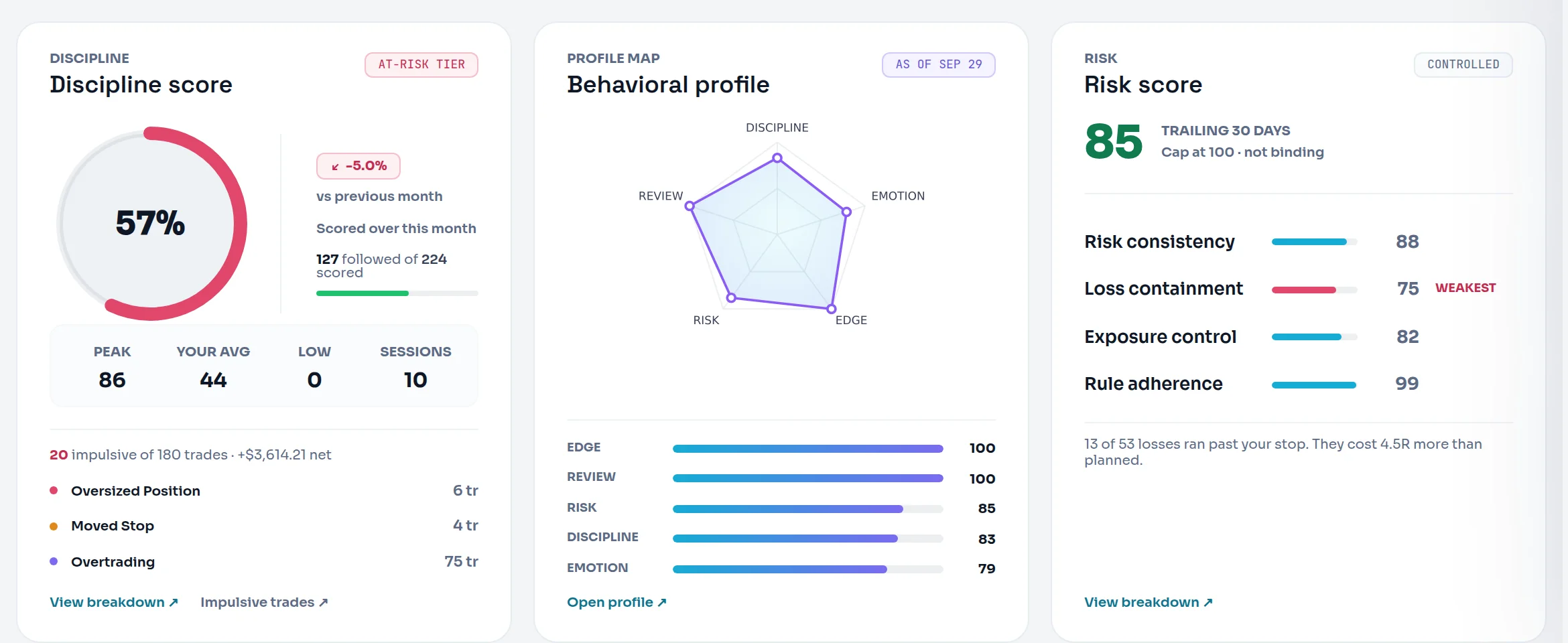
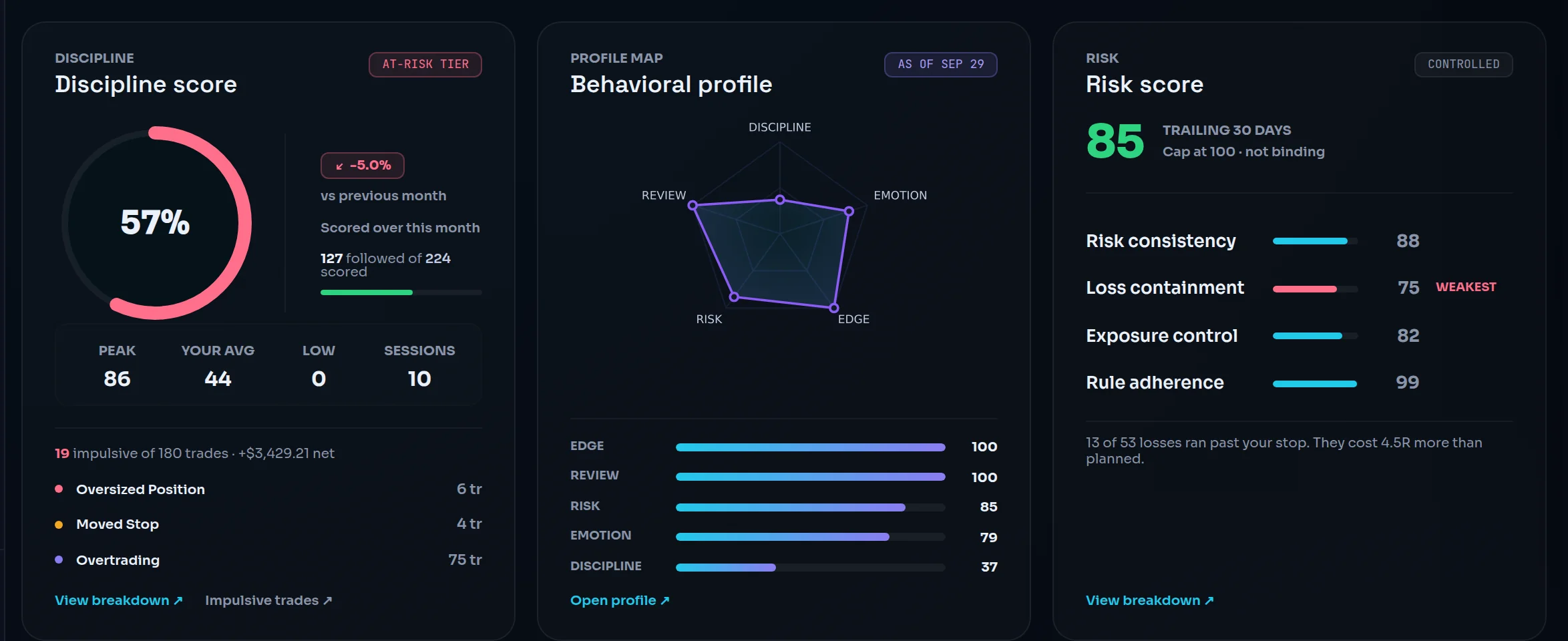
Discipline score shows your score for the range, with Peak, Your avg, Low and Sessions beneath it. The card hides itself when the range has nothing to score.
Read the Risk card
Risk score always covers the Trailing 30 days, whatever period you pick. It reads Not measurable yet until there is enough data.
See what drove it
Top emotional drivers shows how each emotion you tagged maps to P&L. R-multiple distribution shows where your trades landed in R.
Jump to the trades
Click the Trades figure under the period strip ("open these trades in the Trade Log") to see exactly these trades in the log.
The Discipline and Risk cards read "—" or hide until you have given them something to measure. Link trades to a playbook and add stops to fill them. Risk consistency needs 8 trades with a risk amount in the last 30 days, and loss containment needs 5 losers with a real stop.
Use the P&L calendar#
You see a month of trading days coloured by result, with weekly totals and the days that had impulsive trades.
Find the calendar
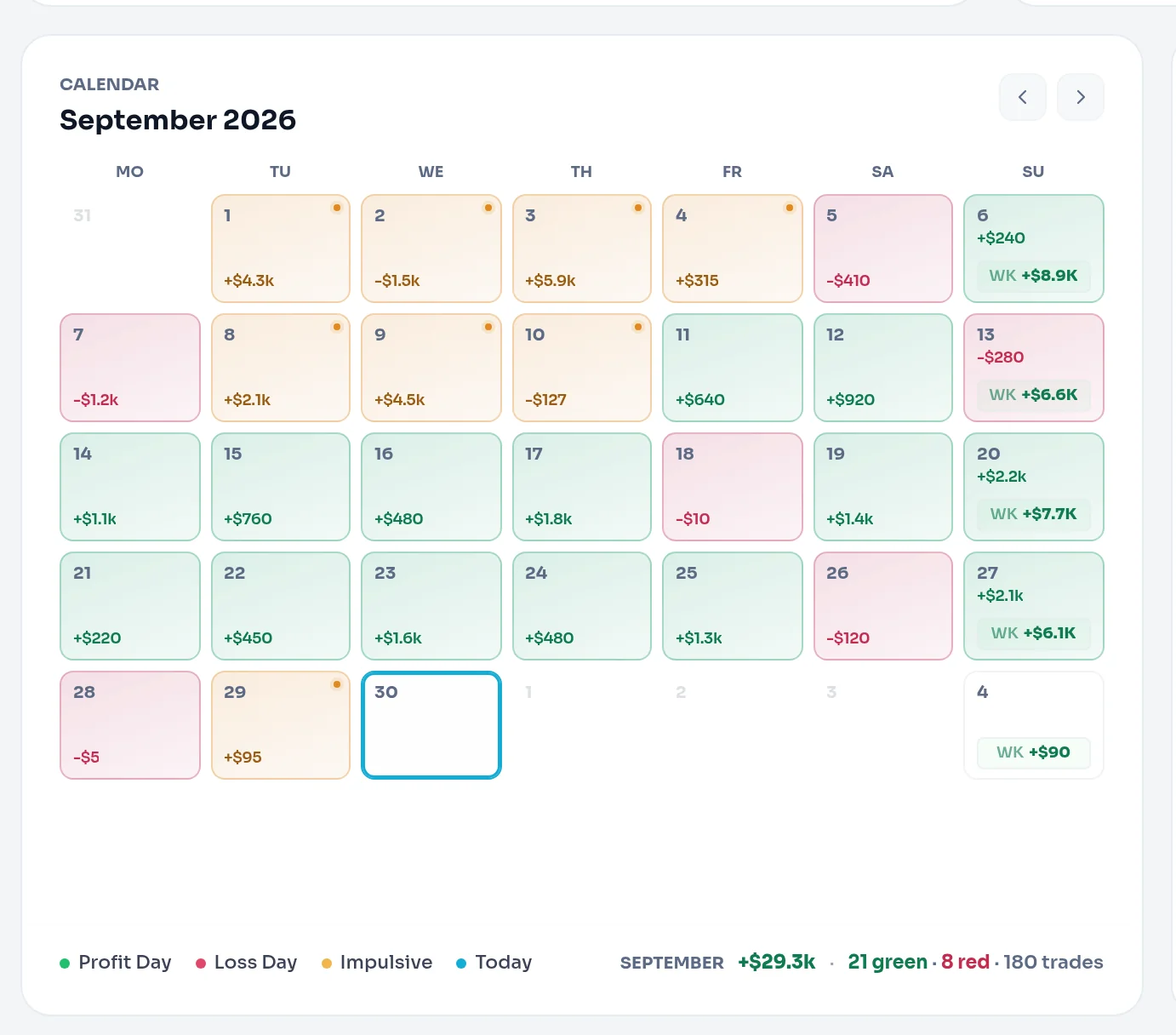
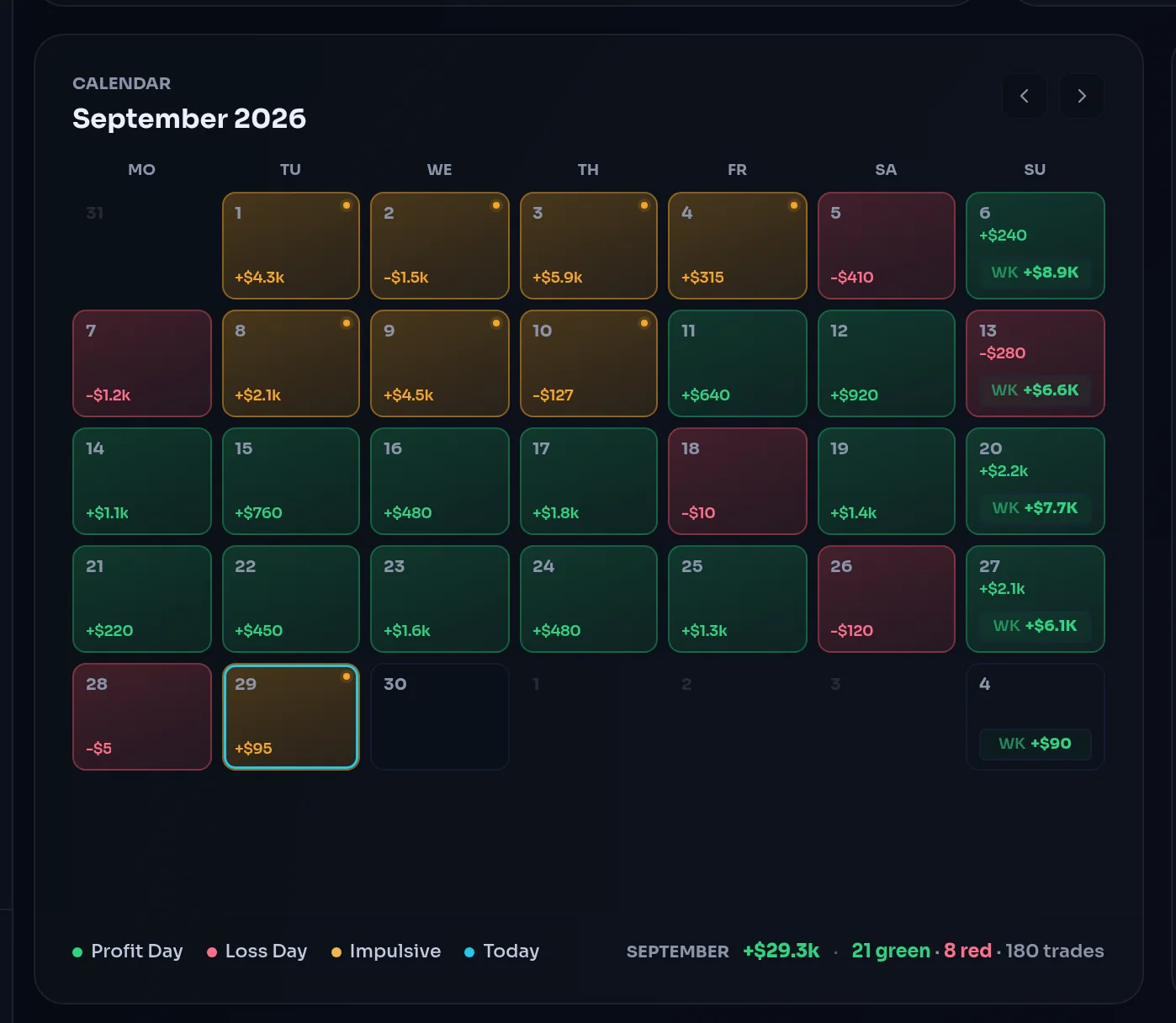
Scroll to the Calendar card. Each day shows its net P&L.
Read the colours
The legend reads Profit Day, Loss Day, Impulsive and Today. A day with an impulsive trade carries the impulsive marker as well as its result colour.
Read the week totals
The last cell of each week that had trades shows WK and the week's net P&L.
Change month
Use the previous and next month arrows beside the title.
See Net Daily P&L for how each day's figure is calculated.
Switch the period, filters and unit#
Every card on the dashboard recalculates for the range, accounts and unit you choose.
Pick a period
In the period strip, click Today, Week, Month, YTD or All. Week starts on Monday and Month is month to date, both in your timezone.


Pick an account
Use the account picker (All accounts by default) to look at one account.
Open the filters
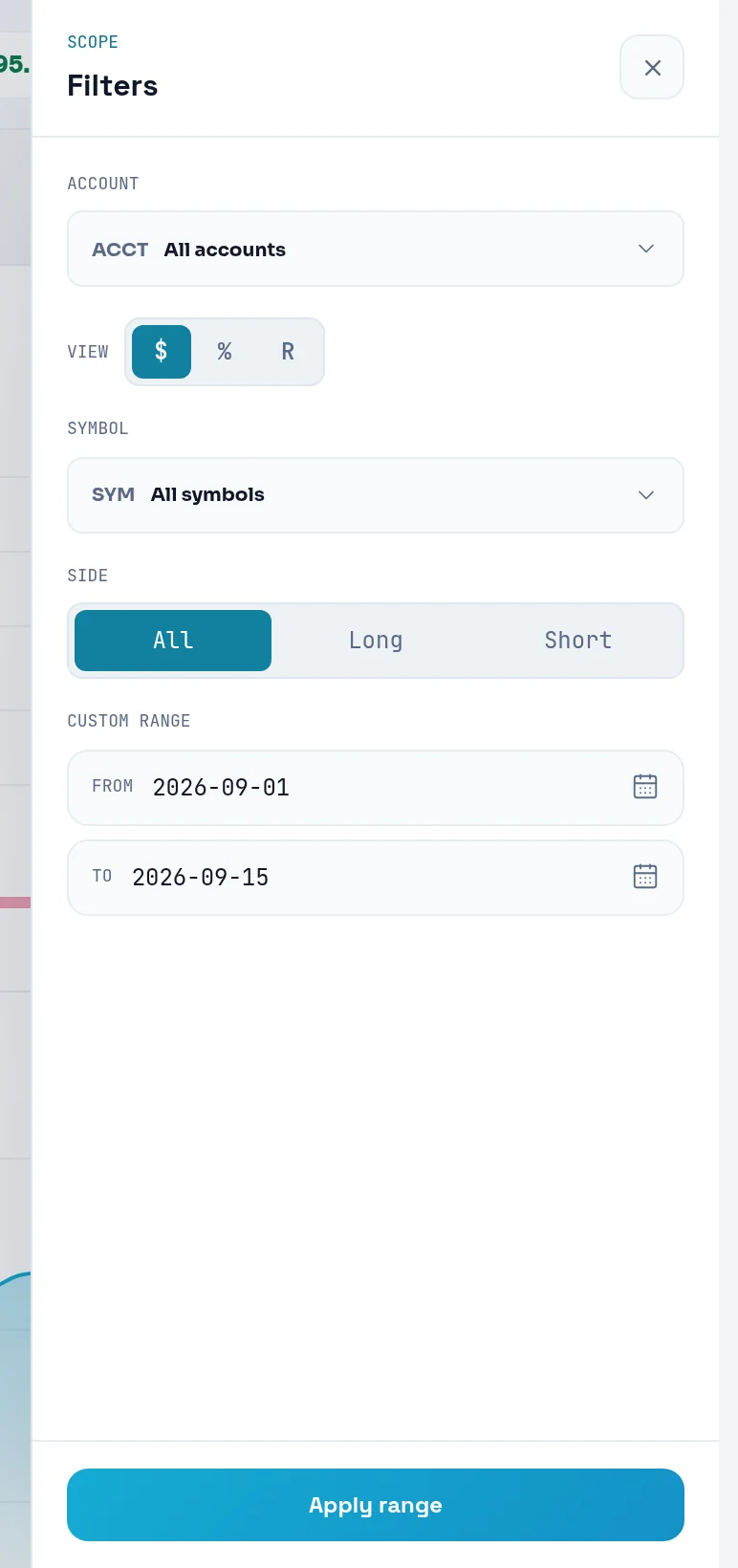
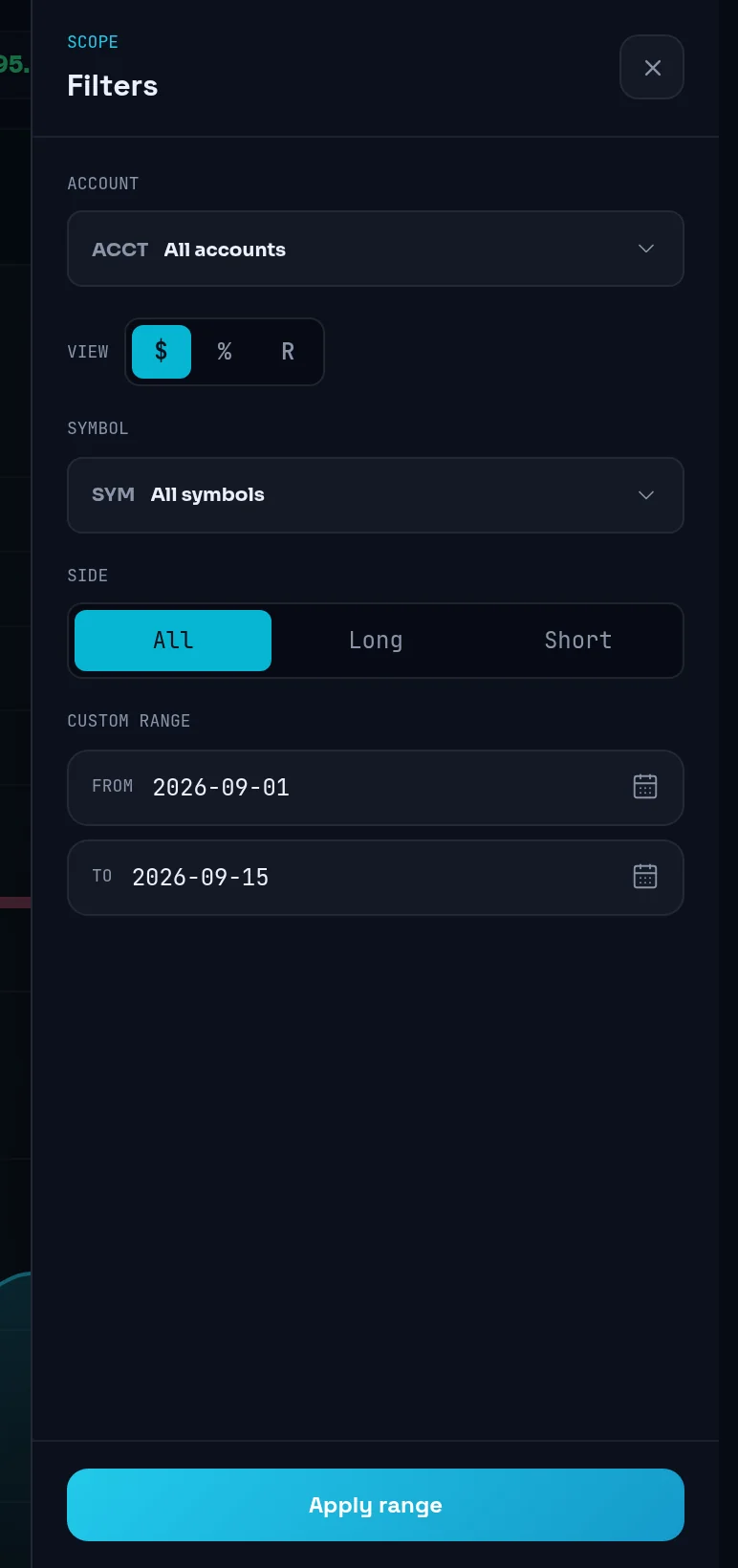
Click the filter button (Show filters). Set Account, Symbol and Side.
Set a custom range
Under Custom range, pick From and To, then click Apply range. No period segment stays selected while a custom range is on.
Change the unit
Switch between the unit buttons $, % and R. A greyed button explains why it is unavailable when you hover it. $ shows your P&L as recorded, with no currency conversion: the dashboard prints a $ sign even when your account trades in euros.
Clear filters
Under Active, clear one filter with its ×, or click Clear.
Open a single day#
You see one day's result, discipline, trades and journal entries in one panel.
Click a day
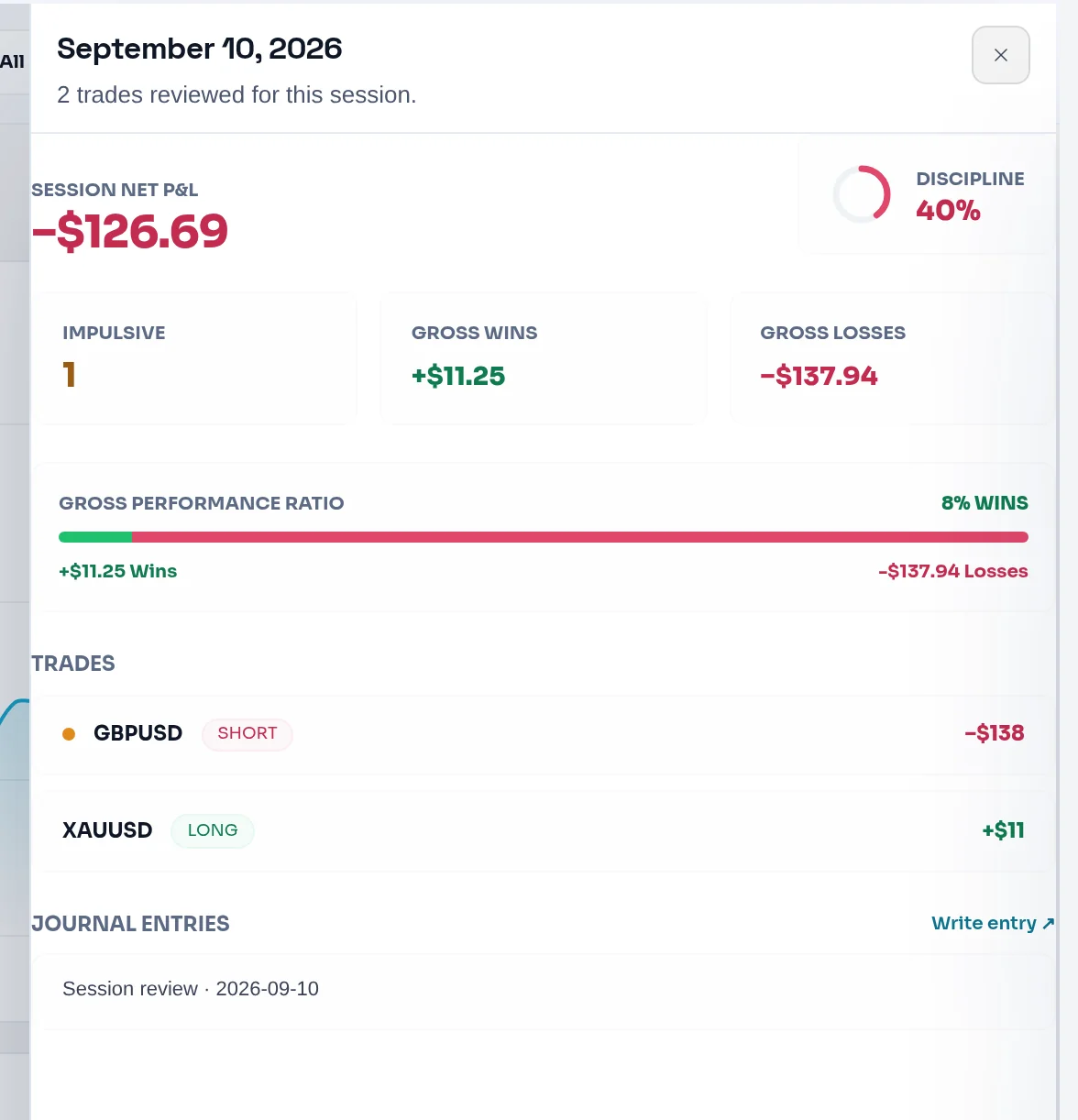
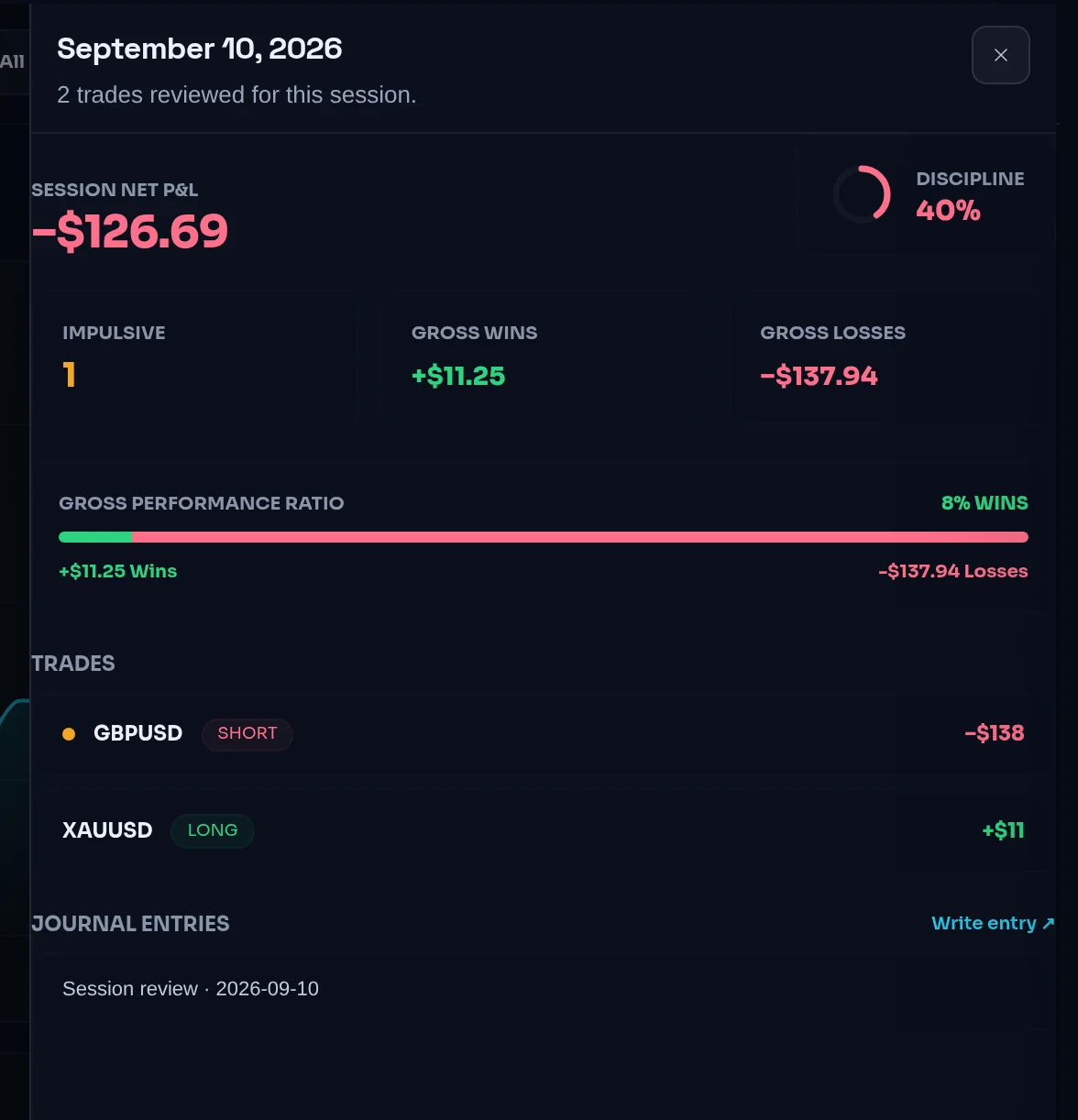
Click any day on the Calendar. Its summary opens, titled with the date.
Read the day
The panel shows Session Net P&L, Discipline, Impulsive, Gross wins, Gross losses and the Gross Performance Ratio.
Open a trade
Under Trades, click a trade to open its page in the trade log.
Write about the day
Under Journal entries, read the titles of that day's entries, or click Write entry ↗ to start a Notebook entry dated that day.
Close the panel
Close it to return to the dashboard with your filters unchanged.
Common problems#
"Nothing matches the current filters". The range or filters exclude every trade. Widen the range, clear the filters, or log a trade.
The Discipline card is missing. No trade in the range has playbook rules to score. Link trades to a playbook.
The Risk card says Not measurable yet. The last 30 days do not have enough trades with stops for enough of the score to be measured. Add stops, and set a daily loss limit so exposure can be scored too. See set your risk limits.
The % button is greyed out. The account has no starting balance. Set one in Settings › Trading accounts.
A trade shows on the wrong day. Your profile timezone is wrong. Changing it regroups your history.
"Couldn't load your dashboard". The data did not load. Reload the page.
Frequently asked questions#
What does the P&L calendar show?#
Each day of the month with its net P&L in your profile timezone, coloured as a profit day or a loss day, with a weekly total at the end of each week that had trades. Days with at least one impulsive trade carry an extra marker. Click any day to open its summary: net P&L, discipline, gross wins and losses, every trade, and that day's journal entries.
Why is my Risk Score different from the period I selected?#
The Risk Score always covers the trailing 30 days, whatever period the dashboard shows. It measures how survivable your recent trading is, and one good session cannot change that. Other cards, like net P&L and the discipline score, follow the period you pick. The Risk card labels its own window, Trailing 30 days, so you can tell the two apart.
Why does the dashboard show "—" instead of a number?#
A metric shows "—" when it cannot be calculated honestly, not when it is zero. Profit factor needs at least one losing trade. Avg R needs trades with a stop. The Risk Score needs enough trades with stops in the last 30 days. Each metric page explains its own threshold, and the fix is usually to add stops and link playbooks to your trades.
Does "Week" on the dashboard mean the last 7 days?#
No. Week is the current calendar week, starting on Monday, up to today. Month is month to date, and YTD runs from 1 January. All three use the timezone on your profile. For a rolling window or specific dates, open the filters and set a custom range, then click Apply range.
Can I see the dashboard for one account only?#
Yes. Use the account picker next to the period strip, or the Account filter in the filters panel. Every card recalculates for that account. This is how you keep a prop account, a personal account and a paper account from blurring each other's numbers. The Trades link then opens the trade log filtered the same way.