
02 · Guides
Reports: review a period of trading
Use Limbix trading reports to review any period: a stat sheet, metric lanes, breakdowns by symbol or hour, two-group comparisons, a P&L calendar and recaps.
Reports in Limbix is where you review a period of trading rather than hunt for one problem. Six tabs cover it: a stat sheet, metric lanes over time, breakdowns by symbol, hour or strategy, two groups side by side, a P&L calendar, and written recaps. Every one of these trading reports can switch between net and gross P&L.
Before you start#
Click Reports in the sidebar, under Analytics. It opens on Overview. The tabs are Overview, Performance, Breakdowns, Compare, Calendar and Recaps & Insights.
- Filters. Reports uses the same Filters drawer and range as Analytics. One filter set applies to all six tabs, and the chips beside the tabs show it.
- Layouts. Layouts saves the arrangement of a tab, such as the lanes you picked on Performance, under a name you type in Name this layout.
- Export. Most tabs have an Export button offering PDF, XLSX and CSV. Recaps export as PDF.
Read the Overview stat sheet#
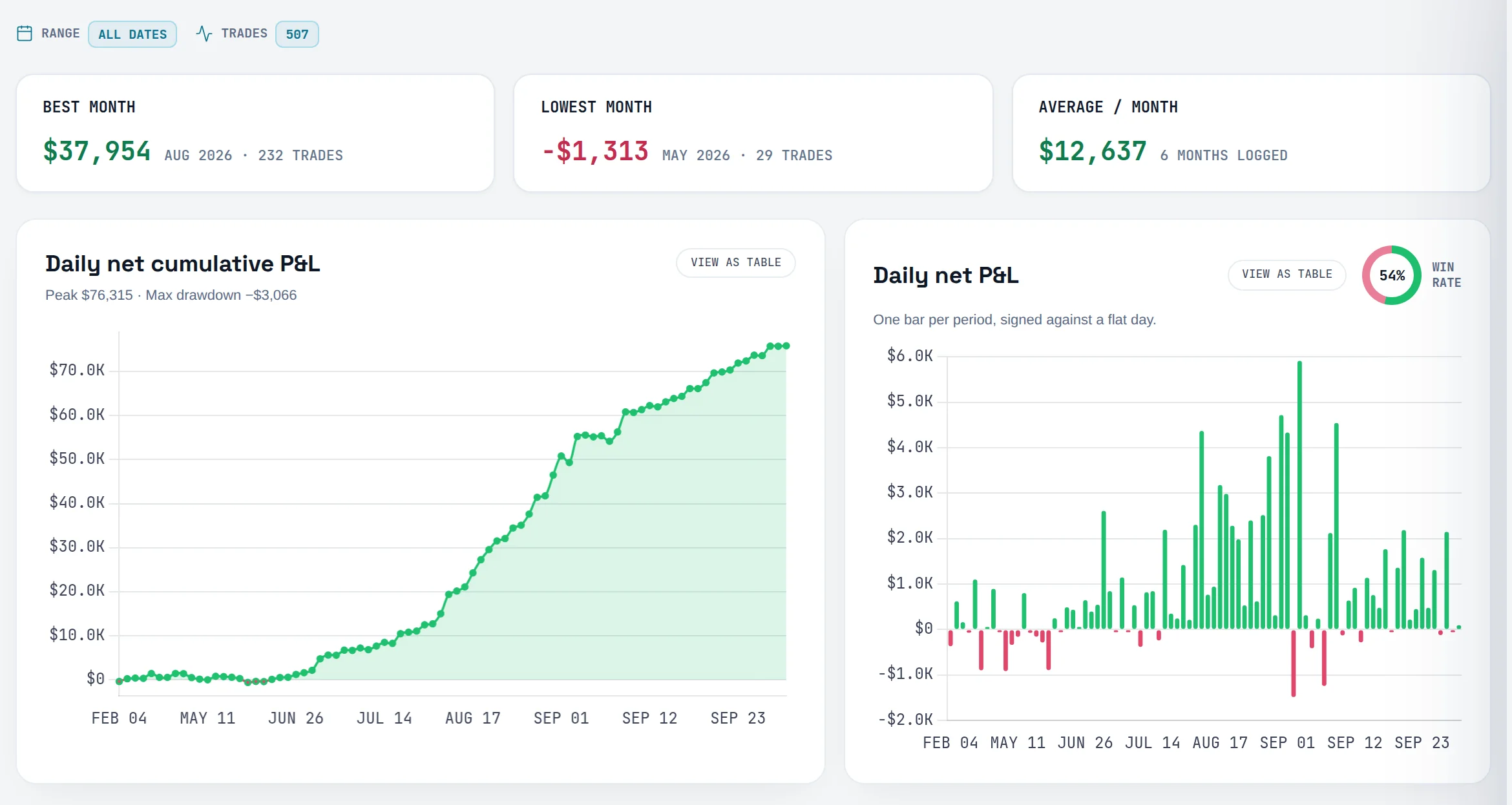
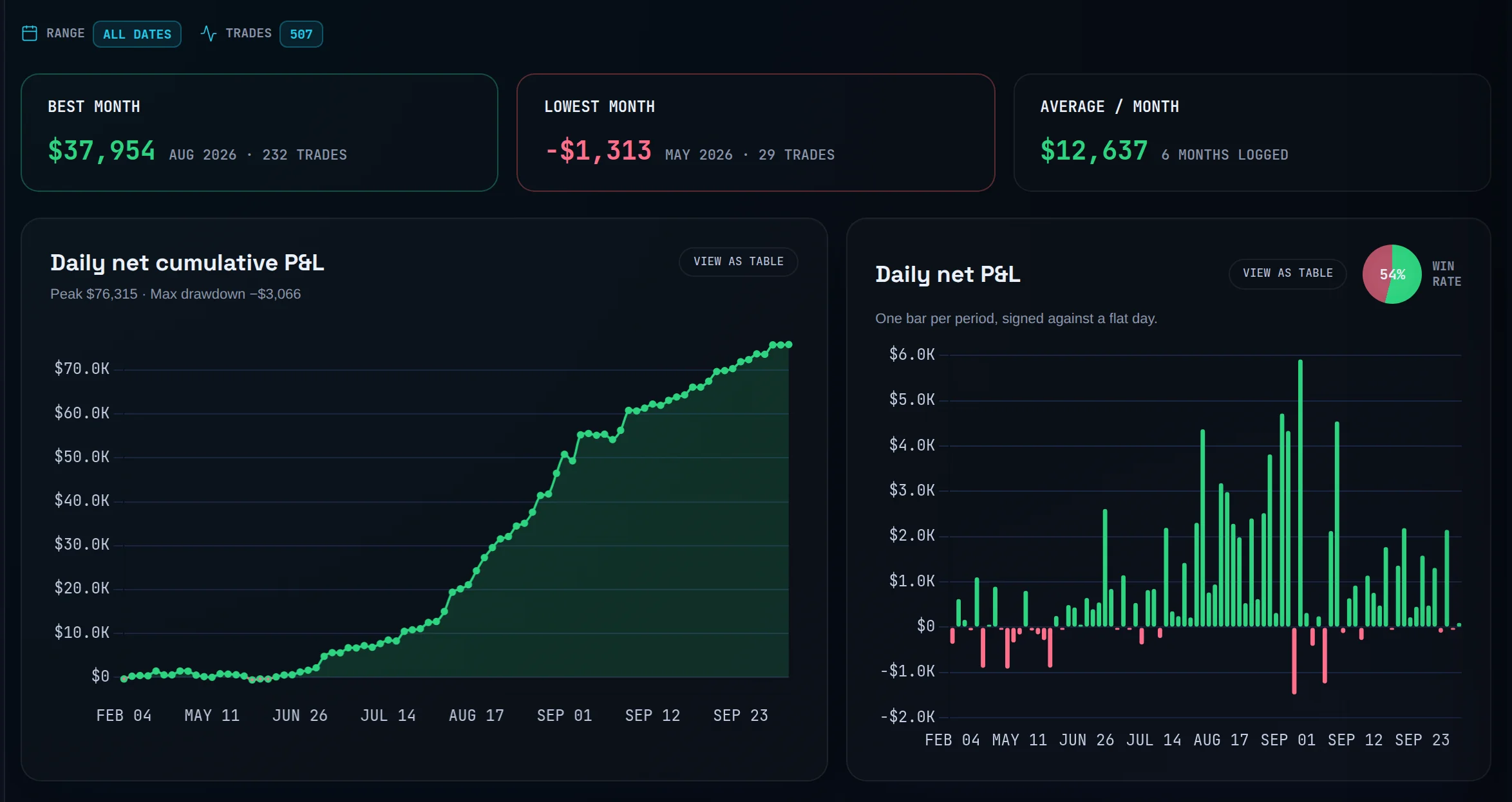
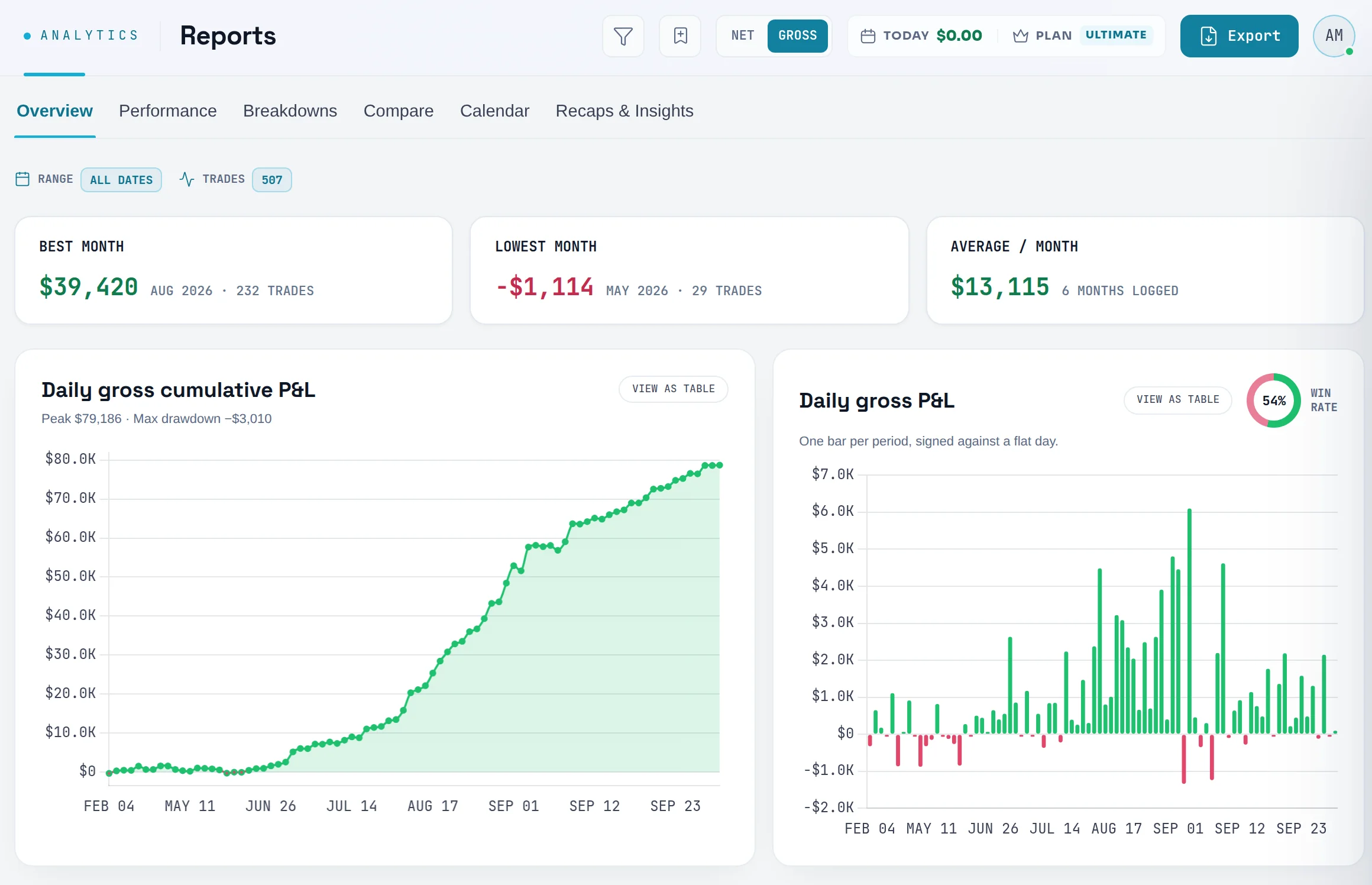
You will get the headline read of a period in one screen: best and worst month, the equity curve and your full stat sheet.
Check the scope
The Range and Trades facts at the top say which window and how many trades every number below comes from.
Read the month cards
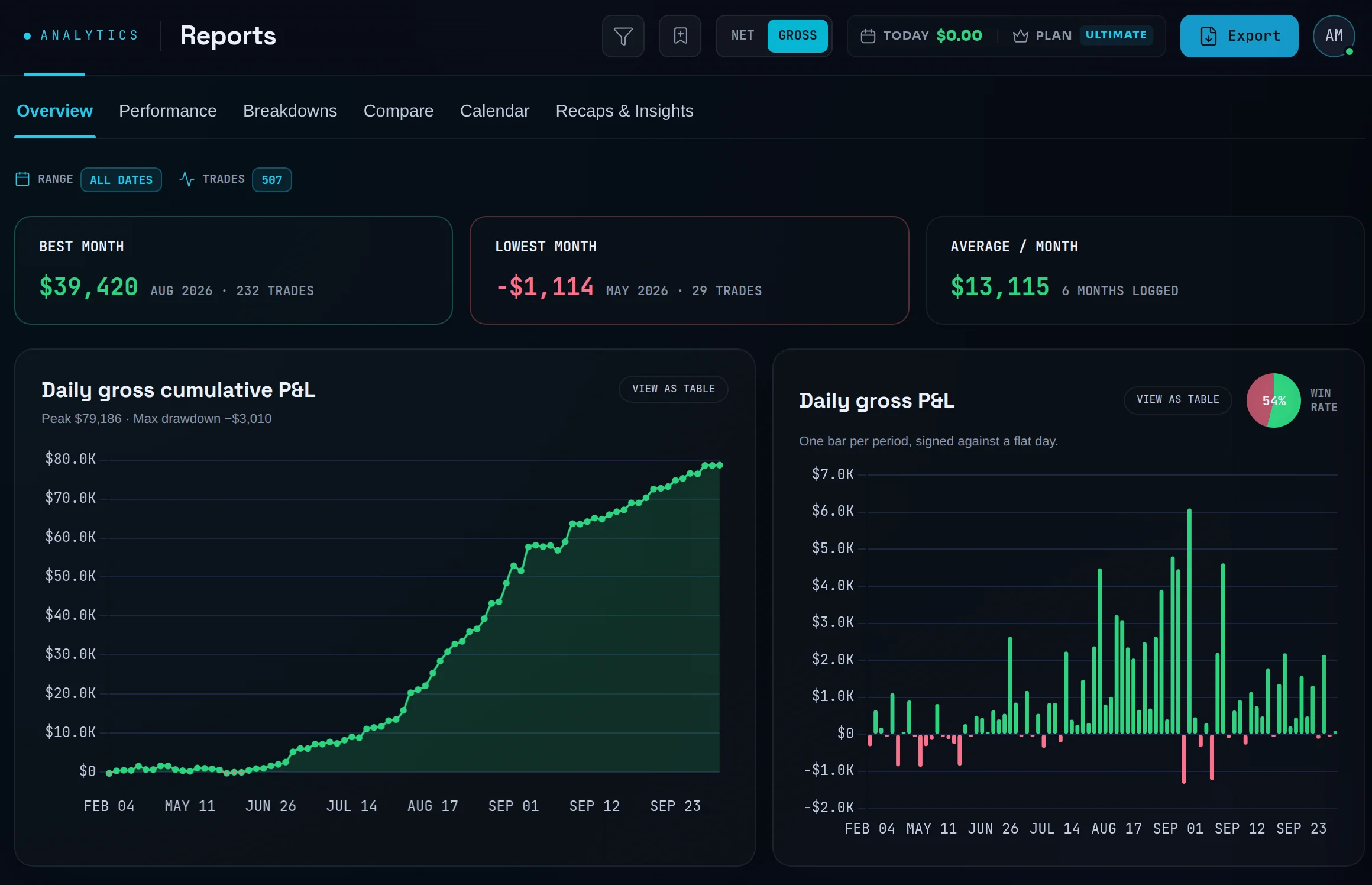
BEST MONTH, LOWEST MONTH and AVERAGE / MONTH show your extreme months and the monthly mean, each with its trade count. A card reads HIGHEST MONTH instead of best when no month made money. Click a month card to open it in Calendar.
Read the charts
The equity curve plots cumulative P&L. The daily bar chart beside it carries a ring with your wins, losses and breakevens.
Read the stat sheet
YOUR STATS lists every figure for the range. Hover a label, or tap it on a phone, to see why it is what it is.
Choose which stats show
Click the sliders icon, Choose which stats to show, and switch rows on or off.
What the main stats mean:
| Stat | What it means | Formula page |
|---|---|---|
| Net / Gross P&L | Total P&L on the basis you picked | Net P&L |
| Trade expectancy | Average P&L per trade | Trade Expectancy |
| Win % | Trades that closed above zero ÷ all trades | Win Rate |
| Profit factor | Gross profit ÷ gross loss | Profit Factor |
| Avg R | Mean realized R over trades that have a risk amount | Average R |
| Avg win / avg loss | Mean winner ÷ the size of the mean loser | Average Win / Loss |
| Max drawdown | Deepest drop from a prior equity peak, in currency | Max Drawdown |
| Avg compliance | Average share of checked rules you followed | Rule Compliance |
| Total fees | Commissions, fees and swaps recorded on the trades | P&L basis |
| Winning days / Losing days | Trading days that closed up or down, in your timezone | Net Daily P&L |
Track metrics over time on Performance#
You will stack several metrics on one time axis and see whether they move together.
Open Performance
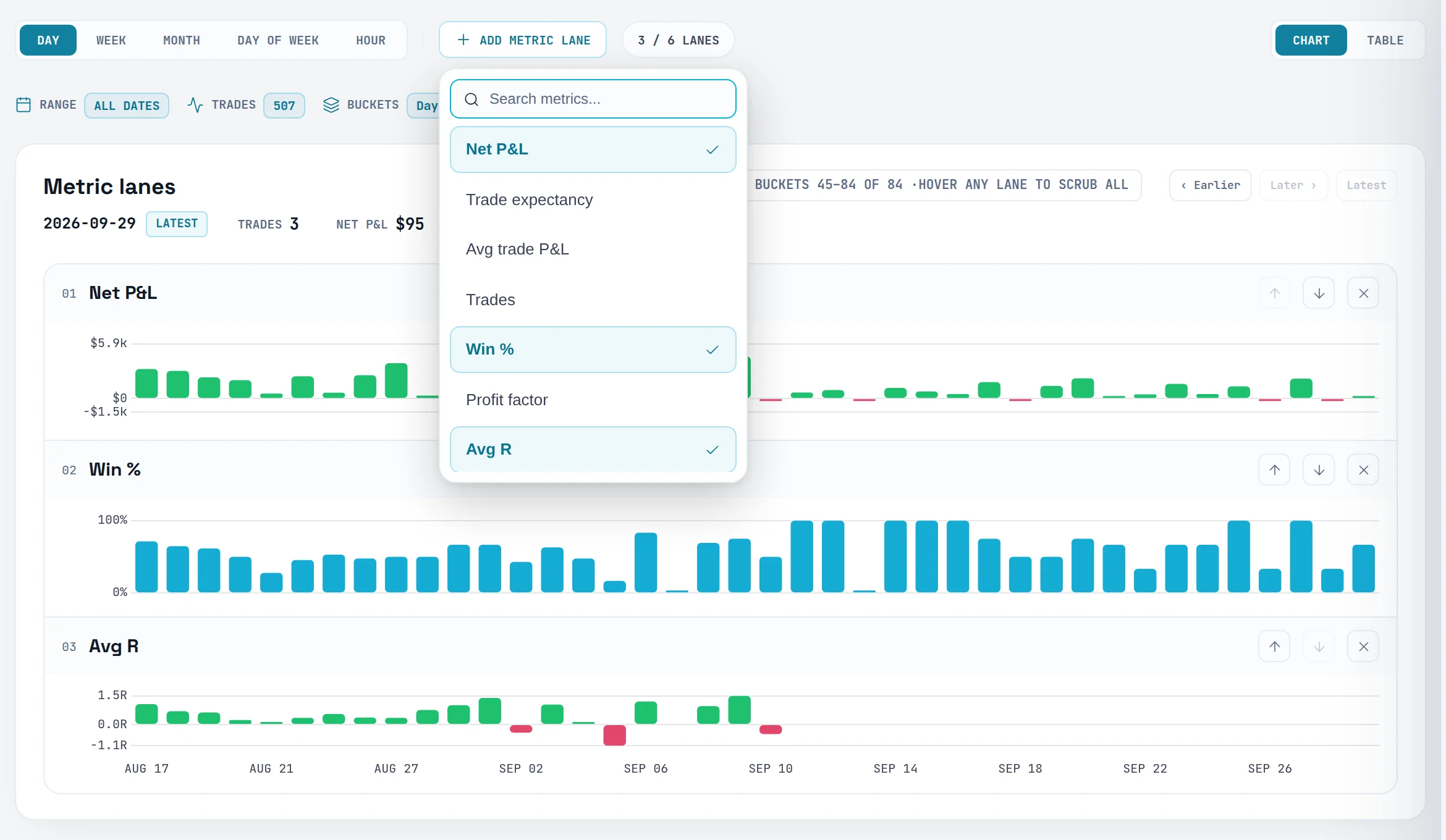
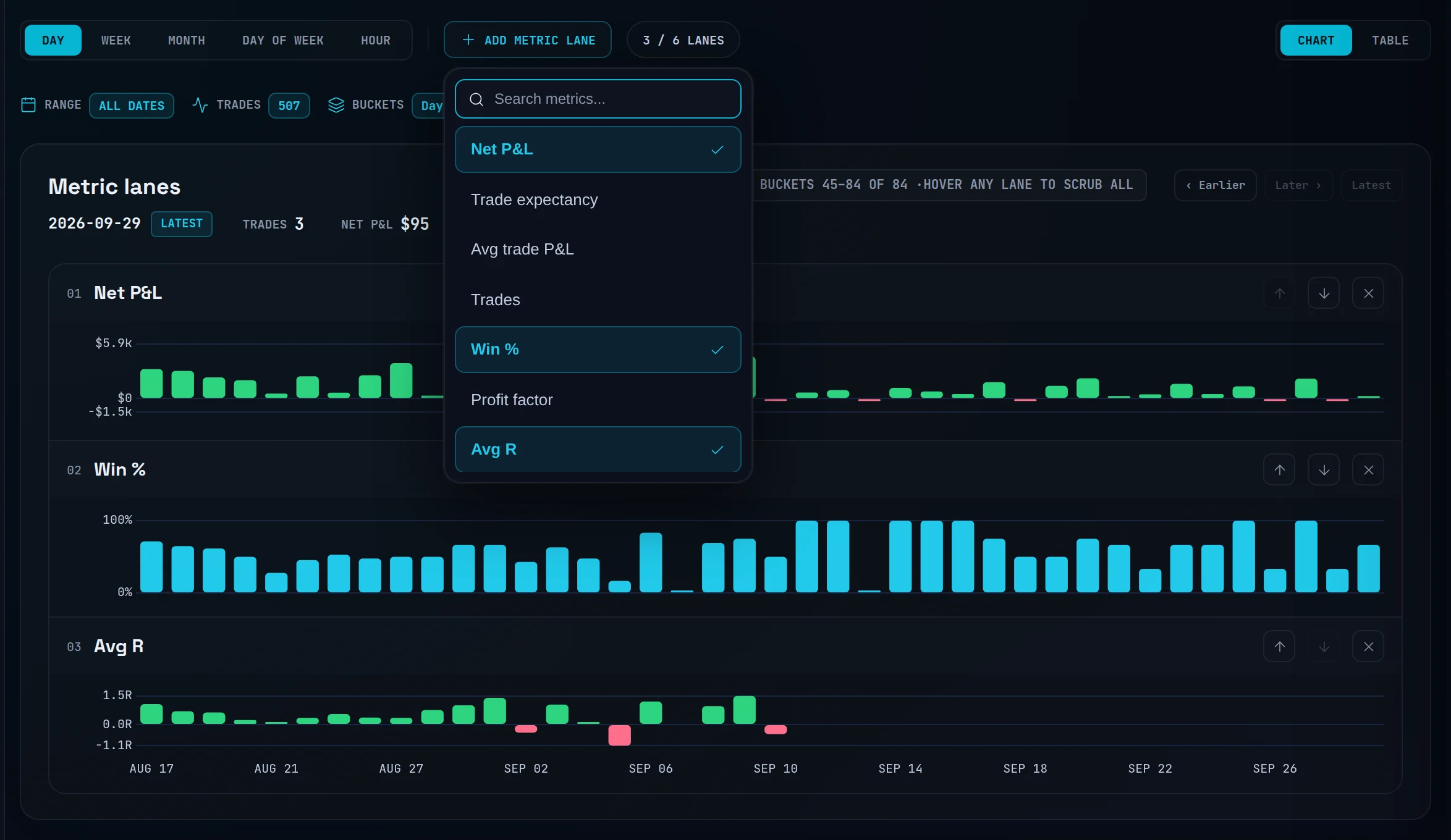
Click the Performance tab. It opens with lanes for P&L, win rate and Avg R.
Pick the bucket size
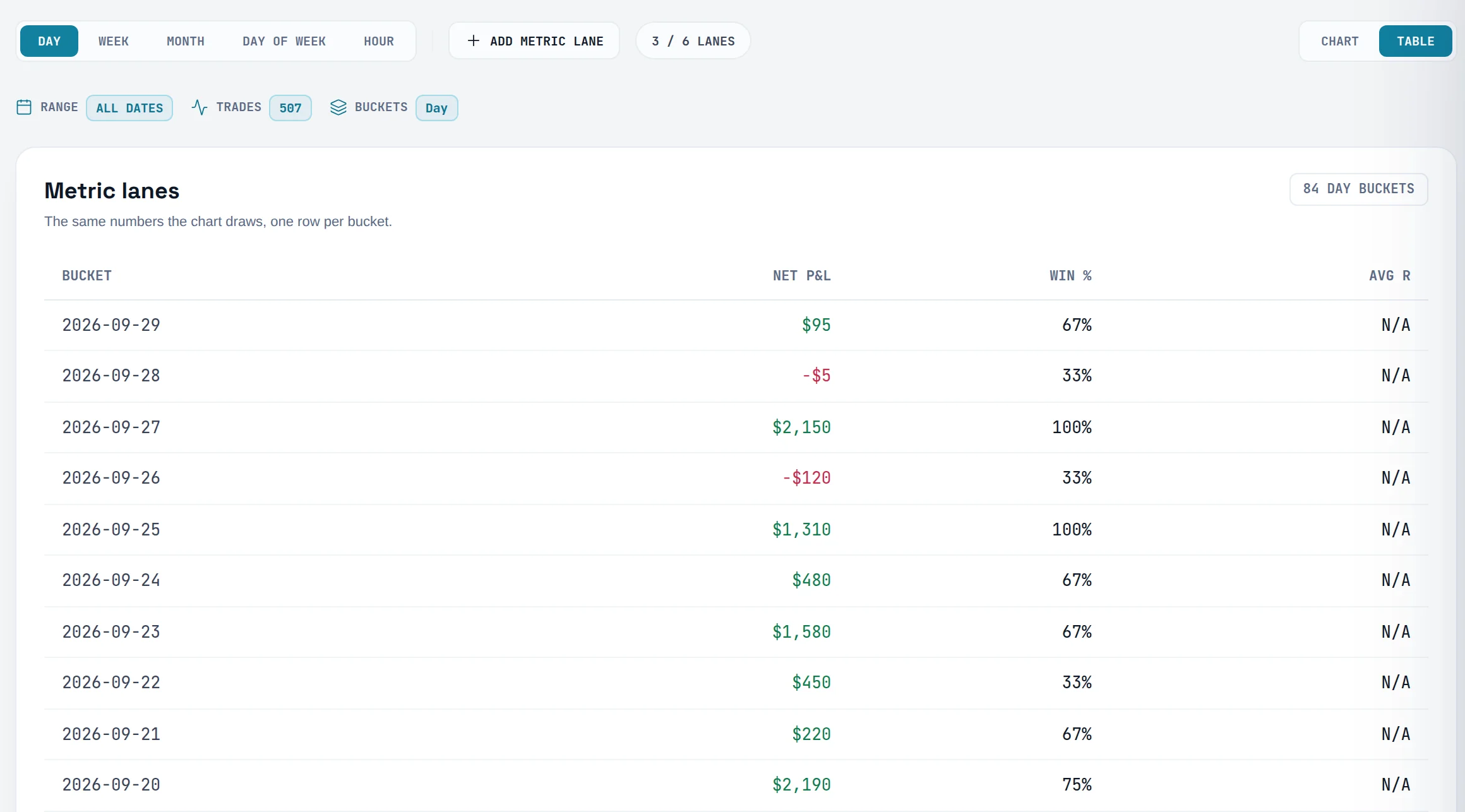
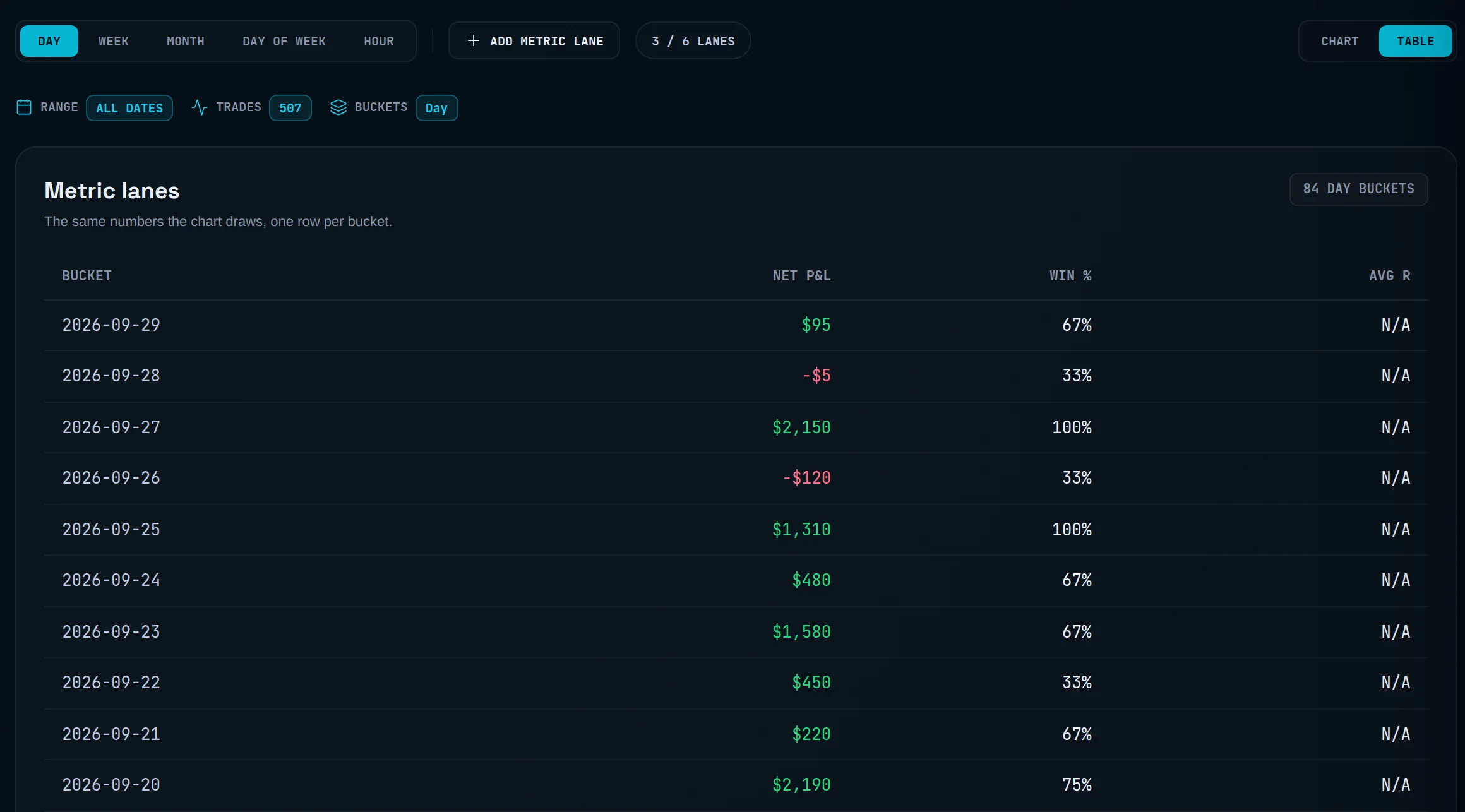
Choose Day, Week, Month, Day of week or Hour. Each point on a lane is one bucket.
Add a lane
Click Add metric lane, search in Search metrics..., and pick a metric. You can stack up to six.
Scrub across the lanes
Hover any lane, or drag across it on a touchscreen, to read every lane at the same bucket.
Switch to numbers
Use Chart or Table to see the same figures as rows, one per bucket.
Read the data panel
Under Data panel, switch between Summary, By weekday and Trades. It follows your filters, not the bucket you scrubbed to.
Break down your results#
You will see your P&L split by one dimension at a time: time of day, symbol, risk, strategy, tag, or wins against losses.
Open Breakdowns
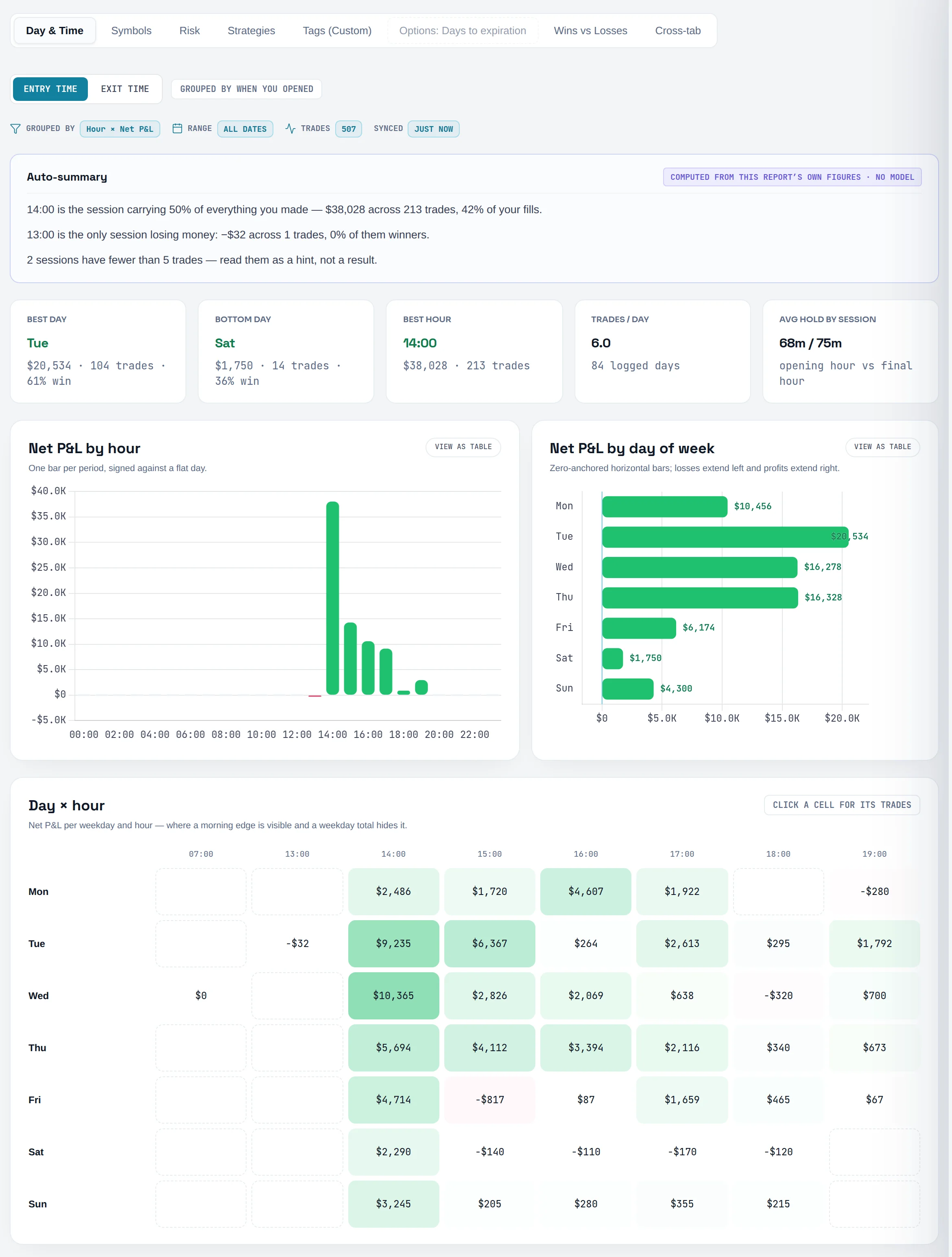
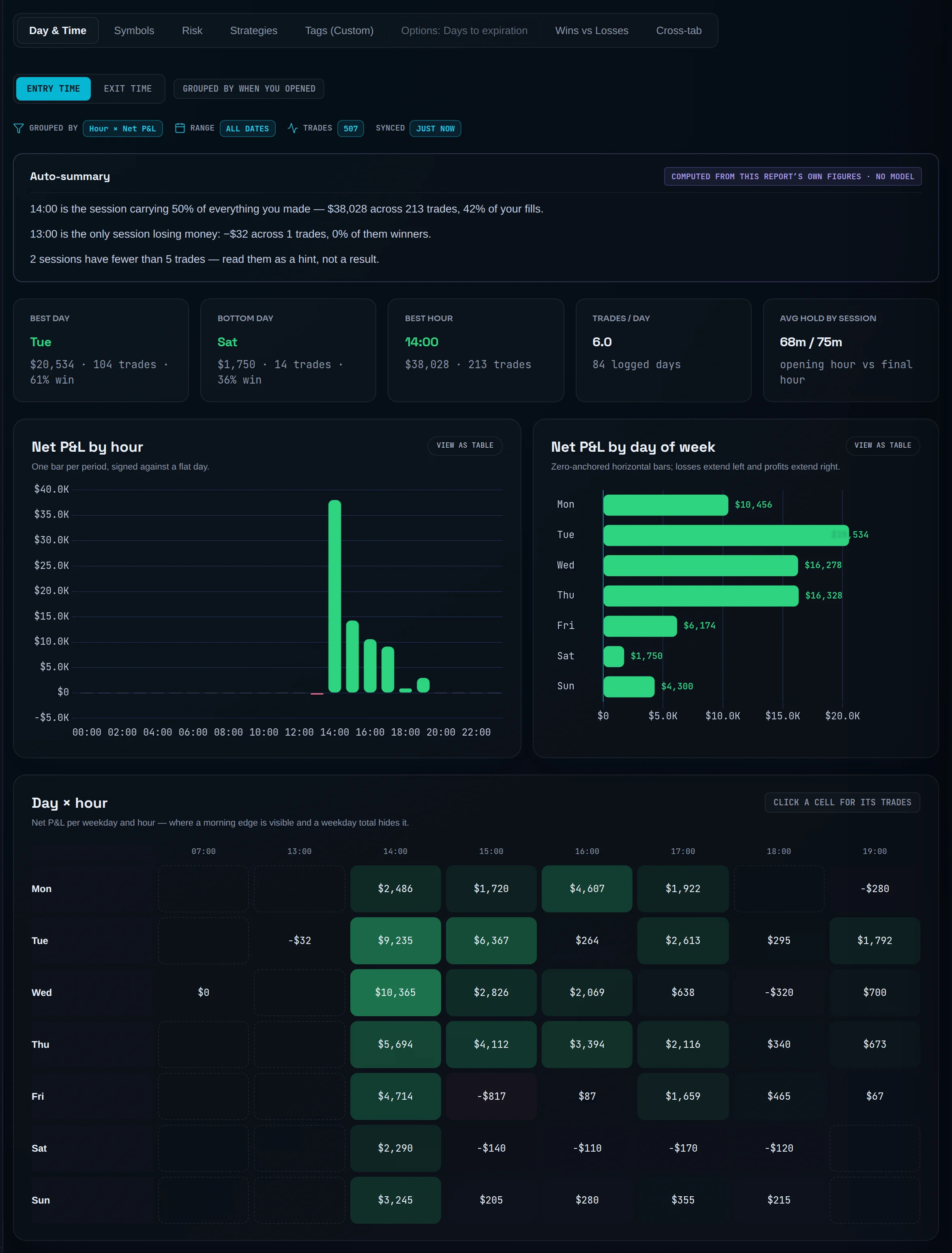
Click the Breakdowns tab, then pick a report from the row at the top.
Pick the report you need
Use the table below to choose. Options: Days to expiration is greyed out, because Limbix doesn't store options expiration data yet.
Set the report's own controls
Time-based reports offer Bucket by: Entry time or Exit time. Risk offers R multiple, $ risked or % of account. Wins vs Losses offers Exclude BE, BE = win or BE = loss, because a scratch trade is not a small win.
Check the sample
The facts above the chart show Grouped by, Range and Trades. A Low sample fact warns that the cut has too few trades to trust.
Open a bucket's trades
Click a bar or a grid cell to list the trades inside it.
Build a cross-tab (Pro)
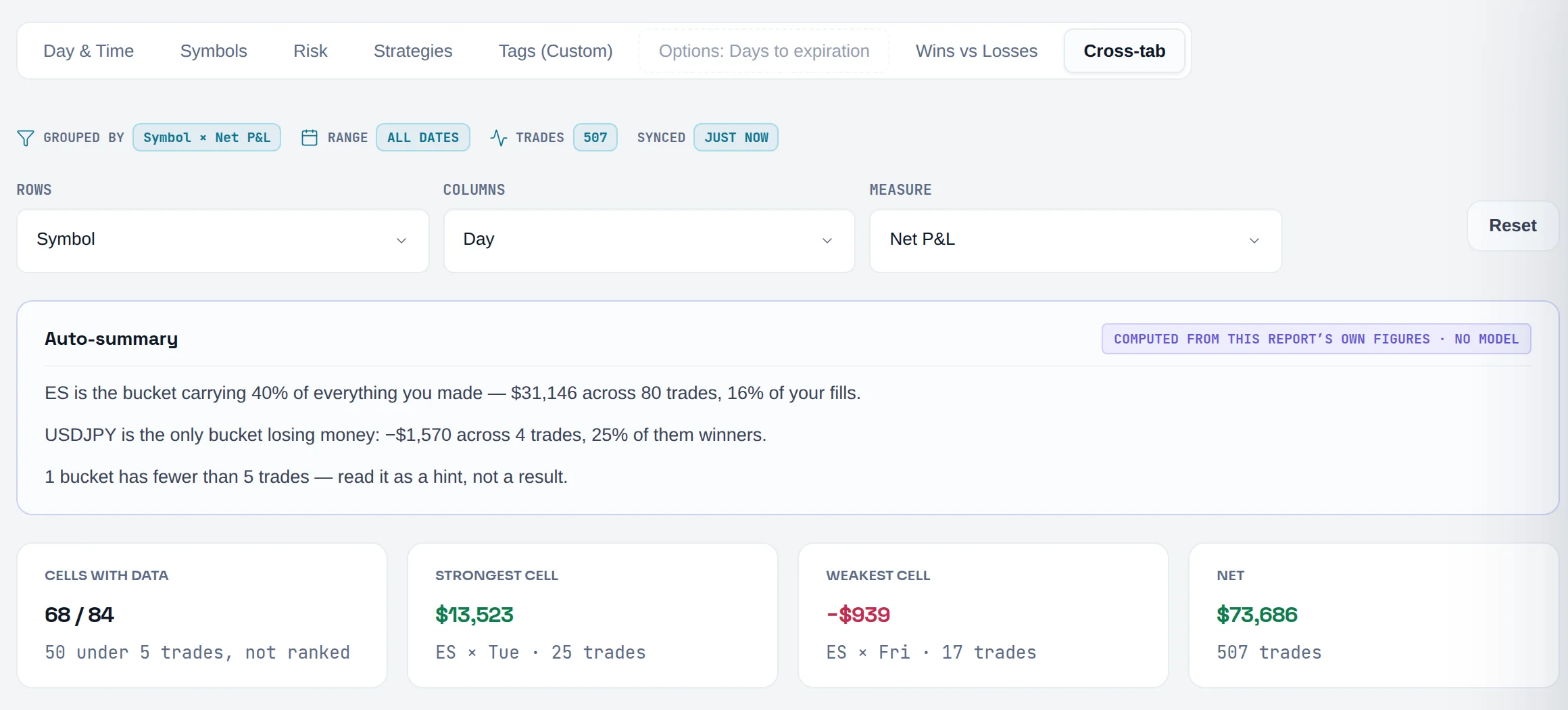
Pick Cross-tab, then choose Rows, Columns and Measure, such as symbol against weekday by net P&L.
| Report | What it splits by |
|---|---|
| Day & Time | Hour of the day and day of the week, including a Day × hour grid |
| Symbols | Instrument, with trade count, volume and concentration |
| Risk | R multiple and position size. Needs stops, see R-multiple |
| Strategies | Your playbooks, plus trades with no playbook |
| Tags (Custom) | Every custom tag you use |
| Wins vs Losses | Your winners against your losers, stat by stat |
| Cross-tab | Any dimension against any other, for any measure. Pro |
The Auto-summary under a report is written from that report's own figures, with no AI model involved.
Compare two periods or groups#
You will put two sets of trades side by side and see exactly which numbers changed.
Open Compare
Click the Compare tab.
Start from a preset
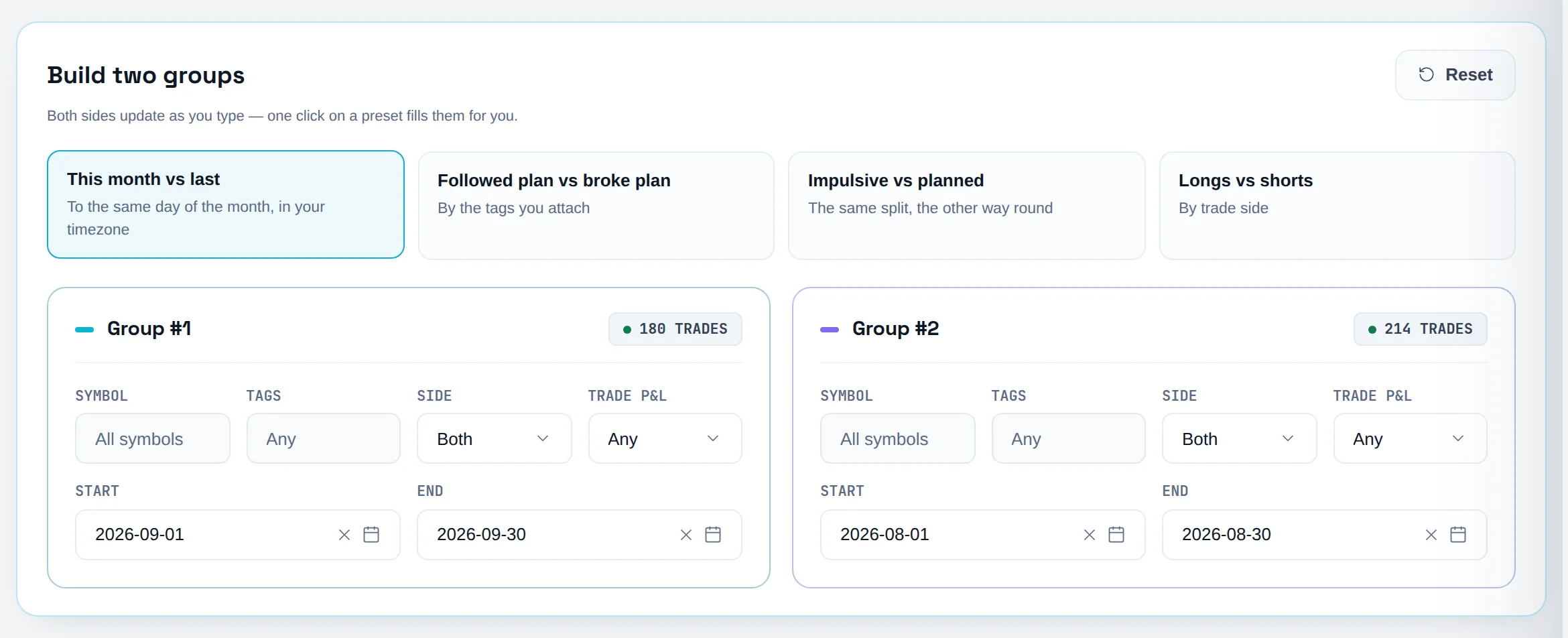
Pick This month vs last, Followed plan vs broke plan, Impulsive vs planned or Longs vs shorts. This month vs last compares to the same day of the month, in your timezone.
Or build the groups yourself
Under Build two groups, set Group #1 and Group #2 with Symbol, Tags, Side, Trade P&L, Start and End. Both sides update as you type.
Read the difference
Every metric, both sides lists each metric for both groups and the difference G2−G1. Group #1 is drawn in cyan and Group #2 in purple and dashed.
Export it
Click Export to take both sides and the differences with you.
The two plan-based presets group trades by the tags planned and impulsive that you attach, not by playbook links. They only appear once you use those tags. To compare planned and unplanned trades by playbook link instead, use the Impulsive only filter in Analytics.
Read the P&L calendar#
You will see a year or a month as a grid of green and red days, and open any day in full.
Open Calendar
Click the Calendar tab and choose Year or Month.
Read the year
In Year, pick Months for twelve month cards or Heatmap for one square per day. Year net and Logged days sit on top. The best month is marked BEST.
Open a month
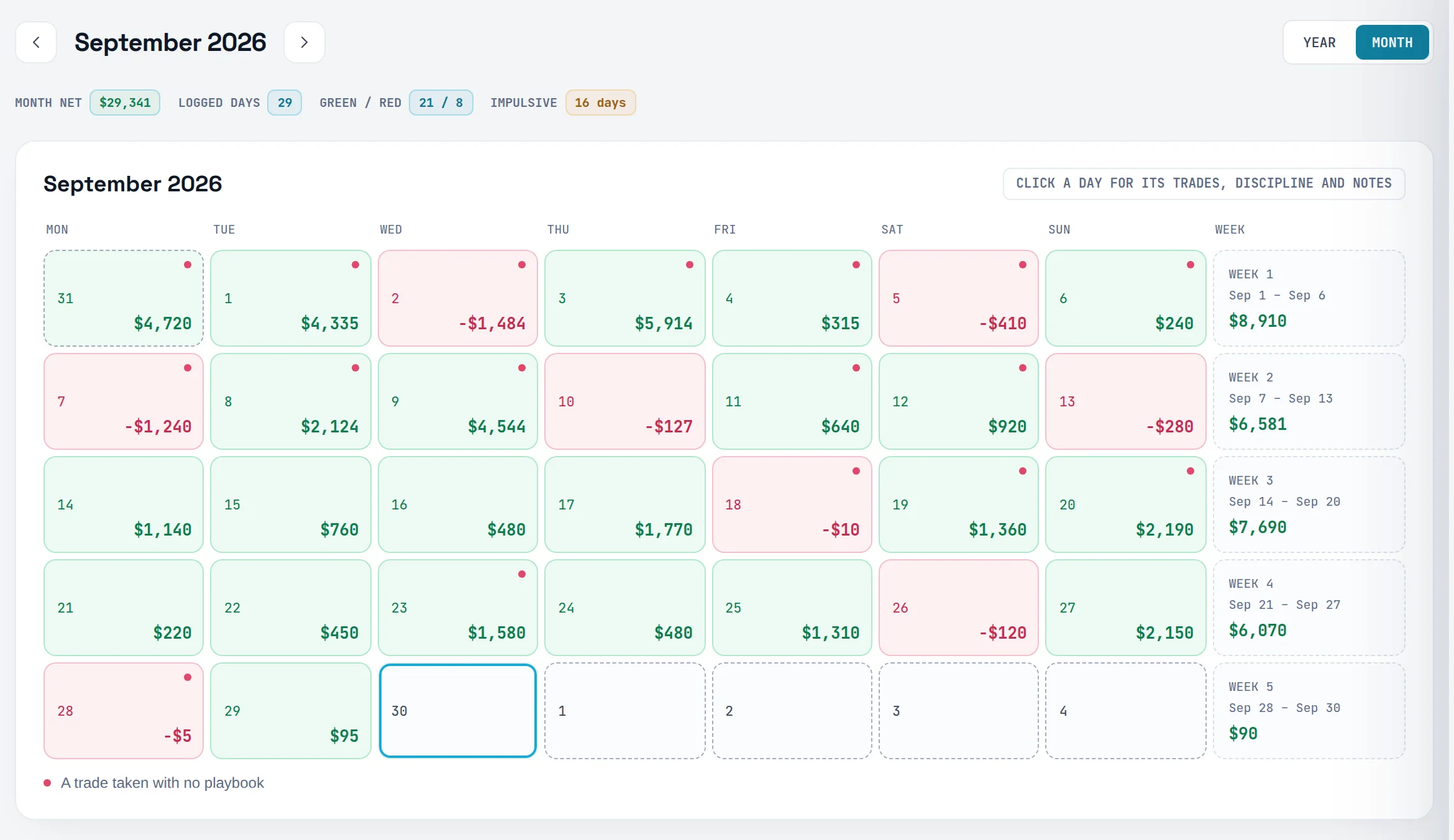
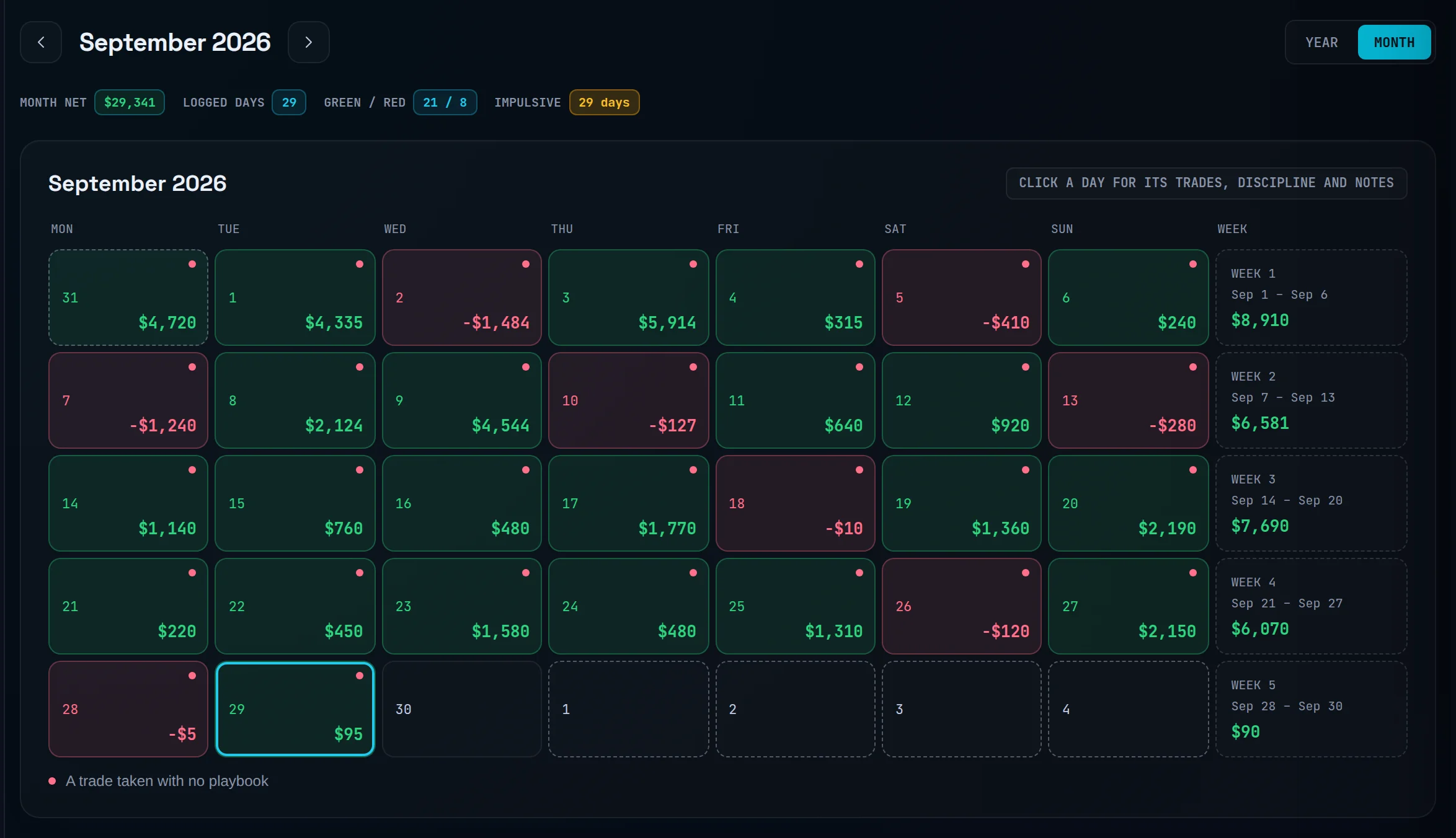
Click a month card. Month net, Logged days, Green / red and Impulsive sum up the month.
Open a day
Click a day. The drawer shows NET, TRADES and DISCIPLINE for that day, the trade list with side and playbook, and any LINKED NOTEBOOK ENTRIES.
Days are grouped by your profile timezone, see trading day. Each cell is that day's net daily P&L.
Read and generate recaps#
You will read a written summary of a week or month, and generate one on demand. Recaps need Pro.
Open Recaps & Insights
Click the Recaps & Insights tab.
Know when recaps arrive
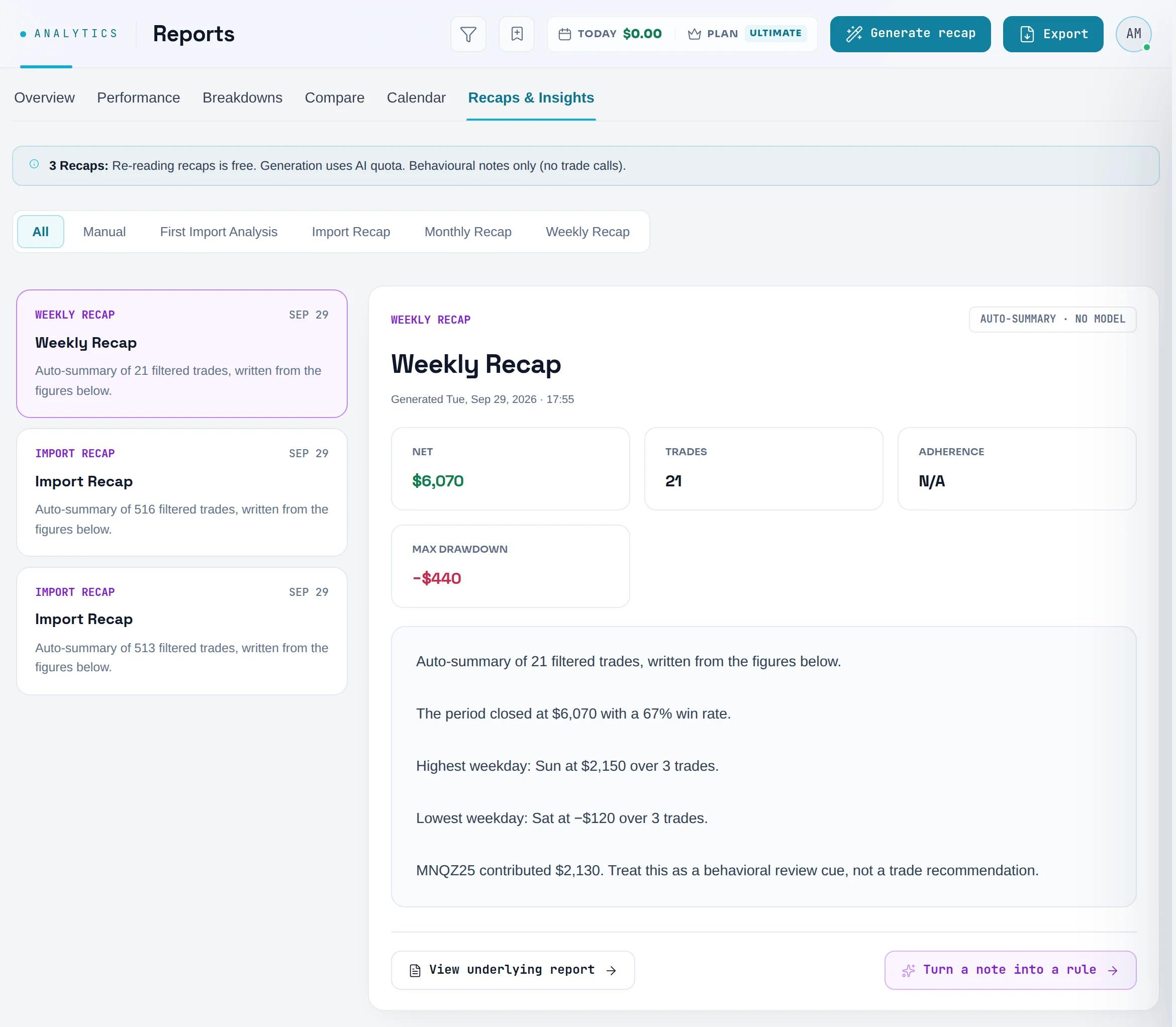
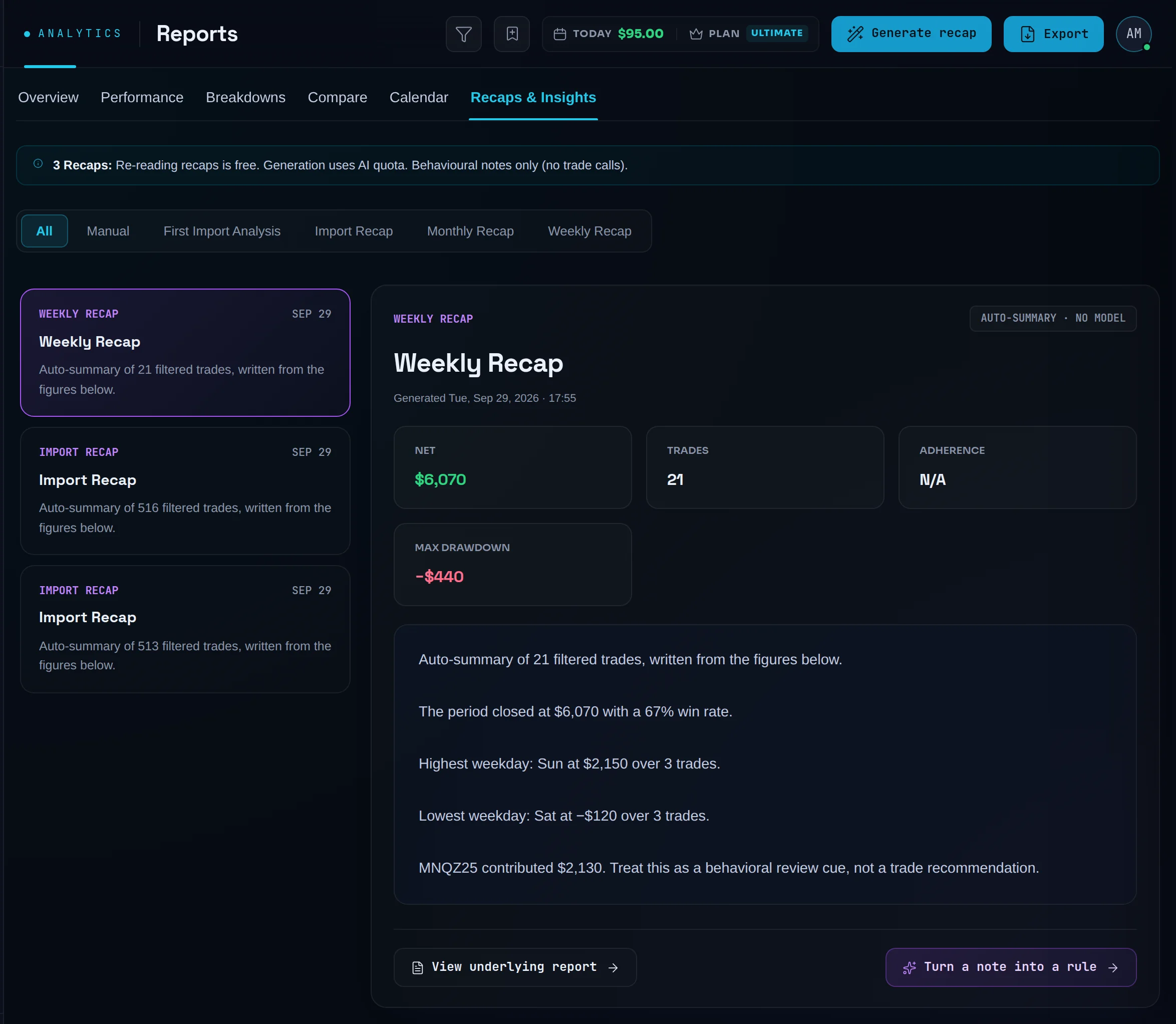
Three kinds arrive on their own: FIRST IMPORT ANALYSIS once after your first import, WEEKLY RECAP every Monday, and MONTHLY RECAP on the first run after a month closes.
Filter by kind
Use the chips above the list to show one kind, or all of them.
Generate one now
Click Generate recap to write one from the trades on screen. Generating uses your NEX allowance. Re-reading a recap is free.
Export or act on it
Click Export to save the recap as a PDF. View underlying report opens the slice the recap was written from. Turn a note into a rule opens your playbooks, where you write the rule yourself.
Each recap is labelled with how it was written. ✦ NEX · AI means NEX narrated it. AUTO-SUMMARY · NO MODEL means it was built from a fixed template. Either way it reads figures the engine already computed, adds one behavioural note, and makes no trade calls.
Switch between net and gross P&L#
You will see your results before fees, or after them.
Find the toggle
On any Reports tab, find P&L basis at the top of the page, or at the top of the tab's controls on a narrow screen.
Pick a basis
Click Net for P&L after fees, or Gross for P&L before fees. Every P&L figure on every Reports tab switches, and labels such as "Daily net P&L" follow.
Check the fees
Add Total fees to your Overview stats to see the gap between the two.
Worked example. You made 40 trades that grossed €2,400 and paid €2.50 in fees on each. Fees total €100, so Gross shows €2,400 and Net shows €2,300. Net is the default everywhere in Limbix because fees are real money. See net and gross P&L.
Common problems#
Every figure reads "N/A" or the charts say "AWAITING DATA". No trades match the range and filters. Clear a filter chip or widen the range.
The Breakdowns tab opened on Symbols, not Cross-tab. Cross-tab is a Pro report. On Essential, the tab opens on the first report your plan includes.
Options: Days to expiration is greyed out. Limbix doesn't record options expiration dates yet, so there is nothing to split by.
The Followed plan vs broke plan preset is missing. It needs trades tagged planned and impulsive. Add those tags in the Trade Log, or build the groups by hand.
Generate recap shows an error. The message under the banner says why. "No trades are available for recap generation." means your filters match no trades: widen them. "NEX features disabled until next billing cycle." means your account reached NEX's monthly safety ceiling. Going past Pro's included amount doesn't cause it. Existing recaps stay readable either way. See NEX quotas.
Frequently asked questions#
What is the difference between net and gross P&L in Limbix? Gross P&L is your result before commissions and fees. Net P&L is after them. Limbix shows net by default on every screen, because fees are money you actually paid. In Reports, the P&L basis toggle switches every figure to gross, which helps when you want to judge your entries and exits apart from your broker's costs. Your profit factor and expectancy change with it.
How do I compare this month with last month? Open Reports, click Compare, and choose the This month vs last preset. It builds two groups up to the same day of the month, in your timezone, so a half-finished month isn't compared with a full one. Every metric, both sides then lists each figure for both months and the difference between them.
Why is max drawdown shown in currency and not as a percentage? Limbix measures drawdown from your own equity peaks, walking your trades in order from zero. A percentage of that would be a share of your cumulative profit, not of your account, which reads as far worse than it is. The currency figure is the honest one. See Max Drawdown.
Are recaps written by AI? Some are. A recap marked ✦ NEX · AI was narrated by NEX. One marked AUTO-SUMMARY · NO MODEL came from a fixed template. Both read figures the reporting engine already computed, so the numbers match your other screens, and both add one behavioural note about your execution. Neither calls a trade or says what a market will do.
Can I export a report to Excel? Yes. Click Export on Overview, Performance, Breakdowns, Compare or Calendar and choose XLSX, CSV or PDF. The file follows the filters and P&L basis you have on. Recaps export as PDF.