
02 · Guides
Settings: timezone, risk limits and your data
Every Limbix settings section: timezone, 2FA, notifications, trading accounts, the risk limits your scores use, data export, privacy, plan and appearance.
Limbix settings hold everything that shapes your numbers and your account: the timezone your trading days follow, the risk limits your scores measure you against, your stand-down line, security, notifications, trading accounts, your data and your plan. Most fields save themselves the moment you change them, so there is no save button to find.
Before you start#
Click Settings at the bottom of the sidebar. It opens on Profile. The rail on the left groups eight sections: Profile, Security, Notifications, Trading accounts, NEX, Data & privacy, Plan & billing and Appearance.
- Autosave. Menus and switches save about half a second after you change them. Text and number fields save when you click out of them. The pill at the top right reads Saved · autosaves, Unsaved edit, Saving… or Saved.
- If a save fails, your change is rolled back and a message says why.
- Exceptions. Passwords, two-factor codes, new trading accounts and deletions each have their own button. They never autosave.
Two settings change your scores more than any others: your Timezone and your Risk profile. If you only visit Settings once, set those.
Set your profile and timezone#
You will set your name and the timezone every trading day in Limbix is counted in.
Open Profile
Click Profile in the settings rail.
Set your name
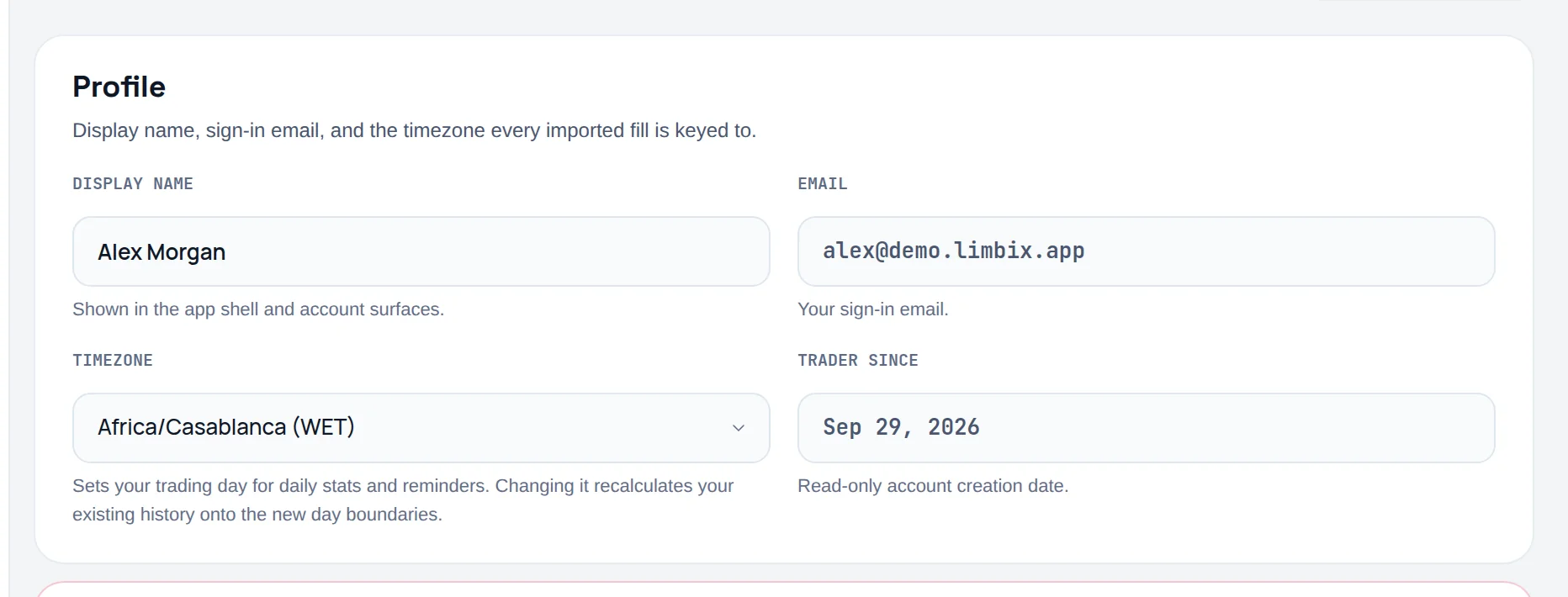
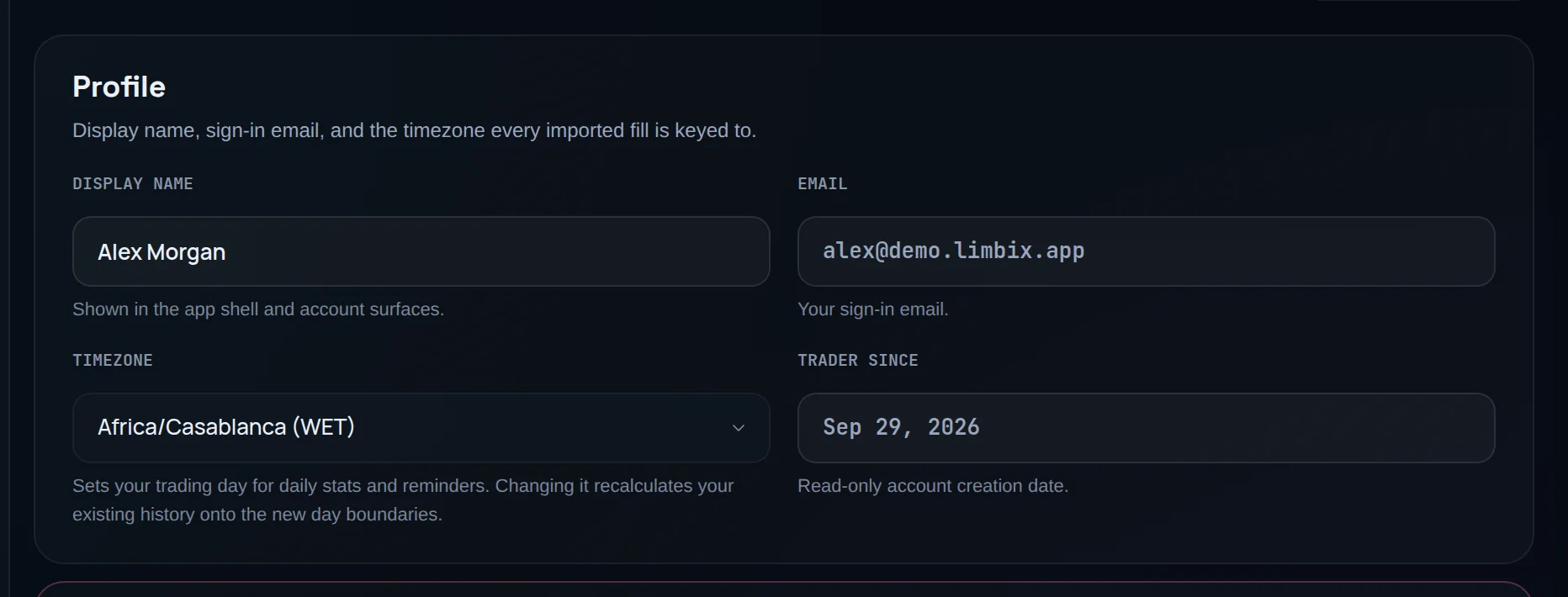
Edit Display name. Email is your sign-in email and is read-only here.
Set your timezone
Pick your zone under Timezone. It decides which day each trade belongs to for daily P&L, the calendar, discipline scores and reminders.
Let history recalculate
After a change, Limbix recalculates your history onto the new day boundaries. A notice says "Recalculating your history for the new timezone" until it finishes, then "Your history has been recalculated for the new timezone."
Pick the timezone you trade in, not necessarily where your broker is. A futures trader in Europe who sets New York time will see Monday-night trades land on Monday. See trading day.
Delete your account. Under Delete account, type your email in Confirm with your email and your password in Confirm with your password, plus a Two-factor code if 2FA is on. Click Delete account, then Sign out & schedule deletion. Nothing is erased for 30 days, and signing back in within that window cancels it. Download your data first with Export everything (JSON).
Secure your account with two-factor authentication#
You will protect your account with a password, an authenticator app and recovery codes.
Open Security
Click Security in the settings rail.
Set or change your password
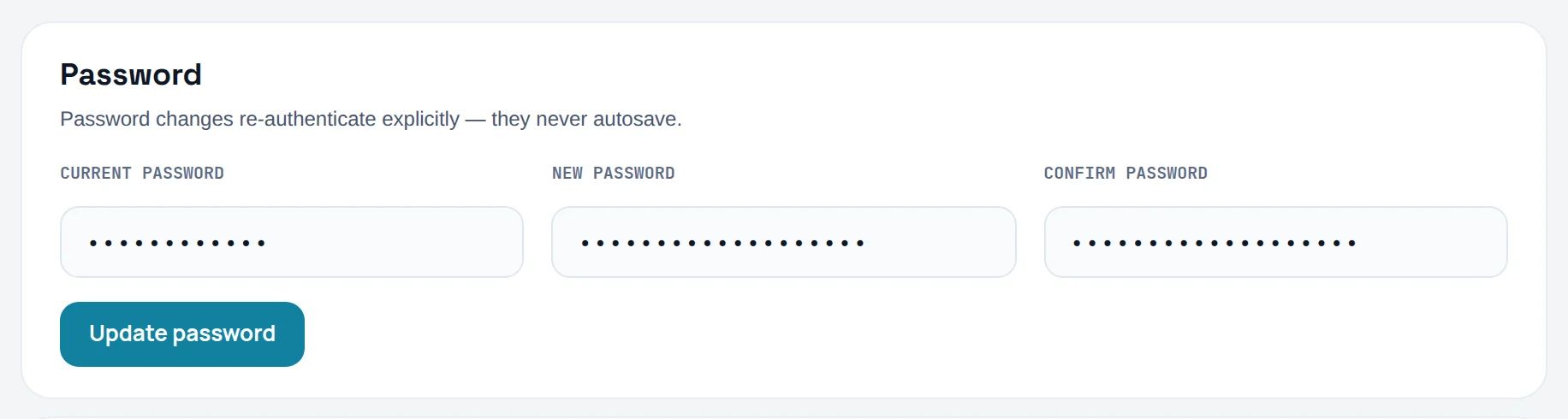
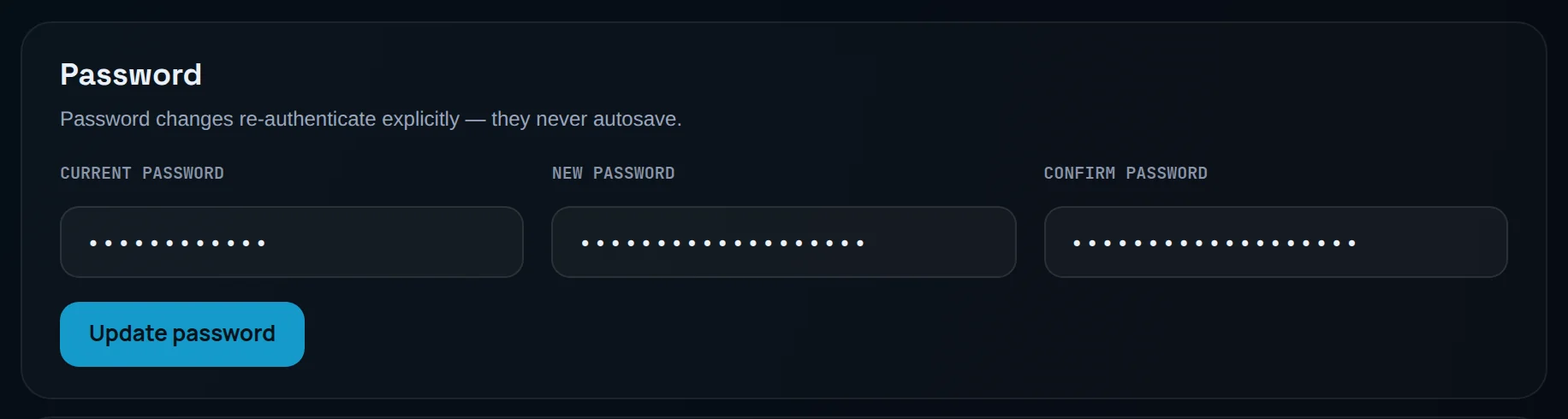
Under Password, fill in Current password, New password and Confirm password, then click Update password. If you signed up with Google, the card is Set a password and the button is Set password.
Turn on two-factor authentication
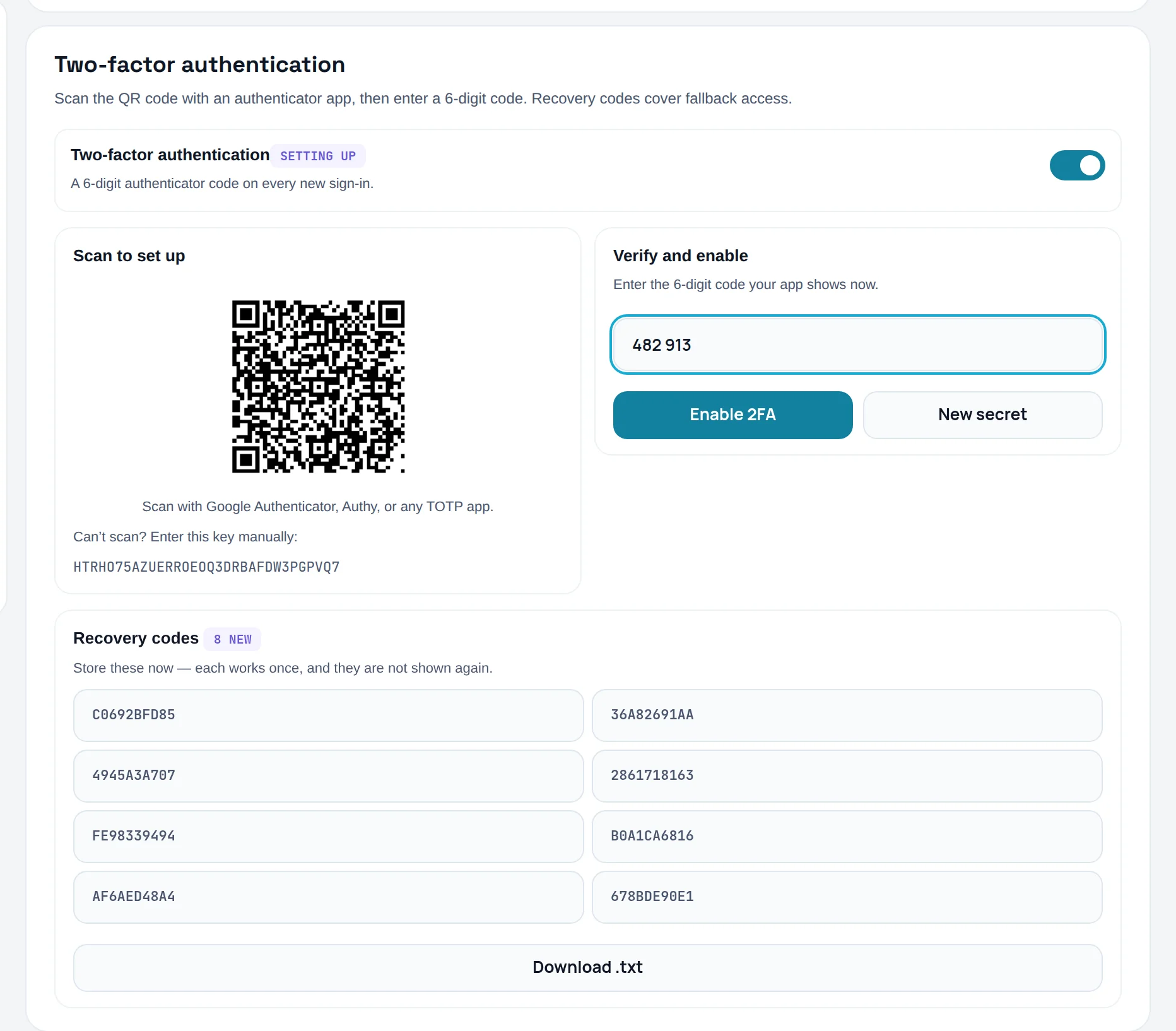
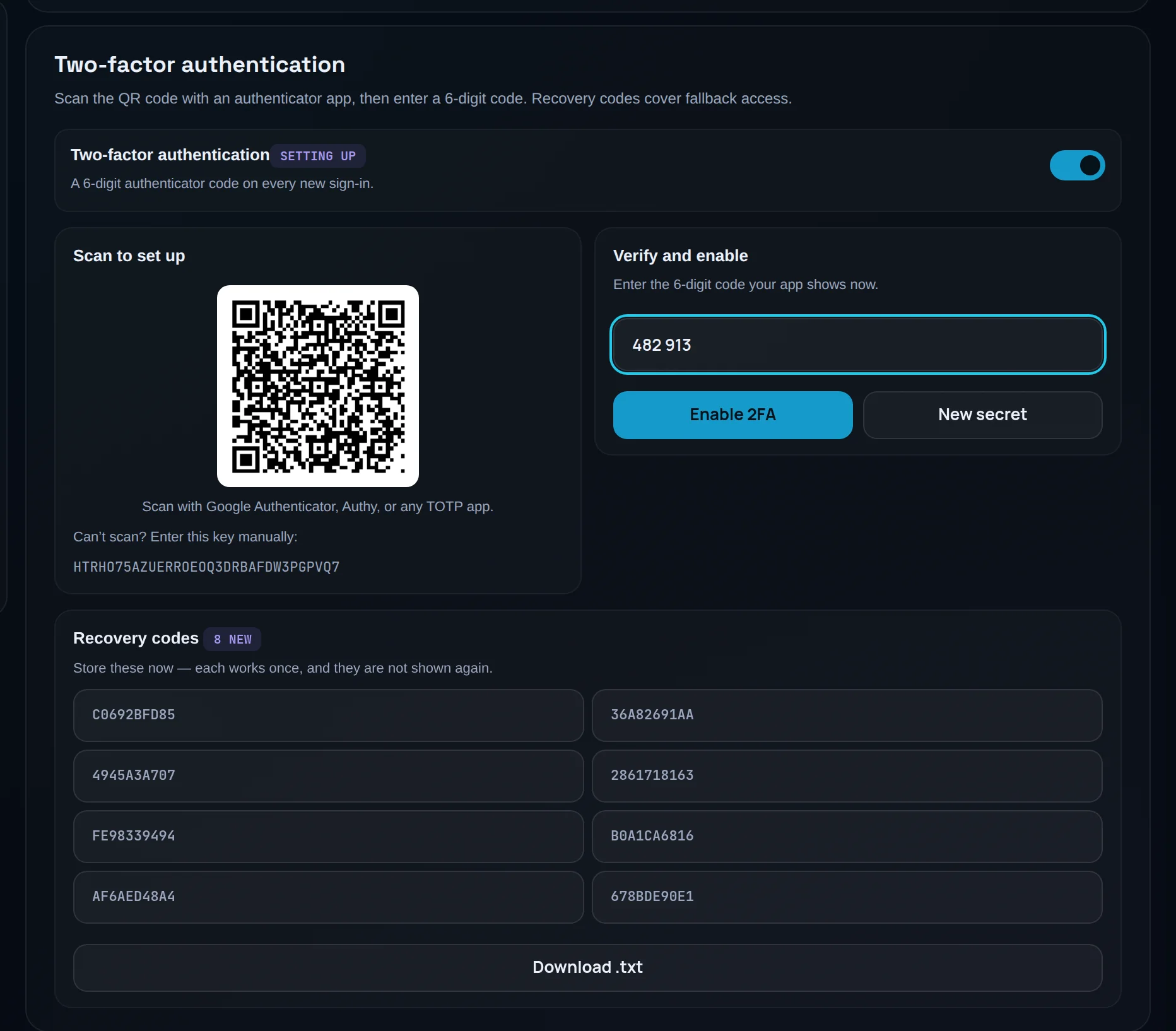
Under Two-factor authentication, switch on Two-factor authentication. A QR code appears under Scan to set up.
Scan and verify
Scan the code with any authenticator app. Under Verify and enable, enter the 6-digit code it shows and click Enable 2FA.
Store your recovery codes
Save the Recovery codes somewhere safe. Each works once. Later, use View codes or Regenerate, which asks for your password or a current code first.
Review your sessions
Under Active sessions, click Revoke on any device you don't recognise, or Revoke all other sessions.
Trusted devices skip the code for 30 days. To turn 2FA off, switch it off, confirm with your password or a code under Confirm before turning off two-factor, and click Disable 2FA. Linked accounts shows Google if you use it to sign in. You need a password before you can unlink it.
Choose your notifications#
You will choose which alerts reach your inbox and which stay in the app.
Open Notifications
Click Notifications in the settings rail.
Switch each channel
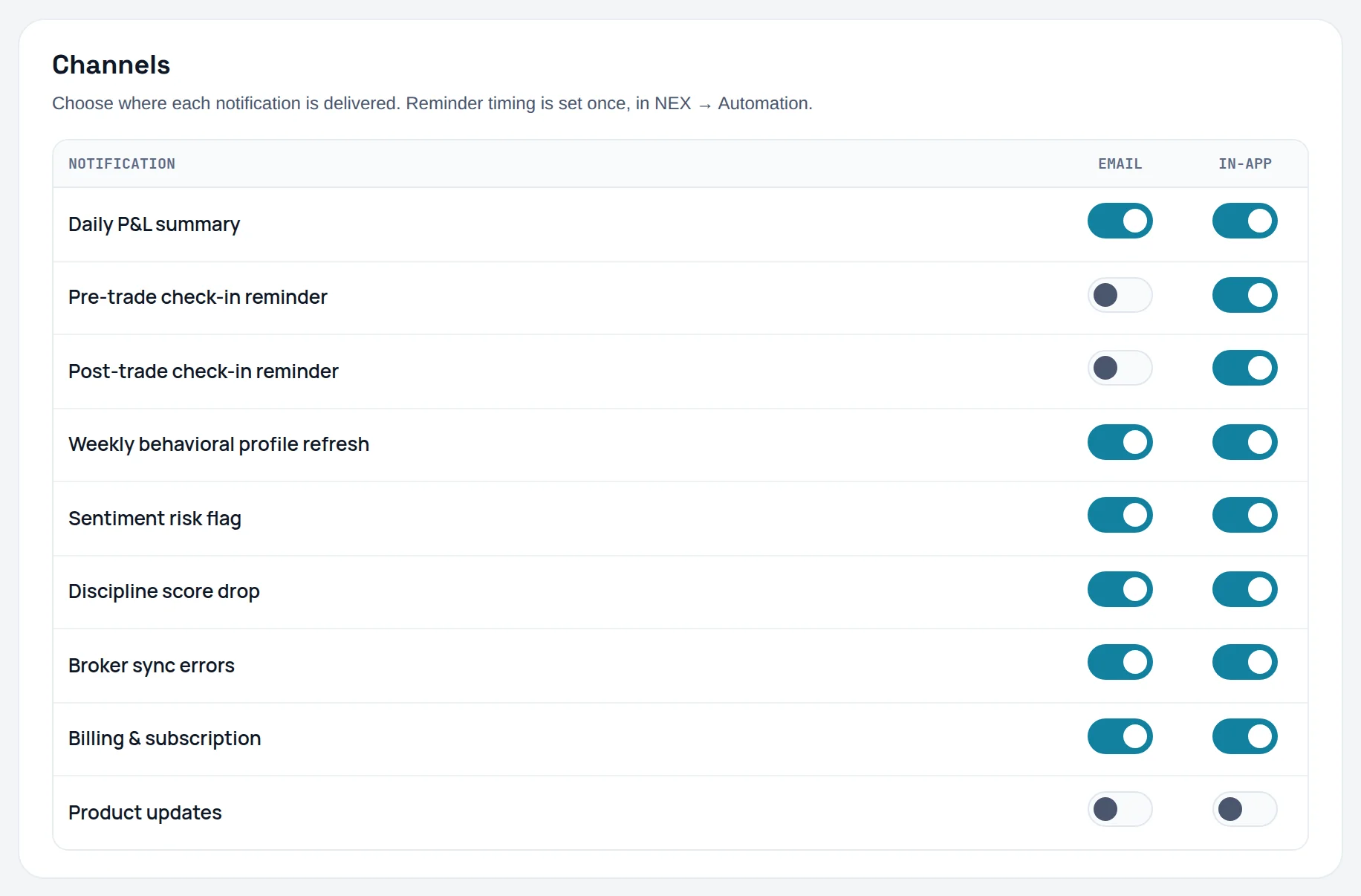
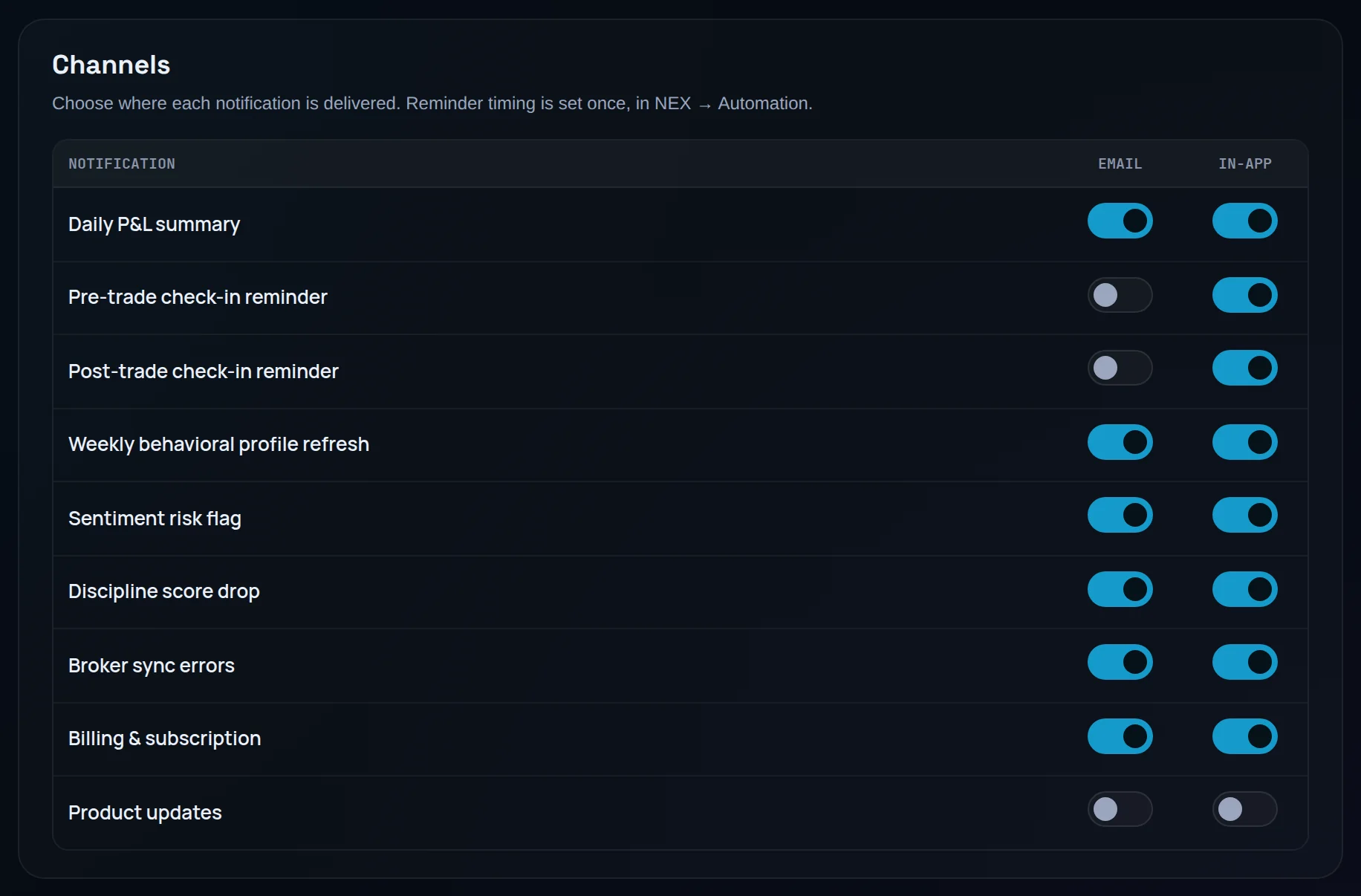
Under Channels, each row is one notification and each column a channel: Email and In-app. Flip the switches you want.
Set reminder times elsewhere
Check-in reminder timing lives in NEX settings, under Automation defaults.
The notifications are Daily P&L summary, Pre-trade check-in reminder, Post-trade check-in reminder, Weekly behavioral profile refresh, Sentiment risk flag, Discipline score drop, Broker sync errors, Billing & subscription and Product updates. Broker sync itself is coming soon.
Manage your trading accounts#
You will add, edit, archive or clear the personal accounts your trades are filed under.
Open Trading accounts
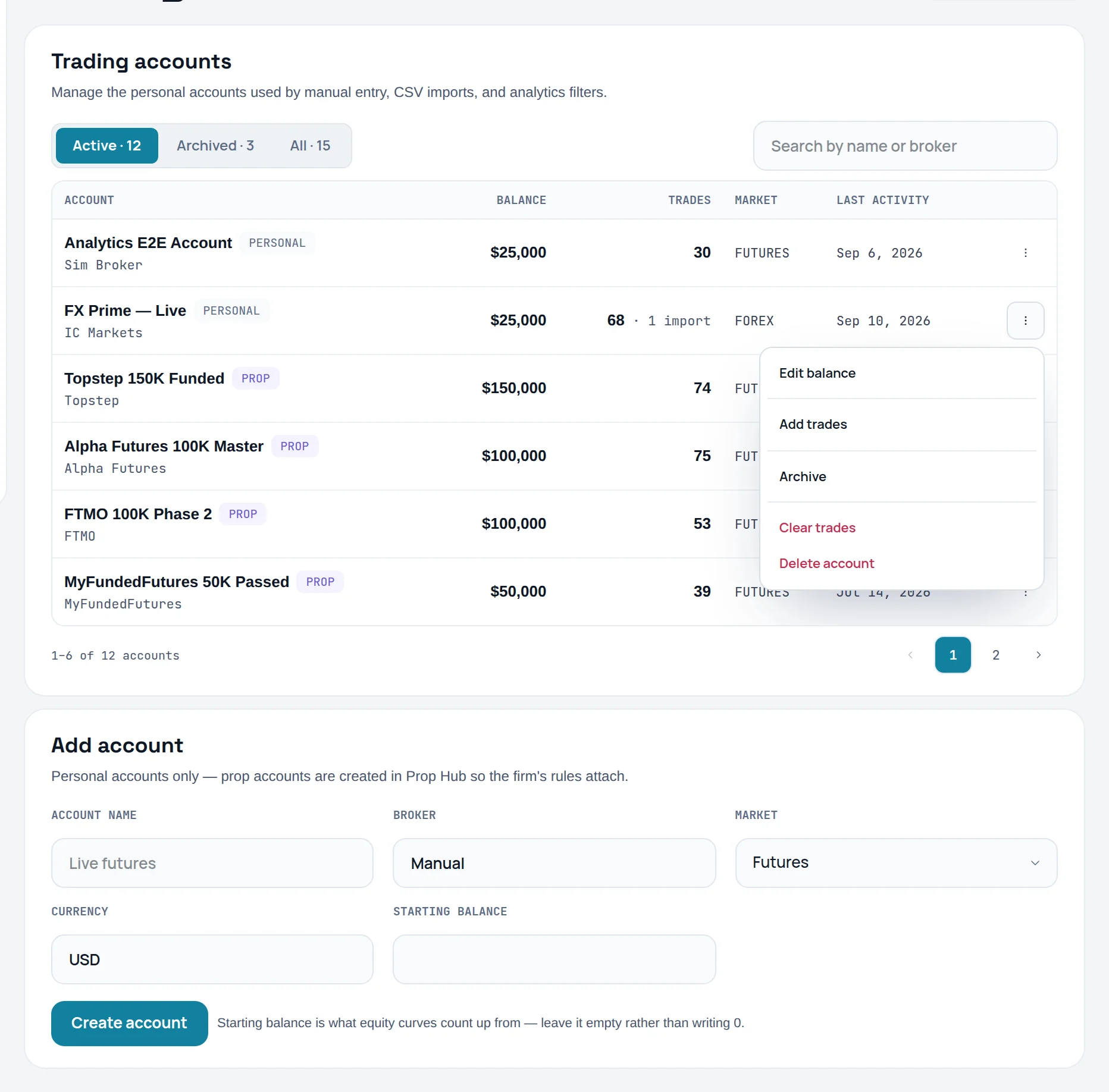
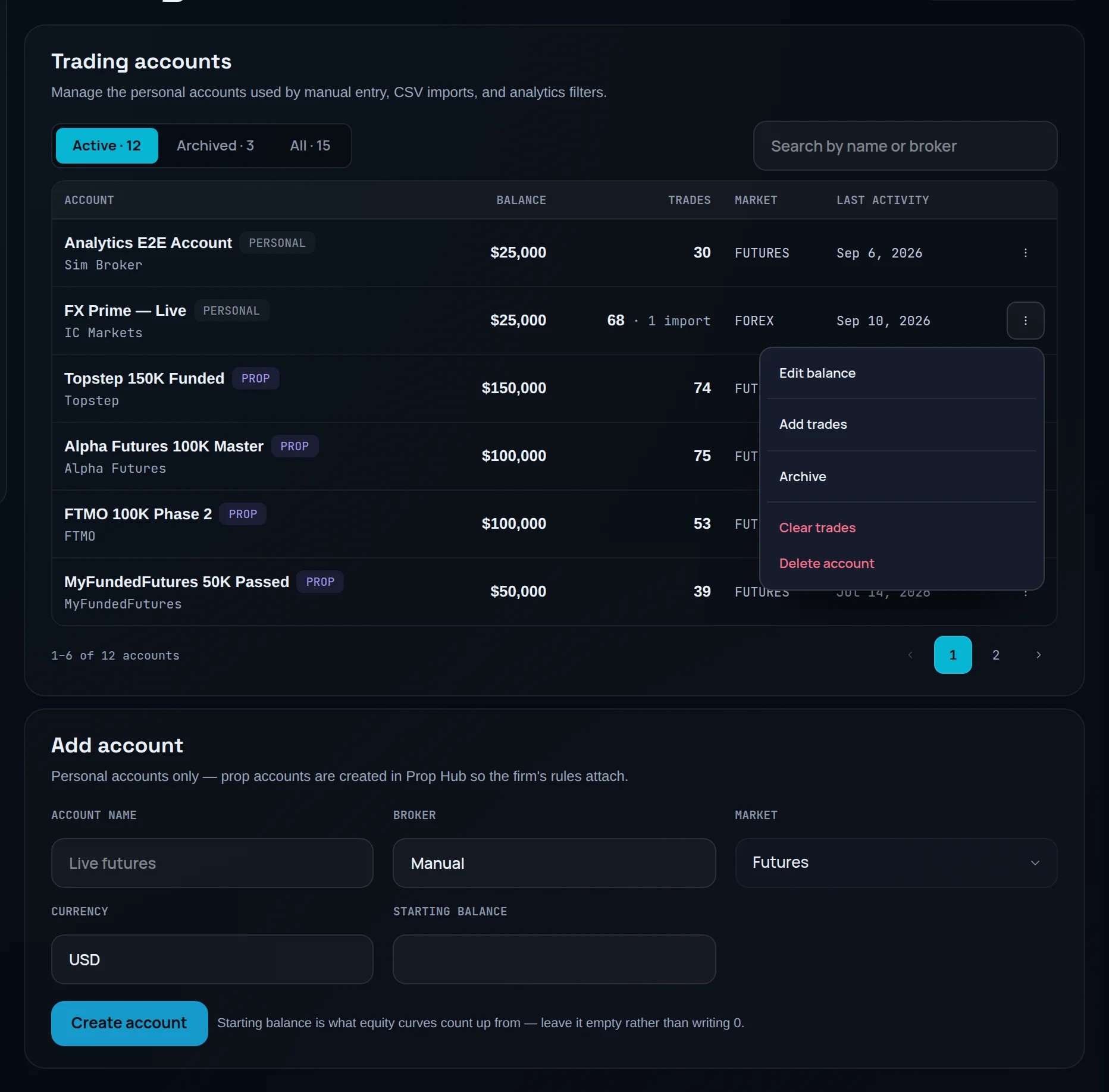
Click Trading accounts in the settings rail. The list shows each account's Balance, Trades, Market and Last activity, filtered by Active, Archived or All.
Add an account
Under Add account, fill in Account name, Broker, Market, Currency and Starting balance, then click Create account.
Set the starting balance carefully
The starting balance is what equity curves and drawdowns count up from. Leave it empty rather than typing 0.
Change an existing account
Open a row's actions menu. Choose Edit balance, Add trades, Archive or Unarchive.
Clear or delete
Clear trades removes an account's trades. Delete account removes the account. Both ask you to confirm, and a delete lists exactly what goes. Your journal entries are kept.
Market can be Futures, Forex, Crypto or Mixed. Prop accounts are tagged Prop and marked "Managed from Prop Hub": you create and change them in Prop Hub so the firm's rules stay attached. If Limbix finds empty copies of an account, Review empty duplicates lets you remove them.
Set your risk limits and NEX preferences#
You will set the limits your Risk Score and mistake detectors measure you against, draw your stand-down line, and choose how NEX works with you.
Open NEX settings
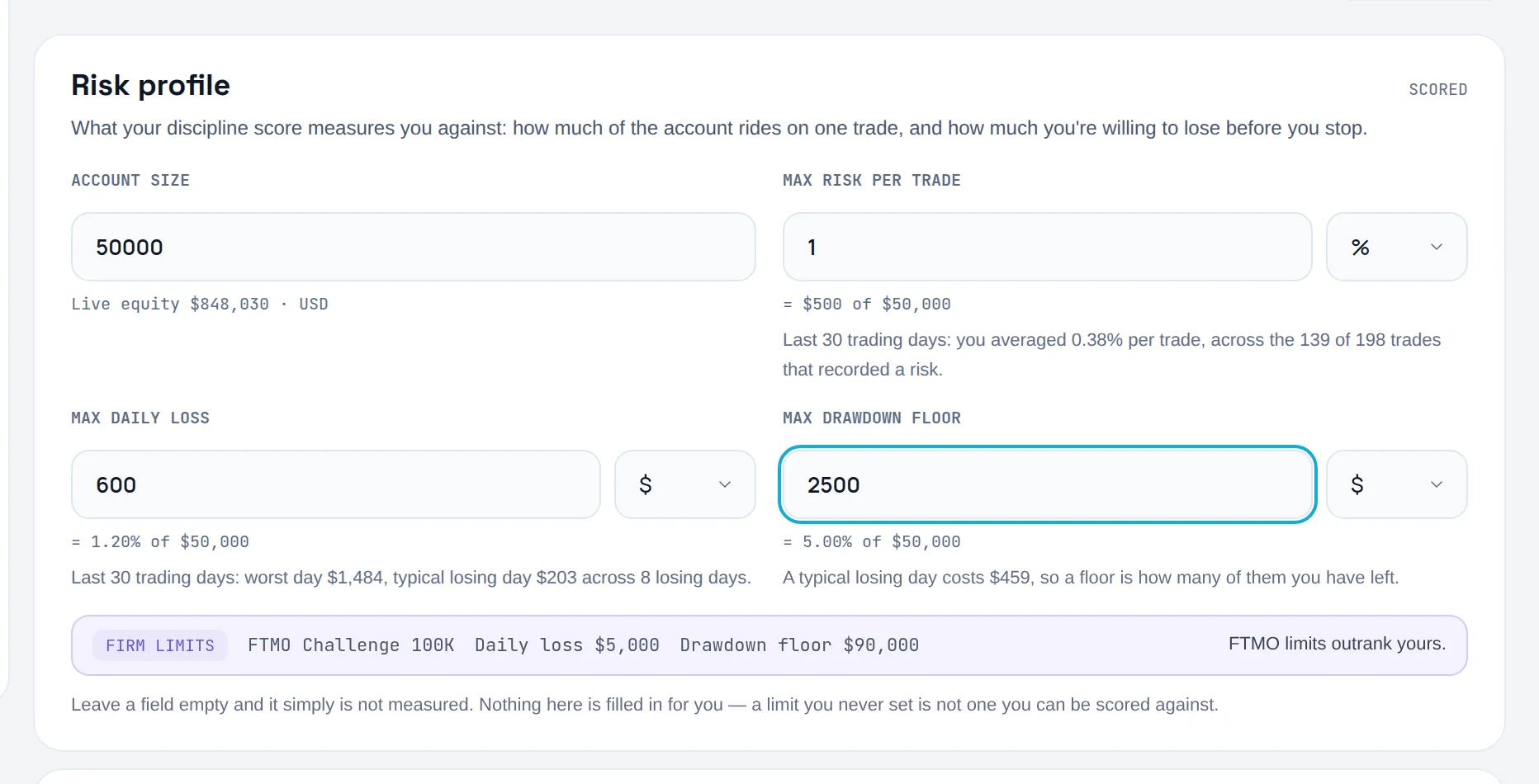
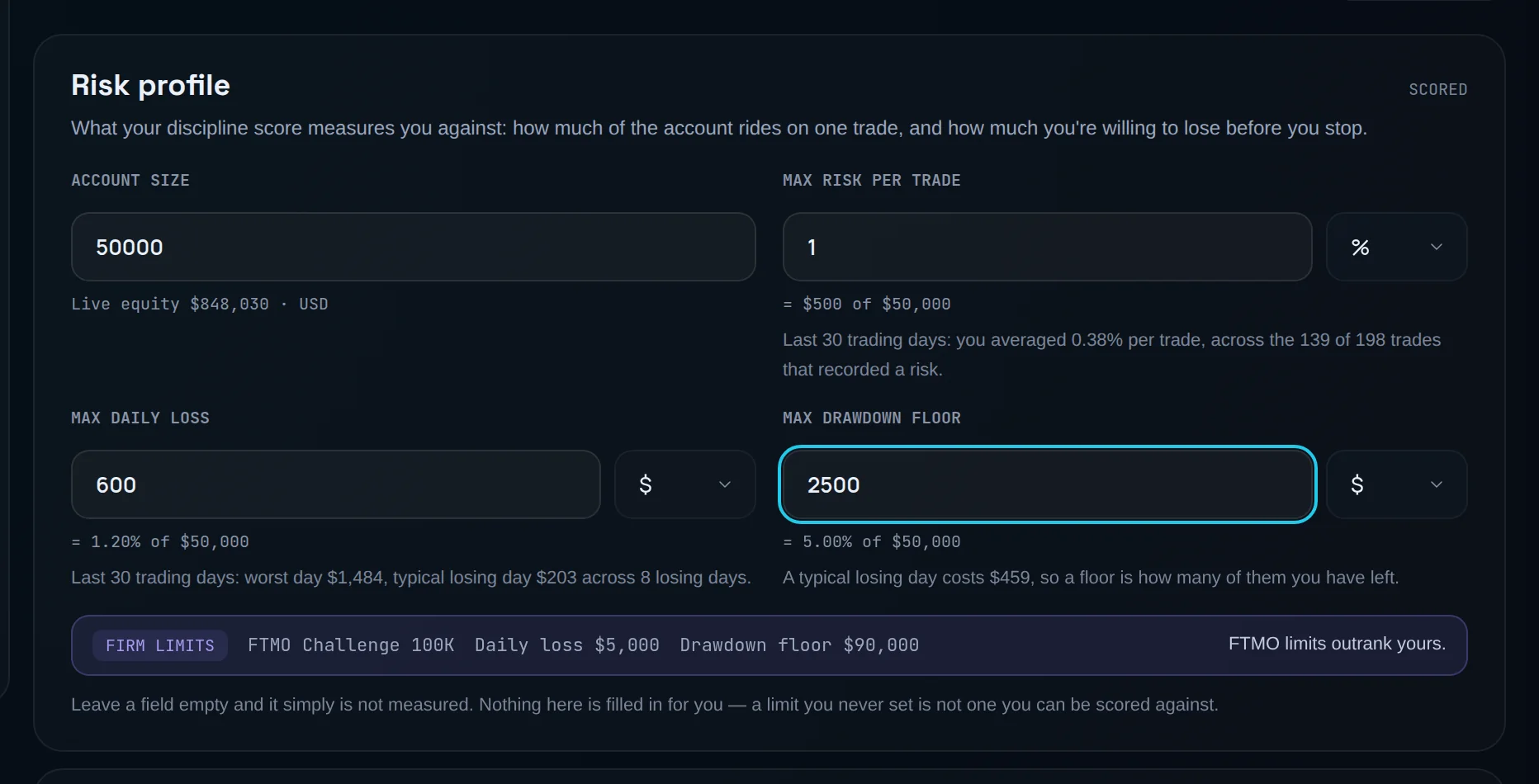
Click NEX in the settings rail. The first card is Risk profile, tagged Scored.
Enter your account size
Account size is the balance every percentage limit is measured against.
Set your three limits
Fill in Max risk per trade, Max daily loss and Max drawdown floor. Pick the unit for each in the small menu beside it: $ for an amount, % for a share of your account size. The line under each field converts it, and a history line shows what you actually did recently.
Draw your stand-down line
In Your stand-down line, tagged Never enforced, set Stop after this many rule breaks, Stop after this much loss, in R, or both. Enter 3 for −3R.
Set your plan defaults
Under Plan defaults, set Max trades per day and Session start, your local trading-day start.
Set your check-ins
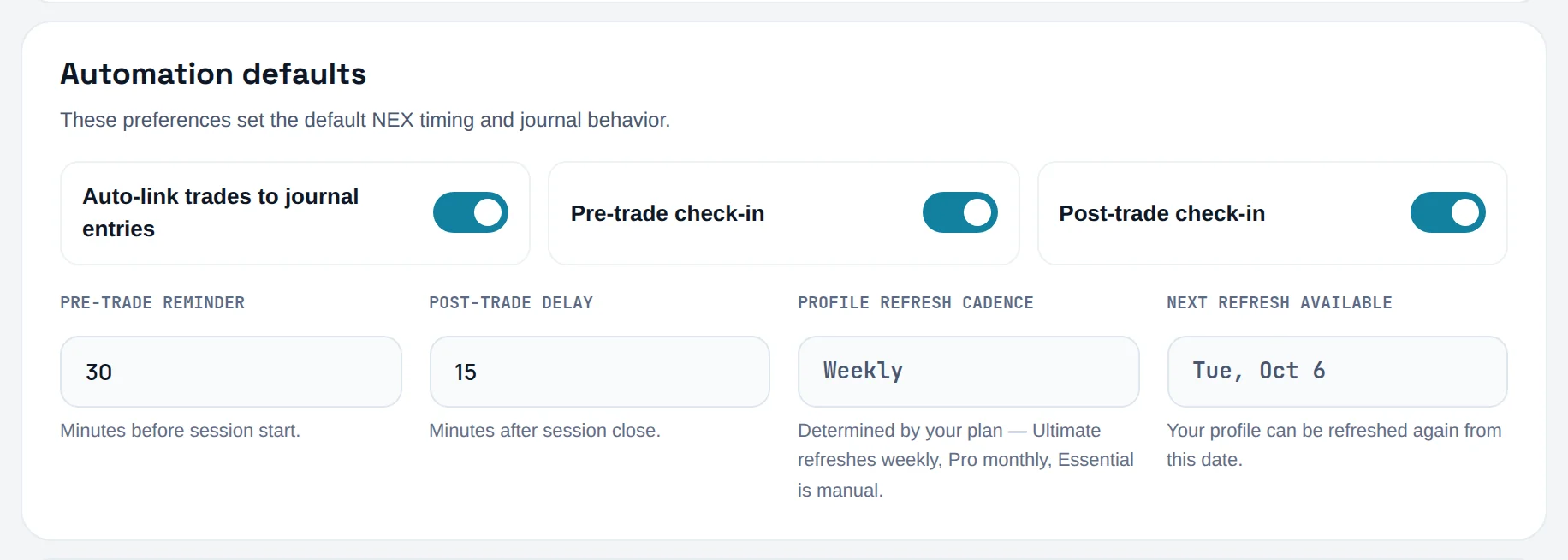
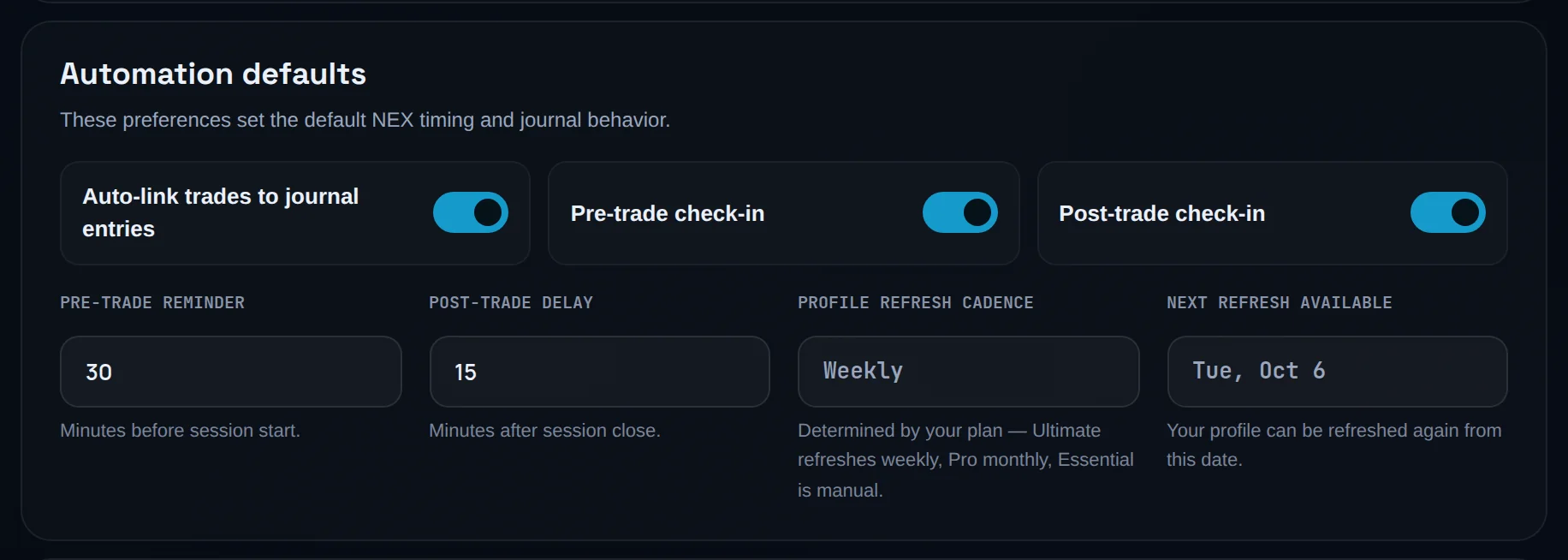
Under Automation defaults, switch on Pre-trade check-in and Post-trade check-in. Auto-link trades to journal entries is saved but doesn't link anything yet: you link trades to an entry yourself. Set Pre-trade reminder in minutes before session start and Post-trade delay in minutes after close.
Choose NEX's defaults
Under NEX defaults, pick a Default journaling mode: Direct Note, Guided Review or NEX Chat. Pick a NEX voice & tone: Direct & analytical, Supportive & coaching or Concise — facts only.
Check your usage
Monthly quota shows Interactions used this month and when it resets. Feature activity lists which NEX features you used.
What each limit feeds:
| Setting | What it changes | Where you see it |
|---|---|---|
| Max risk per trade | The Oversized position detector and the Rule adherence risk check | Risk Rule Adherence, Oversized Position |
| Max daily loss | Exposure control: did you stop after hitting it | Exposure Discipline |
| Max trades per day | Exposure control and the Overtrading detector | Exposure Discipline, mistake detectors |
| Max drawdown floor | The survival buffer on your pre-trade check-in | check-ins |
| Stand-down line | Counted on Discipline & Risk. Never scored, never blocks a trade | stand-down line |
Worked example. Your Account size is 50,000 and you set Max risk per trade to 1 with %. The line under it converts that to 500 of 50,000. A trade that risks 650 is now over your limit: it is flagged as an oversized position and fails the risk check in Rule adherence.
Leave a field empty and it simply isn't measured. Limbix never fills in a limit for you, because a limit you never chose isn't one you can be scored against. On a prop account, the firm's limits outrank yours: a Firm limits strip shows them. The full order is on risk limit chain, and the reasoning on set your risk limits.
Voice journaling is in beta. Switch on Enable voice journaling and pick a Recognition language. It works best in Chromium browsers such as Chrome, Edge, Brave and Arc. Show AI confidence badges, under Analysis display, adds a confidence level to every NEX read.
Export, delete and control your data#
You will download your data, delete a range of trades safely, and decide what NEX may keep.
Open Data & privacy
Click Data & privacy in the settings rail.
Export what you need
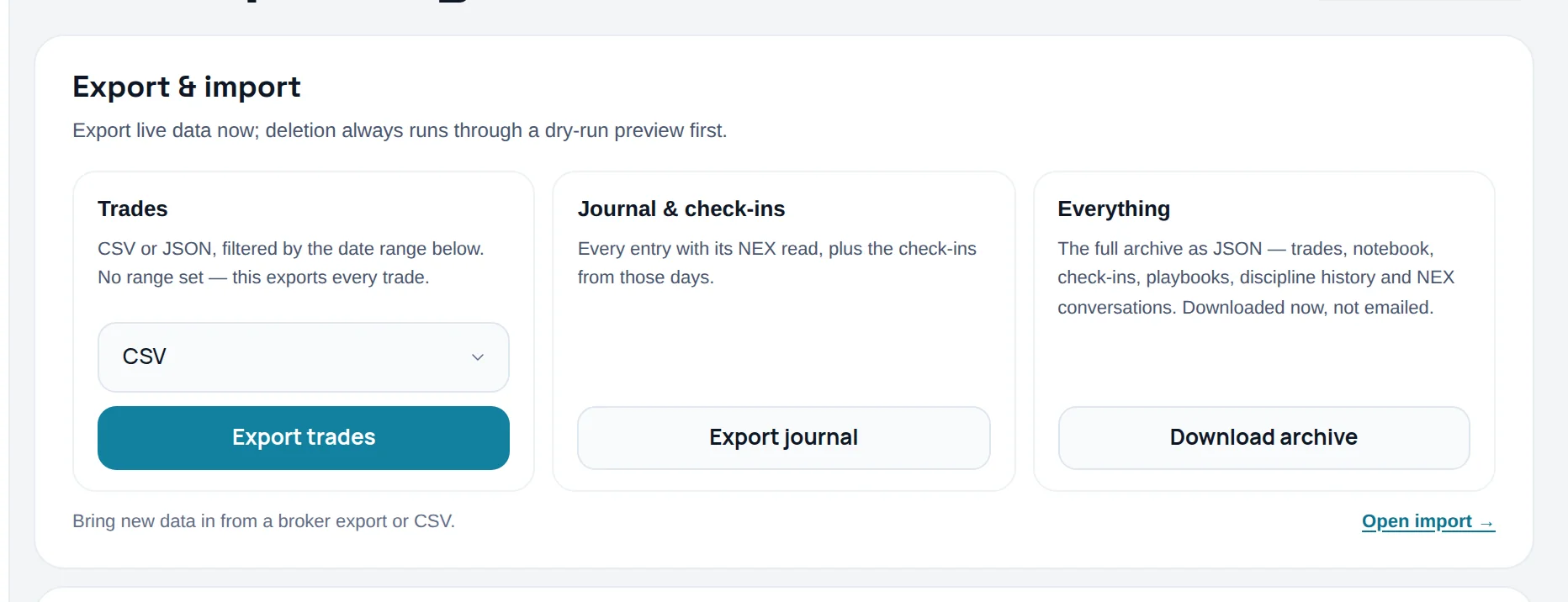
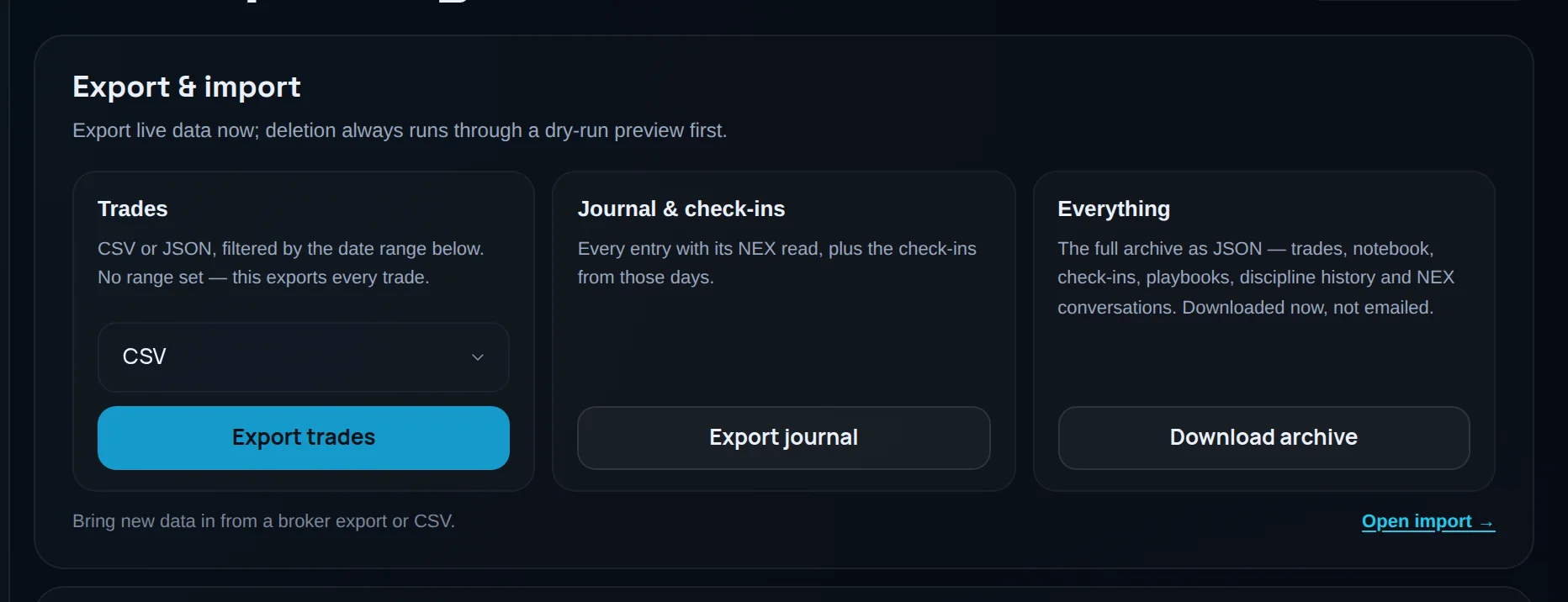
Under Export & import, choose CSV or JSON and click Export trades, click Export journal for notebook entries and check-ins, or click Download archive for everything as JSON.
Limit the export to dates
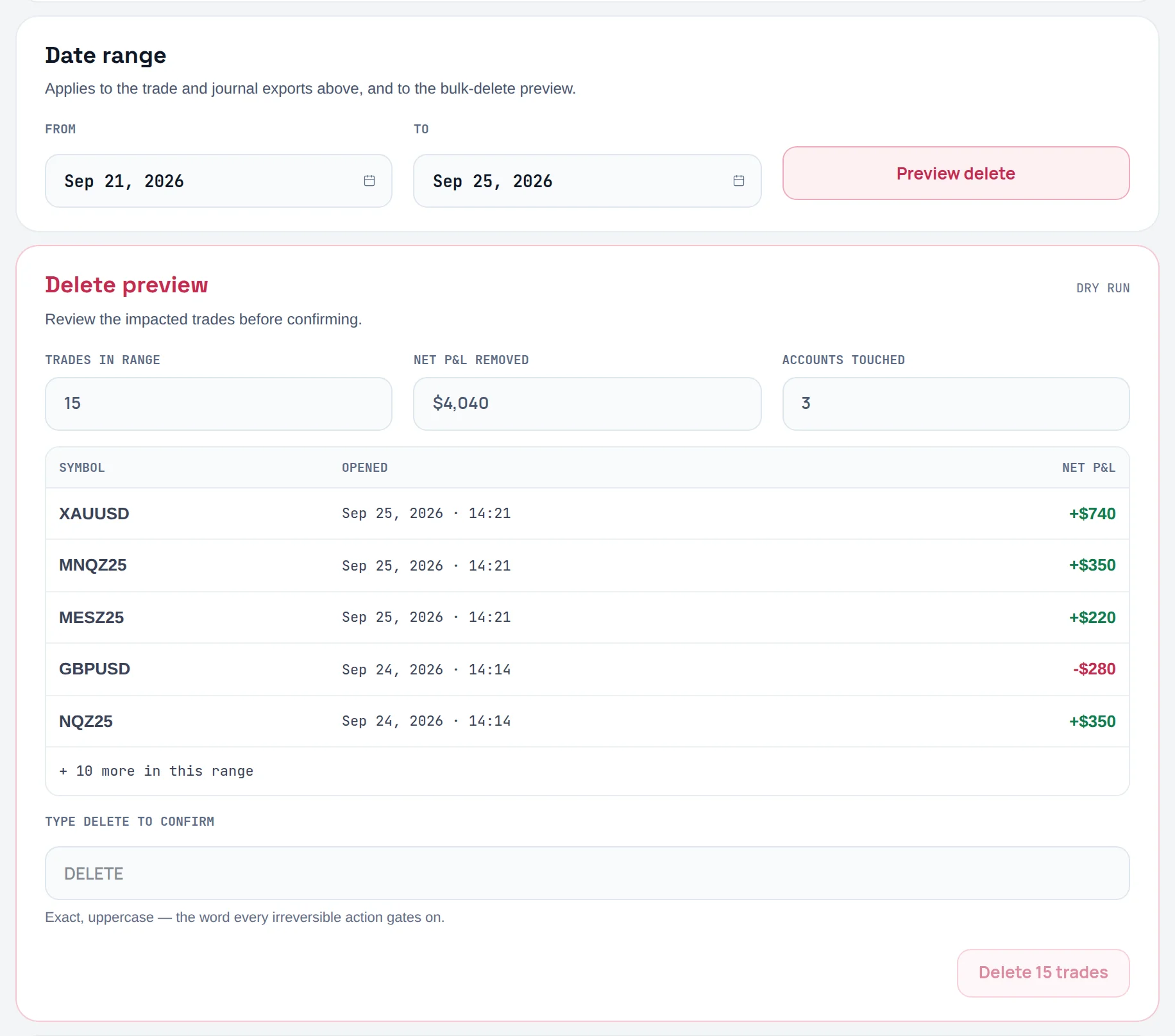
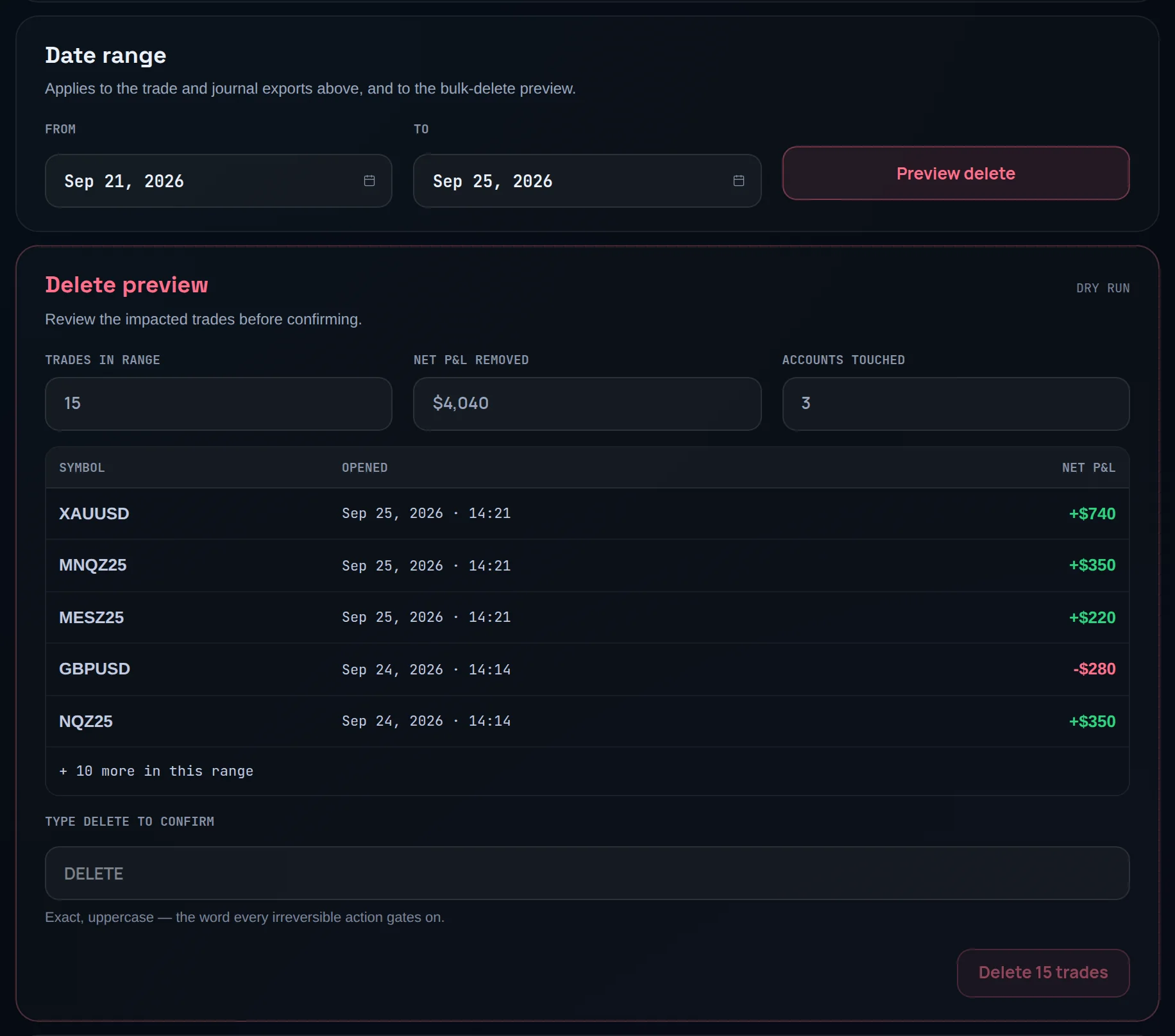
Under Date range, set From and To. The range applies to the trade and journal exports. The full archive always contains everything.
Preview a bulk delete
With both dates set, click Preview delete. Delete preview shows Trades in range, Net P&L removed, Accounts touched and the first trades affected.
Confirm the delete
Type DELETE in Type DELETE to confirm, then click Delete … trades. This cannot be undone.
Set screenshot retention
Under Screenshot retention, set Retention to 30 days, 90 days or 1 year. Forever needs Ultimate. The setting applies to screenshots already uploaded.
Set NEX privacy
Under NEX privacy controls, choose whether to Use notebook entries to improve AI prompts, whether to allow Sentiment analysis on notebook entries, and your Conversation retention.
Sentiment analysis on notebook entries is required for Behavioral Profile refreshes and risk flags: switching it off stops them. Conversation retention can be Delete after compile, Keep for 90 days or Keep forever. Data residency shows where your data is stored. See NEX quotas and privacy.
Check your plan and storage#
You will see which plan you are on and how much of your storage you have used.
Open Plan & billing
Click Plan & billing in the settings rail.
Read your plan
Current plan shows your Plan and when it renews.
Check your storage
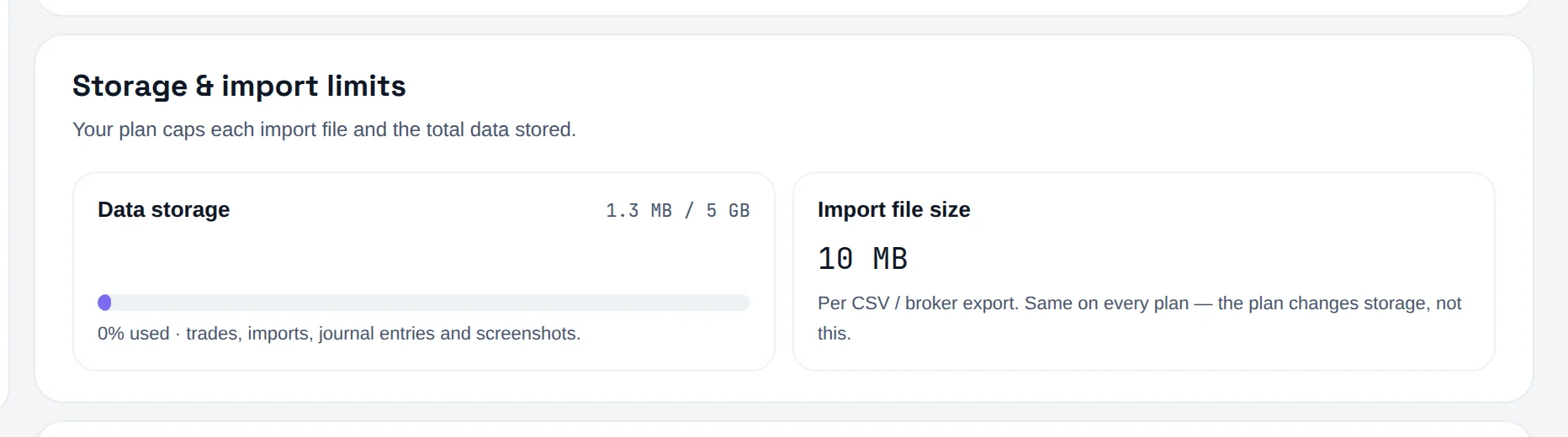
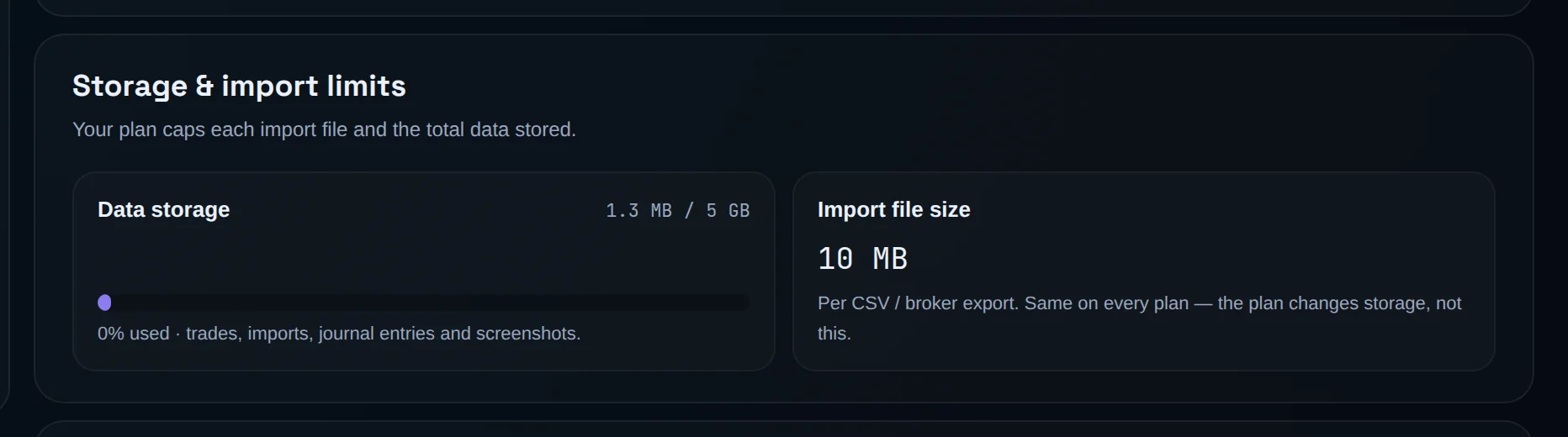
Under Storage & import limits, Data storage shows used against your limit, with a bar. Import file size shows the per-file limit for imports.
Compare plans
Plan comparison lists what each plan includes and what a downgrade would change. Downgrading never deletes data: locked features come back when you upgrade again.
Storage is 1 GB on Essential, 5 GB on Pro and 5 GB on Ultimate, counting trades, imports, journal entries and screenshots. The import file limit is 10 MB per file on every plan. Full comparison: plans.
Change how Limbix looks#
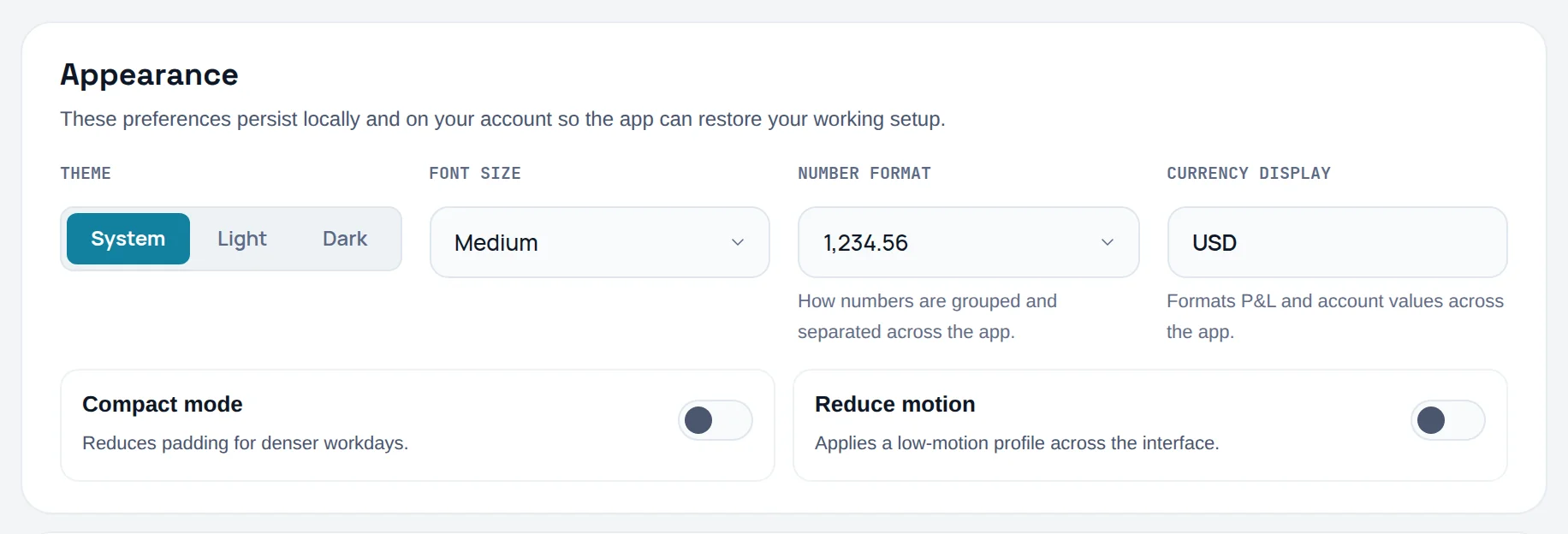
You will set the theme, text size and number format you work in.
Open Appearance
Click Appearance in the settings rail.
Pick a theme
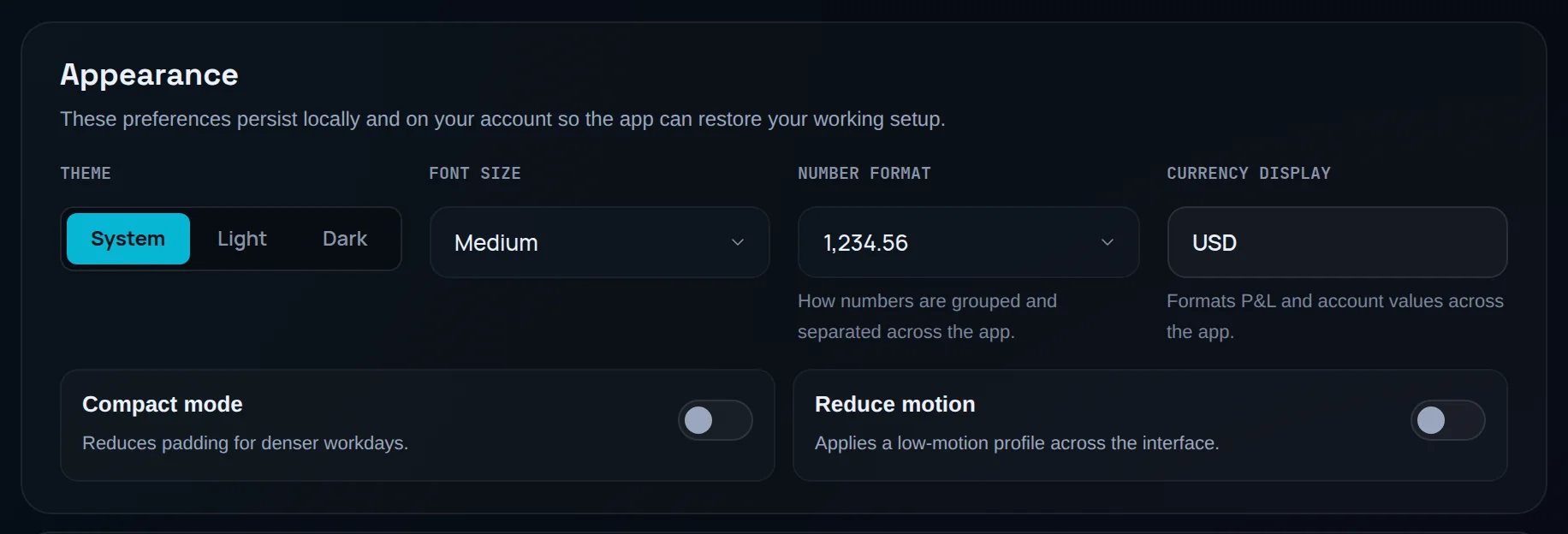
Under Theme, choose System, Light or Dark.
Set size and formats
Choose a Font size: Small, Medium or Large. Choose a Number format: 1,234.56, 1.234,56 or 1 234,56. Type your currency code in Currency display.
Adjust density and motion
Switch on Compact mode for tighter padding, or Reduce motion for less animation.
The About card shows how to reach Support, plus the app Version and Build hash. Include both when you report a problem.
Common problems#
The pill says "Unsaved edit". A text or number field is still focused. Click outside it, or press Tab, and it saves.
My percentage limit won't save. A percentage needs an Account size to be measured against. Enter one first, or switch the unit to $.
My daily stats look wrong after changing timezone. History is still being recalculated. Wait for "Your history has been recalculated for the new timezone." If it failed, click Retry recalculation.
I can't edit a prop account's balance. Prop accounts are managed in Prop Hub. Open Open Prop Hub from the row's menu.
Preview delete is greyed out. Set both From and To under Date range. Limbix doesn't offer a bulk delete with an open-ended range.
I lost my authenticator and my recovery codes. Email [email protected]. It's the address behind Contact support in the About card under Appearance, which you can't reach while you're locked out. There is no self-serve reset.
Frequently asked questions#
How do I change my timezone in Limbix? Open Settings, then Profile, and pick your zone under Timezone. It saves straight away. Limbix then recalculates your history onto the new day boundaries, so daily P&L, the calendar and discipline scores regroup. A notice shows while that runs. Choose the timezone you trade in, since it decides which day each trade belongs to. See trading day.
Where do I set my max risk per trade? In Settings, under NEX, in the Risk profile card. Enter Account size, then Max risk per trade as an amount or a percentage. It feeds the Oversized position detector and the risk check in Rule adherence. On a prop account, the firm's rule takes priority. See set your risk limits.
Does the stand-down line stop me from trading? No. Limbix has read-only access to your trade history and cannot place or block an order. The stand-down line is a stopping point you commit to while calm. Limbix counts the trades you took past it and shows them on Discipline & Risk. It never changes your Risk Score or discipline score.
How do I export all my data from Limbix? Open Settings, then Data & privacy, and click Download archive under Everything. It downloads a JSON file straight away with your trades, notebook, check-ins, playbooks, discipline history and NEX conversations. For a spreadsheet, use Export trades with CSV, optionally limited by Date range.
What happens to my data if I delete my account? Deleting schedules removal and signs you out. Nothing is erased for 30 days. Signing back in within that window cancels the deletion and restores everything. After 30 days the removal is permanent and cannot be recovered, so download your archive first with Export everything (JSON).