
02 · Guides
Notebook: journal your sessions and link trades
Write trading journal entries in the Limbix Notebook: start from a template, link the day's trades, dictate through NEX and control sentiment analysis.
The Notebook is where you write the day down in Limbix: a trading journal entry before the open, after the close, or at the end of the week. You can start from a template, link the trades the entry is about, dictate through NEX, and decide whether NEX may analyse the tone of what you write.
Before you start#
Open Notebook from the sidebar under Core. Click New entry in the top bar to start writing.
Entries are grouped by day in the timezone on your profile, the same trading day your trades use. That is what lets an entry and the day's trades line up.
Start a trading journal entry from a template#
Your entry opens with the prompts already laid down as headings, so you only write the answers.
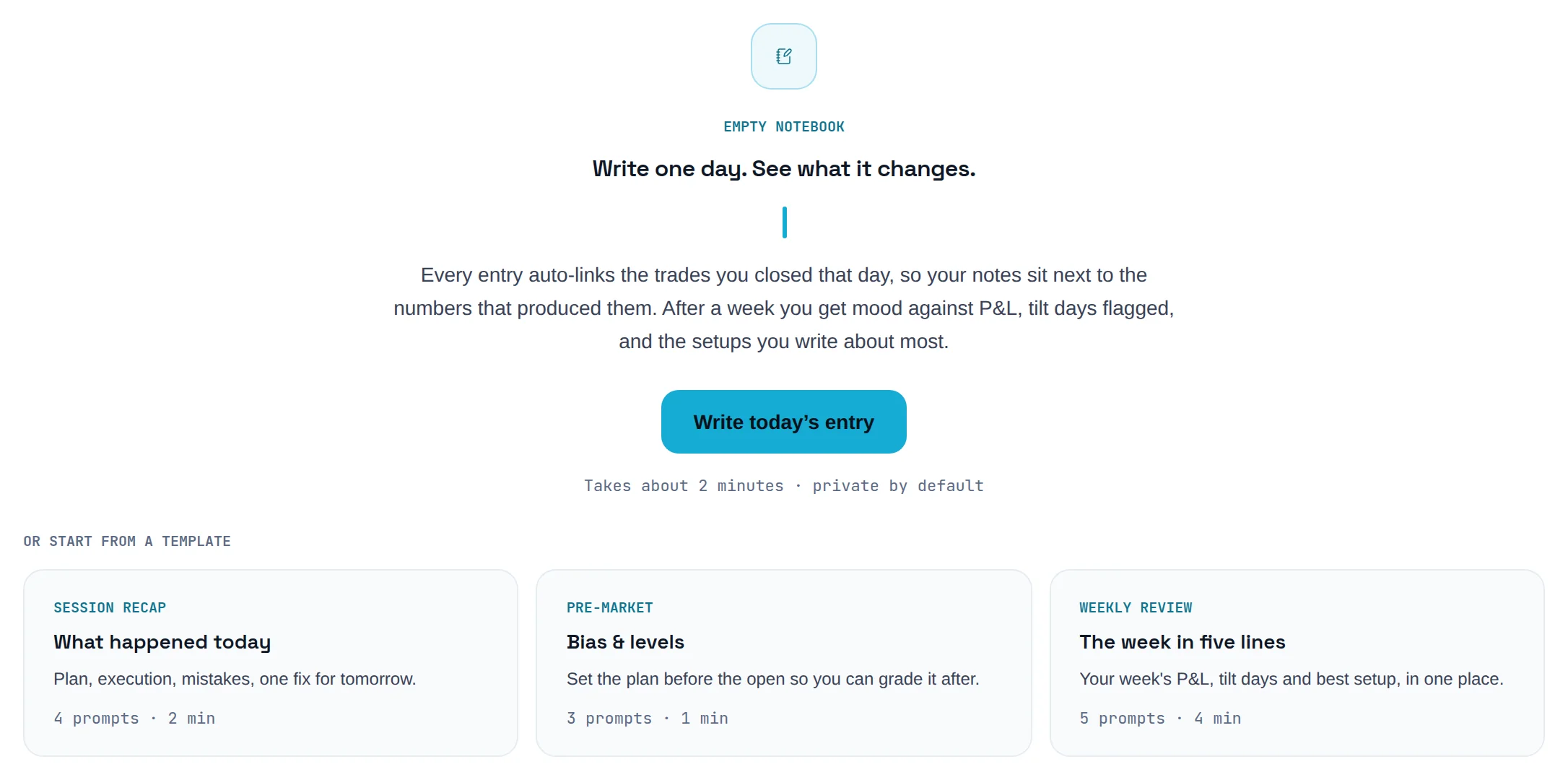
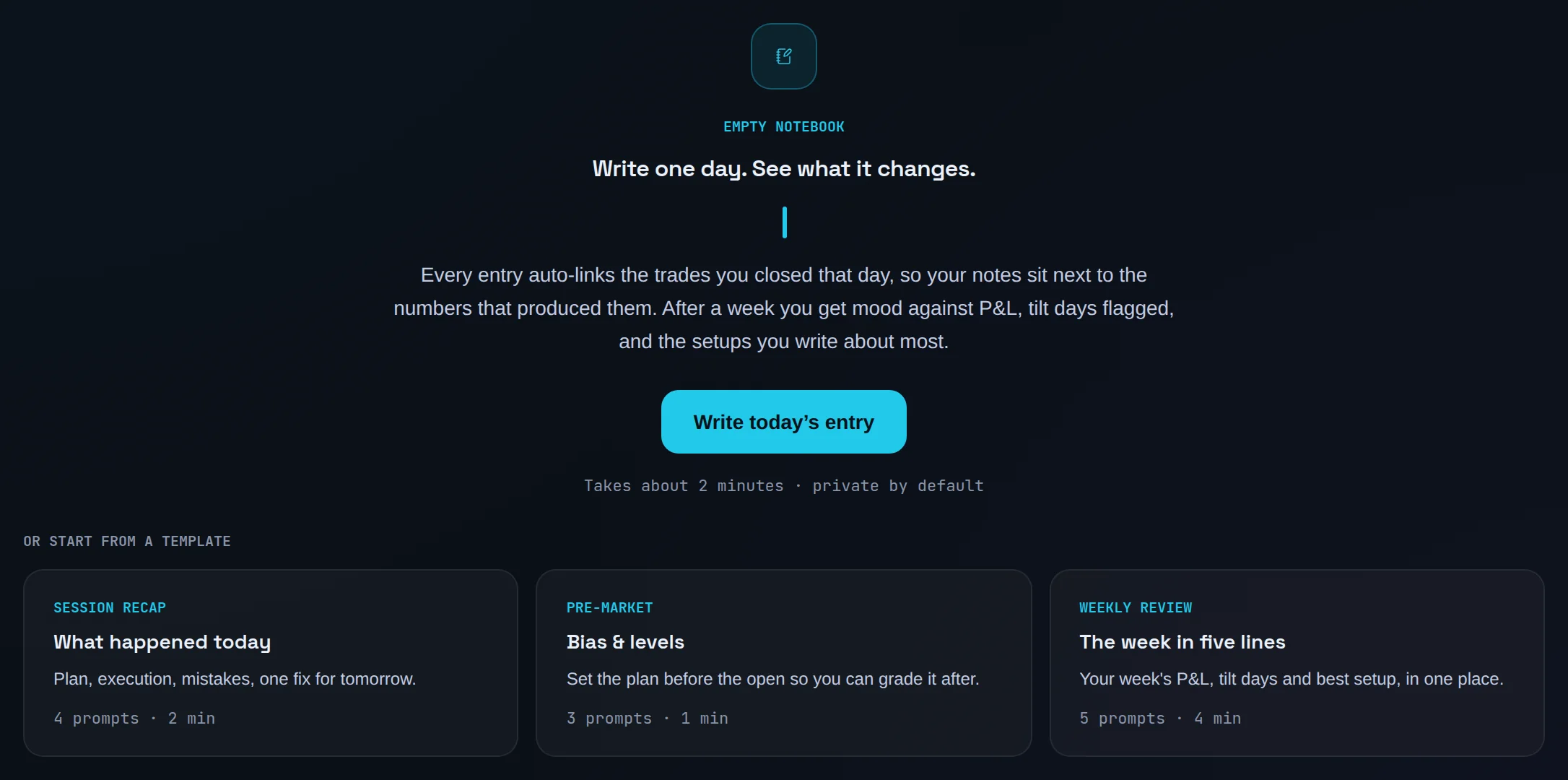
Pick a template on an empty Notebook
Before your first entry, the Notebook shows Or start from a template with three cards: Session recap ("What happened today"), Pre-market ("Bias & levels") and Weekly review ("The week in five lines"). Click one.
Or choose an entry type
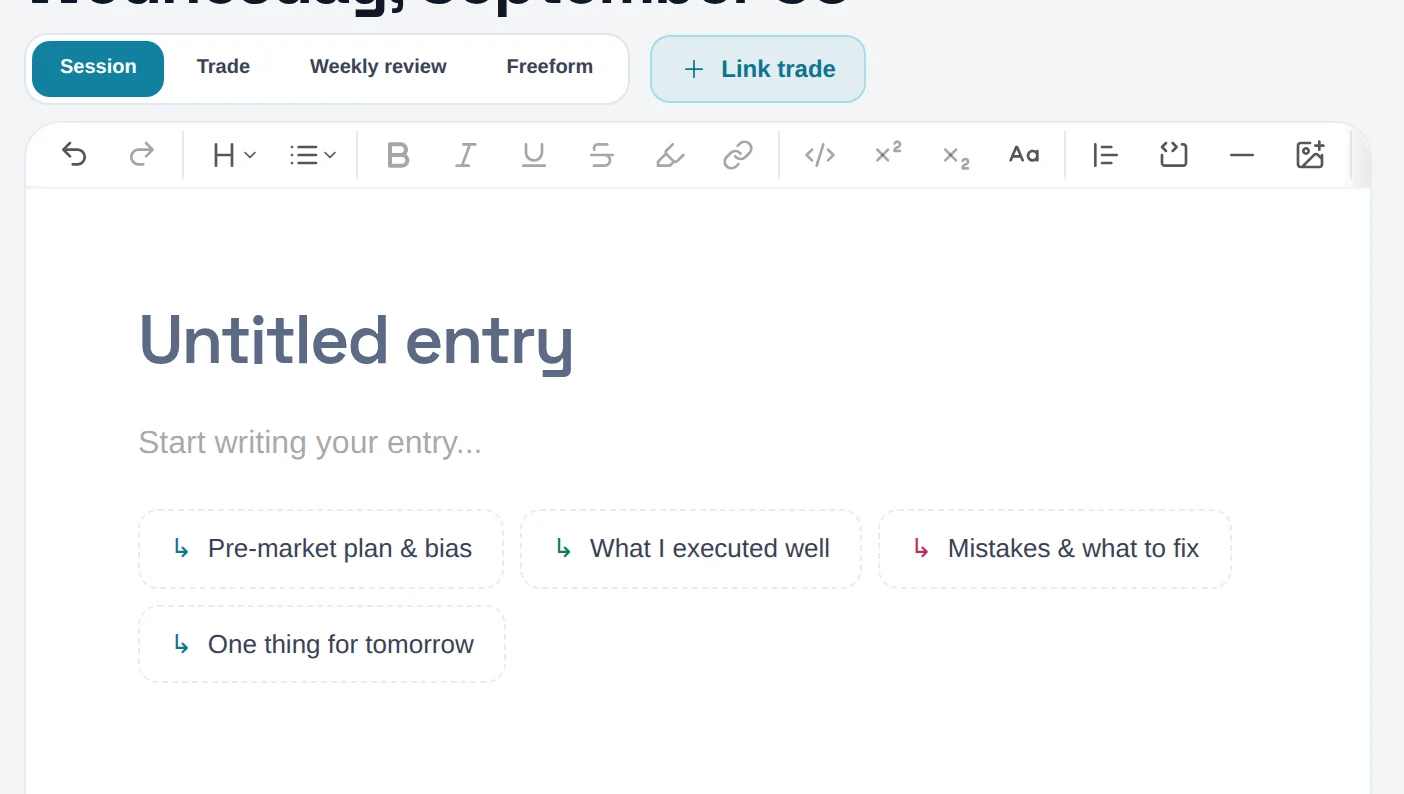
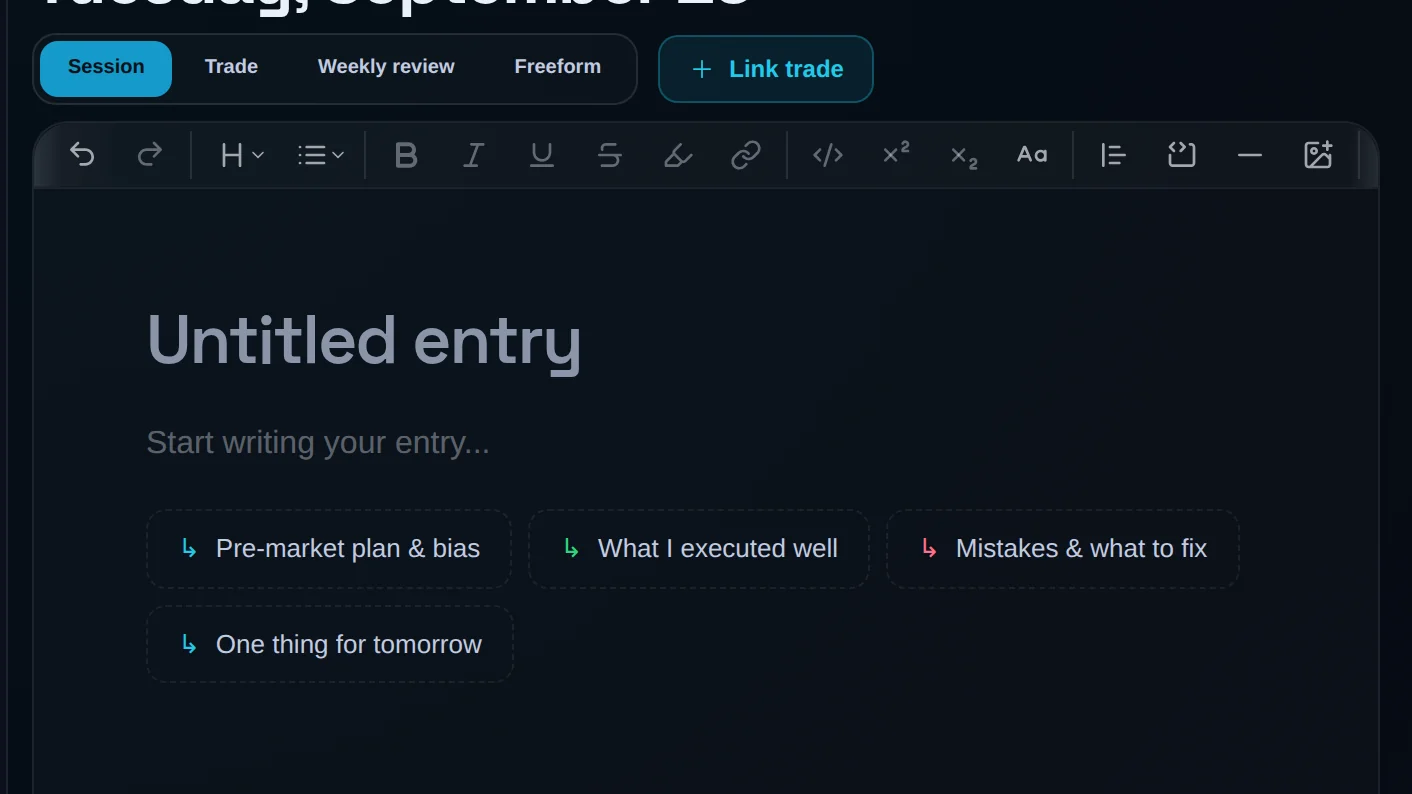
In the editor, click a type chip: Session, Trade, Weekly review or Freeform.
Use the starter prompts
On a blank page, starter prompts appear at the foot of the page for the selected type. Click one to insert it as a heading.
Write under each heading
Write your answers. Set the date with the date control if the entry is for another day.
Add mood and tags
Under Mood, click how you felt. Under Tags, type in Add a tag and press Enter.
Save
Click Save entry, or press ⌘ S.
What each template asks:
| Template | Prompts | Saves as |
|---|---|---|
| Session recap | Pre-market plan & bias · What I executed well · Mistakes & what to fix · One thing for tomorrow | Session |
| Pre-market | Bias & the levels that matter · What would invalidate it · Size and max risk today | Freeform |
| Weekly review | The week in one sentence · Best setup and why it worked · Where the money leaked · The rule I broke most · One change for next week | Weekly review |
Link trades to an entry#
The trades an entry talks about sit next to it, with their P&L, and NEX can read the two together.
Open Link trade
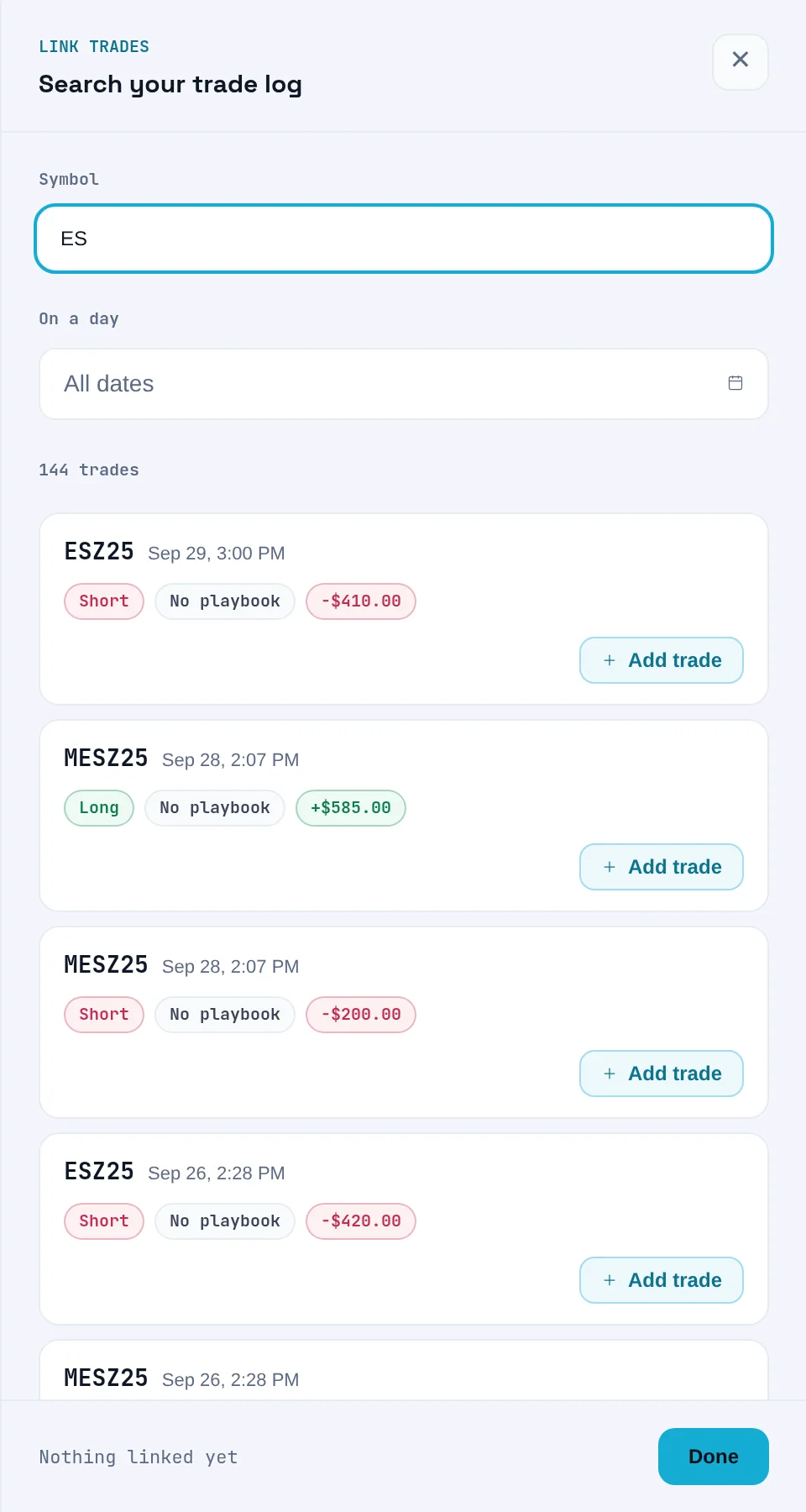
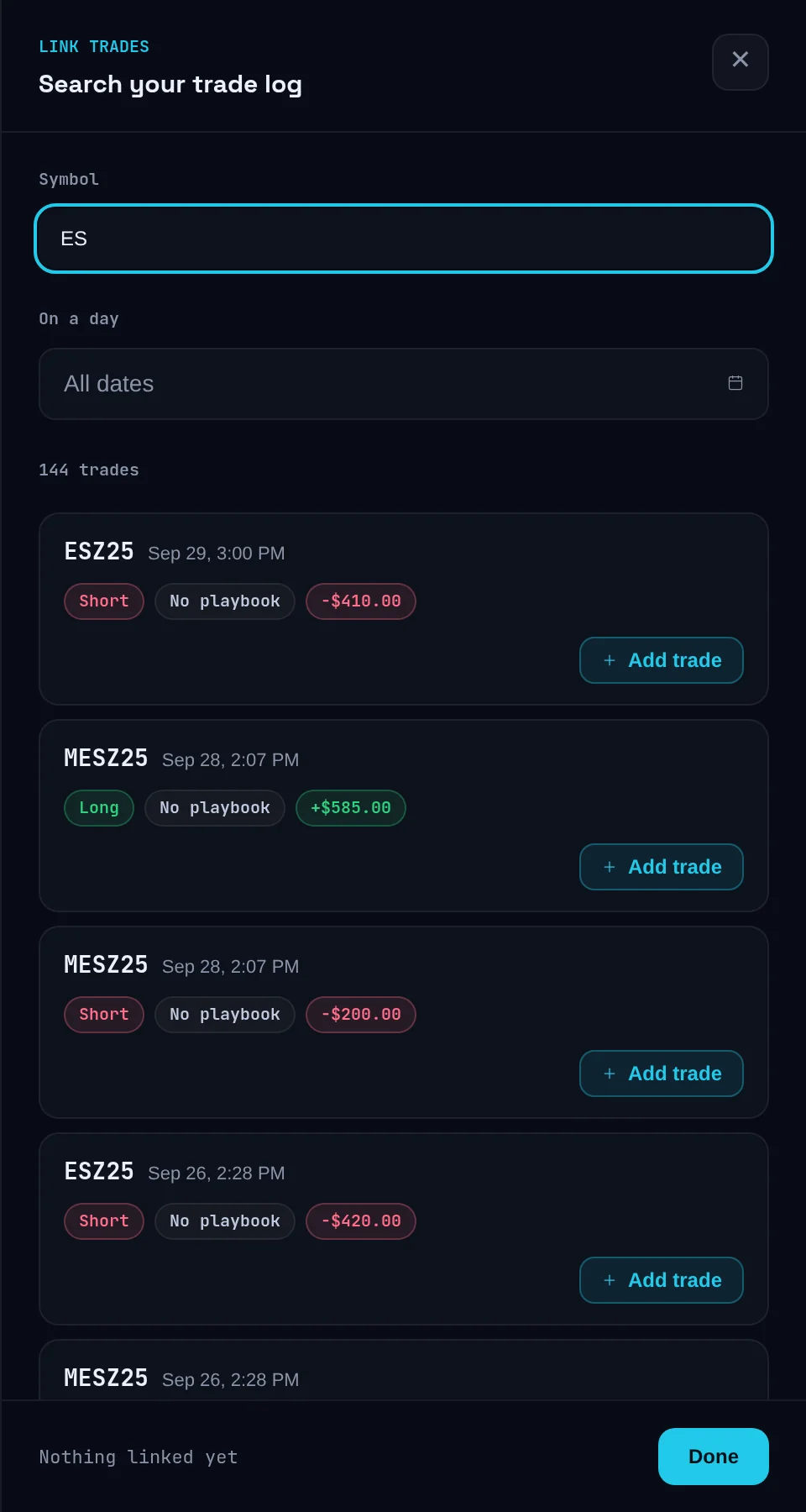
In the editor, click Link trade beside the entry type chips. The Link trades panel opens.
Find the trades
Type in Search symbol…, or filter by On a day. Each row shows the trade, its playbook (or No playbook and Impulsive) and its P&L.
Add them
Click Add trade on each one. It changes to Added, and the footer counts them, such as "2 trades linked".
Close the panel
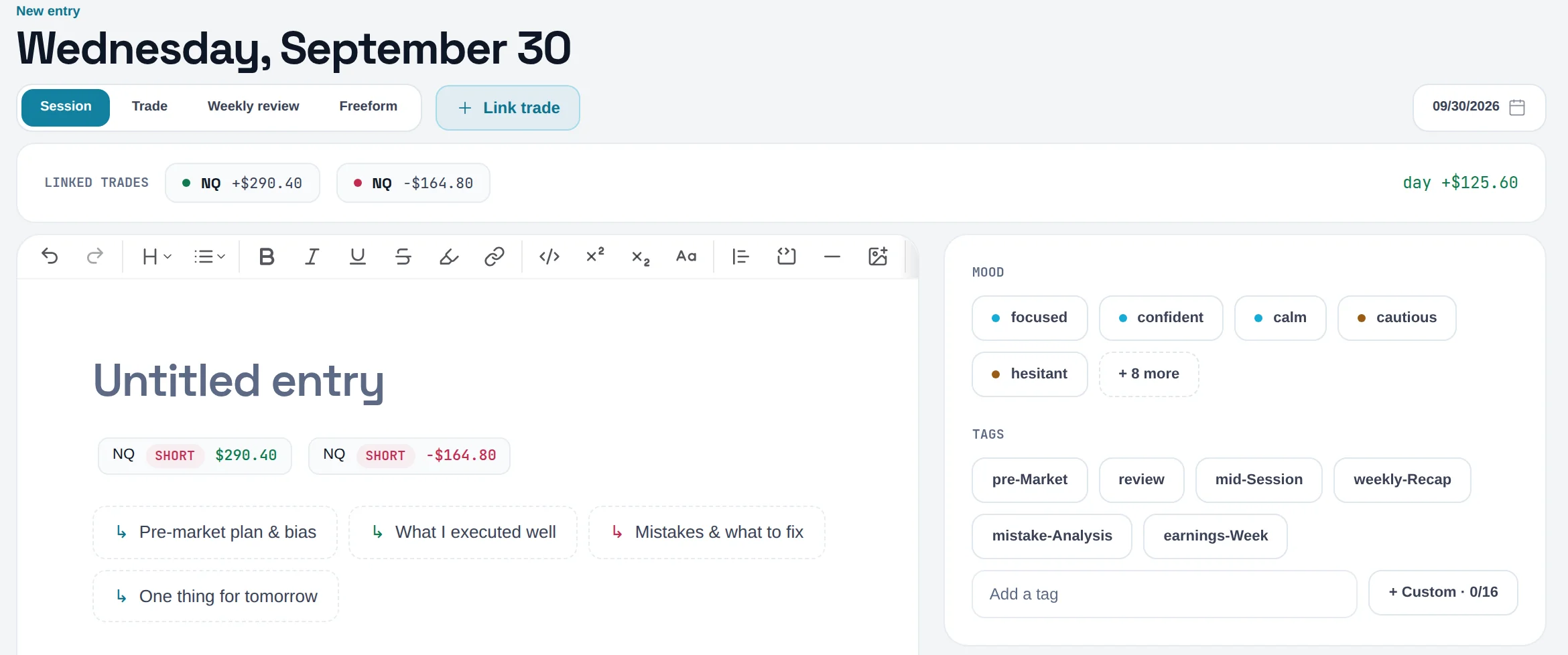
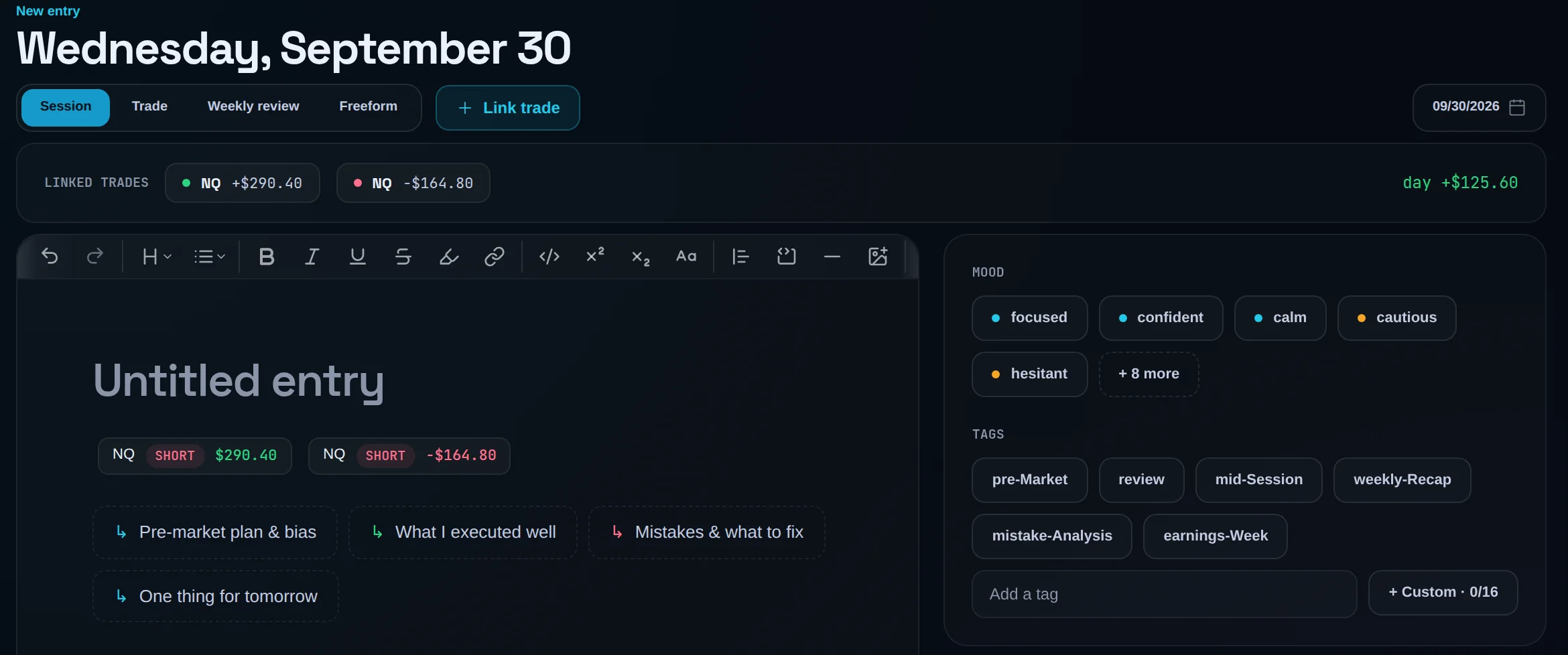
Click Done. The linked trades appear as chips under the title, with the day's total when they share a currency.
Unlink one
Click a trade chip to unlink it.
Save
Click Save entry or Save changes.
You can also start an entry from a day on the dashboard: in the day's summary, click Write entry ↗ to open a new entry dated that day. Older trades that are not listed in the panel can be linked from the trade's own page.
Linking is always yours to do. Limbix doesn't link trades to an entry on its own today, even with Auto-link trades to journal entries switched on in Settings › NEX.
Dictate with voice journaling#
You talk through your session instead of typing it, and NEX turns the conversation into a Notebook draft.
Turn voice journaling on
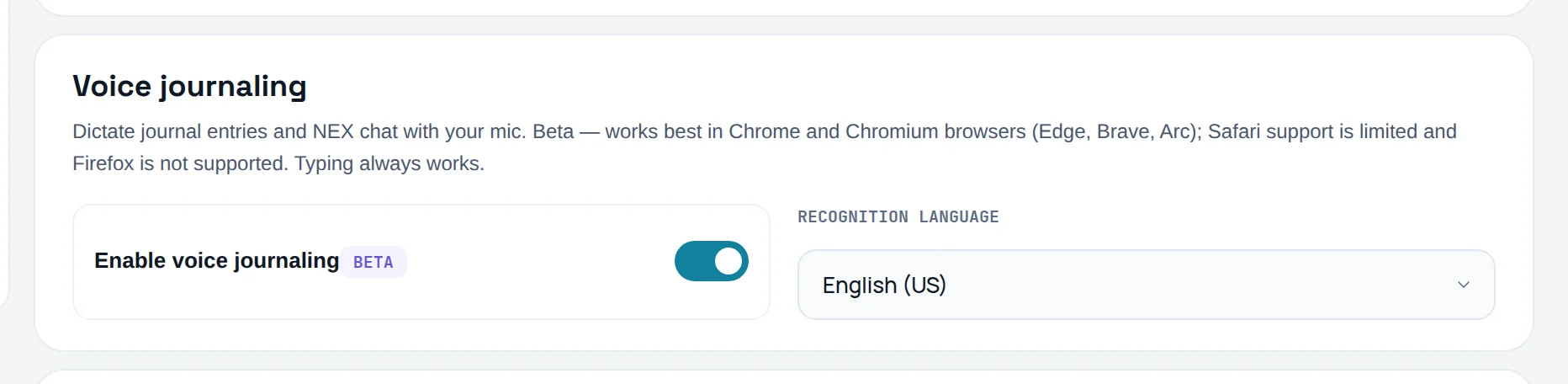
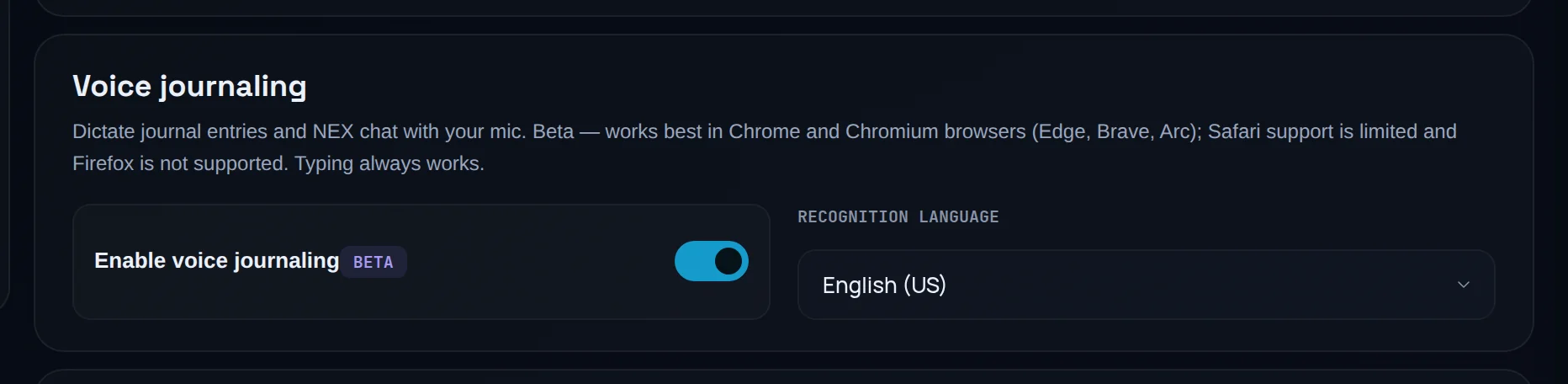
Go to Settings › NEX. Under Voice journaling, switch on Enable voice journaling (Beta) and choose a Recognition language.
Open NEX Journal
In the sidebar under NEX, click NEX Journal.
Start dictating
Click the microphone in the message box (Voice input). A recording dot and a running clock show while it listens. In a guided review, the control is Dictate.
Stop and send
Click the microphone again to stop. Edit the text if you need to, then send it.
Compile into a Notebook entry
When you are done, click Compile to turn the conversation into a Notebook draft. It opens in the editor for you to review.
Save the entry
Read the draft, change anything that is wrong, and click Save entry.
Dictation runs on your browser's built-in speech recognition. It works best in Chrome and Chromium browsers (Edge, Brave, Arc). Safari support is limited, and Firefox is not supported. Typing always works. The Notebook editor itself has no microphone: dictation lives in NEX Journal and its guided review.
Choose whether NEX analyses your entries#
You decide whether NEX reads the tone of your Notebook entries for sentiment, risk flags and your Behavioral Profile.
Open Data & privacy
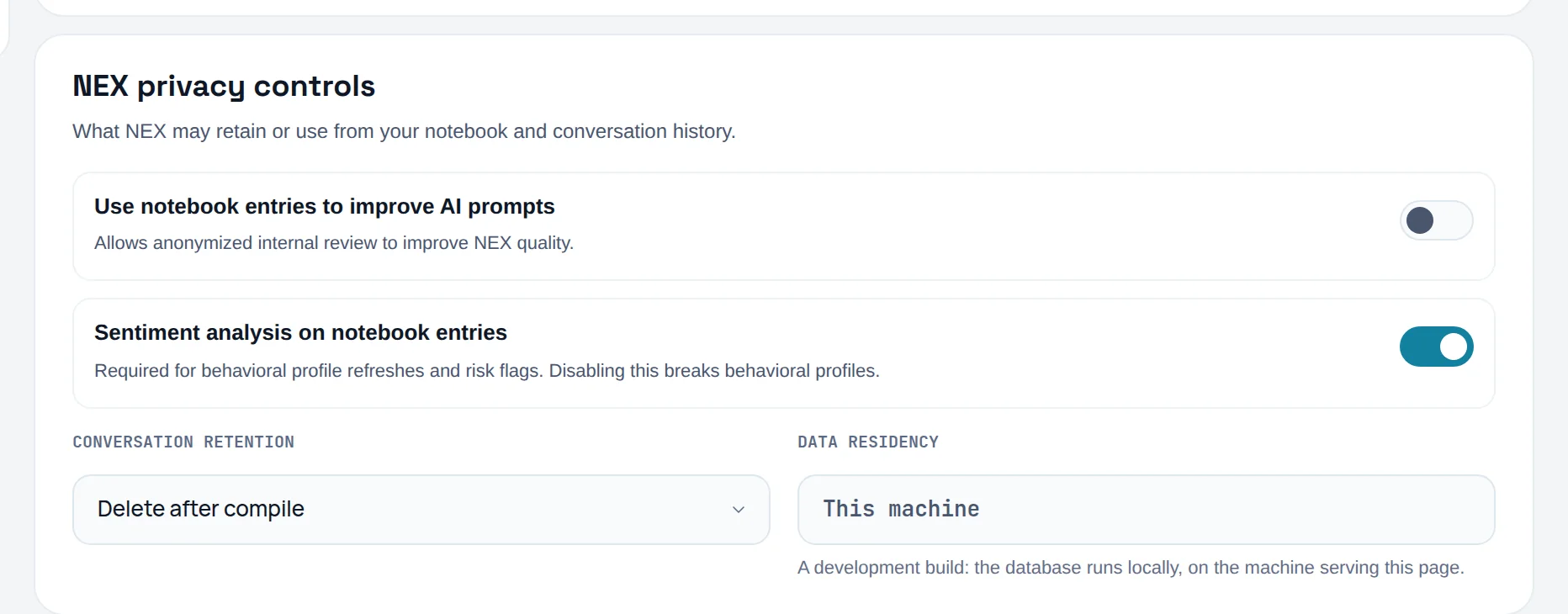
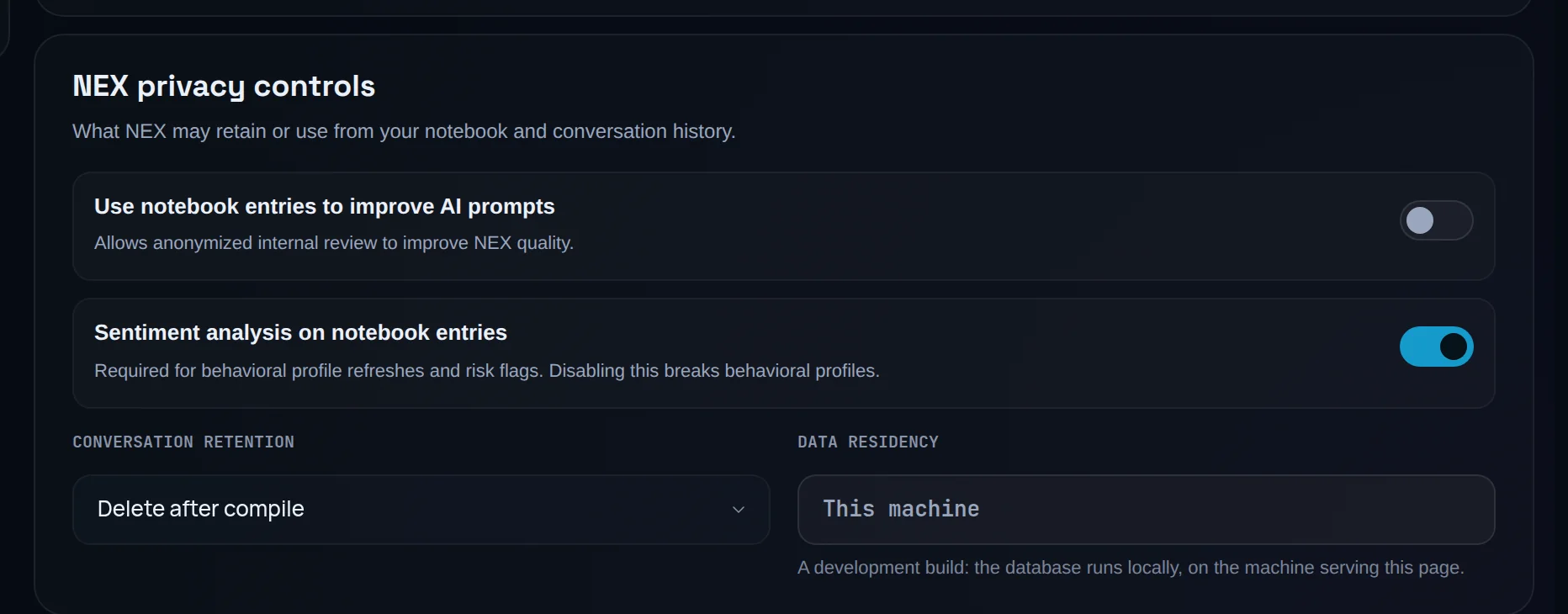
Go to Settings › Data & privacy, and find NEX privacy controls.
Set sentiment analysis
Sentiment analysis on notebook entries is on by default. Switch it off to stop NEX analysing your entries.
Set prompt improvement
Use notebook entries to improve AI prompts allows anonymised internal review to improve NEX. Switch it off if you do not want that.
Check it saved
Settings save on their own. The header reads Saved once the change is stored.
Switching sentiment analysis off takes effect straight away. New entries are not analysed, and sentiment readings stop being served. Behavioral Profile refreshes and risk flags depend on it, so they stop too. Very short entries are skipped even when it is on.
Common problems#
"Write something before saving this entry." An empty entry cannot be saved. Write at least a line.
"This entry was changed somewhere else since you opened it." You edited it in another tab or device. Click Load the newer version, then redo your change.
"You appear to be offline." The entry was not saved. Check your connection and save again.
I can't find an older trade in Link trades. The panel lists your most recent trades. Link older ones from the trade's own page.
There is no microphone in NEX Journal. Voice journaling is off in Settings › NEX, you are on Essential, or your browser has no speech recognition.
My entry has no sentiment reading. Sentiment analysis is off, your plan does not include NEX, or the entry is very short.
Frequently asked questions#
What should I write in a trading journal entry?#
Write what a future you would need to judge the day: the plan before the open, what you actually did, which rule you broke and why, and one change for tomorrow. Limbix's Session recap template lays down exactly those four prompts. Keep it short and specific. "Took the second breakout after two losses, sized up" is worth more than a page about the market, because it names a behaviour you can change.
How do I link trades to a journal entry?#
In the Notebook editor, click Link trade, find the trades by symbol or day, and click Add trade on each. Click Done, then save the entry. The linked trades appear as chips under the title with their P&L. Linking lets NEX read your words alongside the results they describe, and it feeds the sentiment vs next-day P&L comparison on Pro.
Can I dictate journal entries by voice?#
Yes, on Pro and Ultimate. Turn on voice journaling in Settings › NEX, then use the microphone in NEX Journal. When you finish, compile the conversation into a Notebook draft and save it. Dictation uses your browser's speech recognition, so it works best in Chrome and Chromium browsers and is limited in Safari. It is in beta. Typing works everywhere.
Does Limbix analyse the sentiment of my journal entries?#
Only on Pro and Ultimate, and only while you allow it. The switch Sentiment analysis on notebook entries in Settings › Data & privacy is on by default. Turn it off and new entries are not analysed, with the change taking effect immediately. Sentiment describes the tone of what you wrote. It is compared with your own past results, never used to call a market.
Are my Notebook entries private?#
Entries belong to your account, and NEX analyses them only if sentiment analysis is on. A separate switch, Use notebook entries to improve AI prompts, controls whether anonymised entries may be reviewed internally to improve NEX. Both are in Settings › Data & privacy, along with conversation retention for NEX chats. You can switch either off at any time.