
02 · Guides
Import trades: broker files, CSV and manual entry
Import trades from Tradovate, MetaTrader 5, TradingView, IBKR or any CSV, or log one by hand, and see which fields feed your R, discipline and risk scores.
To import trades into Limbix, drop a broker export on the Add trades screen: Tradovate, TradingView Paper Trading, MetaTrader 5, Interactive Brokers, ThinkorSwim, TradeZero, or any CSV you map yourself. You can also log a single trade by hand. Every route lands in the same trade log, so every score reads the same trades.
Before you start#
Three things decide whether an import goes cleanly.
- A futures or forex account. File import and manual entry both accept futures and forex/CFD accounts only. Crypto and equity accounts cannot receive trades yet. Add or check accounts in Settings › Trading accounts.
- The right timezone. Broker timestamps are read as wall-clock times in the timezone on your profile. Set it first in Settings › Profile, or trades can land on the wrong trading day.
- At least one playbook. The import wizard asks you to link each trade to a playbook. With playbooks in place, a trade you leave unlinked is counted as impulsive. See create a playbook.
Import trades from a Tradovate CSV#
Your Tradovate fills become round-trip trades, each linked to the playbook you choose, with columns detected for you.
Export your orders from Tradovate
Export your order history as a CSV. Limbix recognises the file when it has the columns Account, B/S, Contract, avgPrice, filledQty, Fill Time and Status.
Open Add trades
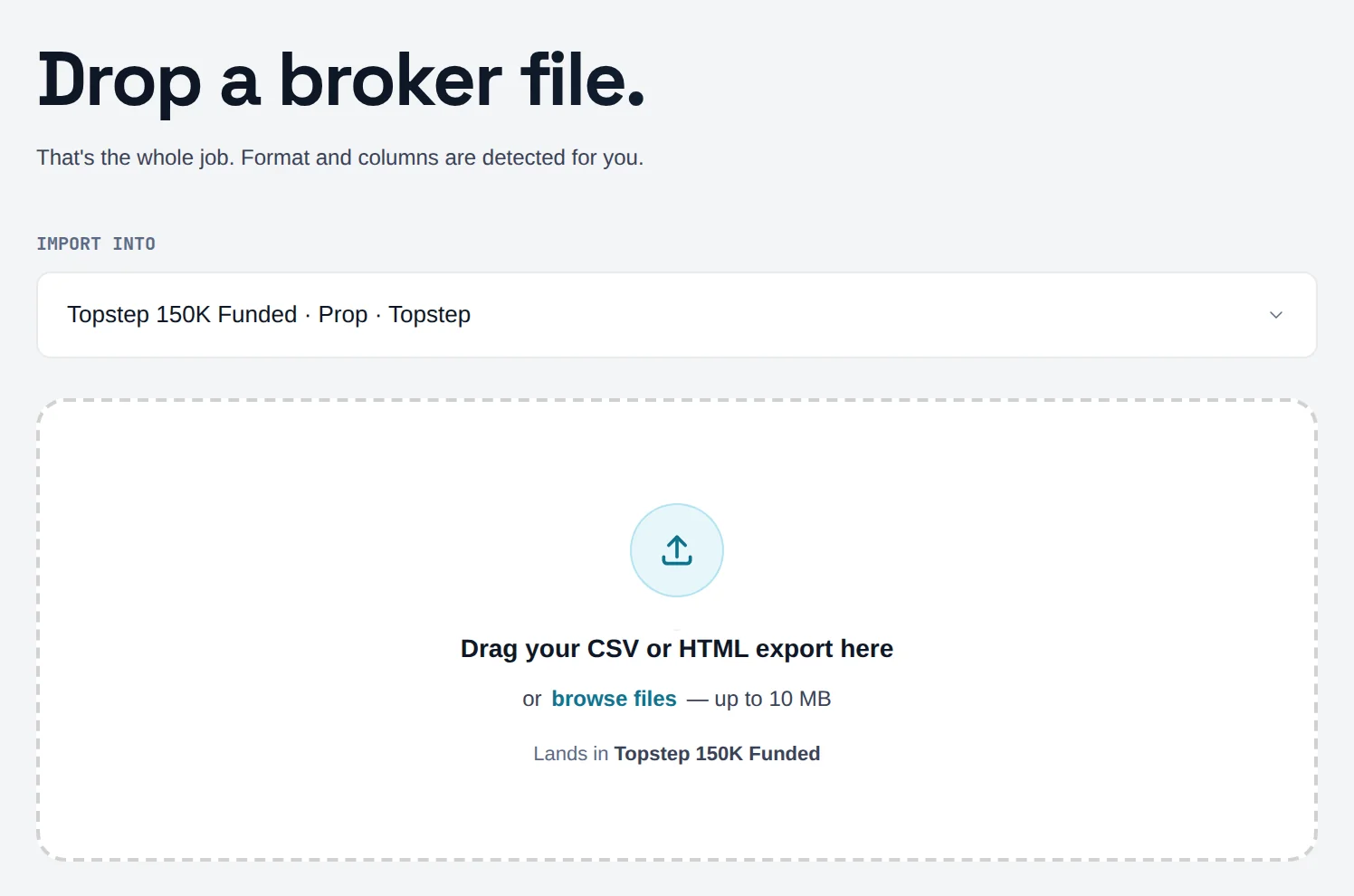
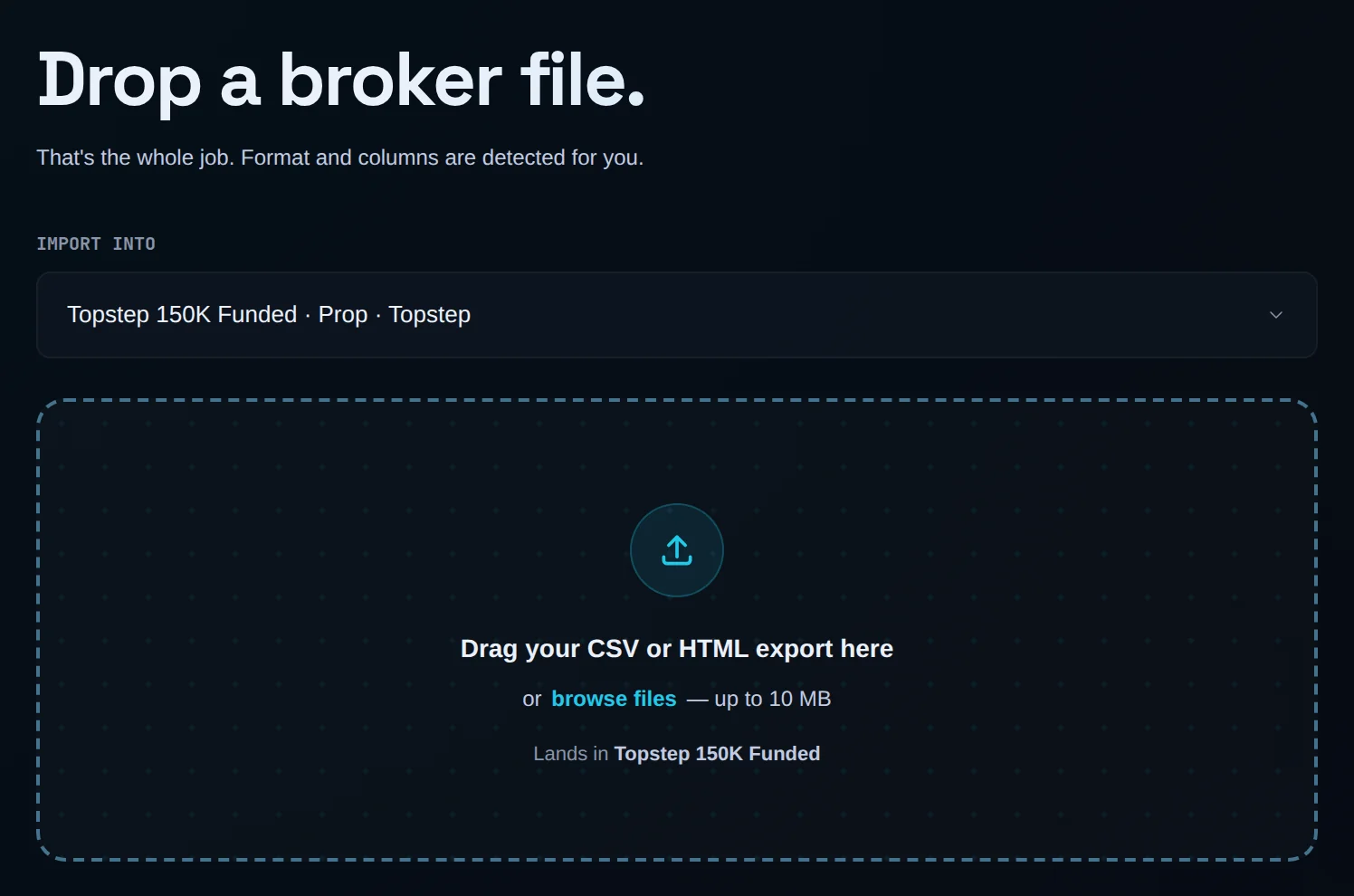
In the sidebar, under Core, click Add trades. The screen reads Drop a broker file.
Pick the account
Under IMPORT INTO, choose the account the trades belong to. Only futures and forex accounts are listed.
Drop the file
Drag the file onto Drag your CSV or HTML export here, or click browse files. Limbix opens the four-step wizard: Upload, Map, Playbook, Review.
Check the mapping
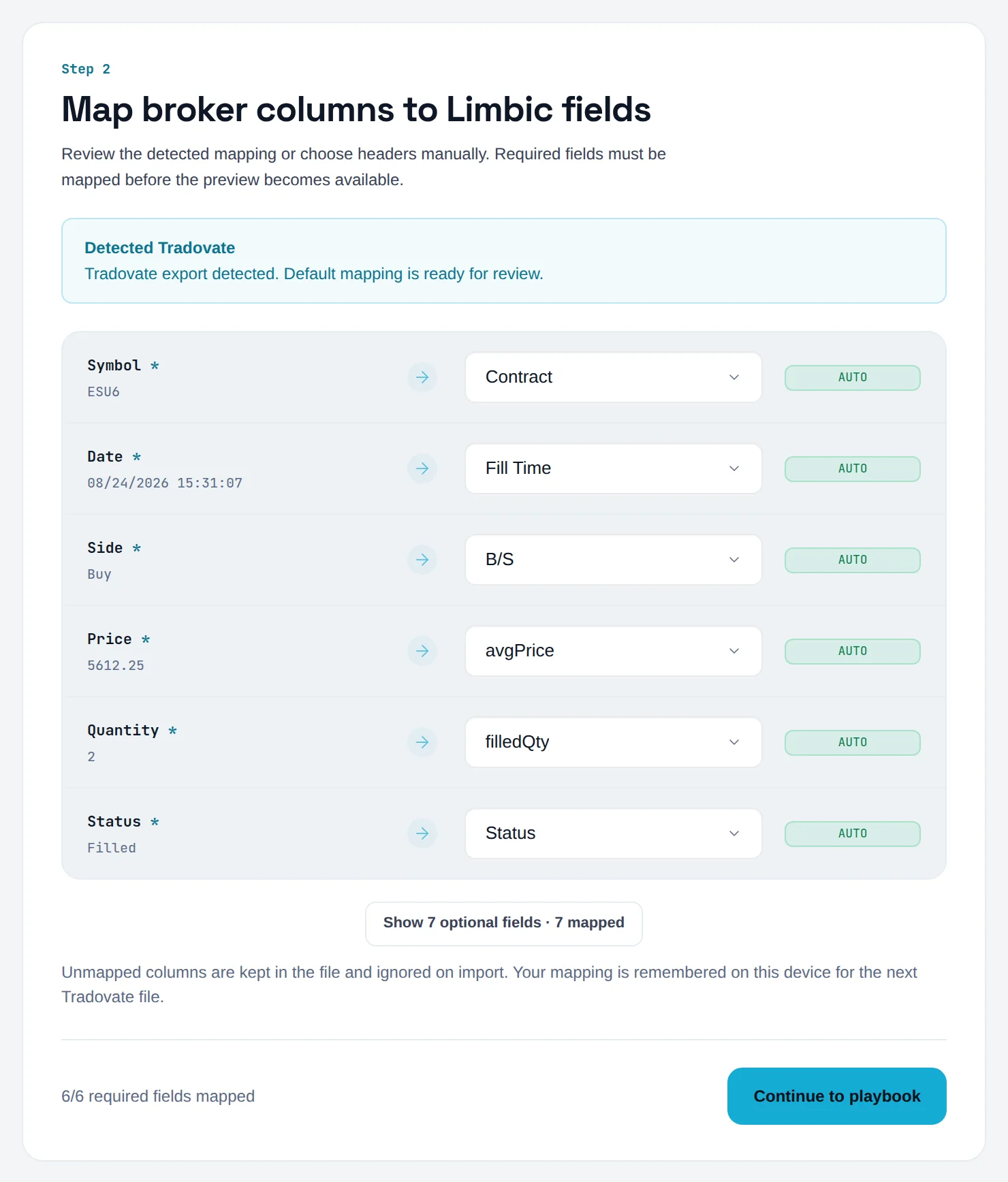
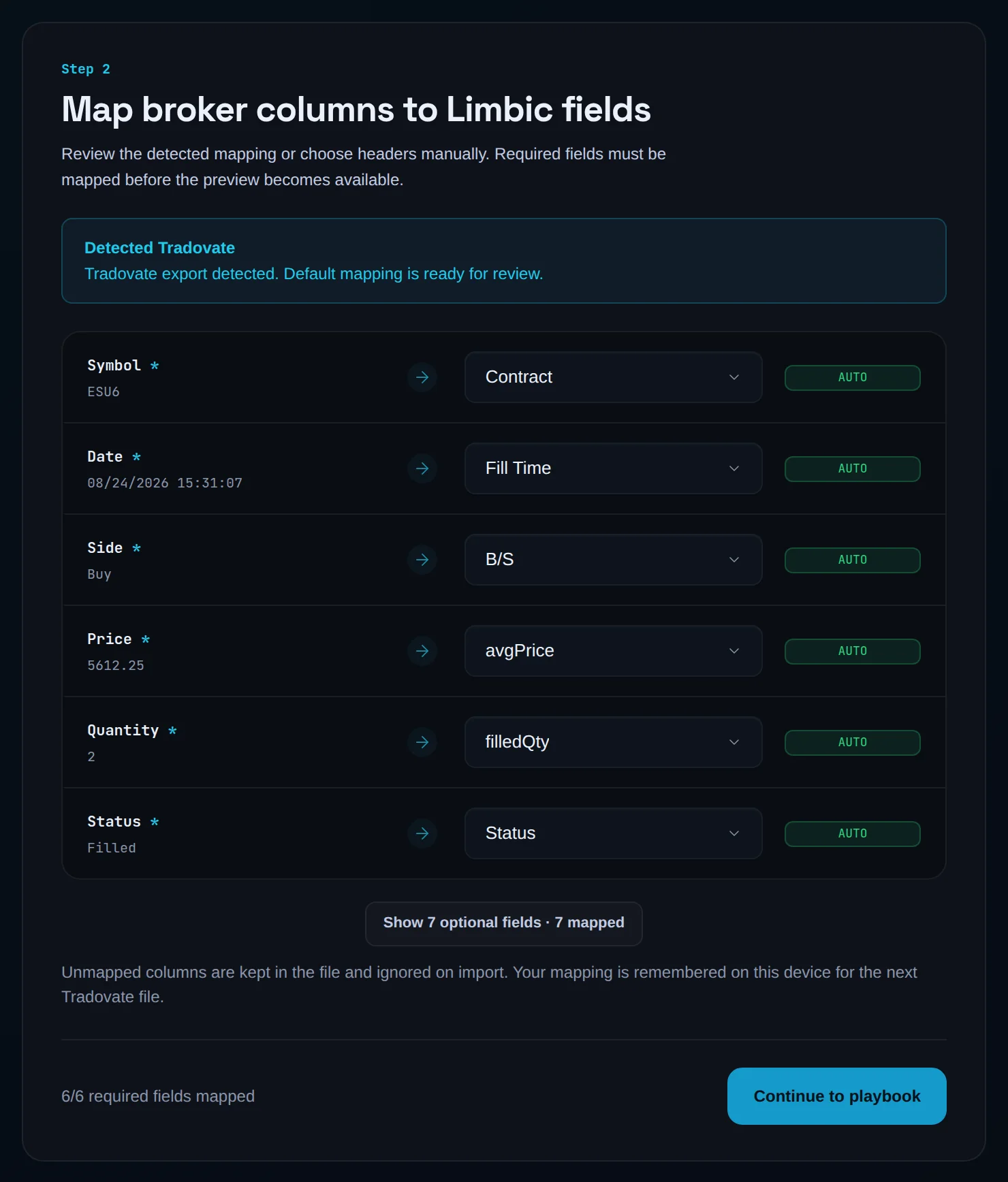
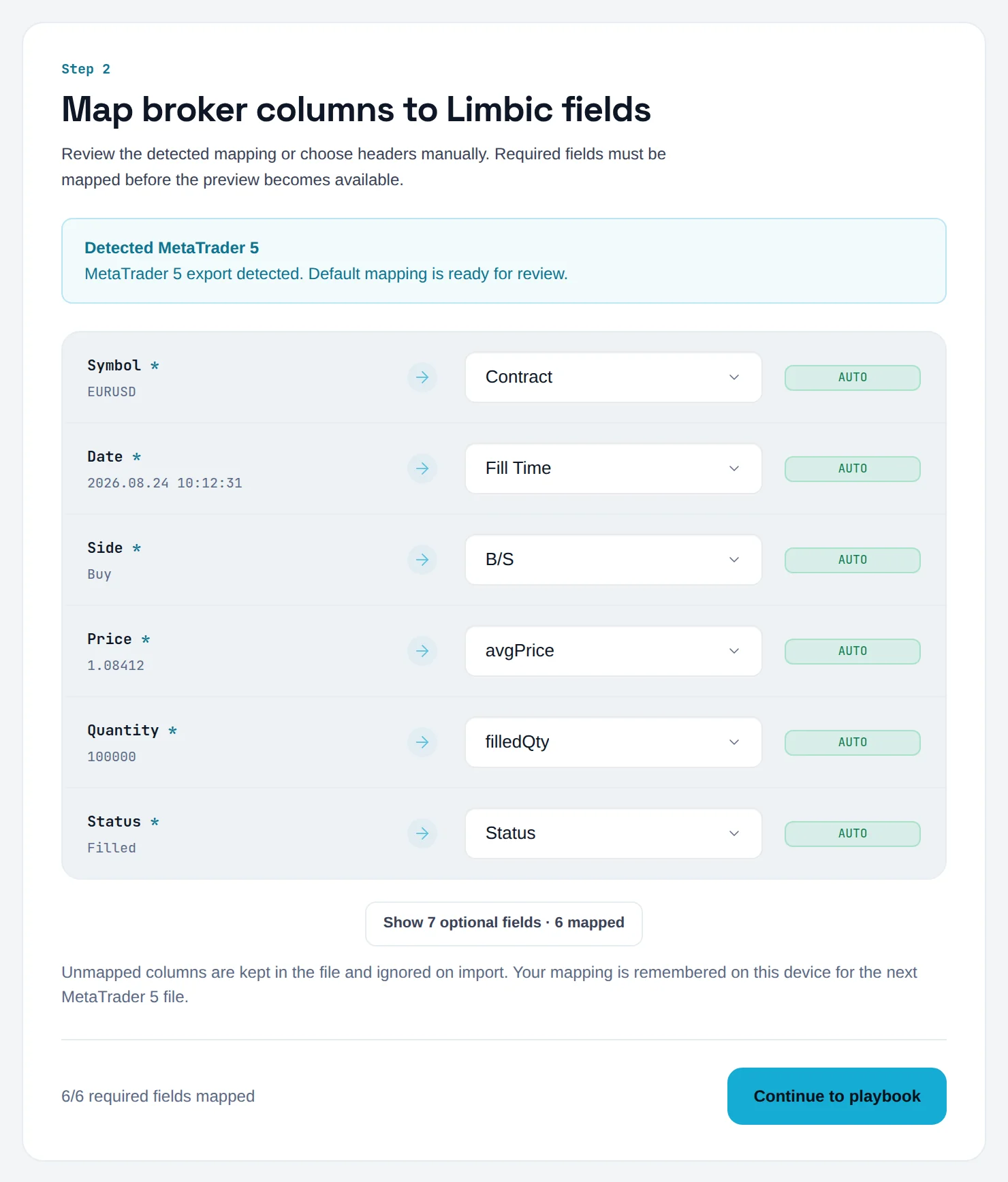
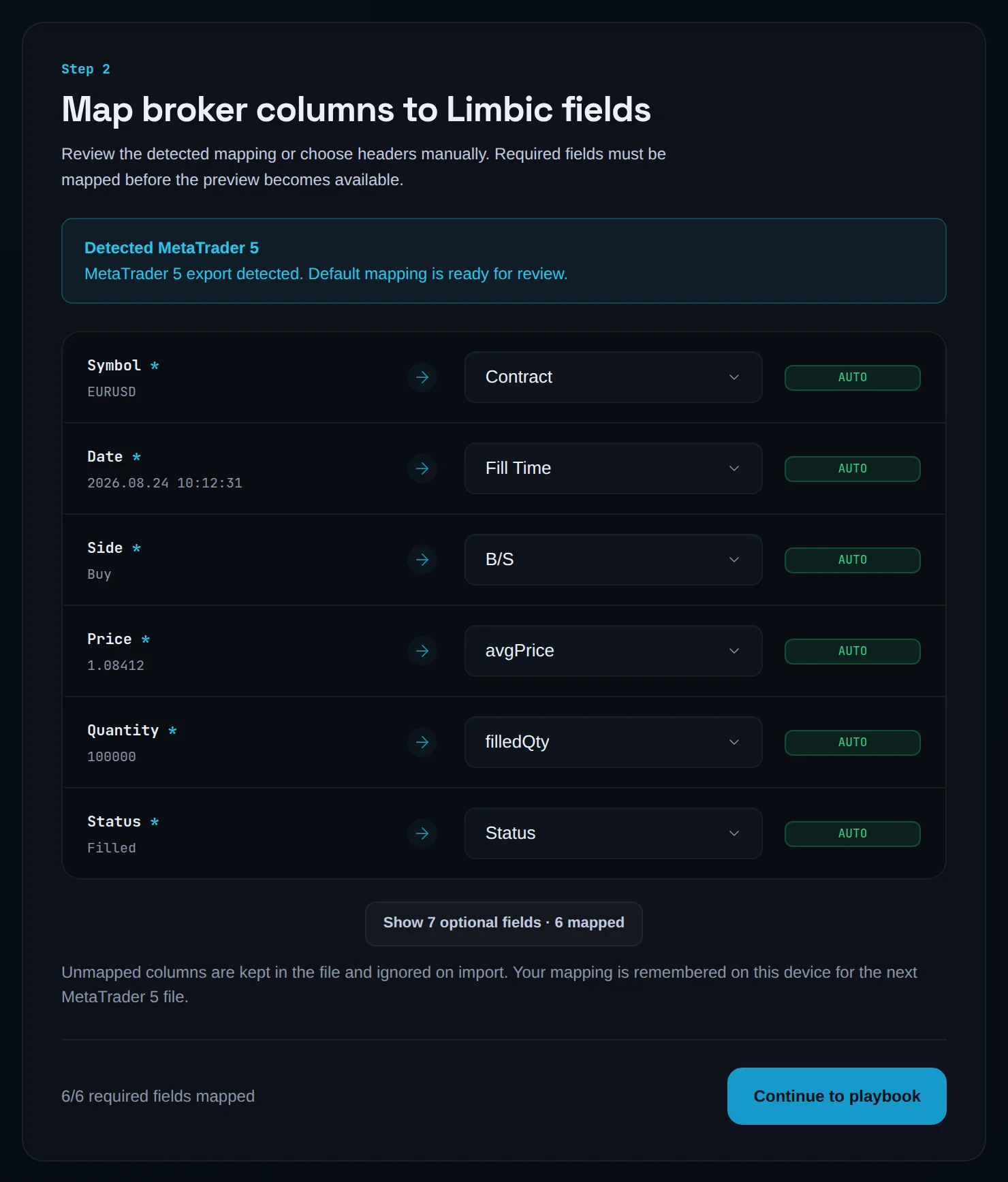
On Map, a note reads Detected Tradovate. Each row shows a Limbix field, the column feeding it and a badge: AUTO, MAPPED, REQUIRED or OPTIONAL. When the footer shows every required field mapped, click Continue to playbook.
Link a playbook
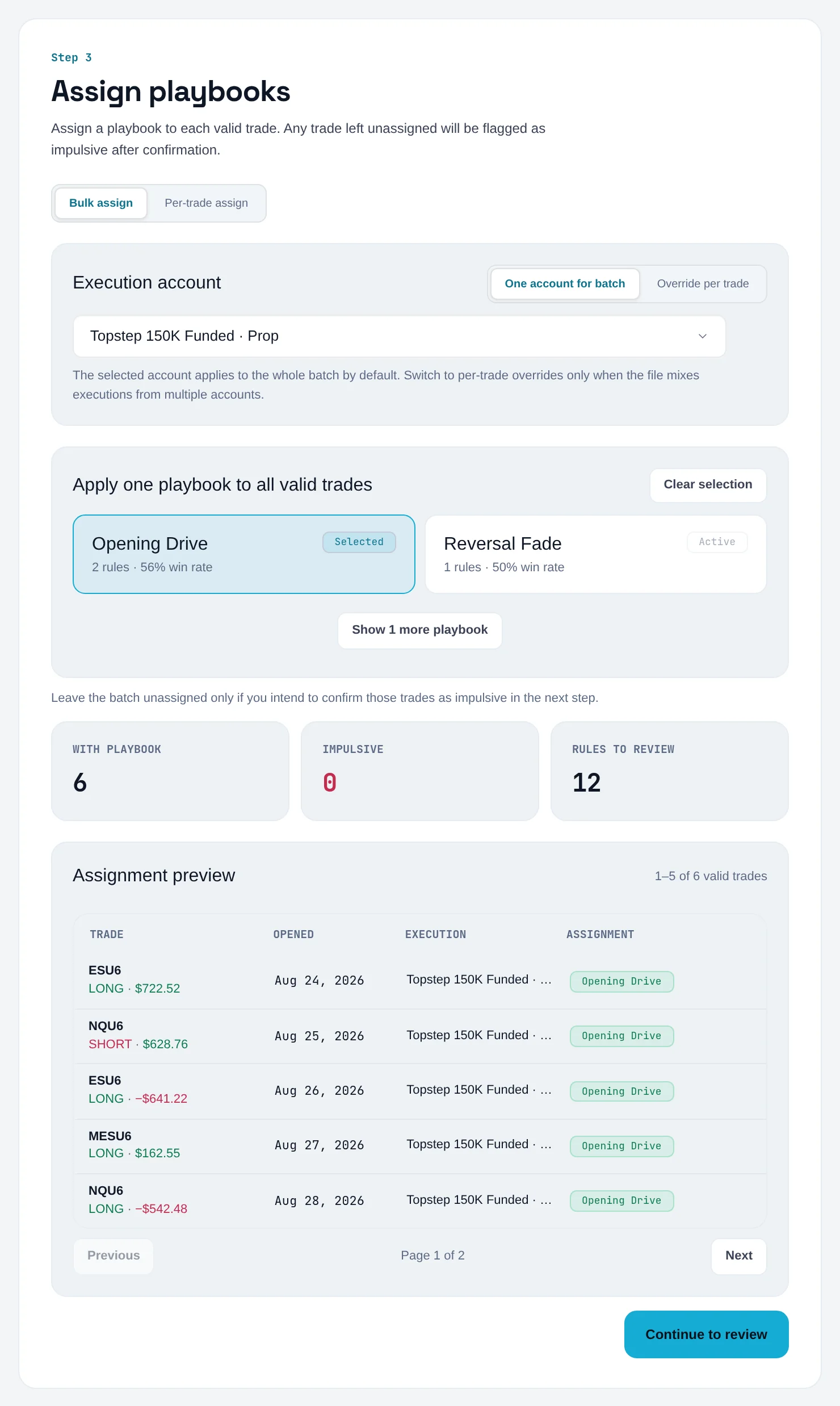
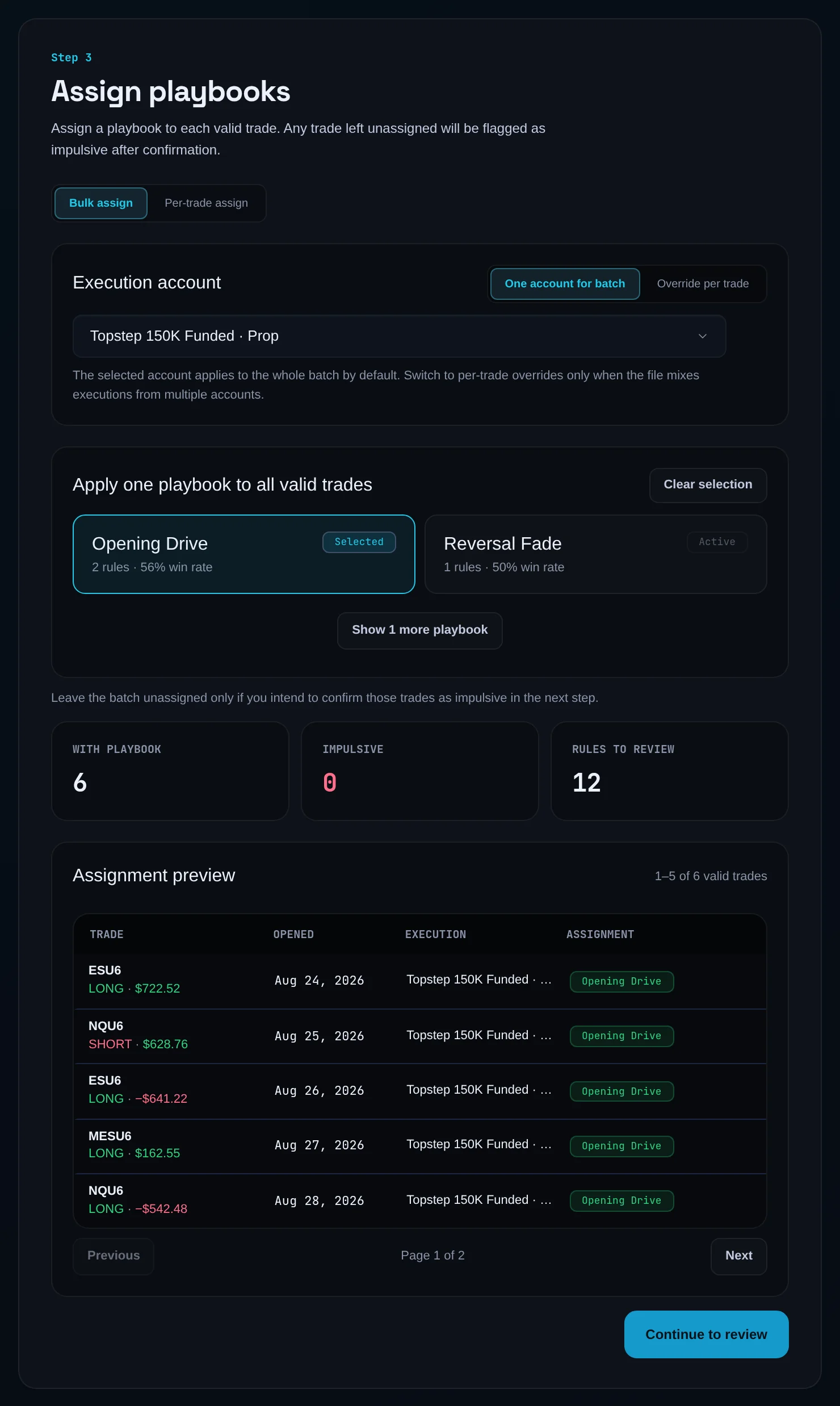
On Playbook, keep Bulk assign and click the playbook card that fits the batch. Switch to Per-trade assign when the file mixes setups. Then click Continue to review.
Review the batch
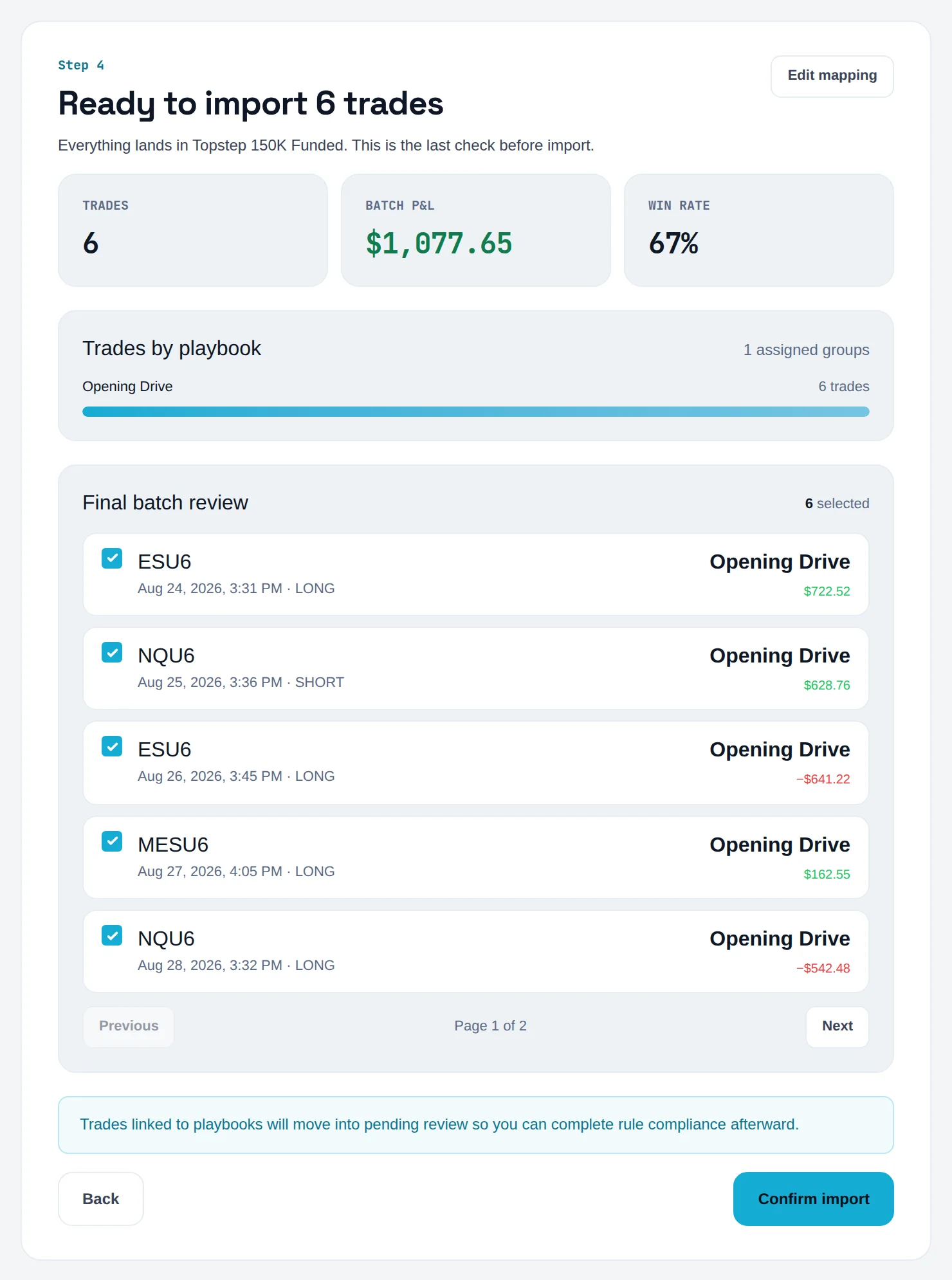
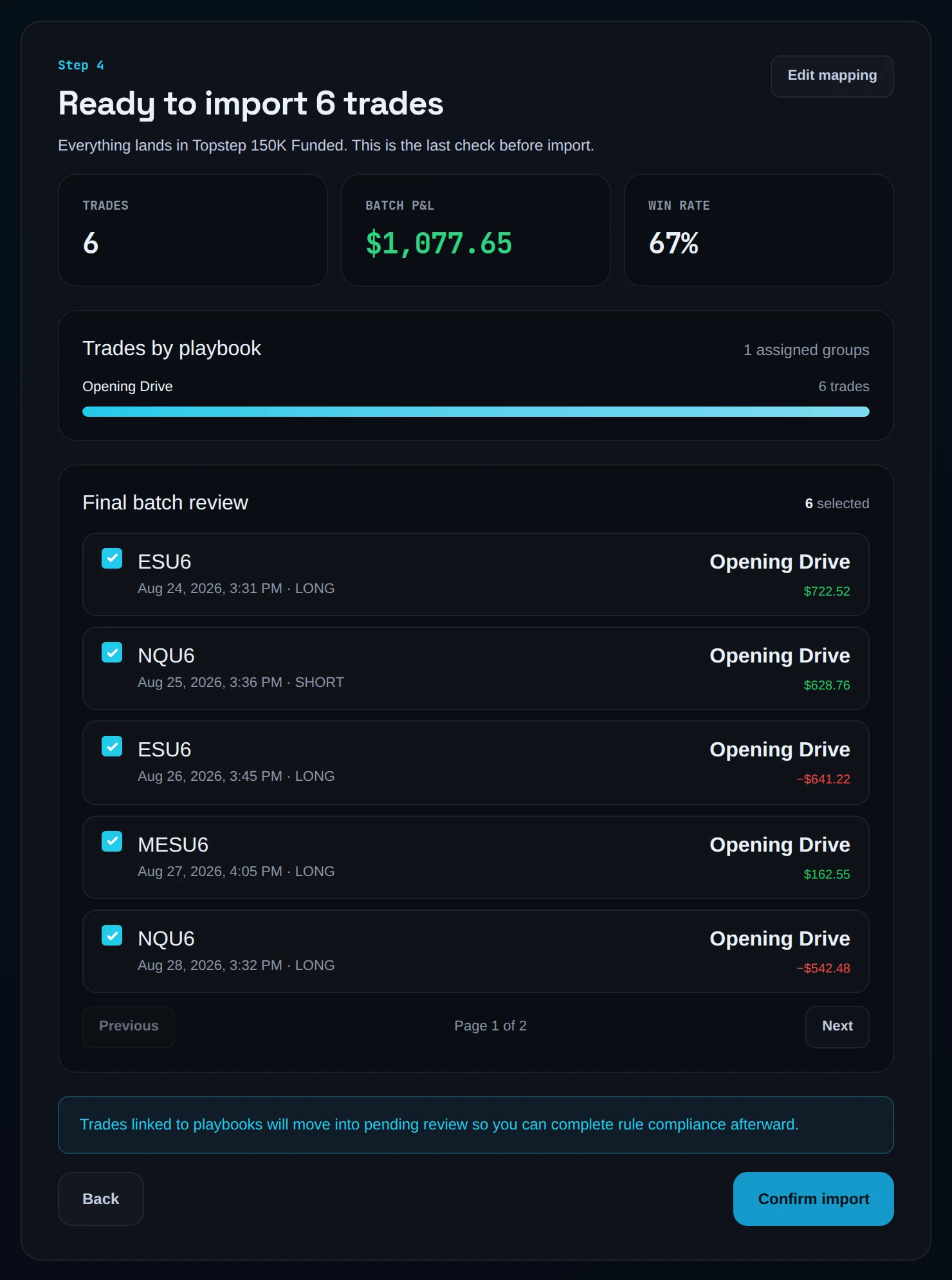
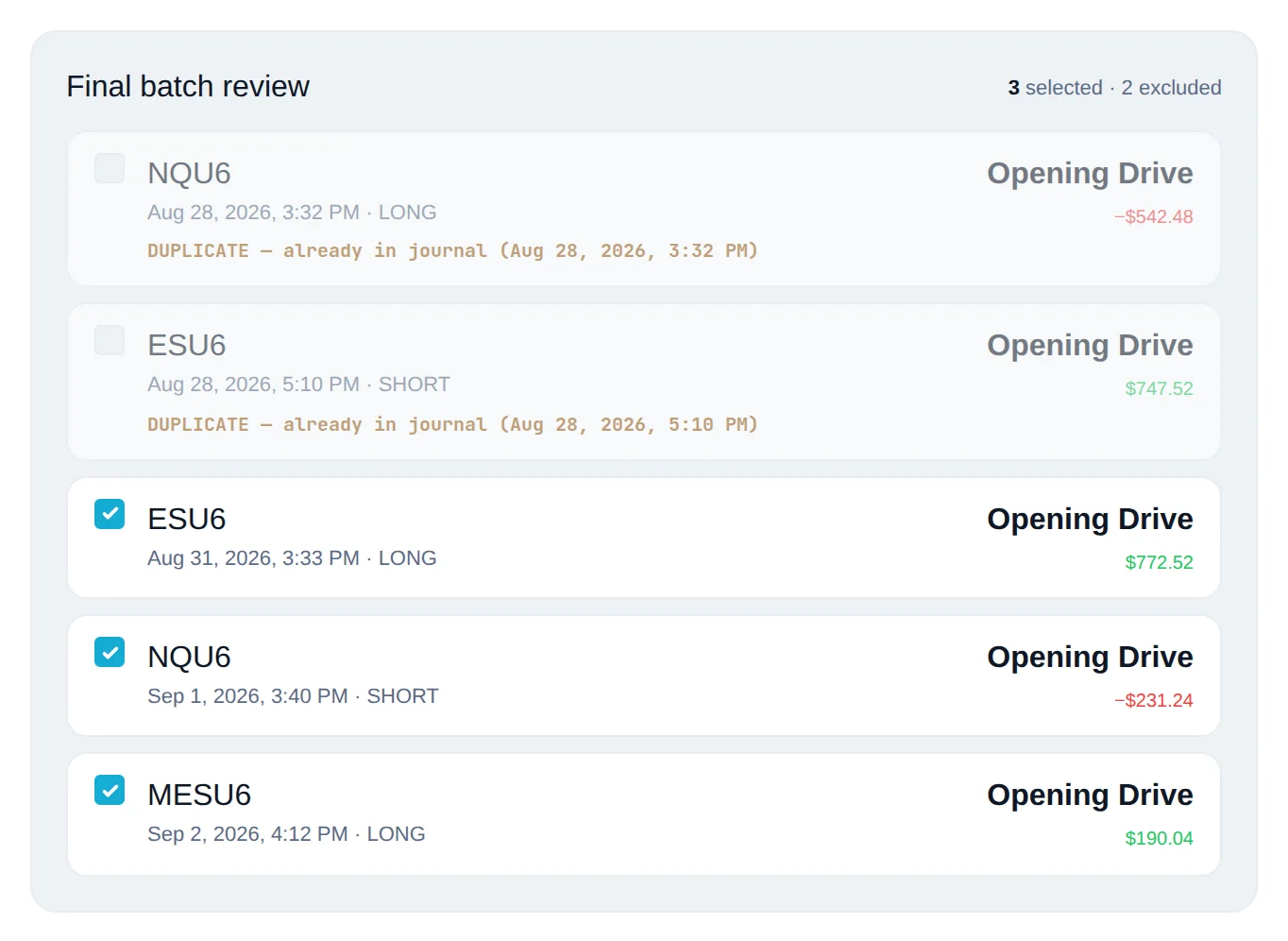
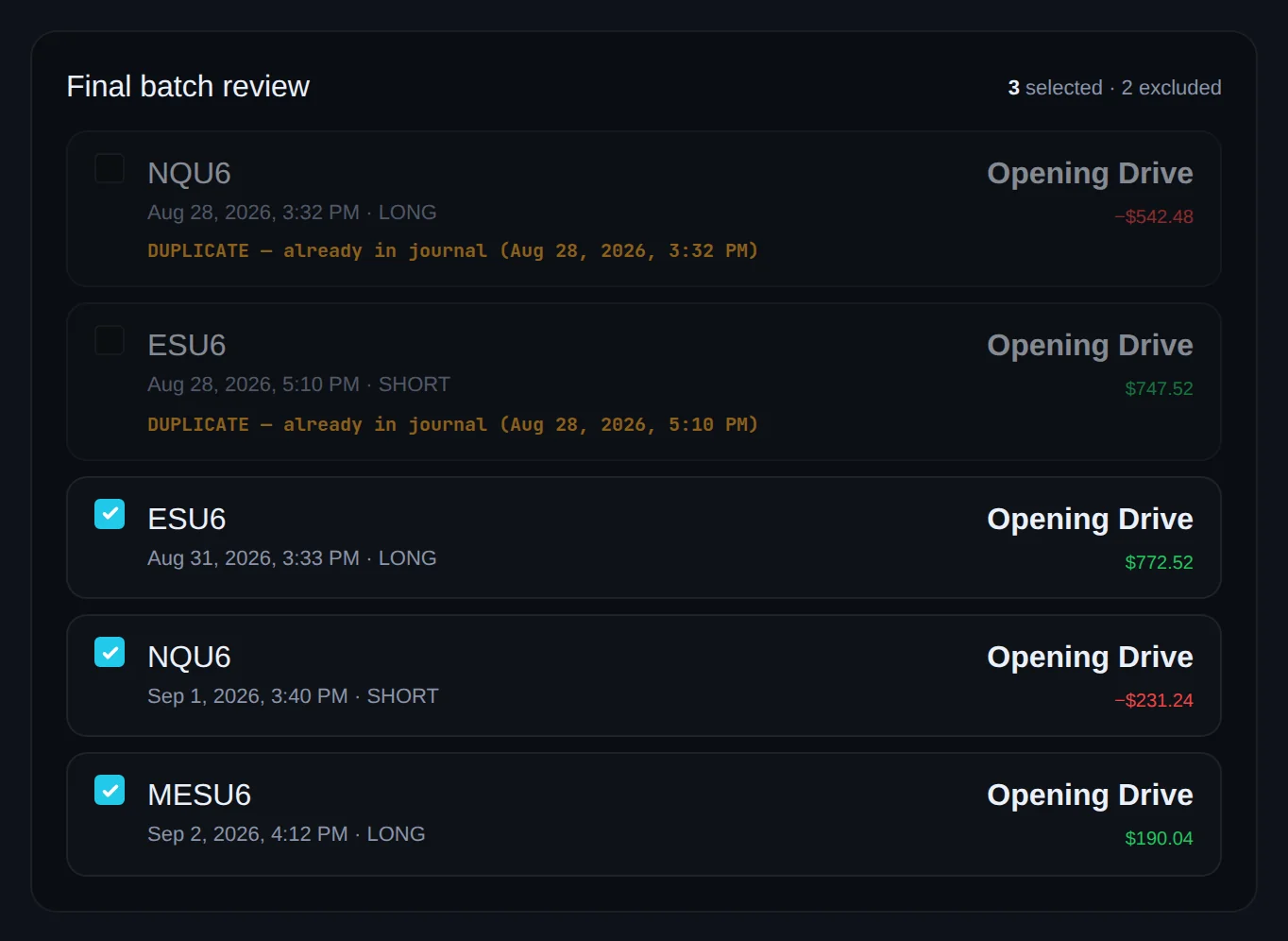
The screen reads Ready to import N trades. Untick any row you do not want. Rows already in your journal show DUPLICATE — already in journal and start unticked.
Confirm
Click Confirm import. The success screen shows Trades, Batch P&L, Impulsive and Elapsed. Click Review imported trades to open them in the trade log.
Import TradingView Paper Trading#
Your paper trades from TradingView land in the journal with the same scoring as live ones.
Export the Order History CSV
In TradingView's Paper Trading panel, export the Order History as a CSV. Limbix recognises it by the Symbol, Side, Type, Status and Order ID columns, plus a quantity, a fill price and a time column.
Drop it on Add trades
Open Add trades, pick the account under IMPORT INTO, and drop the file.
Confirm the detection
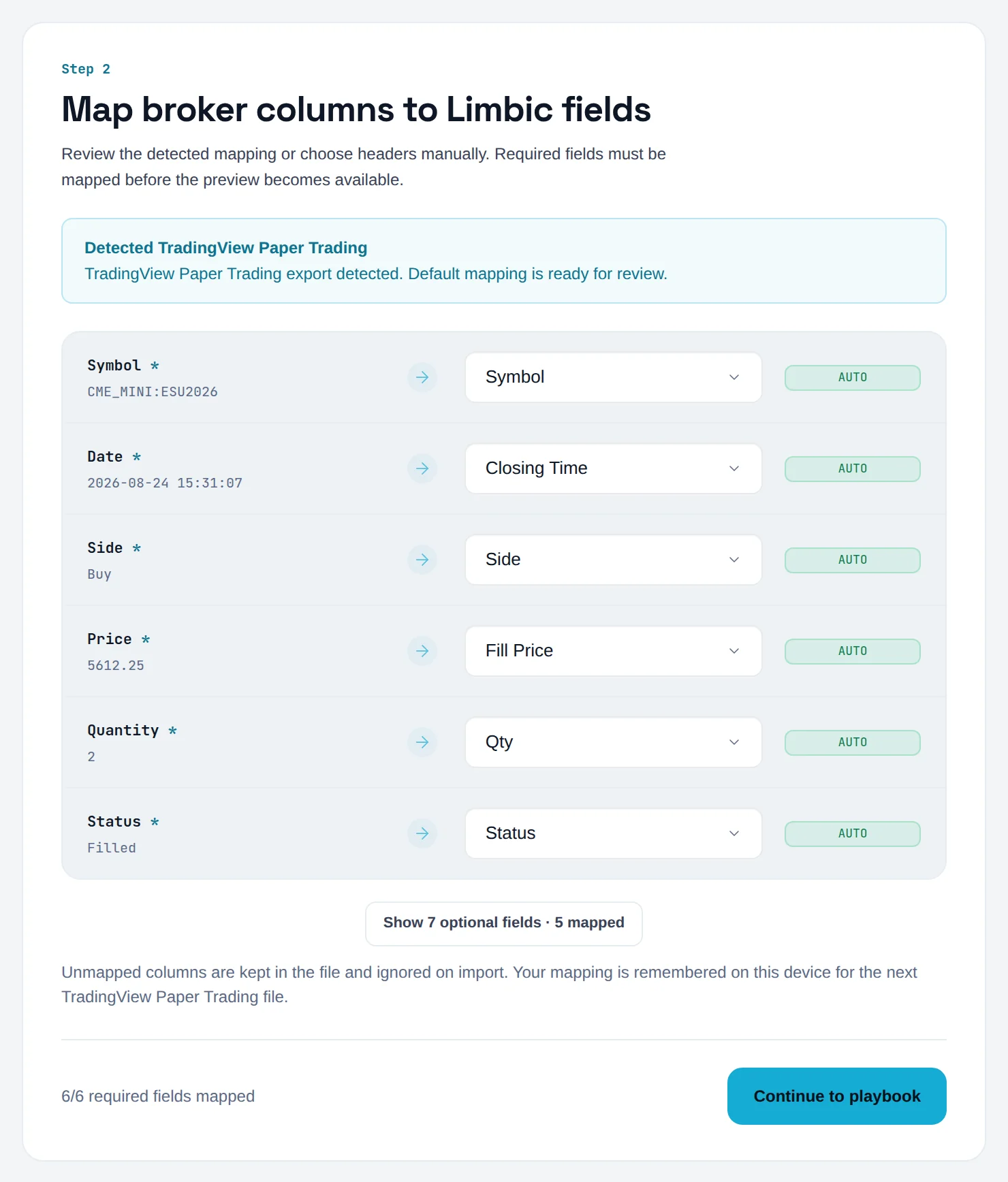
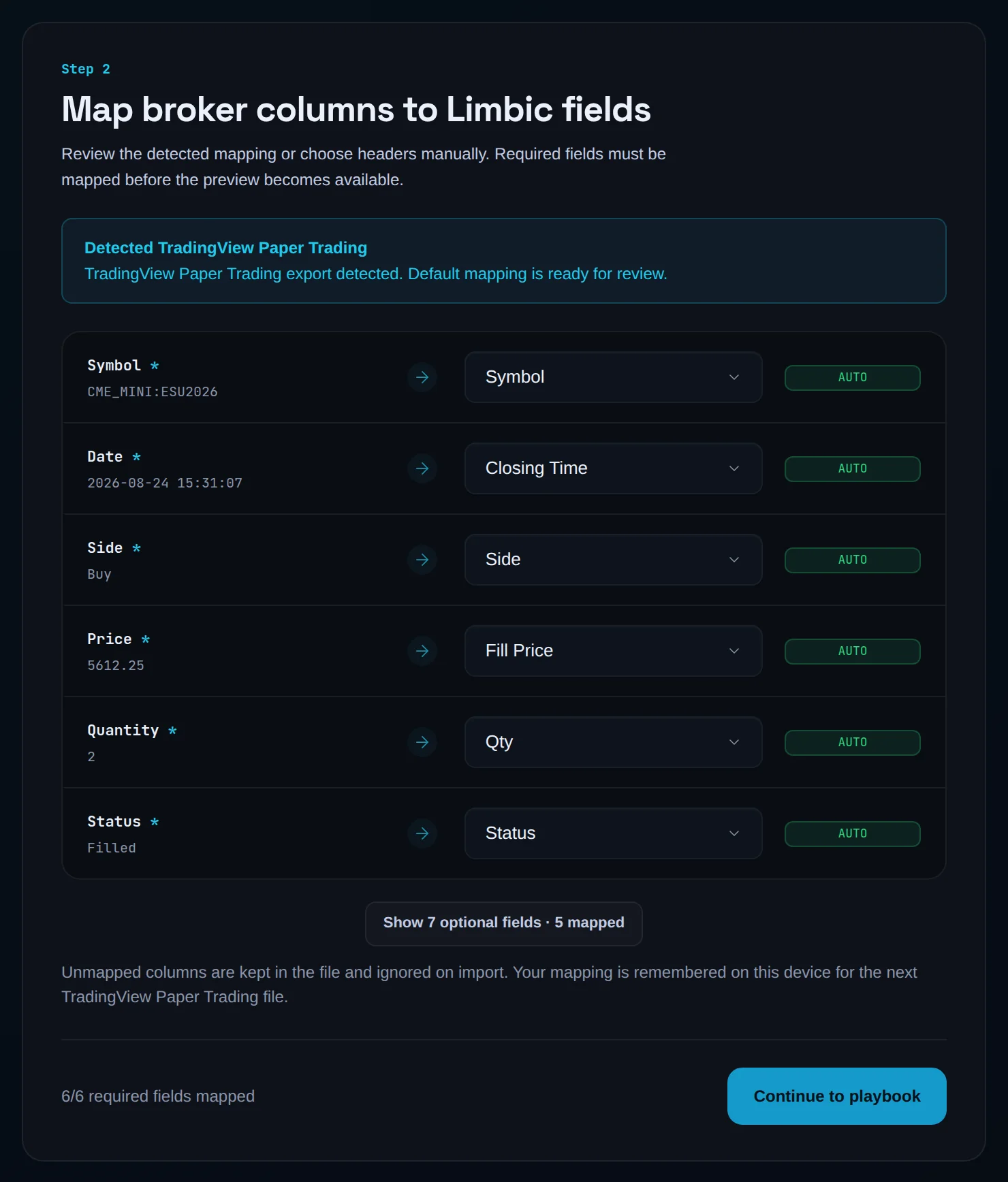
On Map, the note reads Detected TradingView Paper Trading. Click Continue to playbook.
Finish the wizard
Link a playbook, check the batch and click Confirm import, exactly as in the Tradovate steps.
Import MetaTrader 5#
Your MT5 account history comes in from its HTML report, with no column mapping to do.
Save the history report as HTML
In MetaTrader 5, save your account history (the closed orders report) as an HTML file.
Drop the .html file
Open Add trades, pick a forex or futures account under IMPORT INTO, and drop the file. Any
.htmlor.htmfile is read as an MT5 report.Check the detection
On Map, the note reads Detected MetaTrader 5. Click Continue to playbook.
Finish the wizard
Link a playbook, review, and click Confirm import.
If the file is not the history report, the upload fails with "Could not parse this HTML file. Export the closed orders/history report from MetaTrader 5 and try again."
Import Interactive Brokers#
Your IBKR futures and forex trades import from an Activity statement. Equity trades do not.
Interactive Brokers is marked Futures/FX only on the Add trades screen. Limbix rebuilds futures and forex instruments only, so stock rows in the statement are not imported yet.
Export an Activity statement as CSV
Export the trades section of your Activity statement as a CSV. Limbix recognises it by the Symbol, Date/Time, Quantity and T. Price columns.
Drop it on Add trades
Open Add trades, pick the account under IMPORT INTO, and drop the file.
Check the mapping
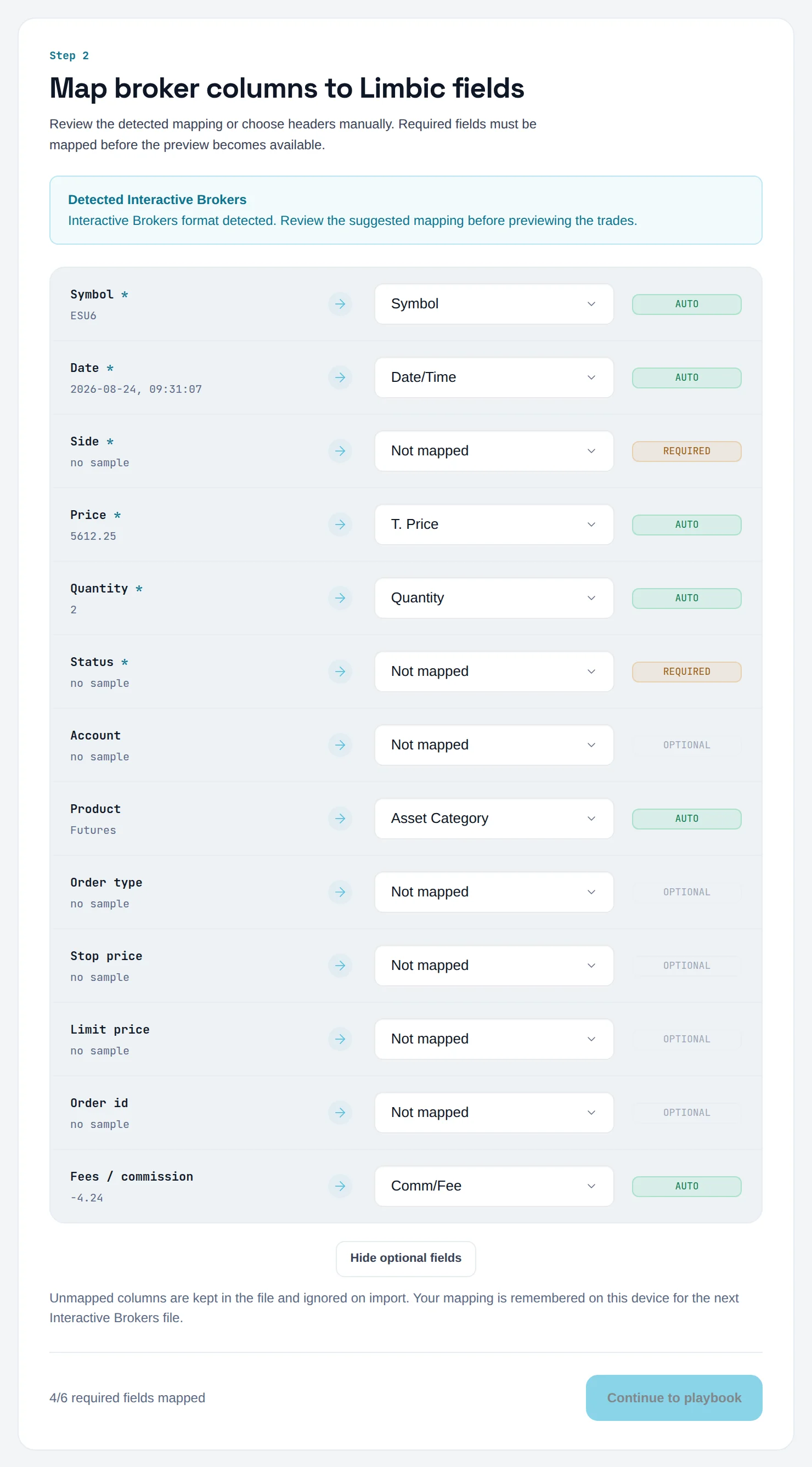
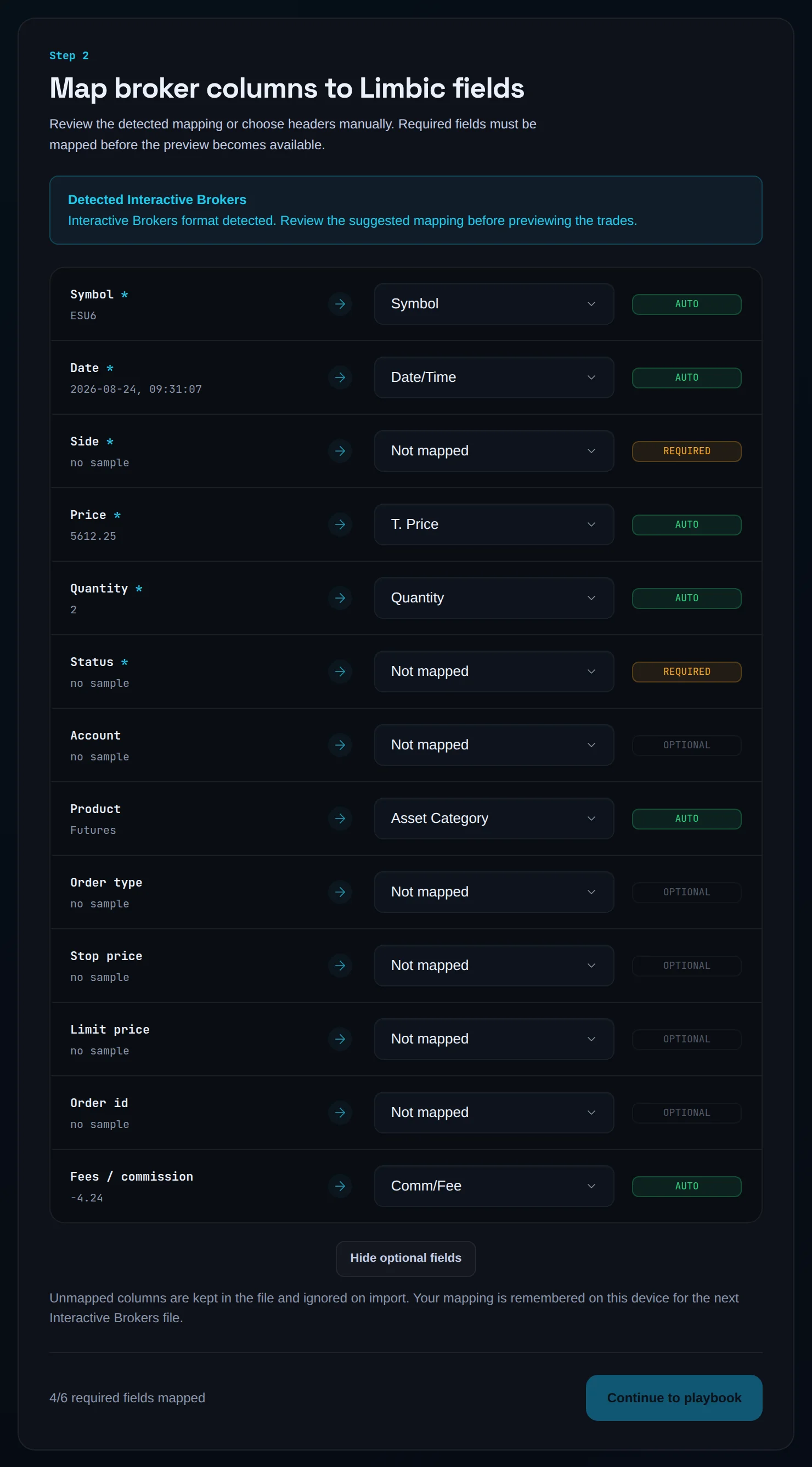
The note reads Detected Interactive Brokers. Product maps from Asset Category and Fees / commission from Comm/Fee. A plain Activity statement has no side or status column, so Side and Status show REQUIRED and Continue to playbook stays disabled until you map them to columns that hold that information.
Finish the wizard
Link a playbook, review, and click Confirm import.
Import ThinkorSwim#
Your ThinkorSwim futures and forex trades import from a CSV. Equity trades are not supported yet.
Export a CSV
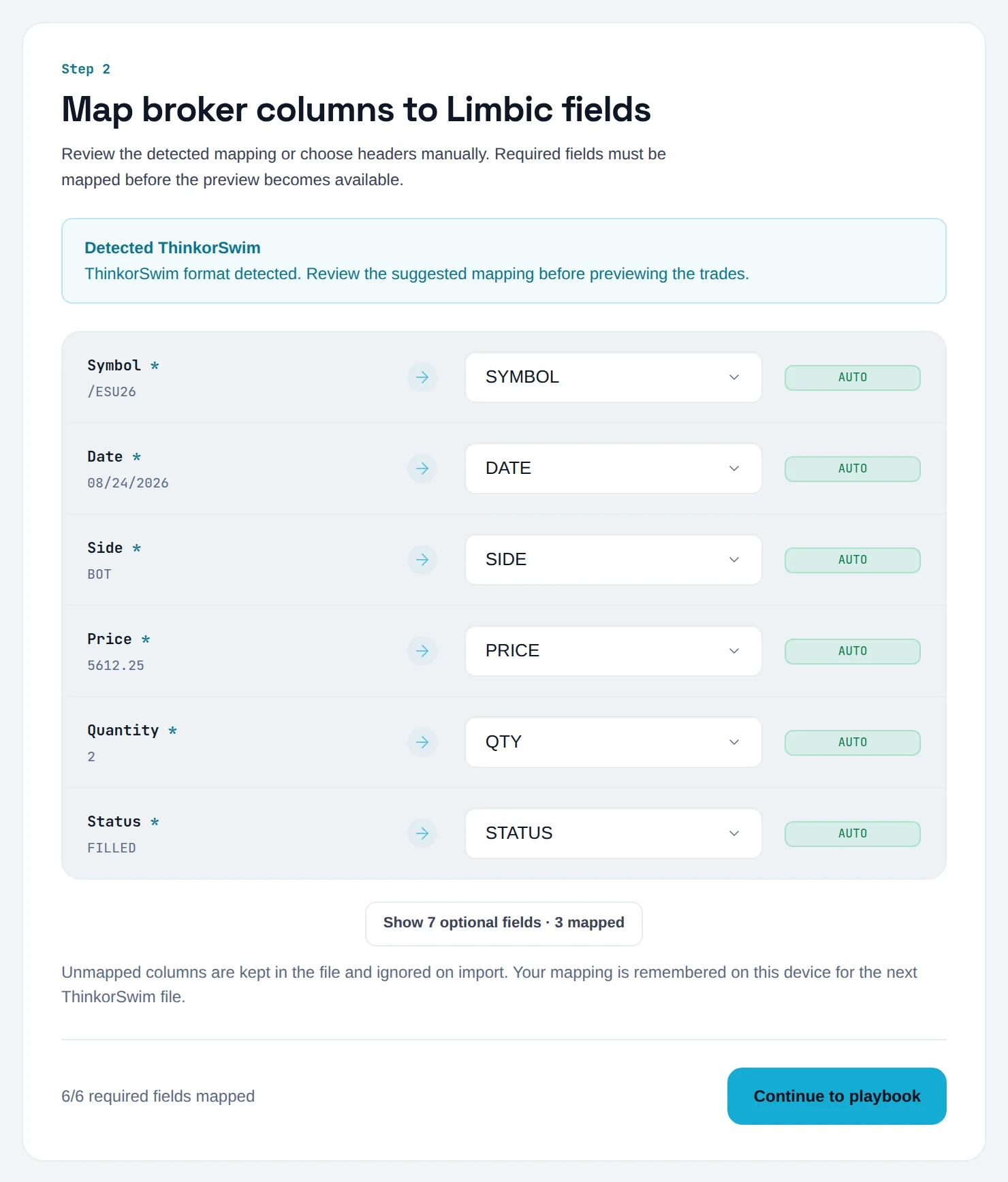
Export your trade history from ThinkorSwim as a CSV. Limbix recognises it by the DATE, TIME, SYMBOL, SIDE, PRICE and QTY columns.
Drop it on Add trades
Open Add trades, pick the account under IMPORT INTO, and drop the file.
Check the mapping
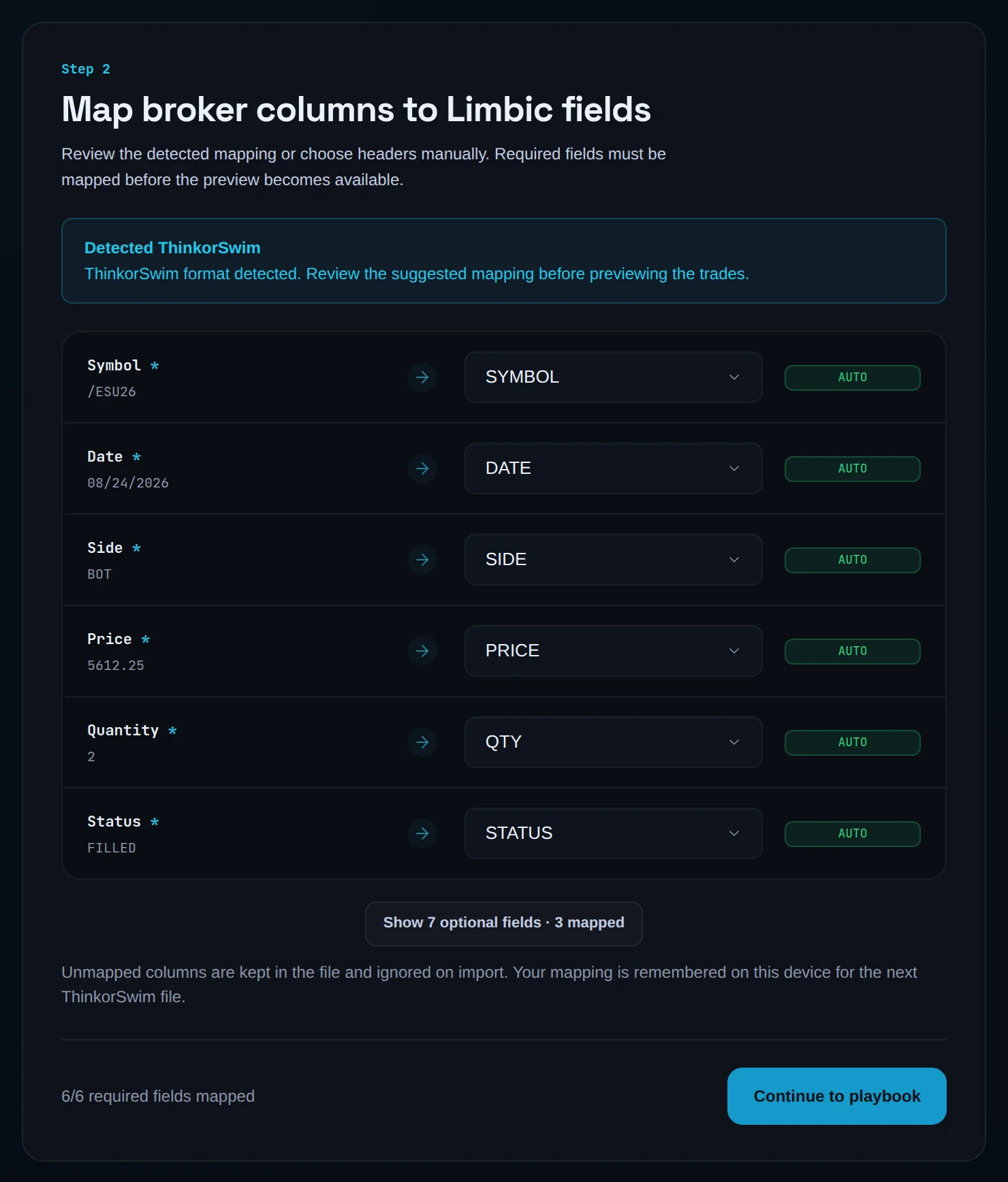
The note reads Detected ThinkorSwim. Date maps from the DATE column only: the separate TIME column isn't read, so every fill is stamped at the start of its day. Click Continue to playbook.
Finish the wizard
Link a playbook, review, and click Confirm import.
Import TradeZero#
Your TradeZero futures and forex trades import from a CSV. Equity trades are not supported yet.
Export a CSV
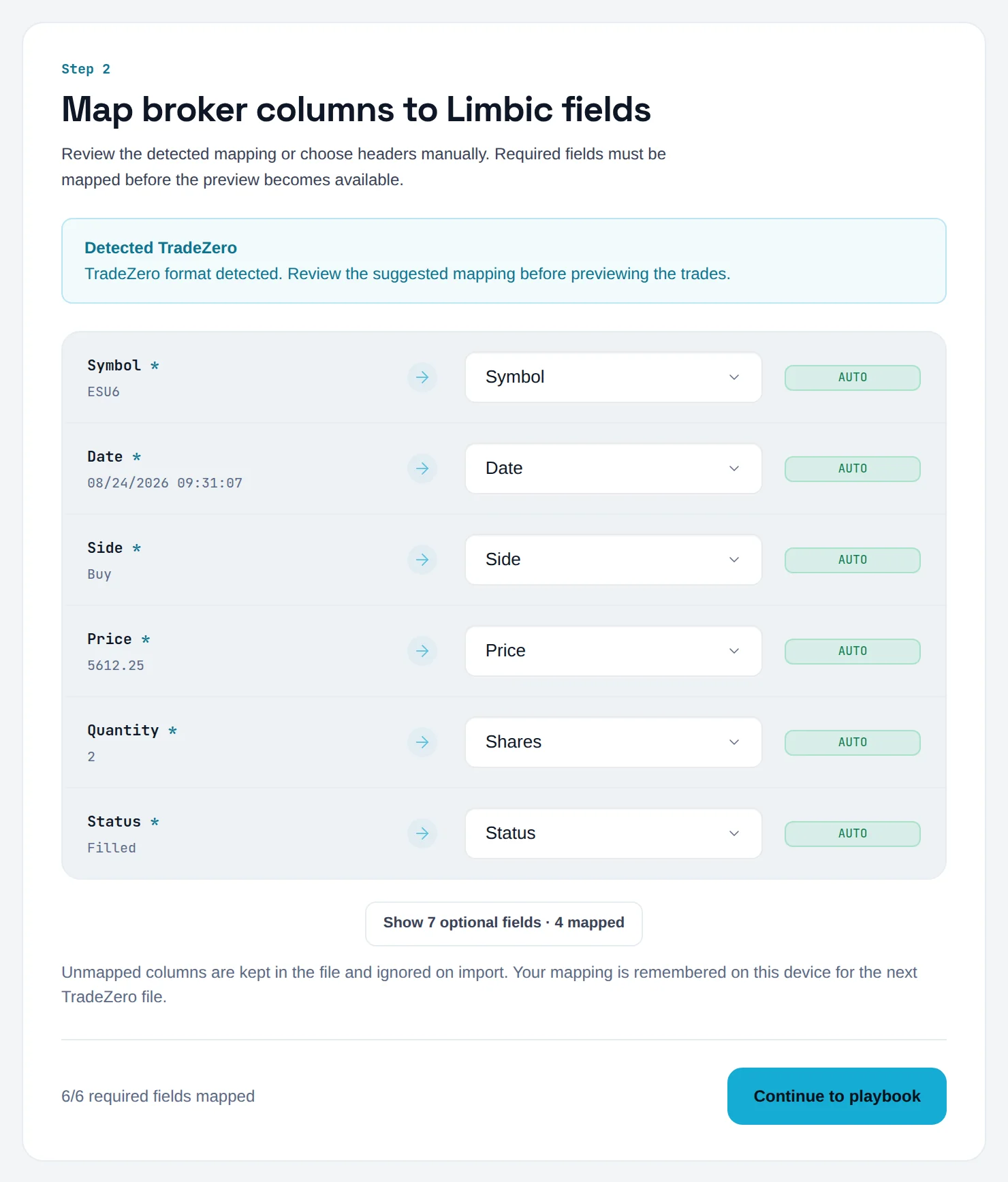
Export your trades from TradeZero as a CSV. Limbix recognises it by the Symbol, Date, Side, Price and Shares columns.
Drop it on Add trades
Open Add trades, pick the account under IMPORT INTO, and drop the file.
Check the mapping
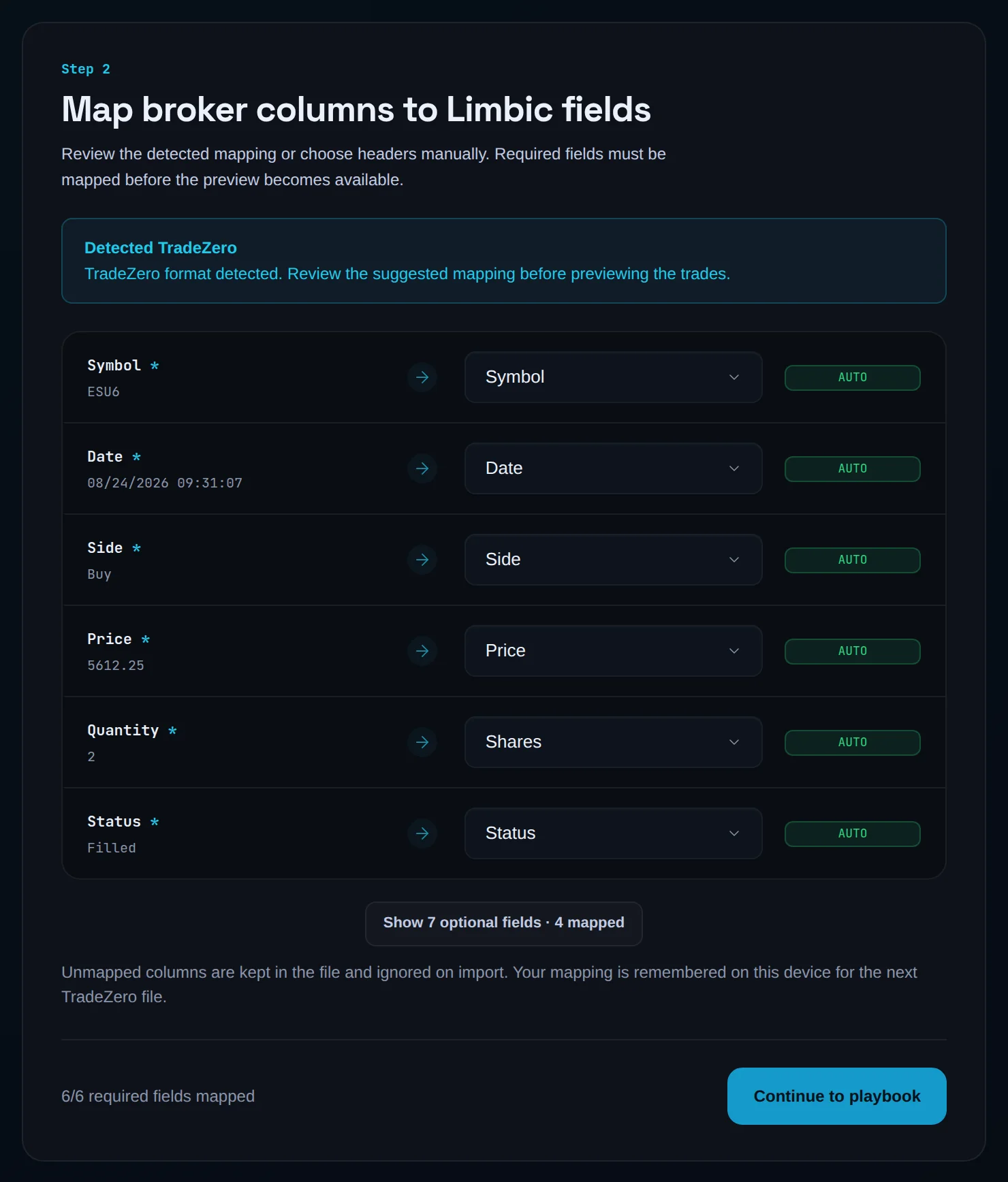
The note reads Detected TradeZero. Quantity maps from Shares. Click Continue to playbook.
Finish the wizard
Link a playbook, review, and click Confirm import.
Map any CSV#
A CSV from any other platform imports once you tell Limbix which column holds which field.
Drop the CSV
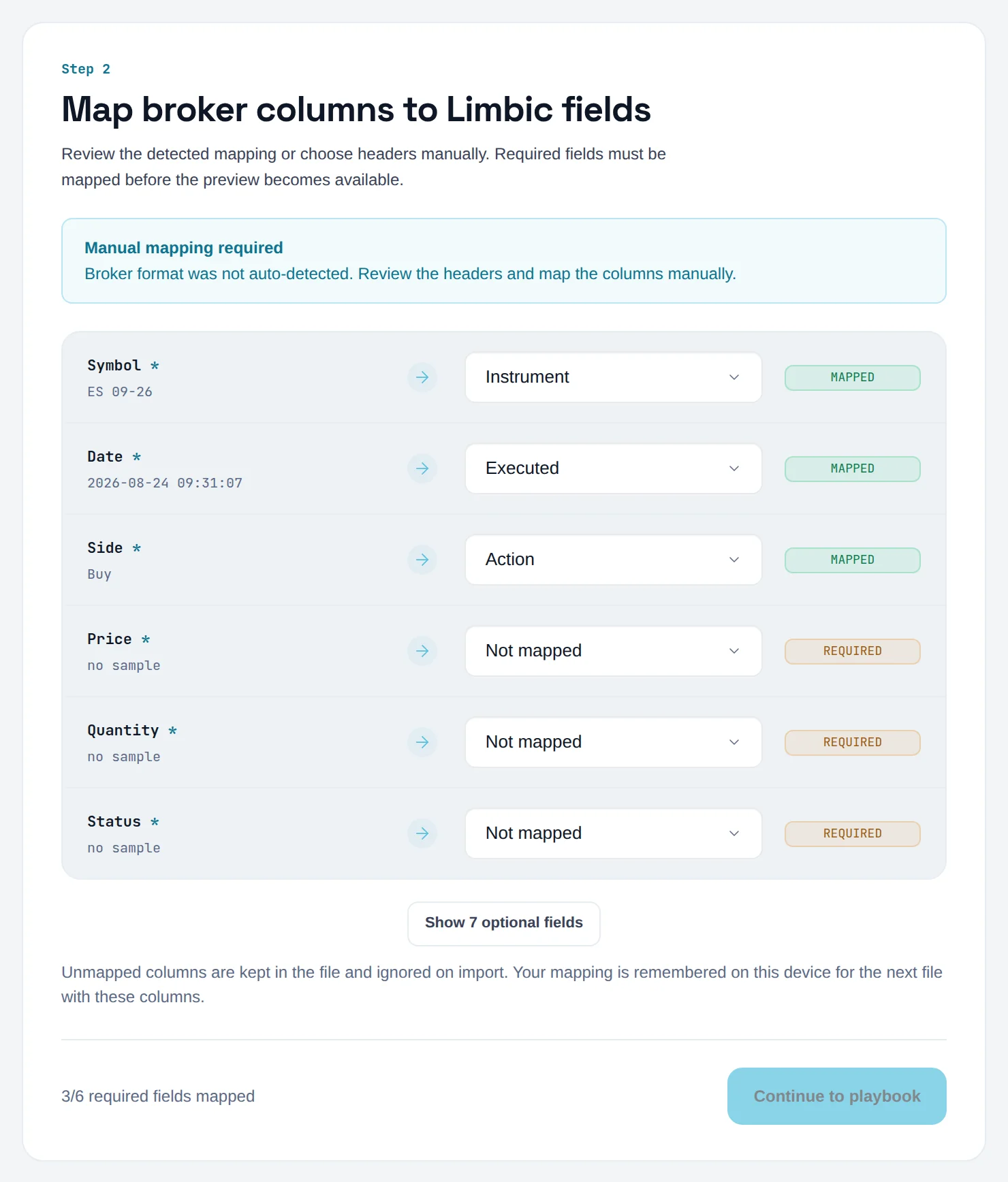
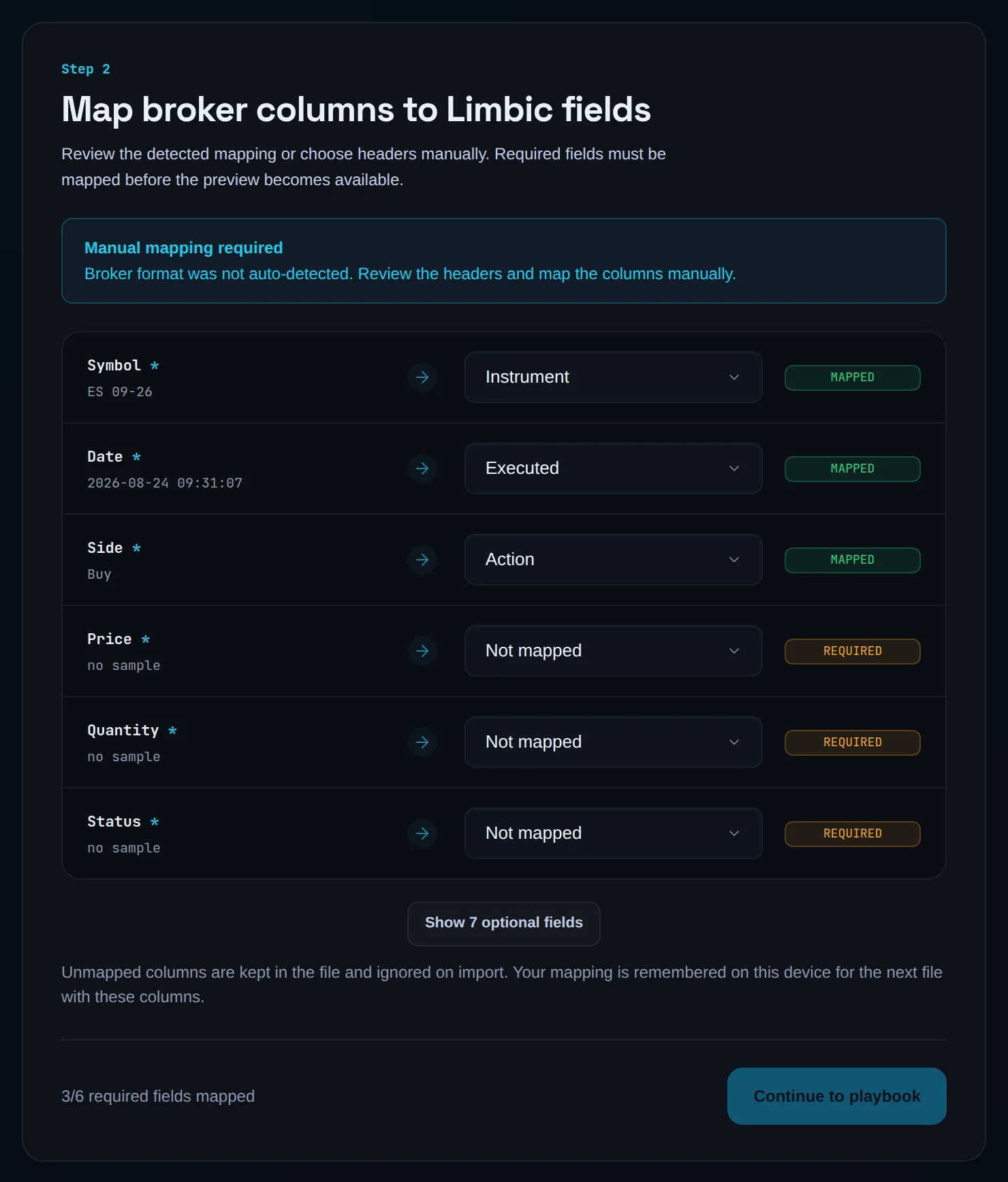
Open Add trades, pick the account under IMPORT INTO, and drop the file. When no broker is recognised, Map opens with Manual mapping required.
Map the six required fields
Pick a column for each field marked with an asterisk: Symbol, Date, Side, Price, Quantity and Status. Each dropdown is searchable, and the row shows a sample value from your file.
Map the optional fields that matter
Click Show N optional fields. Map Fees / commission so your P&L is net of costs. Map Order type, Stop price and Limit price if your file has resting orders, so stops and targets come in too.
Check the counter
The footer reads, for example, "6/6 required fields mapped". Rows with a status of Filled (or an empty status) count as executions. Unmapped columns are ignored.
Continue
Click Continue to playbook, link a playbook, review, and click Confirm import.
Your mapping is remembered on this device for the next file with the same columns. It does not follow you to another browser.
Add a trade by hand#
One trade, entered in about the time it takes to write a note, with every field that feeds your scores.
Open the form
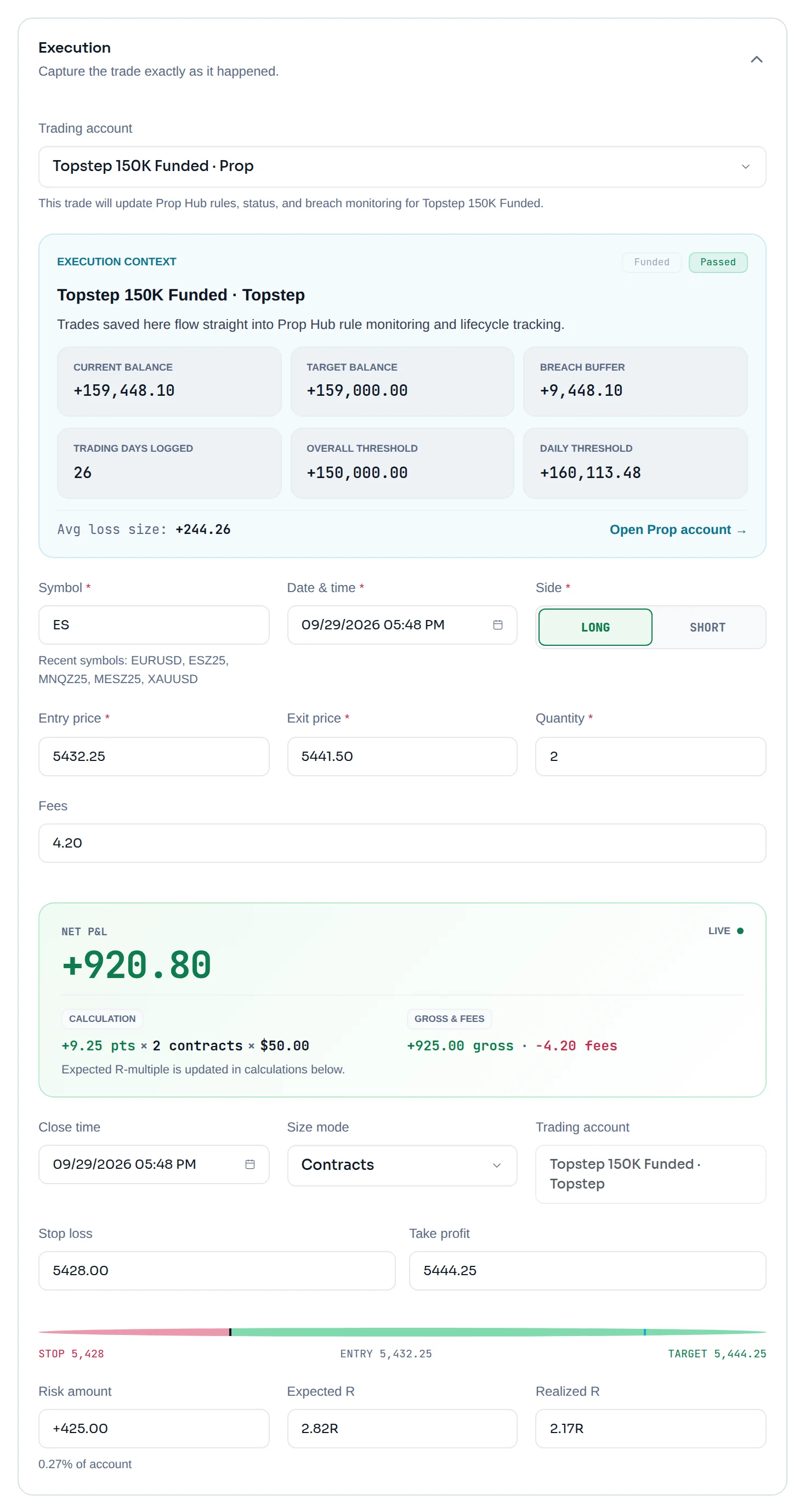
Click Add Trade in the top bar, or Log one manually on the Add trades screen. The form opens at Trade Entry.
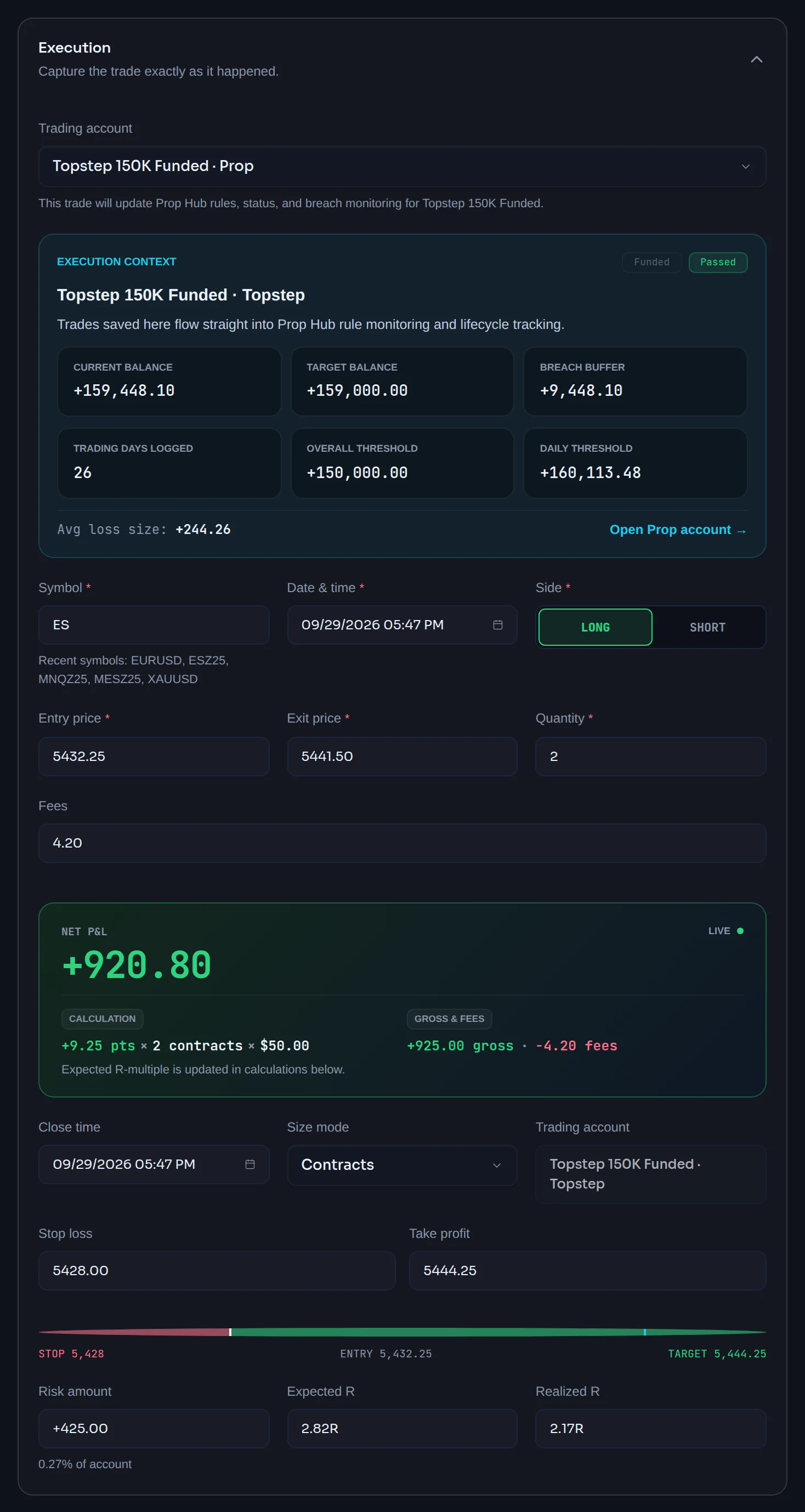
Fill in Execution
Under Execution, pick the Trading account, then enter Symbol, Date & time, Side, Entry price, Exit price and Quantity. Add Fees and Close time if you have them.
Add the stop and target
Enter Stop loss and Take profit. The form computes Risk amount, Expected R and Realized R as you type. Without a stop it reads "R-multiple will display once a stop loss is set."
Set the trade intent
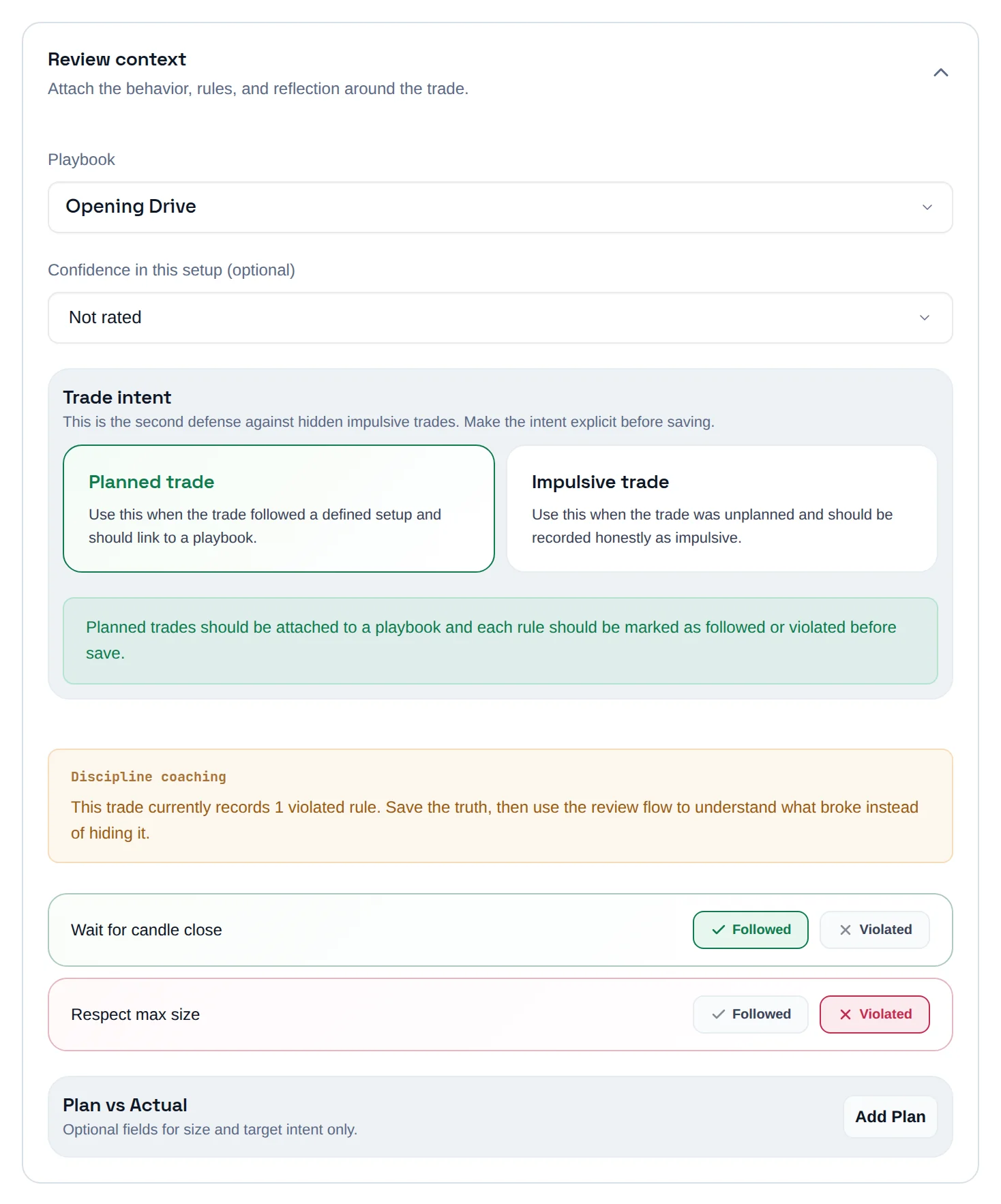
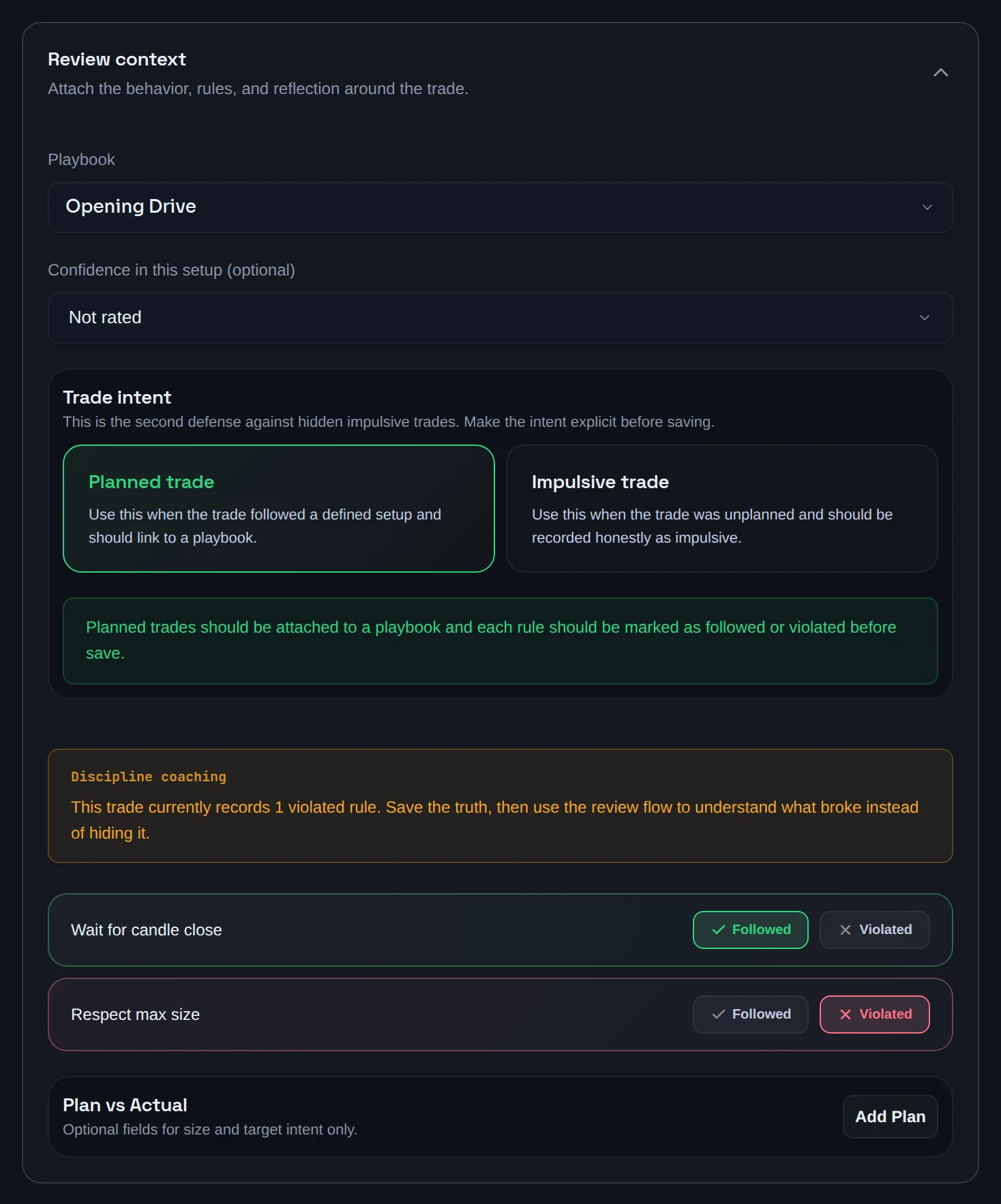
Under Review context, choose Planned trade and pick a Playbook. If there was no plan, choose Impulsive trade and tick I understand this trade was not part of the plan and I want it recorded honestly.
Grade each rule
Mark every rule of the playbook Followed or Violated. The form will not save until each rule has an answer.
Add the plan (optional)
Click Add Plan to enter Planned size and Planned target (R).
Record how it felt
Under Psychology, pick an Emotion (required to save). Add Tags, Notes and Screenshots (optional, max 4) if you want.
Save
Click Save trade, or Save & add another to keep the account and playbook for the next one.
Each field feeds a specific number. This is what you get for filling it in:
| Field | What it feeds |
|---|---|
| Stop loss | The trade's risk amount, so Avg R, the R-multiple distribution, Loss Containment, Risk Consistency and the oversized position check against your max risk |
| Take profit | Expected R:R, checked against your playbook's minimum in Risk Rule Adherence |
| Playbook and rule grades | Your Discipline Score and Rule Compliance. No playbook makes it an impulsive trade |
| Emotion | The Emotional Heatmap and Top Emotional Drivers. Anger or Frustrated right after a loss feeds the revenge trade detector |
| Planned size | The oversized and undersized position detectors |
| Planned target (R) | The cut-winner-early detector (a winner closed well short of its planned target) |
| Fees | Net P&L on every performance metric |
Check or undo an import#
You can see every broker file you imported, and remove a batch you did not mean to add.
Open Import history
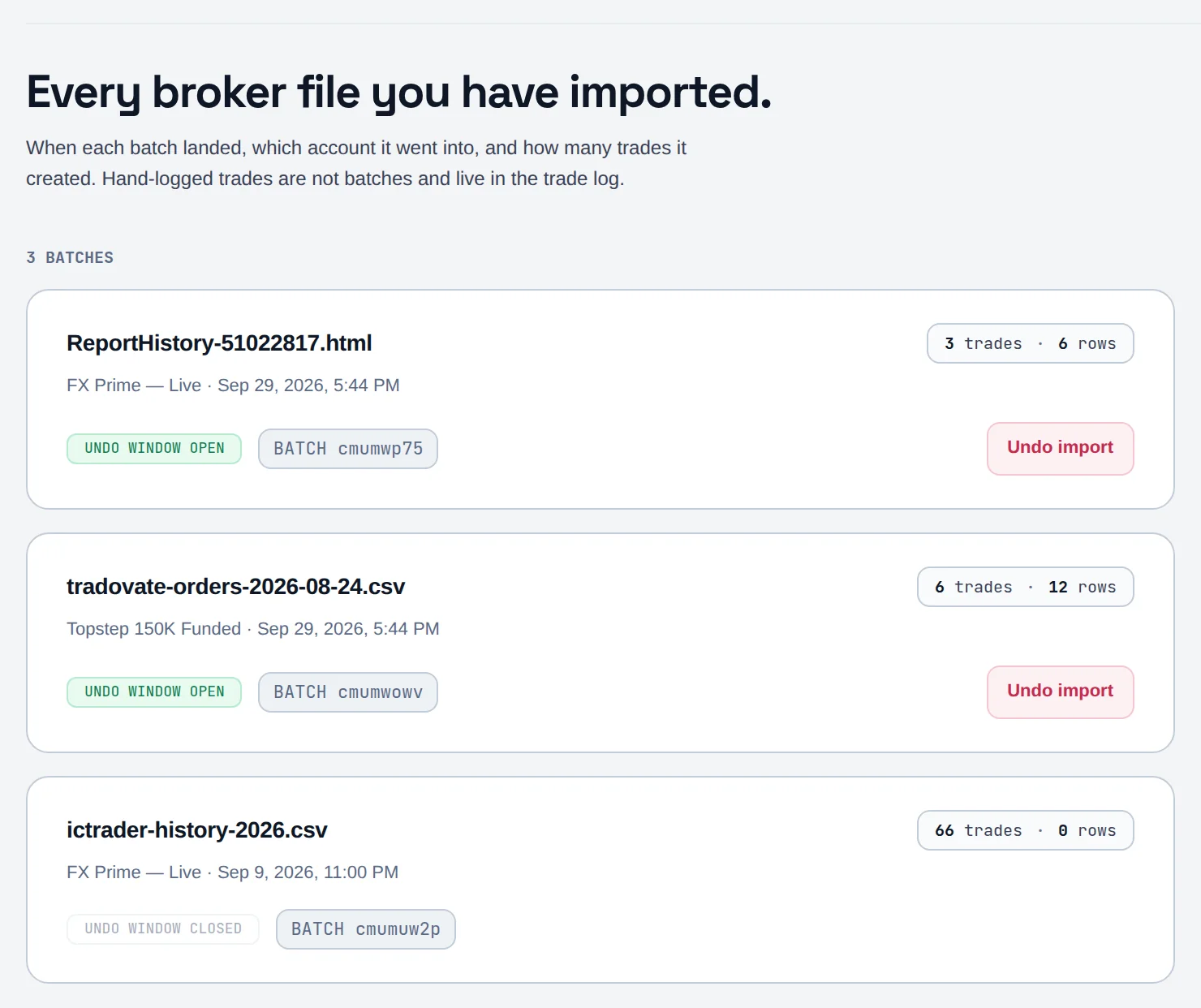
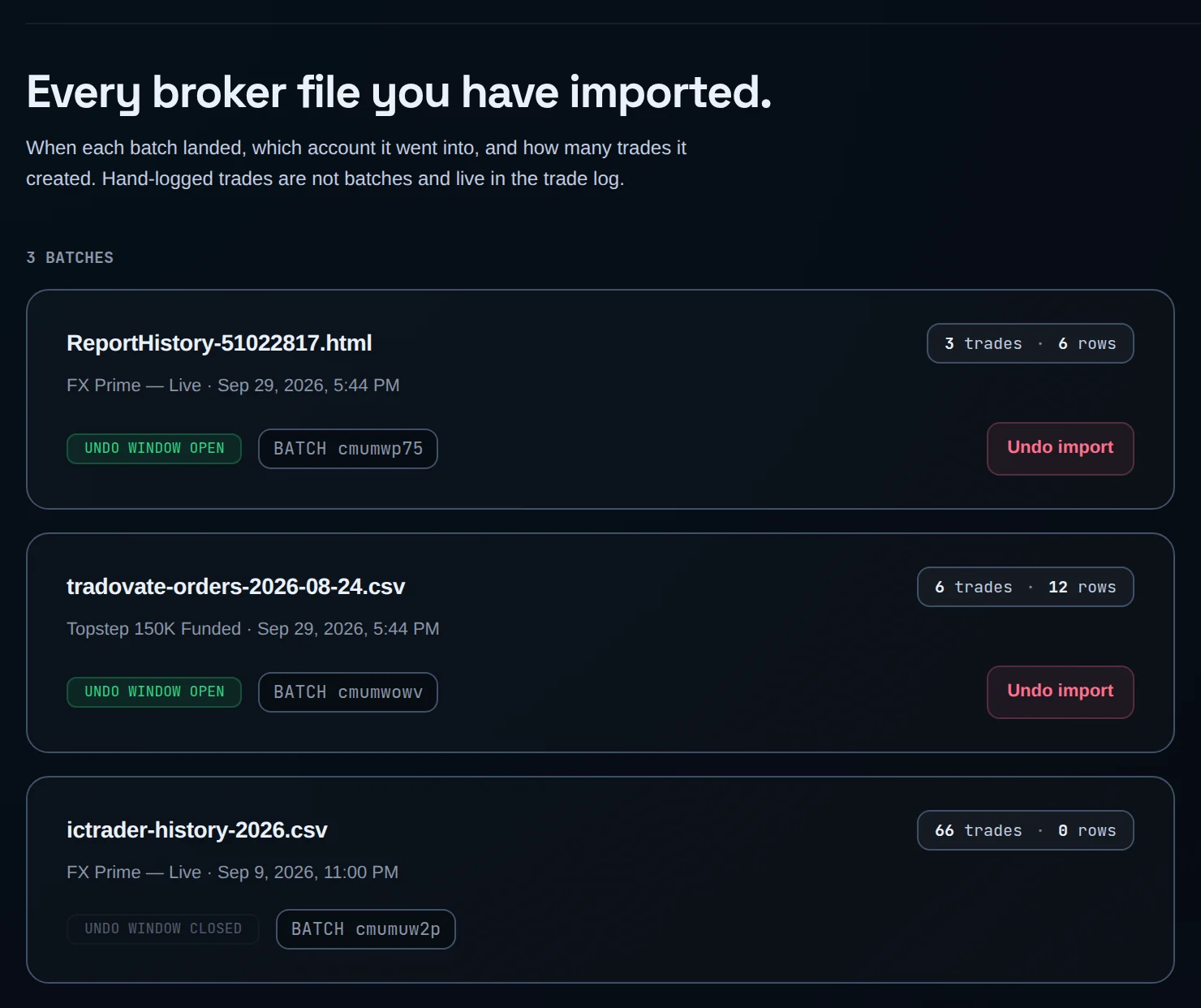
On the Add trades screen, click Import history in the top bar. The page reads Every broker file you have imported.
Find the batch
Each row shows the file name, the account, the trade and row counts, and a badge: UNDO WINDOW OPEN or UNDO WINDOW CLOSED. Click Show more for older batches.
Undo it
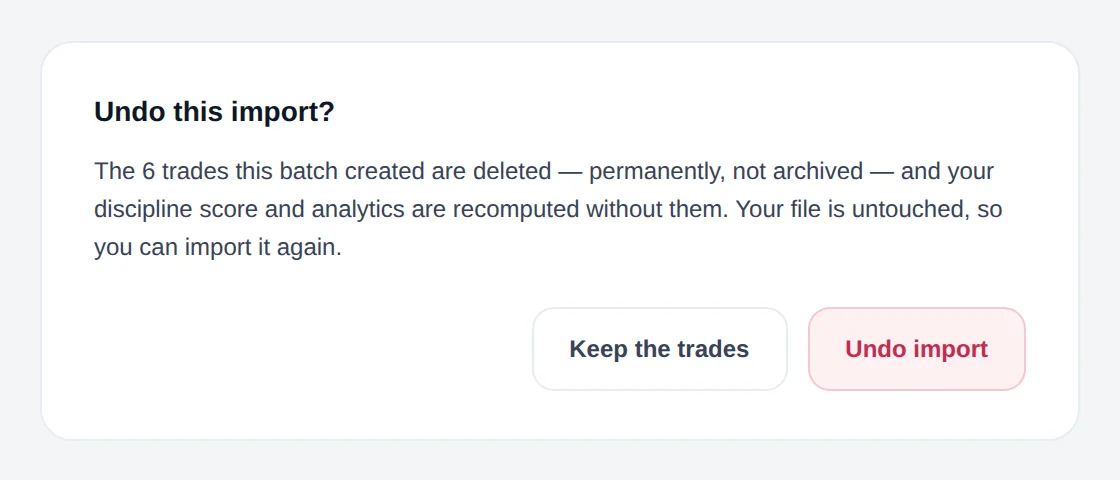
Click Undo import on a batch whose window is open. The dialog asks Undo this import?
Confirm
Click Undo import again to delete the batch, or Keep the trades to cancel.
The undo window is short: the wizard footer states You can undo any import within 24 hours. After that, delete trades one by one from the trade log. Hand-logged trades are not batches, so they never appear in Import history.
Why a trade didn't import twice#
Import the same file twice and nothing double-counts. Here is how Limbix decides a trade is already there.
Limbix fingerprints each trade
Every imported trade gets an identity built from its account, symbol, side, open time (to the second), quantity and entry price. The file name plays no part.
Matching rows start unticked
On Review, a trade whose identity is already in your journal shows DUPLICATE — already in journal, with the open time of the trade it matched. It starts excluded. Tick it if you disagree.
A mostly-repeated file asks first
If much of the file is already in your journal, a card reads This looks like a duplicate import. Click Import anyway to add only the new trades, or Cancel.
The success screen says what was skipped
After import, a note reads "N trades were already in your journal — skipped as duplicates, not imported twice."
The same file imported into a different account is not a duplicate. The account is part of the identity.
File too large#
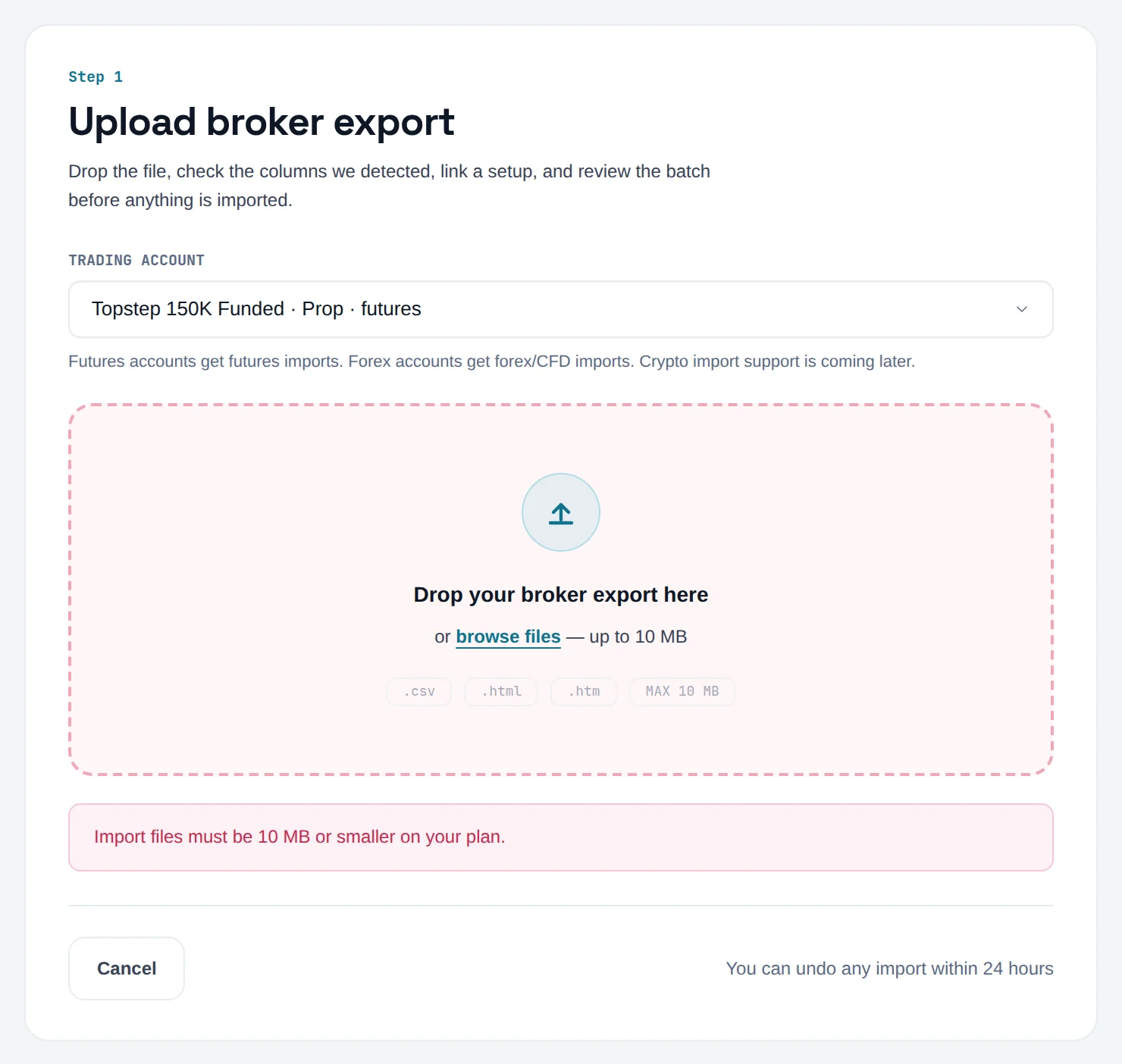
Import files can be up to 10 MB on every plan.
Read the message
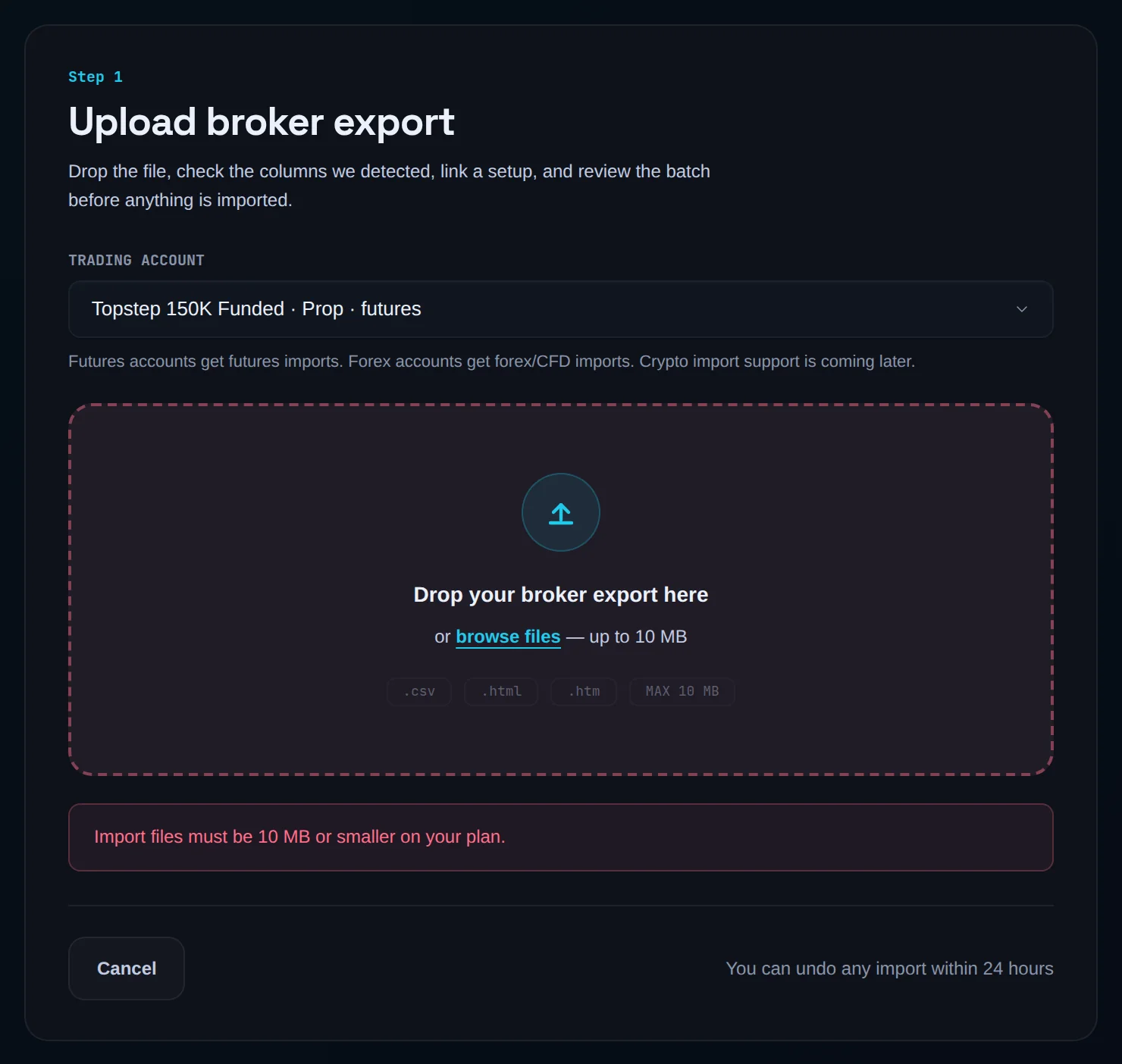
An oversized file is refused on upload with "Import files must be … or smaller on your plan."
Export a shorter range
Export your history again for a shorter date range, such as one month or one quarter.
Import each file
Import the files one after another into the same account. Overlapping days are safe: repeated trades are skipped as duplicates.
A file can also be refused if it would take you past your plan's storage limit. The message names your current usage and the limit.
Common problems#
"No account can receive an import yet". You have no futures or forex account. Add one in Settings › Trading accounts, or log the trade by hand.
"All N rows failed validation". A required column is mapped to the wrong header. Check Date and Price first, then look at the reasons listed under the message.
"Unsupported instrument". Limbix does not know the symbol's contract size. See instruments for supported roots and how to set a point value.
Trades landed on the wrong day. Your profile timezone was wrong at import time. Fix it in Settings › Profile; history is regrouped by trading day.
"N positions in this file are still open". The file has an entry with no exit. That position is not a trade yet. Export again once it closes.
"Behaviour analytics and discipline scoring for this batch are still processing". Large batches finish scoring in the background, usually within a minute or two. Click Check again.
Every trade came in as impulsive. You had playbooks and confirmed Continue as impulsive. Link them afterwards in the trade log.
Frequently asked questions#
How do I import MT5 trades into Limbix?#
Save your MetaTrader 5 account history as an HTML report and drop the .html file on the Add trades screen. Limbix reads any HTML file as an MT5 history report, so there are no columns to map. Pick a forex or futures account under IMPORT INTO, link a playbook on the next step, check the batch and click Confirm import. You can undo the batch from Import history for a short time afterwards.
Can I import stock trades?#
Not yet. Limbix rebuilds futures and forex instruments only. Interactive Brokers, ThinkorSwim and TradeZero files are detected, but only their futures and forex rows import, which is why their cards read Futures/FX only. Accounts marked crypto or options cannot receive trades either. Equity and crypto import are planned, and the Add trades screen will list them when they ship.
Will re-importing the same file create duplicate trades?#
No. Each trade is matched by content: account, symbol, side, open time to the second, quantity and entry price. A trade already in your journal is shown as a duplicate on the review step and skipped on import. This lets you re-export an overlapping date range without cleaning anything up. Importing the same file into a different account does add the trades, because the account is part of the match.
Why do imported trades show as impulsive?#
When you have at least one active playbook, the wizard treats any trade you leave without a playbook as impulsive, after warning you. Impulsive trades fail phantom checks and lower your Discipline Score. If you had no playbooks at import time, the trades come in unclassified instead, which is neutral. You can link a playbook to any trade later from the trade log.
Does Limbix connect to my broker account?#
Broker auto-sync is coming soon and is not active today. For now, trades arrive by file import or manual entry. Limbix only ever reads your trade history. It cannot place, modify or cancel orders, and nothing in Limbix blocks a trade.