
02 · Guides
Analytics: drill down, emotions and mistakes
Use Limbix trading analytics to slice your trades, map P&L by emotion and weekday, rank mistakes by what they cost, and open the exact trades behind a number.
Analytics in Limbix answers one question: is the problem your strategy, or you? These trading analytics slice your trades any way you filter them. Summary gives the headline numbers, Emotions maps P&L by feeling and weekday, Mistakes ranks your habits by what they cost, and Drill-down lists the exact trades behind any figure.
Before you start#
Open Analytics from the sidebar. The four tabs across the top, Summary, Emotions, Mistakes and Drill-down, share one set of filters. A slice you build on one tab travels with you to the next.
- Range pills. All time, 30d, QTD and YTD sit at the top of each tab. Custom dates live in the filter drawer.
- Filters. The funnel icon at the top right, labelled Filters, opens the drawer. Changes apply as you click, with no apply button.
- Share a view. The link icon, Copy link to this view, copies a URL with your filters in it.
- Tag as you trade. Emotions and mistakes only show up here once they are on your trades. See tag emotions and mistakes on a trade.
What the Summary tab shows, in one line each:
| Number on Summary | What it means | Formula page |
|---|---|---|
| NET | Total P&L of the trades in the slice, after fees | Net P&L |
| TRADES | How many trades match. Click it to open them in Drill-down | — |
| WIN | Share of trades that closed above zero | Win Rate |
| PF | Gross profit ÷ gross loss | Profit Factor |
| EXPECTANCY | Average P&L per trade in the slice | Trade Expectancy |
| P&L by emotional state | Net P&L of the trades carrying each emotion tag | Emotional Heatmap |
| Costliest mistakes | Mistakes ranked by the money they drained | Mistake Cost |
| Daily P&L | Net P&L per trading day in your timezone | Net Daily P&L |
| Best window | The hour window with the best net P&L, with its trade count and win rate | — |
| Worst symbol | The losing symbol with enough trades to judge | — |
| Rule adherence | Share of playbook rule checks you kept in the slice | Rule Compliance |
With a range set, small notes such as "VS PREV" compare each figure with the same-length window before it. A SAMPLE · LOW chip means the slice is too small to lean on.
Drill down into any slice of your trades#
You will narrow your trades to one slice, read its numbers against your whole book, and see the trades themselves.
Open Drill-down
Click the Drill-down tab. You can also land here from the TRADES number on Summary, a cell on the Emotions grid, or ANALYSE IN DRILL-DOWN on a mistake.
Build the slice
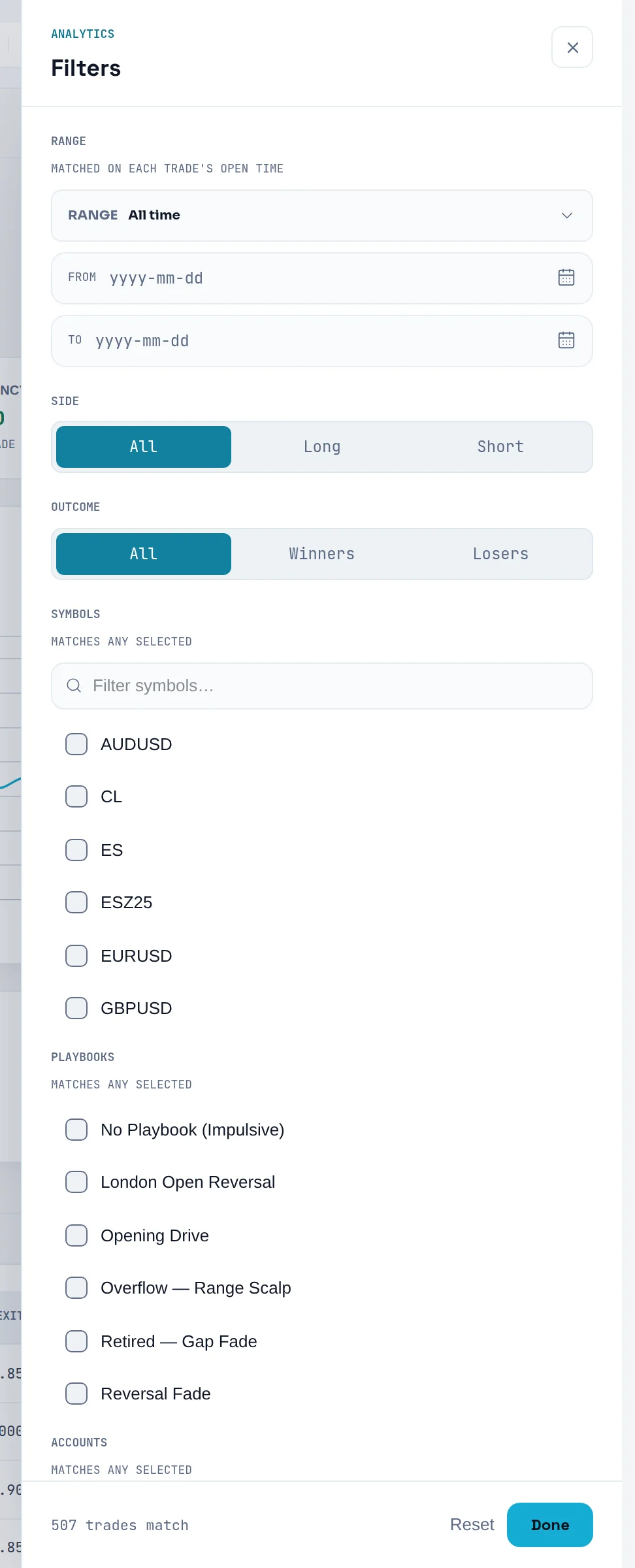
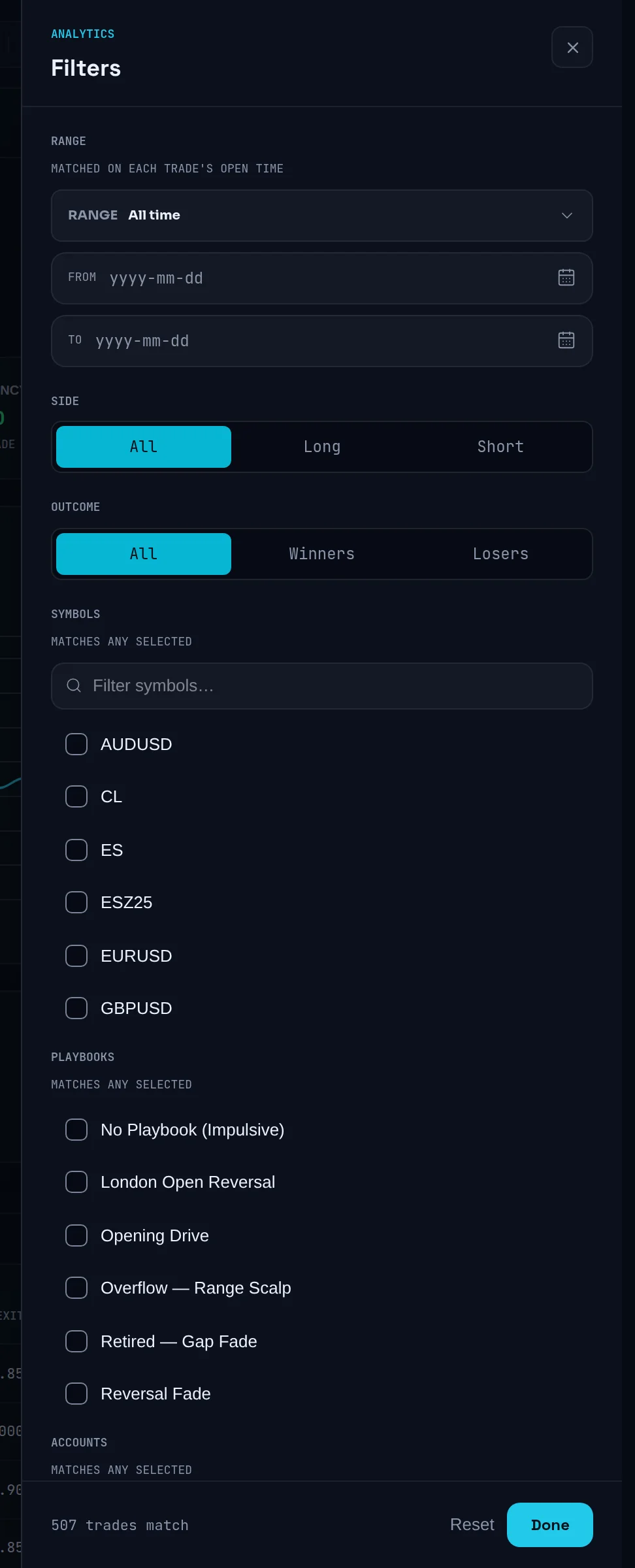
Click Filters. Set any of Range, Side, Outcome, Symbols, Playbooks, Accounts, Emotions, Tags, Weekday and Impulsive only. Under Playbooks, No Playbook (Impulsive) selects trades with no plan.
Remove one filter at a time
Each active filter appears as a chip. Click a chip's close mark to drop just that filter.
Read the strip against your book
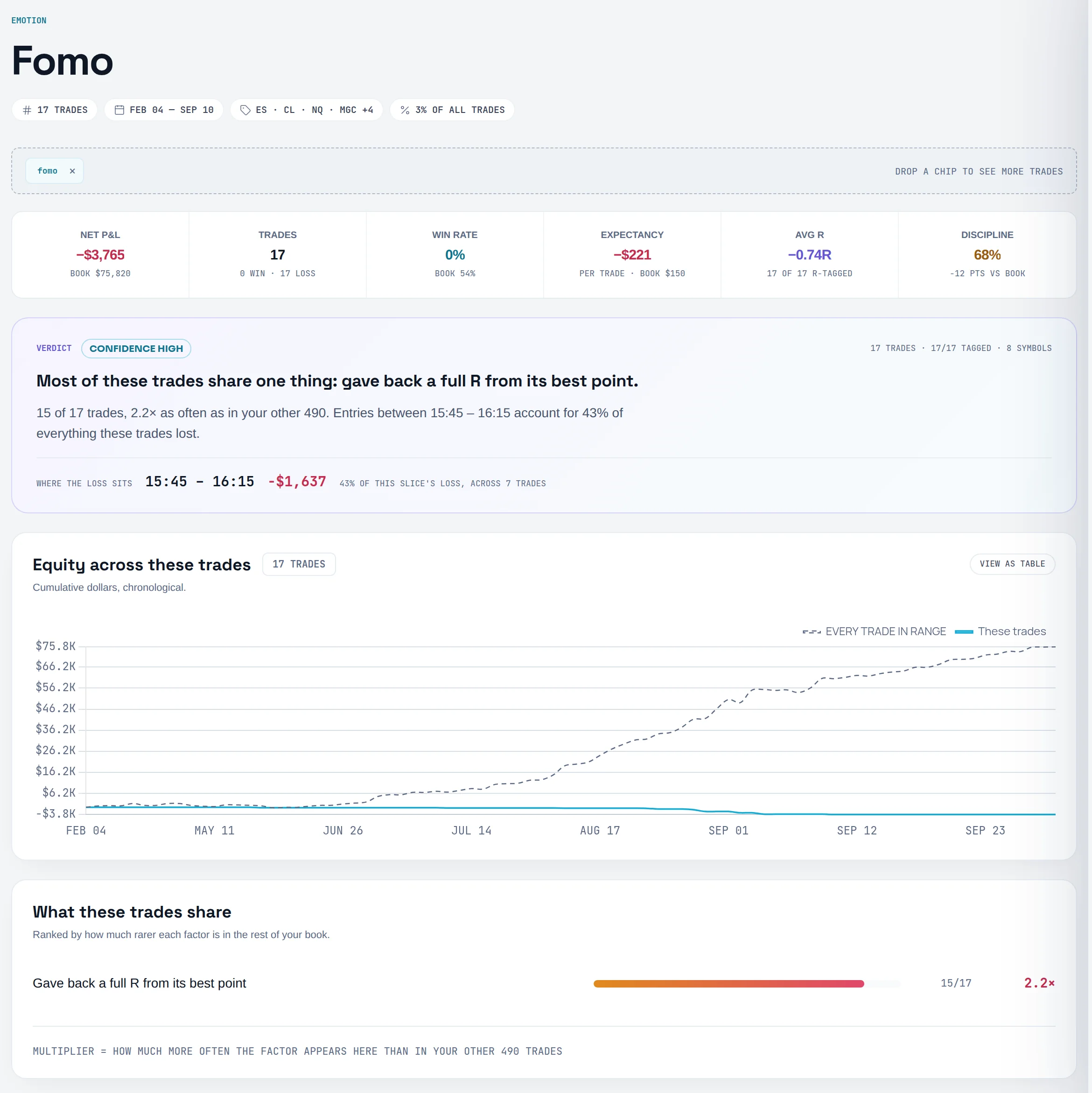
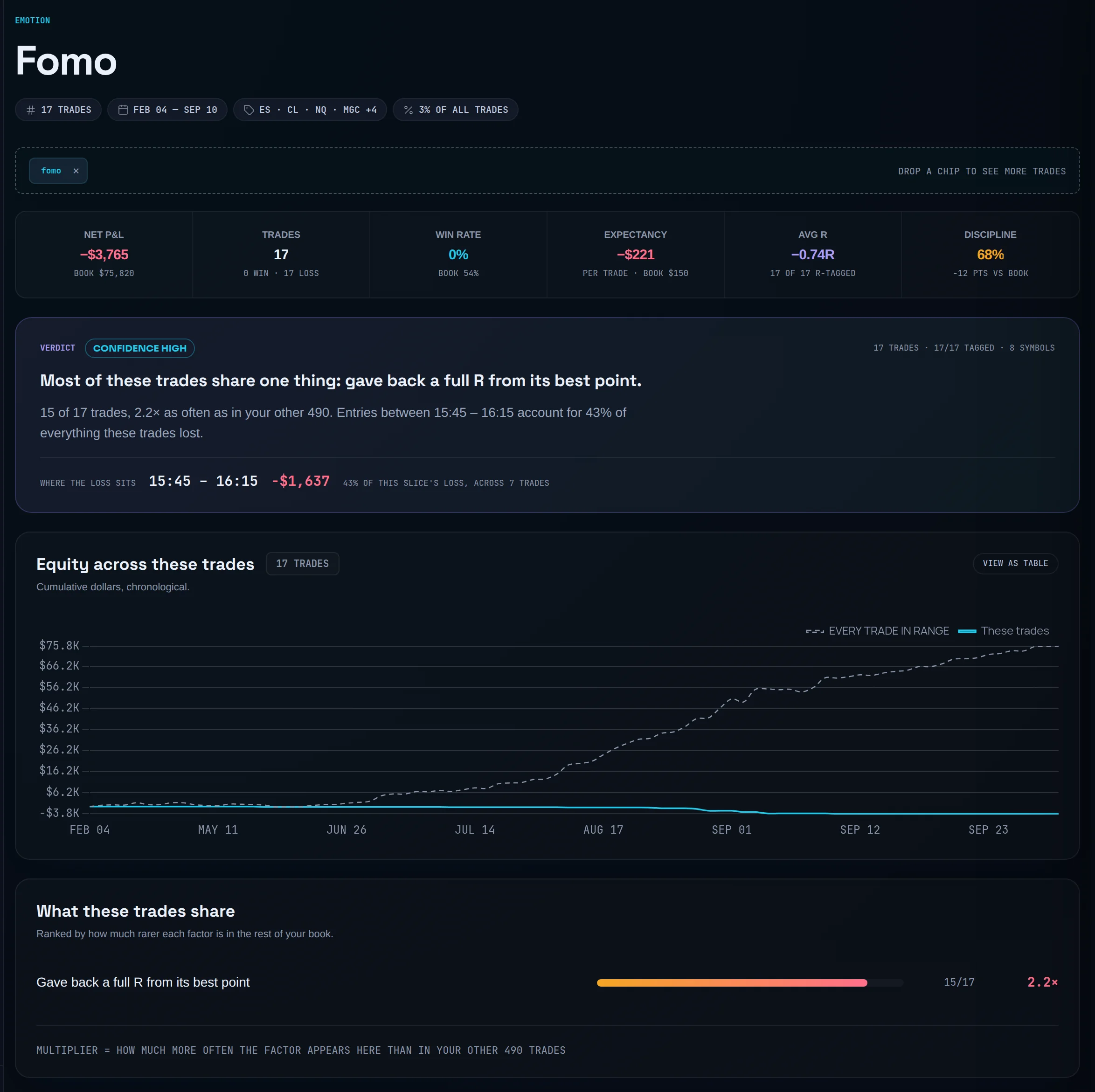
The strip shows NET P&L, TRADES, WIN RATE, EXPECTANCY, AVG R and DISCIPLINE. The small BOOK note under each is the same figure for all your trades, so you can see what this slice does differently.
Read what the trades share
What these trades share ranks the factors that are rarer in the rest of your book. "3×" means three times as common here. ONLY HERE means no other trade has it.
Read the coach note
A Coach note, drafted from these trades' own numbers, may suggest a rule in plain words. It only suggests. Nothing is added to a playbook unless you write it yourself.
Work the trade list
Under THE … TRADES, use Sort trades by and the Columns menu to choose what you see. Click a trade for its full context.
Save or take the slice with you
In the drawer, under Saved views, type a name in Name this filter set and click Save. Use Open in trade log to read the trades there, or Export for a CSV.
| Number in Drill-down | What it means | Formula page |
|---|---|---|
| NET P&L | Net P&L of the slice. Open trades count at zero until they close | Net P&L |
| WIN RATE | Winners ÷ all trades in the slice | Win Rate |
| EXPECTANCY | Average P&L per trade | Trade Expectancy |
| AVG R | Mean realized R over the trades that have a risk amount. The note says how many do | Average R |
| DISCIPLINE | Rule checks kept in the slice, and the gap to your whole book in points | Rule Compliance |
Read the emotional heatmap#
You will see which emotional states make you money, which drain it, and on which weekday.
Open Emotions
Click the Emotions tab and pick a range.
Rank the states
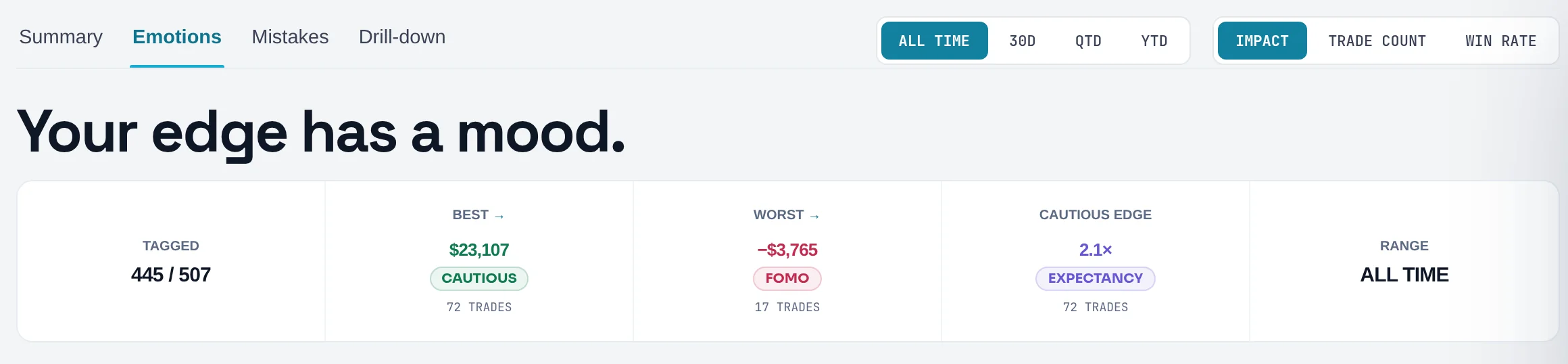
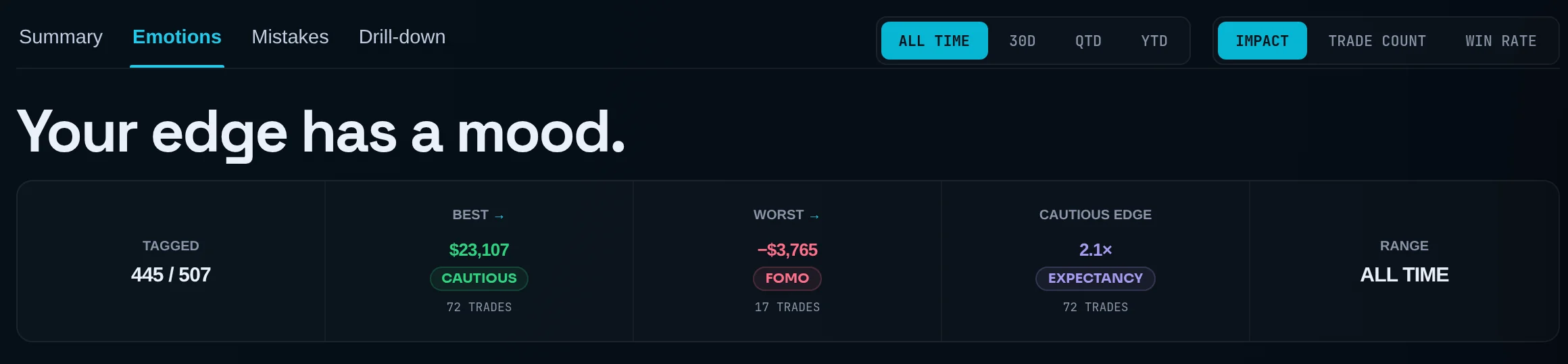
Use Rank emotions by: Impact (net P&L), Trade count or Win rate.
Read the strip
TAGGED is how many trades in the range carry an emotion tag. BEST and WORST name the states with the highest and lowest net P&L, with their trade counts. The EDGE figure, such as "CALM EDGE 2.1× EXPECTANCY", is your best state's expectancy divided by the expectancy of the whole range. It only appears when that state has enough trades and actually beats your average.
Read the grid
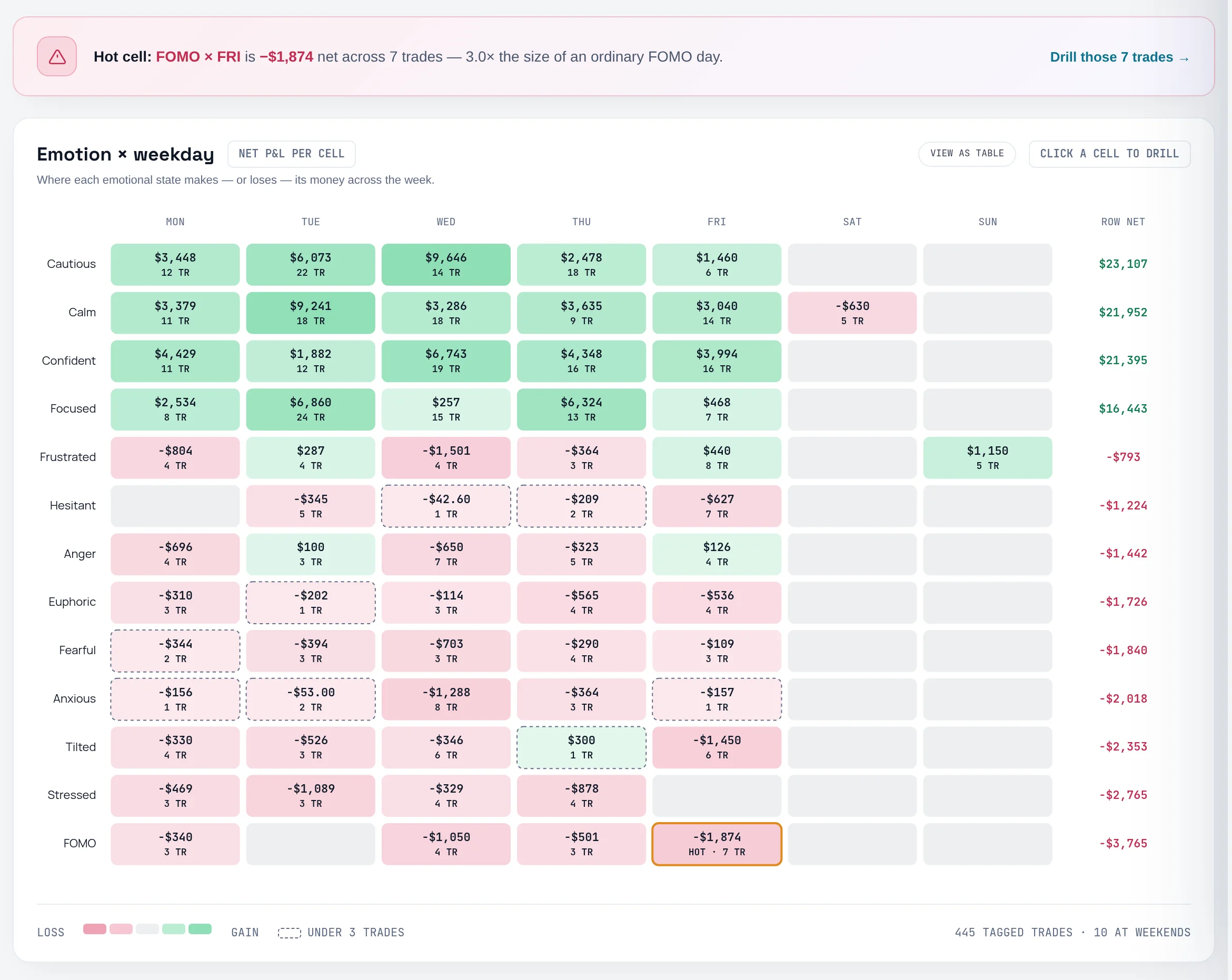
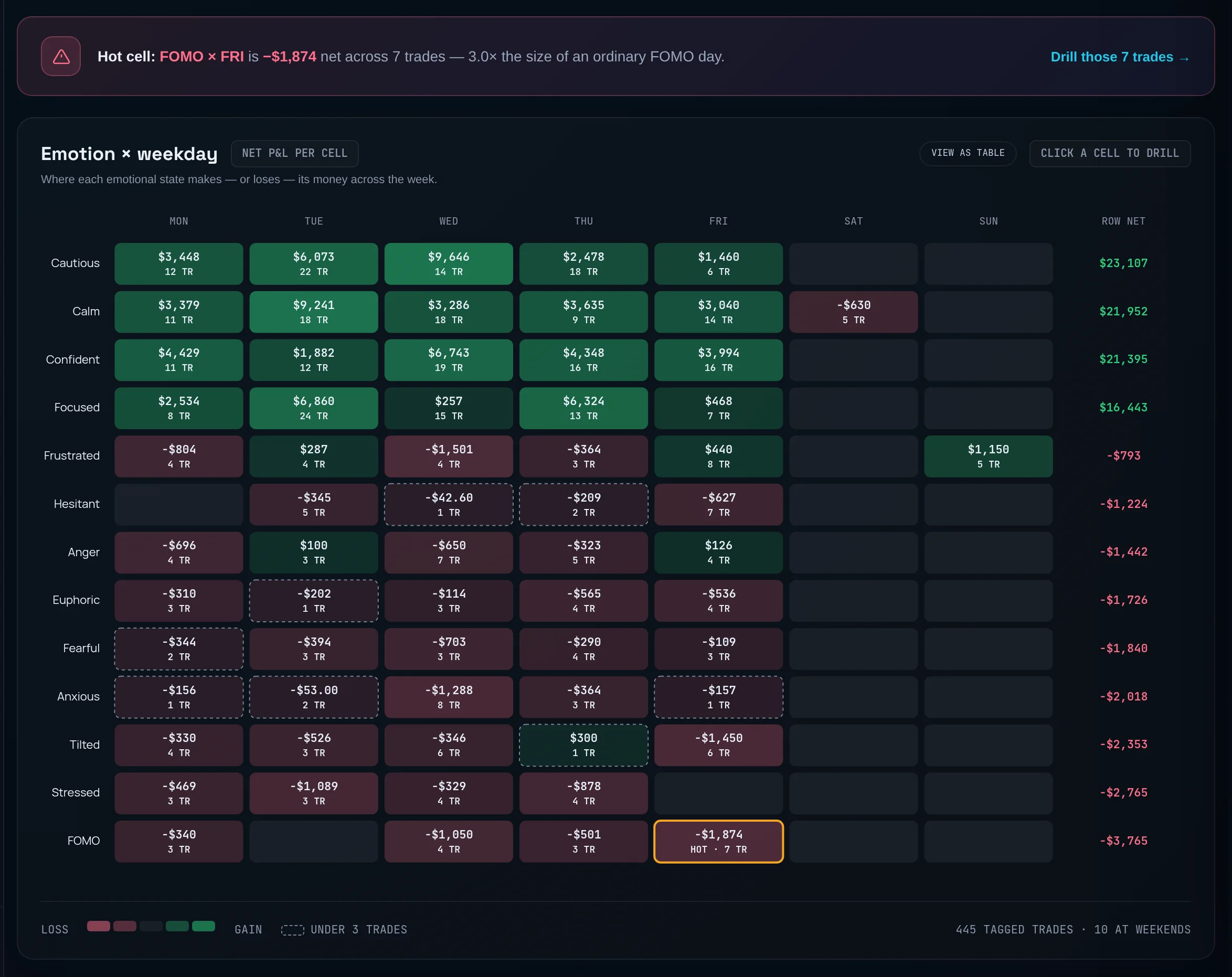
Emotion × weekday shows net P&L per emotion per weekday. Red cells lost money, green cells made it. A dash means no trades.
Act on the hot cell
The Hot cell banner names the one emotion-and-weekday pair that lost far more than its row's usual day. Click Drill those … trades → to open them in Drill-down.
Open any state's trades
Click any cell to drill into it. In EMOTION PERFORMANCE MAP, the state marked BIGGEST LEAK is your costliest.
A trade tagged with two emotions counts under both, so the rows won't add up to your total P&L. That is deliberate: each row answers "what happens when I trade in this state". FOMO appears here only when you tag it. Limbix never detects a feeling for you, see the mistake detectors. Related: Emotional Heatmap and Top Emotional Drivers.
Rank your mistakes by cost#
You will find the habit that costs you most, and turn it into a rule you can check.
Open Mistakes
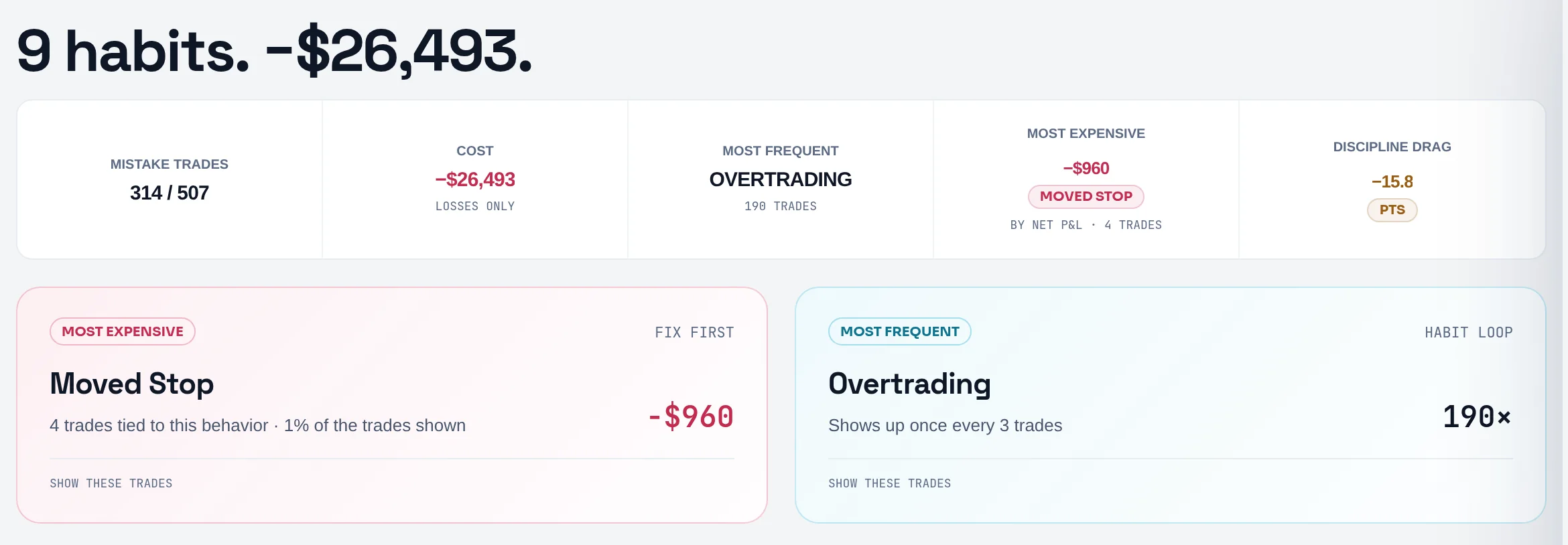
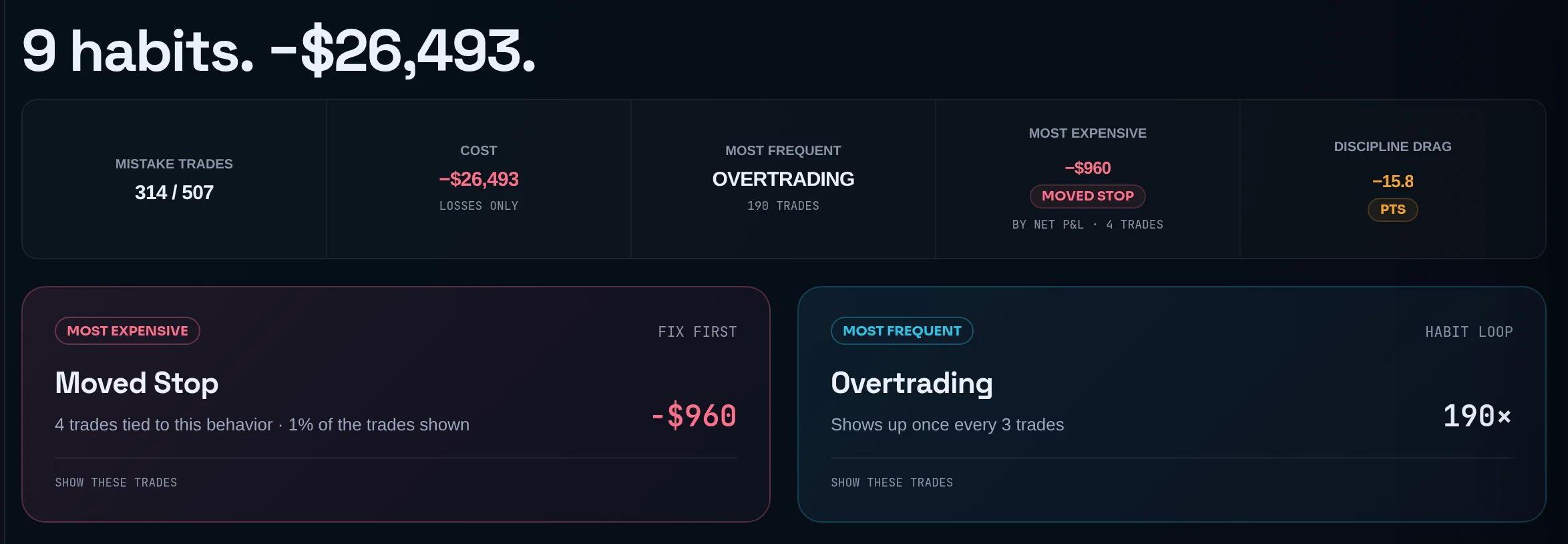
Click the Mistakes tab and pick a range. The headline counts your habits and prices them, for example "4 habits. −€1,280."
Choose the order
Use Rank mistakes by: Count, Net P&L or Recency.
Read the strip
MISTAKE TRADES is flagged trades out of all trades. COST adds up the losses on flagged trades, and is marked LOSSES ONLY. MOST FREQUENT and MOST EXPENSIVE name the two habits to look at first. DISCIPLINE DRAG is how many points of rule compliance the flagged trades cost you.
Start with the priority cards
The MOST EXPENSIVE card is marked FIX FIRST. The MOST FREQUENT card is marked HABIT LOOP. Click SHOW THESE TRADES on either.
Read each category
Under CATEGORIES, each card shows COUNT, NET P&L, DISCIPLINE and TREND. The trend reads ▼ WORSENING, ▲ IMPROVING or — FLAT.
Open the trades
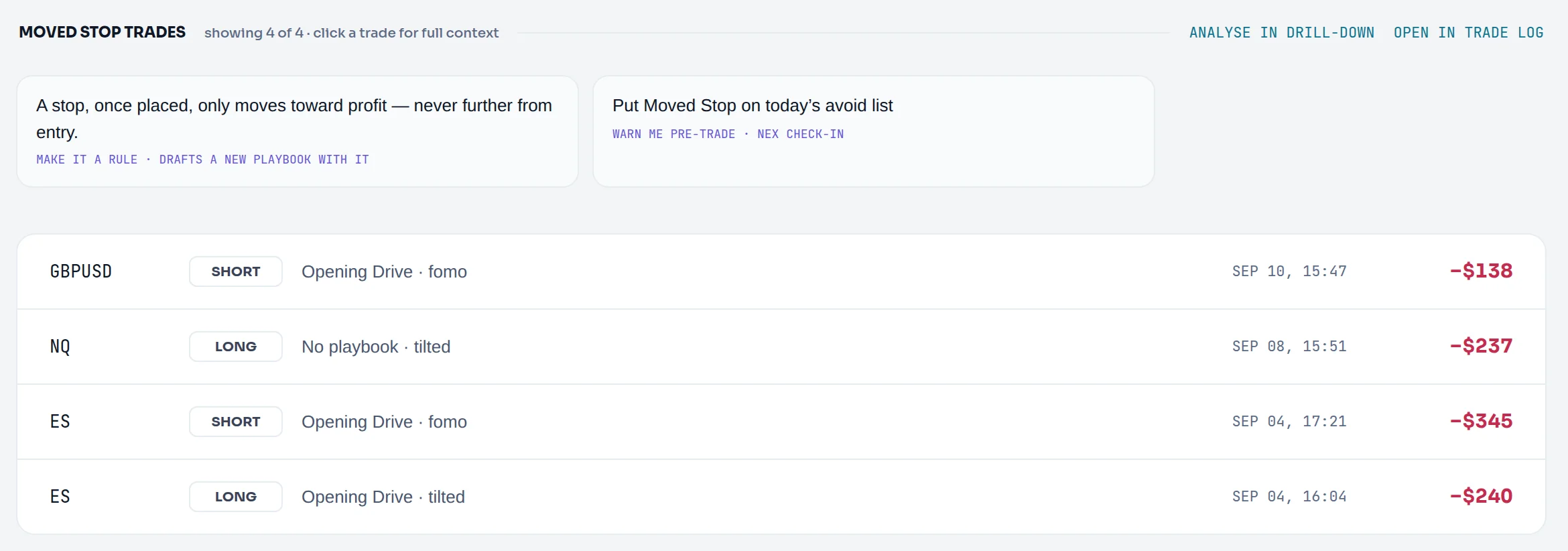
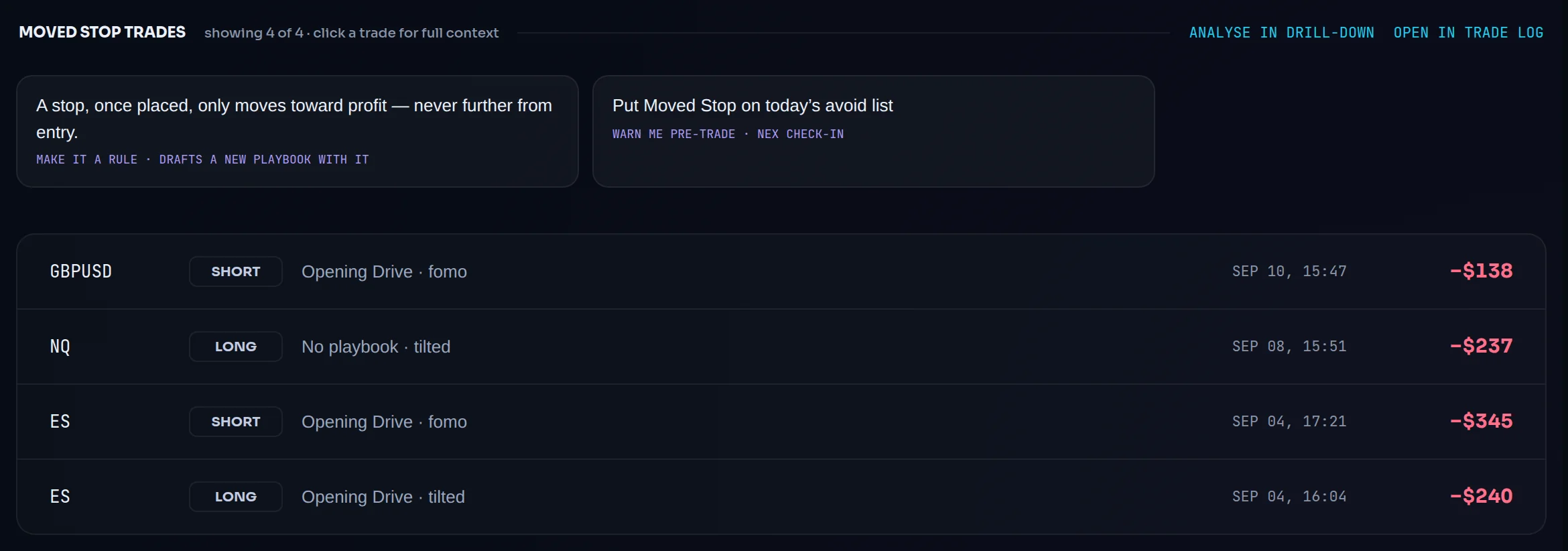
Select a category to list its trades below. Use ANALYSE IN DRILL-DOWN or OPEN IN TRADE LOG to take them further.
Make it a rule
With a category selected, click MAKE IT A RULE to start a new playbook with that rule drafted. On Pro, Put … on today's avoid list carries the habit into your pre-trade check-in. Both open a form. Nothing saves until you save it.
Worked example. Overtrading is flagged on four trades: −€400, −€250, +€150 and +€100. Its NET P&L is −€400: all four added. It adds −€650 to COST, which counts only the two losses. The two figures answer different questions: what the habit netted, and what it drained. See Mistake Cost and Mistake Counter.
To track a habit Limbix doesn't detect, click Track a custom mistake. It takes you to the Trade Log, where you tag it per trade. How each built-in mistake is detected is on mistake detectors.
Common problems#
Everything reads "—". No trades match the current filters. Check the chips under the headline and clear the ones you don't need, or widen the range.
The Emotions tab says "Tag how a trade felt and this fills in." None of the trades in range has an emotion tag. Tag emotions in the Trade Log.
BEST or WORST is empty, but a state is clearly losing. The verdicts need a minimum number of trades per state. A state that is red on two trades isn't called a leak yet.
NET shows "MIXED". The slice mixes trades in different currencies, and a sum across currencies isn't an amount. Filter by Accounts to one currency.
The Rule adherence tile reads "NEEDS A PLAYBOOK" or "NO RULE CHECKS IN THIS RANGE". Link trades to a playbook with rules, see link a playbook. On Essential it reads "RULE CHECKS ARE ON PRO".
COST and MOST EXPENSIVE don't match. They measure different things. COST counts losses only. MOST EXPENSIVE ranks by net P&L, winners included.
Frequently asked questions#
What is the difference between Analytics and Reports in Limbix? Analytics is for finding a problem: slice your trades, see which emotions and mistakes cost money, and open the trades behind the number. Reports is for reviewing a period: a stat sheet, metric lanes over time, breakdowns by symbol or time of day, two-group comparisons and a calendar. Both read the same trades and the same formulas, so a number never disagrees between them.
Why don't my emotion rows add up to my total P&L? A trade tagged with more than one emotion counts in full under each tag. If a −€300 trade is tagged Anxious and FOMO, both rows show −€300. That makes each row an honest answer to "what happens when I trade feeling this", at the cost of the rows not summing to your total. Your total P&L is on the NET figure, where every trade counts once.
Does Limbix detect FOMO automatically? No. FOMO is a feeling, and only you can name it, so it counts only when you tag it on a trade. Limbix does detect behaviours it can see in the data, such as revenge trades, oversized positions and overtrading. Each detector's exact rule is on the mistake detectors page.
Is Drill-down the same as the Cross-tab report? No. Drill-down lists the trades in one slice and compares that slice with your whole book. The Cross-tab report under Reports › Breakdowns puts any two dimensions against each other, such as symbol against weekday, for any measure. Cross-tab needs Pro. See Reports.
Can I save a filter set I use often? Yes. Open Filters, scroll to Saved views, type a name in Name this filter set and click Save. Saving under an existing name offers Replace instead. Your saved views appear in the same drawer on every Analytics tab, and the link icon copies a shareable URL of the current view.