
02 · Guides
Prop Hub: track your prop firm accounts
ProTrack prop firm accounts in Limbix Prop Hub: add a challenge, bind its trades, watch breach distance, log fees and payouts, and see if prop trading pays.
Prop Hub keeps your prop firm accounts in one place in Limbix: each account's rules, how close it is to a breach, what you paid the firm and what the firm paid you. You add a challenge once, its trades count against its rules, and the hub tells you whether prop trading is making you money overall.
Before you start#
Open Prop Hub from the sidebar, under Analytics. With no accounts yet, it shows the firms it has rules for and three steps: Add an account, Log fees and payouts, Get warned early.
Prop Hub reads your trades. It cannot place, change or cancel an order, and nothing in it stops you from trading. Its warnings are for you to act on.
What the numbers at the top of the hub mean:
| Number | What it means | Formula page |
|---|---|---|
| Net prop P&L | Everything received from firms minus everything spent on them | Net Prop P&L |
| Spent | Challenge fees, resets, add-ons and activation fees | Net Prop P&L |
| Received | Payouts you have been paid | Payout Yield |
| Pending | Payouts requested but not yet paid. Not counted in Received | — |
| Pass rate | Passed ÷ resolved challenges. Open ones don't count | Pass Rate |
| ROI | (Received − Spent) ÷ Spent. "—" until you have spent something | ROI per Firm |
And the columns of Active Accounts:
| Column | What it means | Formula page |
|---|---|---|
| Phase | The account's stage, such as Eval P1 or Funded | — |
| Equity | Current balance, and the change since the start | Equity Curve |
| Today | Today's P&L on the account | Net Daily P&L |
| Target | Gain so far ÷ gain the target needs, as a bar | Equity vs Target |
| DD buffer | Money left between your balance and the breach floor | Buffer-to-Loss Ratio |
| Days | Trading days on the account | Days to Pass |
A row can carry one badge: Payout open when you are eligible for a payout you haven't logged, Danger or Watch when the buffer is thin.
Add a prop account#
You will create an account with your firm's rules already filled in, so every trade on it is measured against them.
Start the wizard
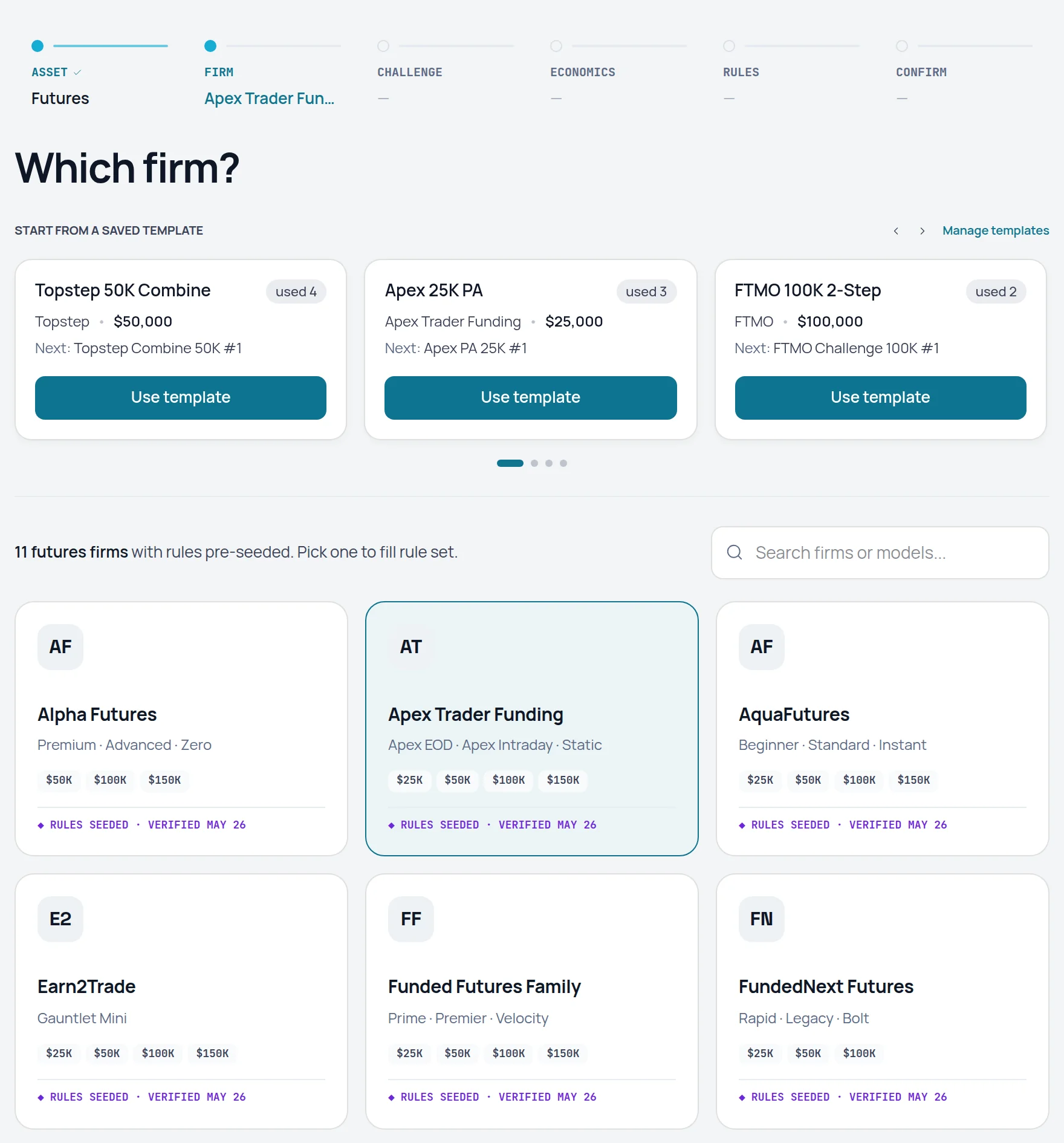
Click Add Account at the top right of Prop Hub. On a first visit, you can also click your firm's name under Start with your firm · rules pre-seeded.
Pick the market
Answer "Which market does this account trade?" with Futures or Forex / CFD. You'll only see settings for that market from here on.
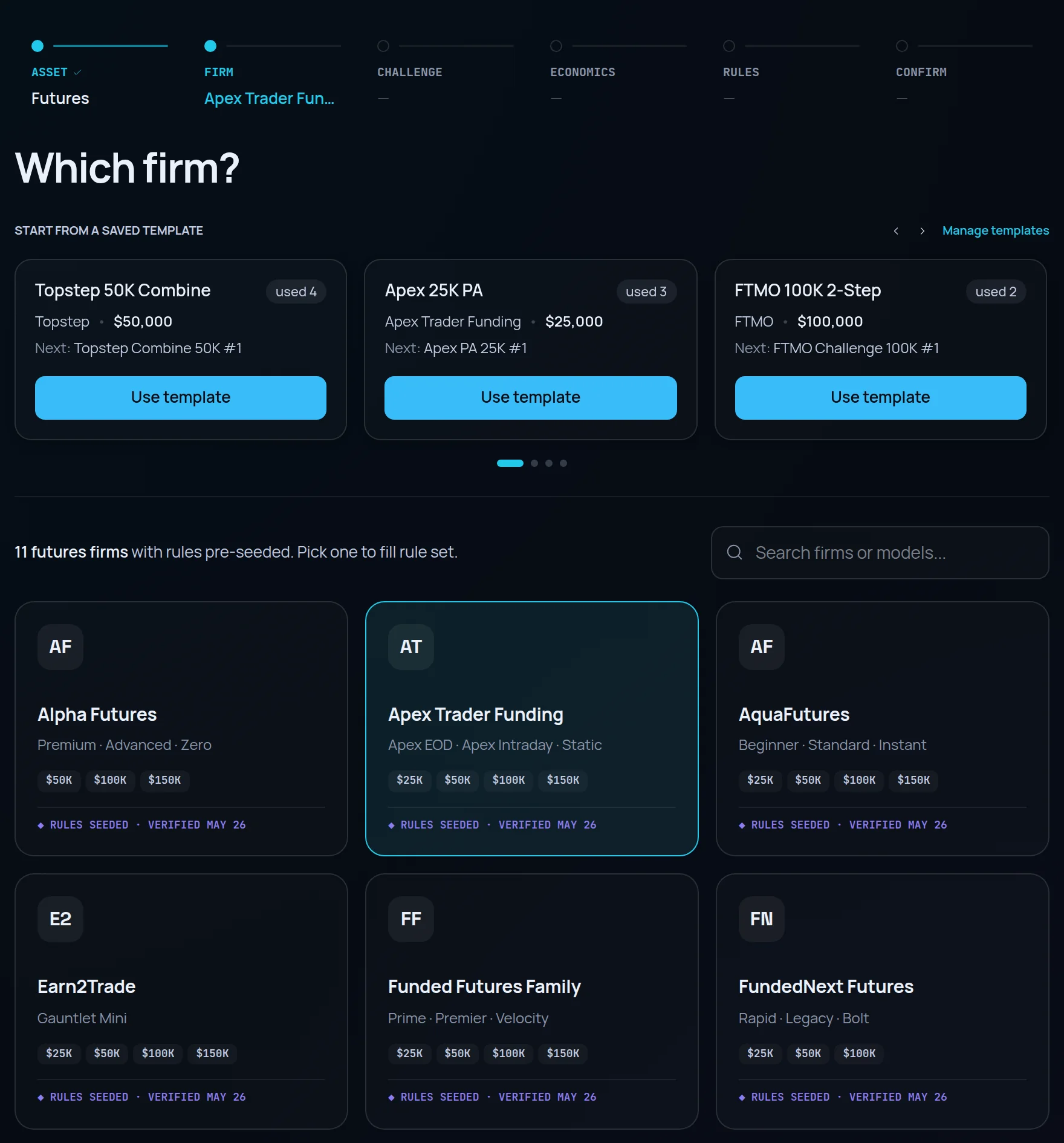
Pick the firm
Answer "Which firm?". To reuse a setup, choose from Start from a saved template instead. Click Continue with your firm.
Pick the challenge you bought
Choose the exact size and model. Its size and rules become the account's. If you have finished challenges before, a line compares this size with your own pass record.
Name it and log what it cost
Fill in Nickname, Starting balance, Account size and Base currency. Under Purchase, enter Purchase price, Purchase date and Profit split %. Click Continue to rules.
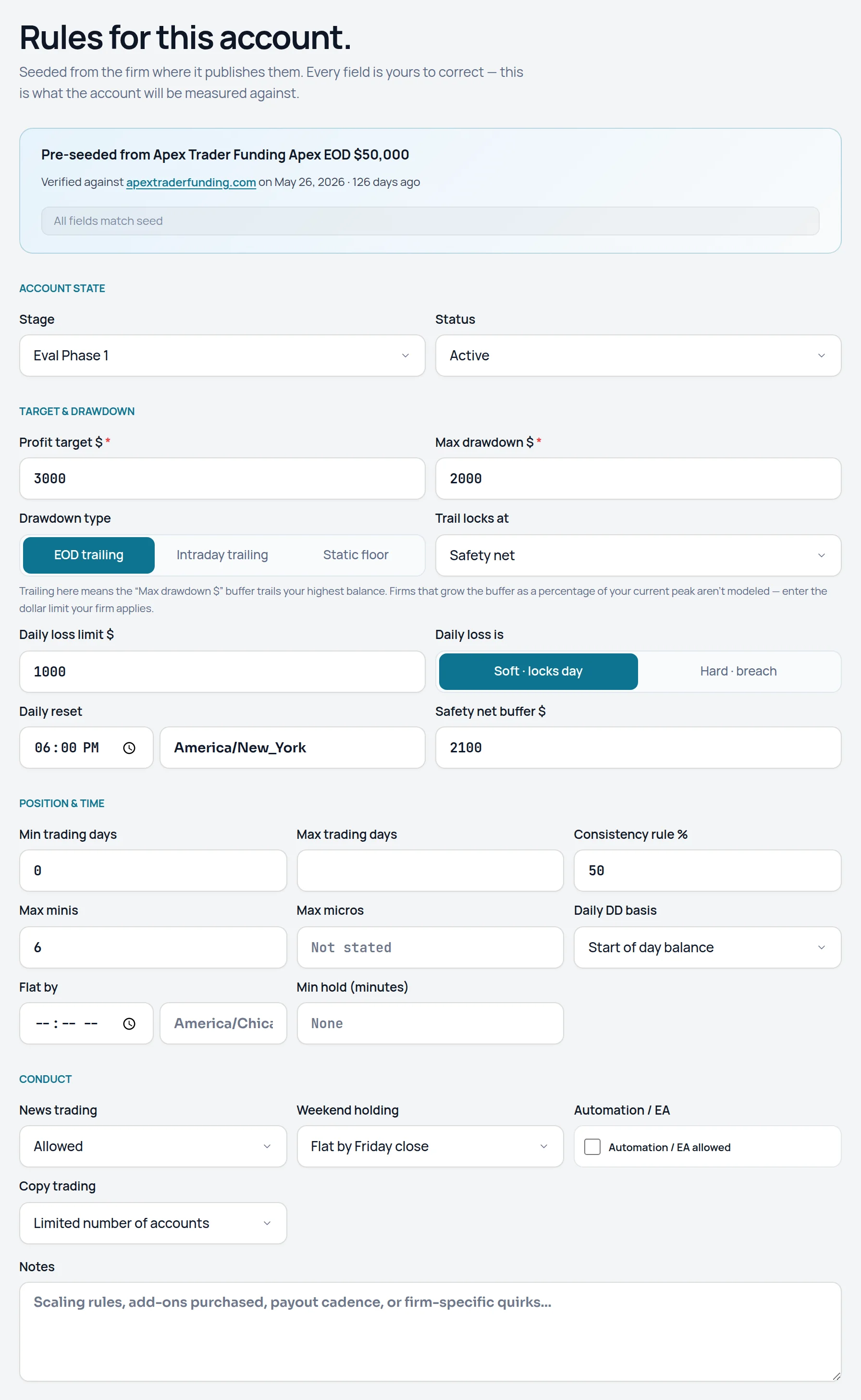
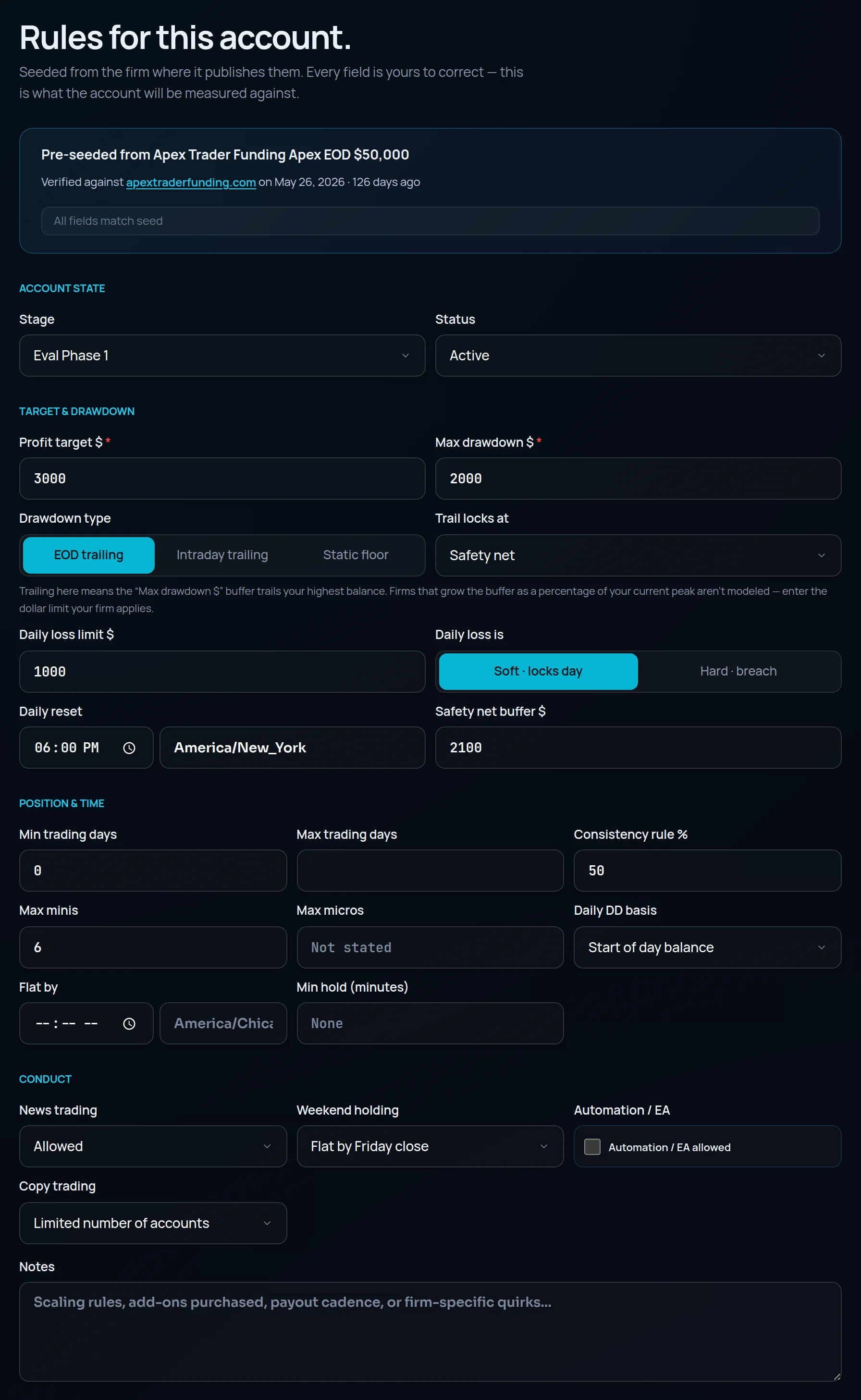
Check the rules
Review Profit target $, Max drawdown $, Drawdown type, Daily loss limit $ and the rest. They are seeded from the firm where it publishes them, and every field is yours to correct. Click Review & create.
Create it
Read the summary, then click Create prop account. The rules are saved as version 1 of the account's rule set.
Limbix seeds rules for FTMO, Topstep, Apex, FundedNext and TradeDay, among others. Firms change their terms, so check the seeded numbers against your firm's current rules. An unverified terms mark means the firm's terms haven't been checked recently. The firm's limits also outrank your own: see the risk limit chain.
Bind trades to a prop account#
You will make sure a trade counts against the right account's rules.
Import into the prop account
When you import, choose the account under Trading account. Prop accounts are marked · Prop in that list. See add trades.
Or add a trade by hand
In the manual trade form, pick the same account under Trading account.
Or adopt trades you already imported
In the wizard's economics step, use Link trading account to point the new prop account at an account you imported earlier. Its trades become this account's straight away.
Check the result
Open the account. Trades on this account shows the count and the list. Click Open in Trade Log ↗ to read them there.
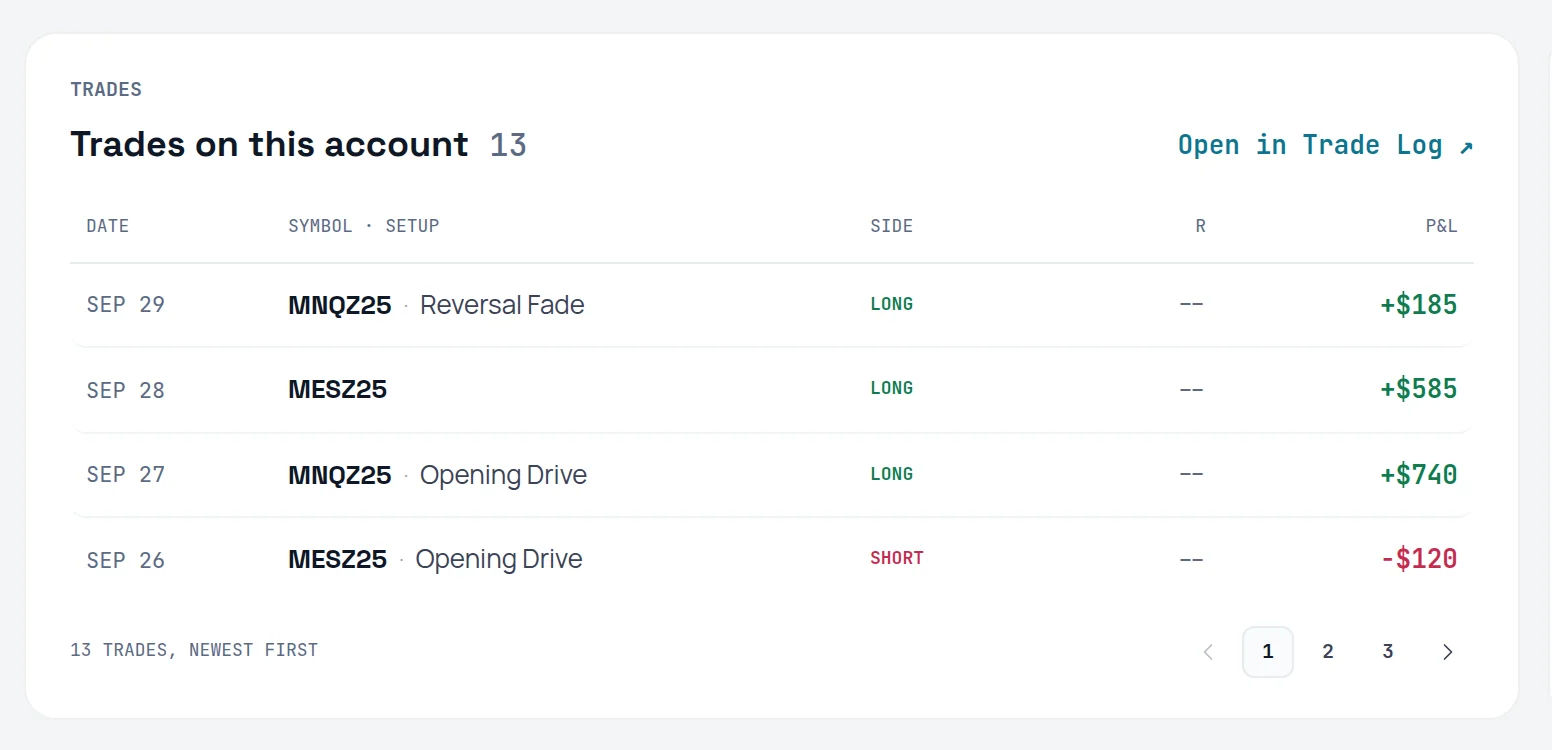
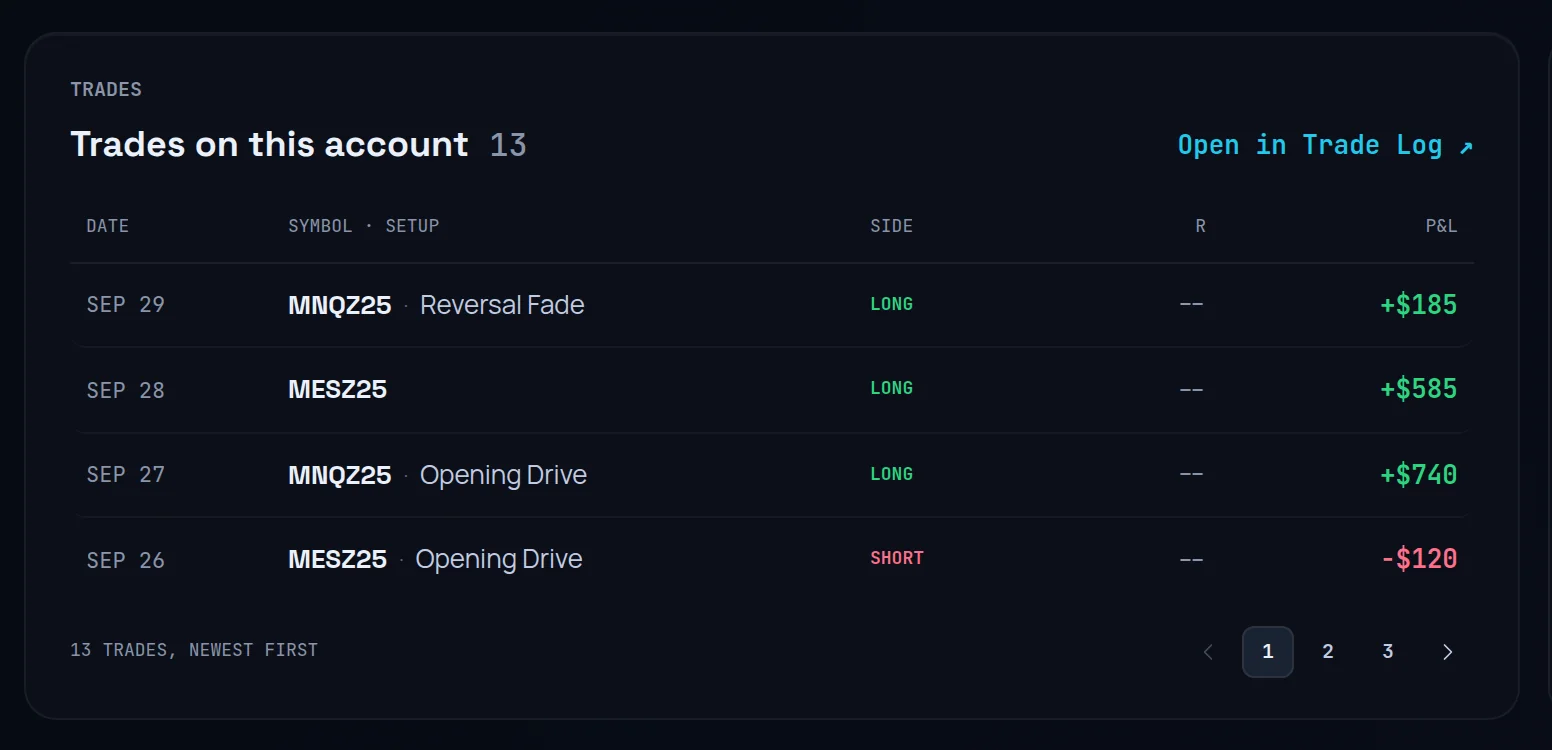
Prop accounts are created in Prop Hub, not under Settings › Trading accounts, so the firm's rules attach. See settings.
Move from evaluation to funded#
You will know how an account moves through its stages and what each status means.
Read the badge
On the account page, the badge beside the name shows stage and status, such as Eval P1 · Active. Stages are Eval P1, Eval P2, Funded and Master.
Watch the target and the days
The Rule monitor shows your profit target as a percentage and your trading days against the minimum.
Let Limbix move the stage
When the balance reaches the target and the minimum trading days are met, Limbix moves the account on. A forex account goes from Eval P1 to Eval P2. A futures account goes from Eval P1 to Funded. The timeline records it, for example "Phase 1 passed".


Add the funded account
When the final evaluation passes, the account is marked Passed and moves to closed accounts. Add the funded account your firm gives you as a new account, with Stage set to Funded in the rules step.
Log payouts once funded
Log payout becomes available once an account is Funded or Master. Before that its tooltip reads "Unlocks when this account is funded".
| Status | When it applies |
|---|---|
| Active | Trading, no rule broken |
| Passed | The final evaluation target was reached with enough trading days |
| Breached | The overall drawdown floor was crossed, or a hard daily loss limit was hit |
| Failed | The evaluation's calendar deadline passed below target |
| Paid Out | The account has been paid out |
| Archived | You archived it. Nothing is deleted, and Restore account brings it back |
Watch your breach distance#
You will see how much room each account has before it breaks a firm rule, measured in your own losing trades.
Scan the DD buffer column
In Active Accounts, DD buffer shows the money left above the breach floor. The table puts the tightest accounts first.
Open an account
The balance panel shows Since start, Today, HWM (your high-water mark), Breach floor, Target and Day.
Read the Rule monitor
Rule monitor tracks every firm rule on one line each, tallied as Breach, Watch or OK. A greyed row has nothing to measure yet and isn't counted.
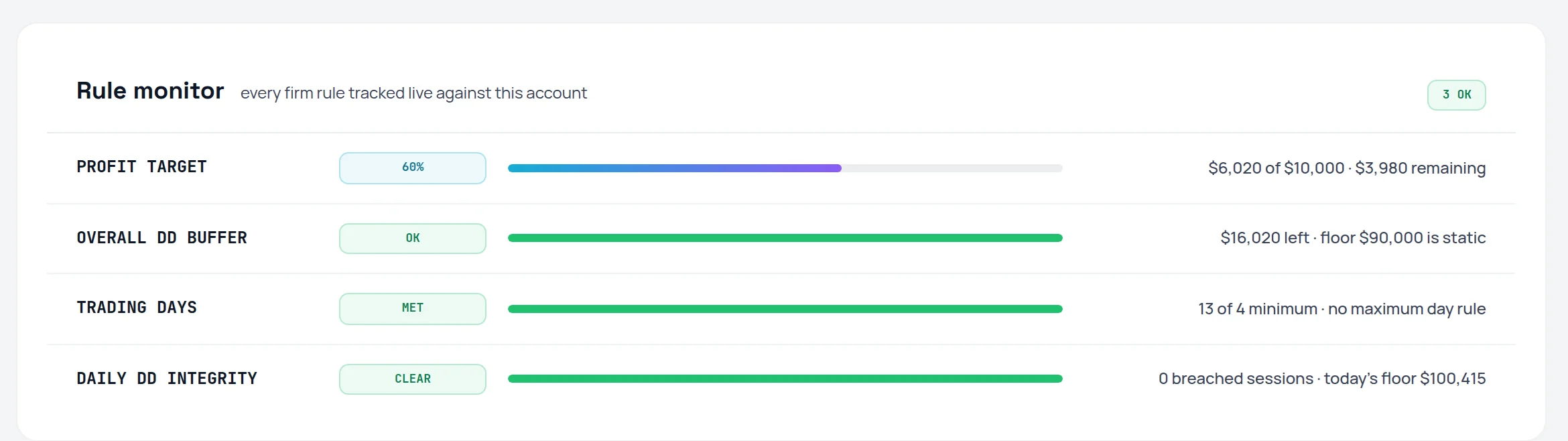
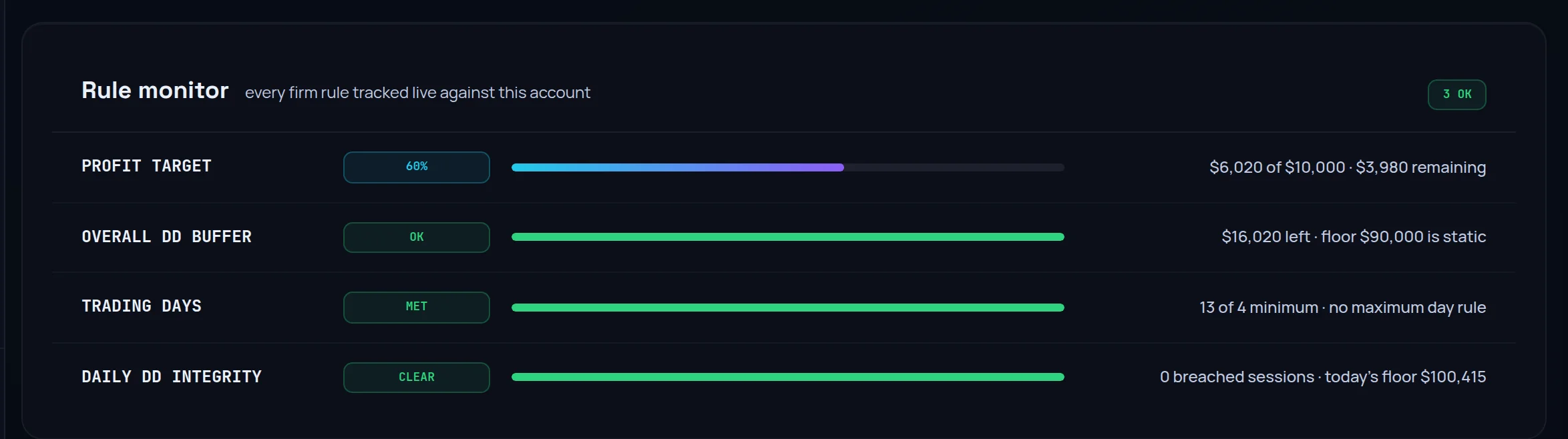
Open the Risk view
Back on the hub, open the Risk tab of the drilldowns, "How many losing trades each account can survive". Buffer in average losses is the buffer-to-loss ratio. Daily DD shows today's daily limit usage.
Read the pressure score
Pressure turns the ratio around so more room scores lower. It is a heuristic, not a probability. How pressure is scored on the same page explains the scale.
Worked example. Your balance after paid withdrawals is €51,200 and the breach floor is €48,500, so DD buffer is €2,700. Your average losing trade on this account is €450. €2,700 ÷ €450 = 6.0: six ordinary losses before a breach. If your average loss were €2,000, the ratio would be 1.35, shown as 1.3×, and a single bad day could end the account. See Buffer-to-Loss Ratio.
The floor moves with the Drawdown type you set. A Static floor never moves from your starting balance. EOD trailing follows your highest closing balance. Intraday trailing follows your highest balance at any moment, which is stricter.
Log a payout#
You will record a payout and see what it does to the account's balance before you write it down.
Open the payout form
Click Log Payout at the top of the hub. With one funded account it opens that account's form. With several, pick one under "Which account?". You can also click Log payout on the account page.
Enter the gross amount
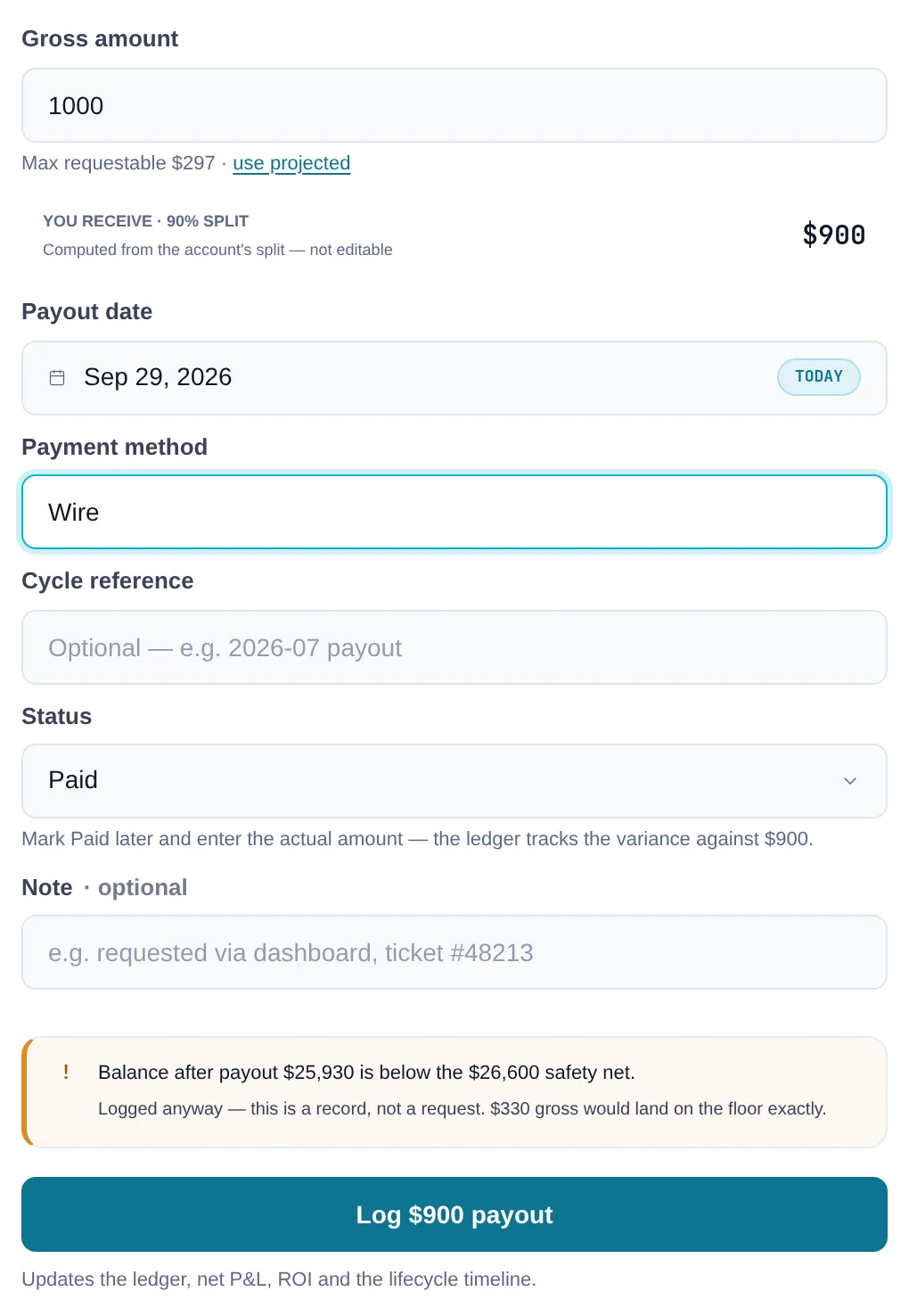
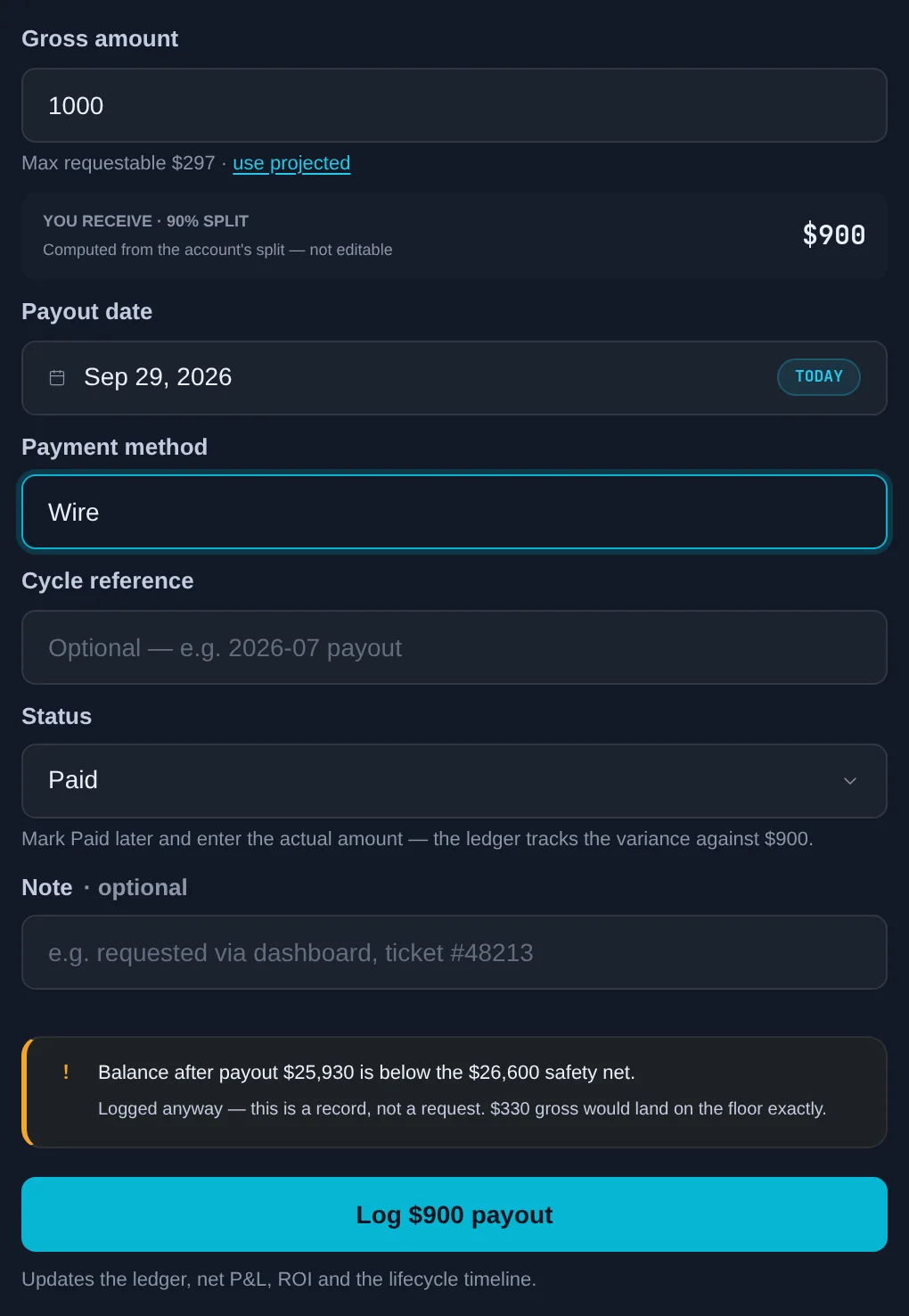
Type the amount in Gross amount. Max requestable shows the projected figure, and use projected fills it in.
Check your share
You receive shows your share at the account's profit split. It is computed, not typed.
Fill in the details
Set Payout date, Payment method, Cycle reference and Status: Requested, Paid or Rejected. Add a Note if you like.
Read the safety-net advice
If the payout would take the balance under the account's safety net, a note says by how much, and what gross amount would land exactly on the floor. It is advice. The payout still logs.
Save it
Click Log … payout. If Limbix spots a likely duplicate cycle or a payout larger than the profit, it lists the problem under Check this before logging. Click Log anyway to keep it.
Update it later
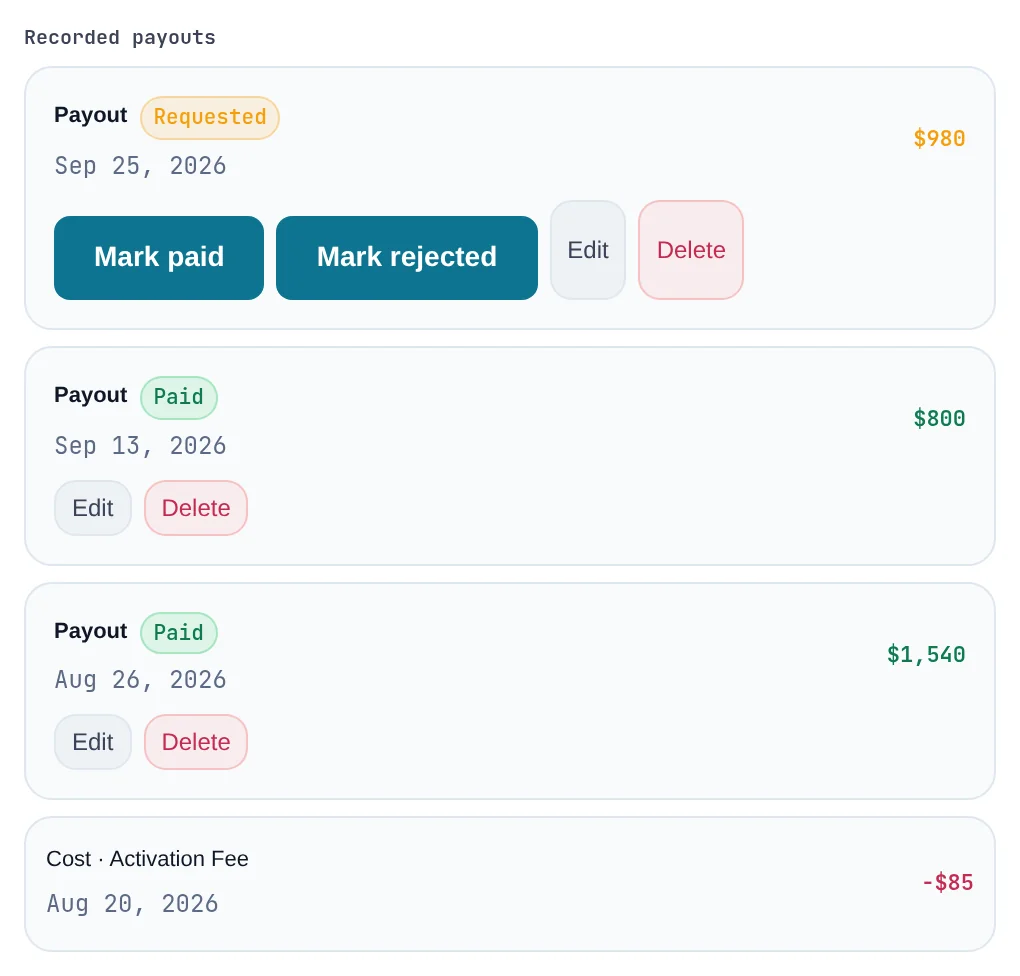
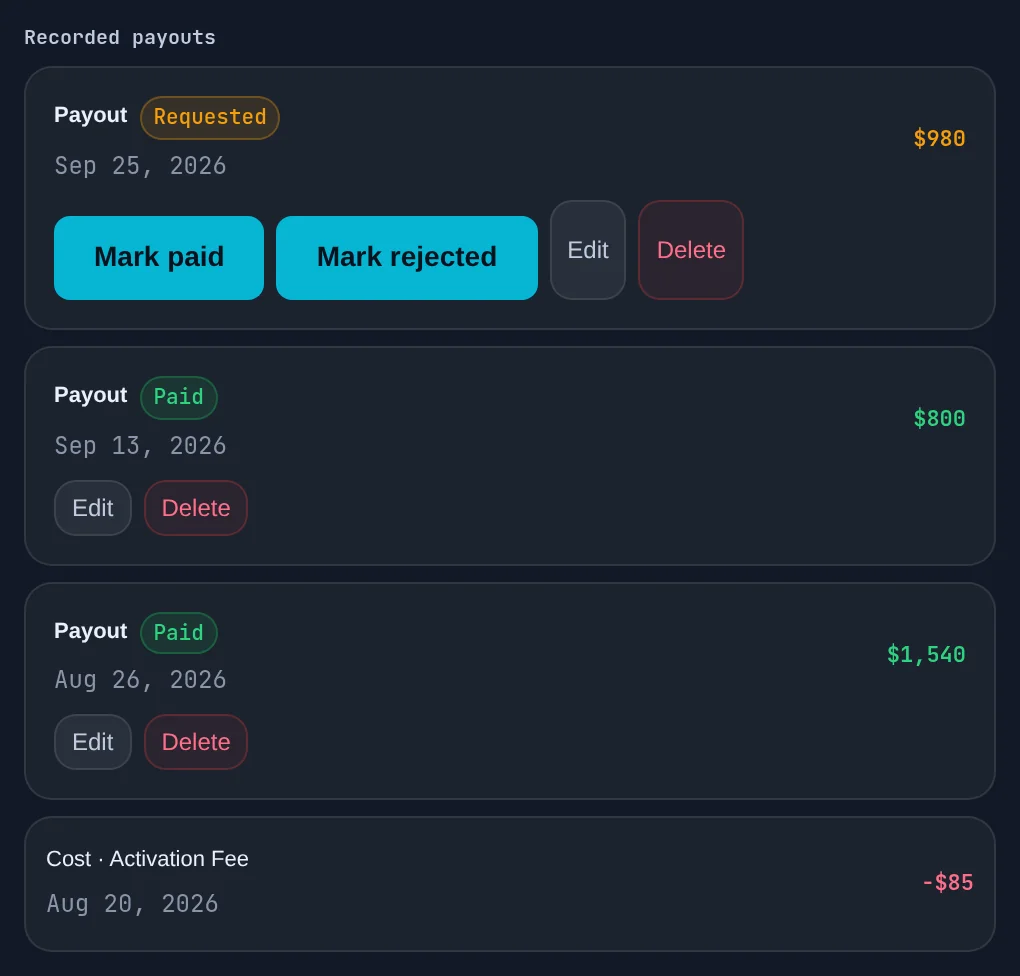
In the payout list, use Mark paid or Mark rejected when the firm answers, or Edit and Delete.
Worked example. Your balance is €52,000, your safety net is €50,100 and your split is 90%. You log a €2,500 gross payout. You receive shows €2,250. The balance after the payout would be €49,500, which is €600 under the safety net. The advice says €1,900 gross would land exactly on the floor, which is €1,710 for you. The payout logs either way.
Logging a payout updates the ledger, Net prop P&L, ROI and the account's timeline.
Log fees, resets and add-ons#
You will count every cost against the account, so your ROI is the real one.
Open the cost form
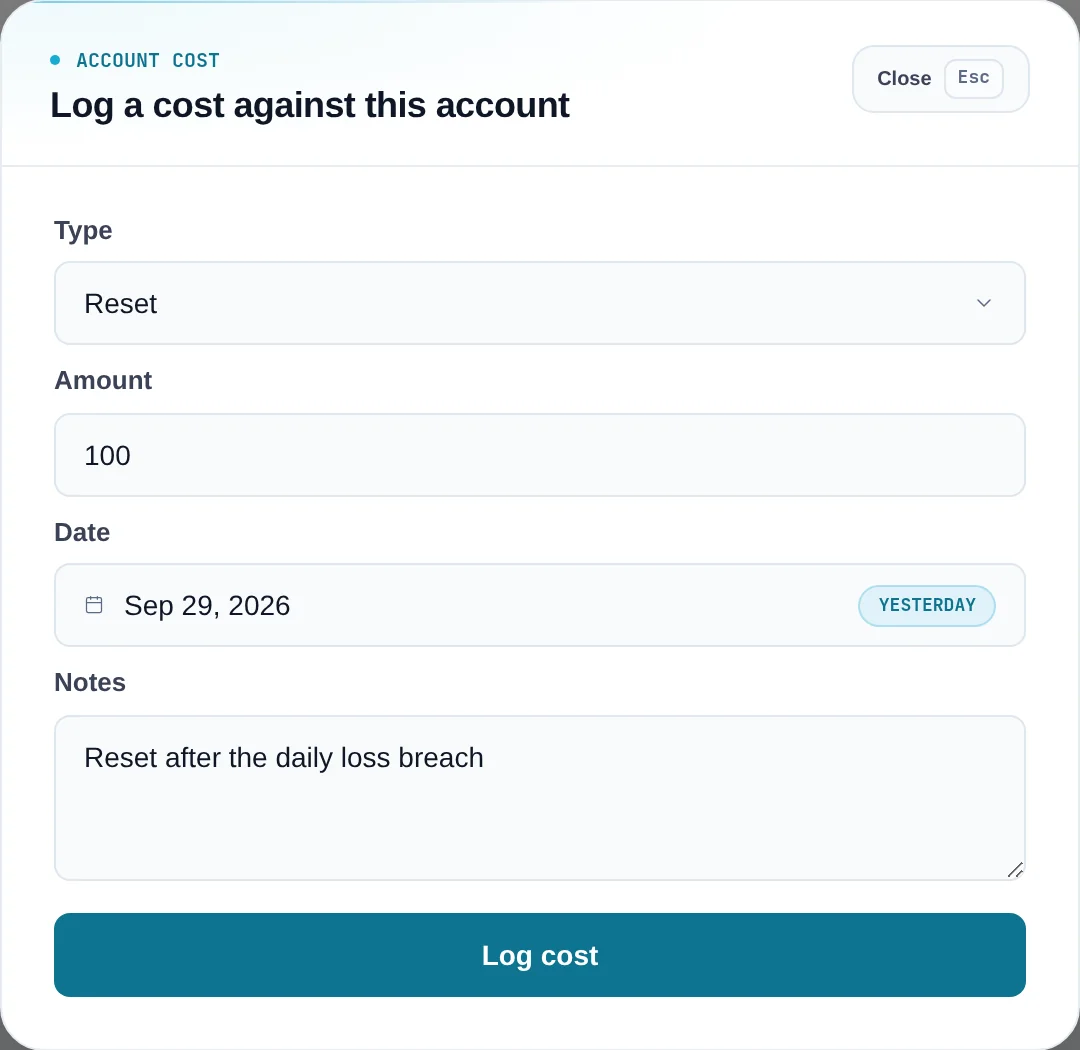
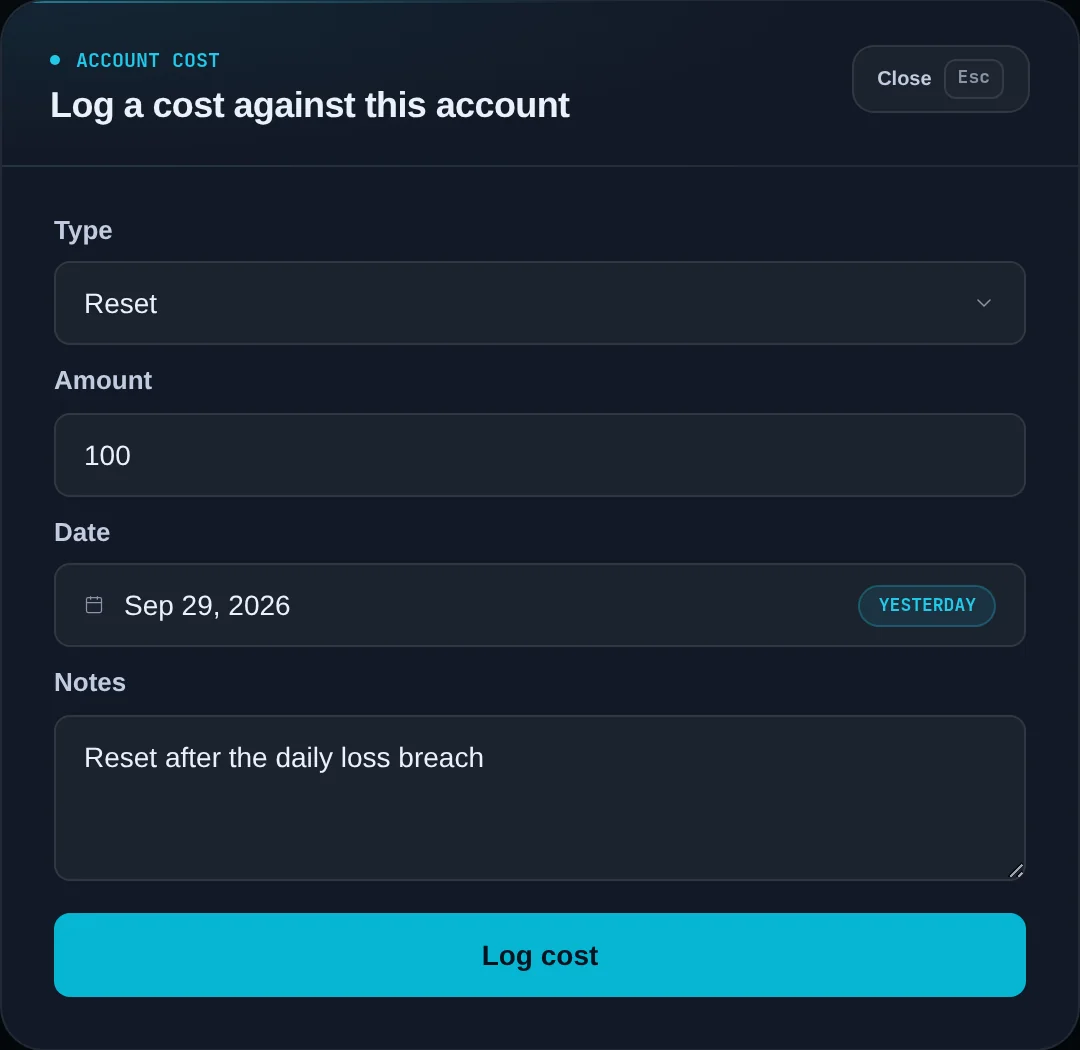
On the account page, click Log cost.
Pick the type
Under Type, choose Reset, Add-on, Activation fee or Other.
Enter it
Fill in Amount, Date and optional Notes, then click Log cost.
Check the totals
The cost appears in the account's ledger and in Spent at the top of the hub.
The purchase price you entered in the wizard already counts. Renewals and resets do not log themselves: add each one when it happens, or it never reaches your net.
Worked example. You bought a challenge for €150, reset it twice at €100 each, and paid a €130 activation fee when funded. Spent for that account is €150 + €100 + €100 + €130 = €480.
See whether prop trading pays#
You will find out, across every firm and size, whether your prop trading has made or lost money.
Read the top rail
Net prop P&L, Pass rate and ROI answer the big question at a glance.
Open the ROI view
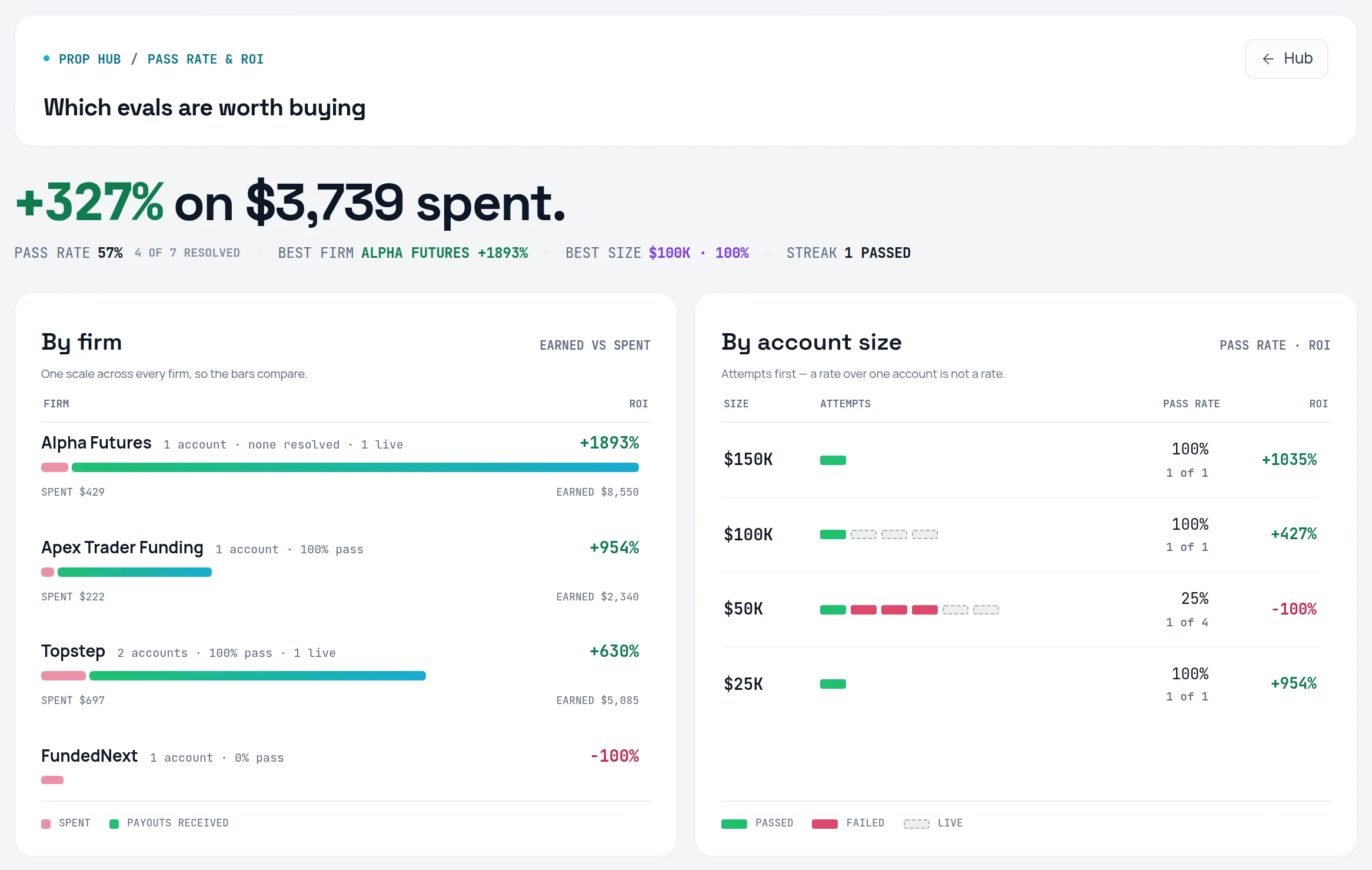
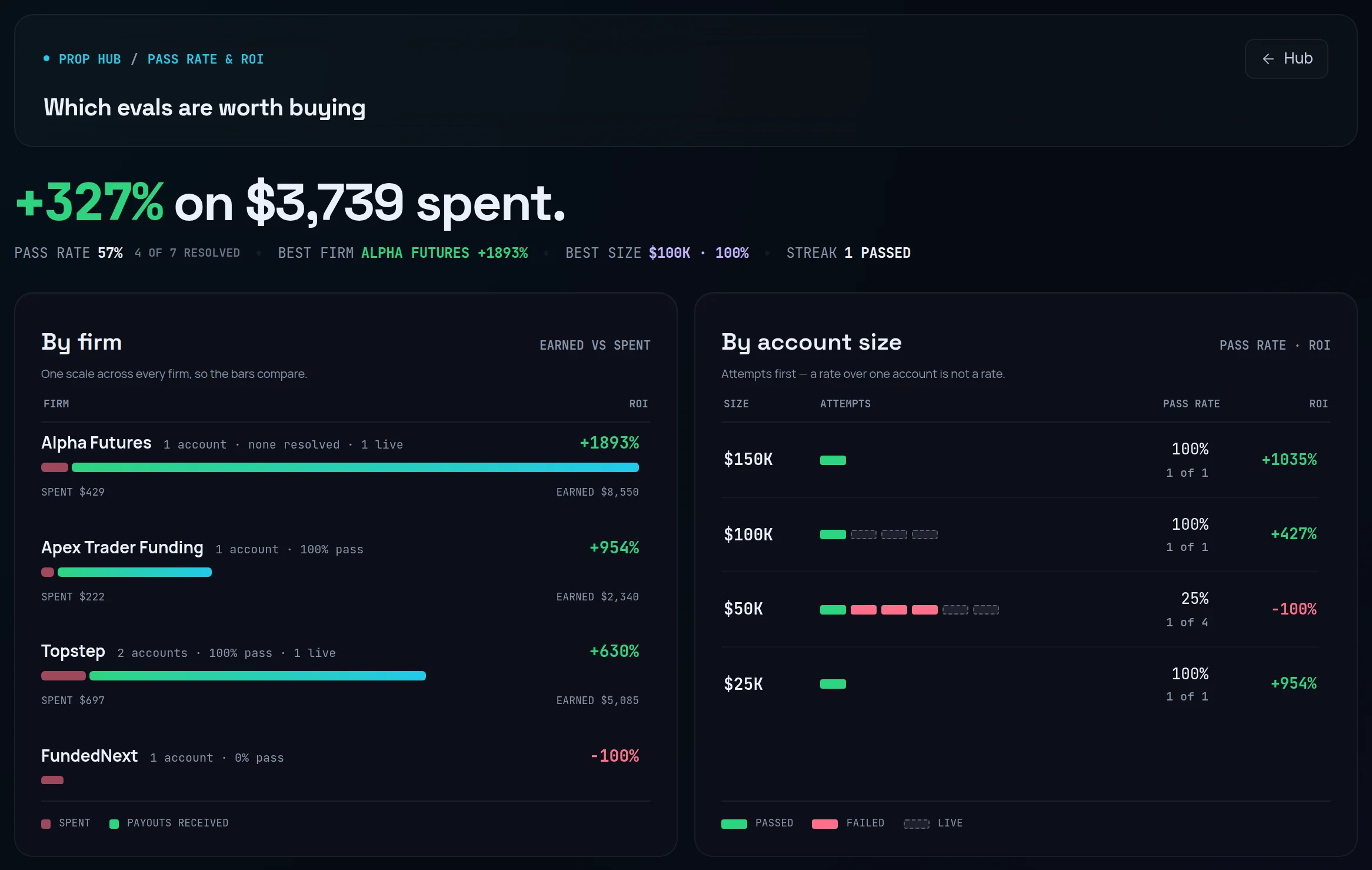
Click ROI or Pass rate. The page "Which evals are worth buying" shows your pass rate, your best firm, your best size and your pass streak.
Compare firms
By firm puts what each firm paid you against what you spent with it.
Compare sizes
By account size shows pass rate and ROI for each size you have bought.
Follow the money over time
The Net P&L tab, "Is the prop venture actually profitable", draws your cumulative net and splits it By account.
Worked example. Across three firms you have spent €1,200 and been paid €1,800, with €500 more requested. Net prop P&L is €1,800 − €1,200 = €600. ROI is €600 ÷ €1,200 = +50%. The €500 shows under Pending and counts nowhere else until it is paid. Of five finished challenges you passed three, so Pass rate is 60%. Challenges still running are left out.
More detail: Net Prop P&L, ROI per Firm, ROI per Size, Pass Rate, Days to Pass and Payout Yield.
Check correlation between accounts#
You will see whether your accounts win and lose on the same days, which means one bad day can hit all of them. This needs Ultimate.
Find the panel
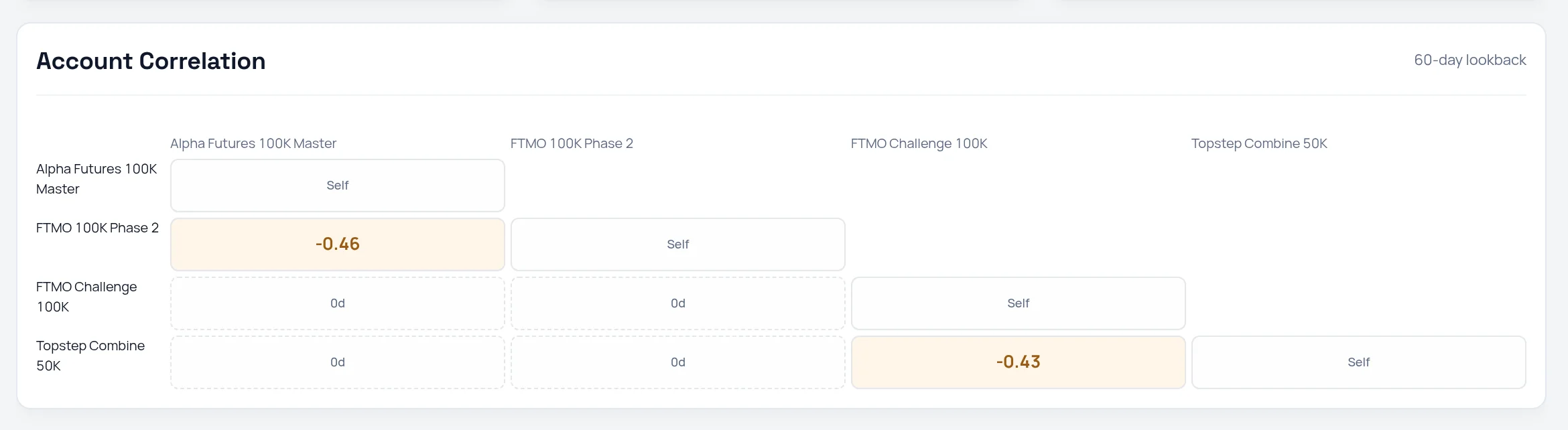
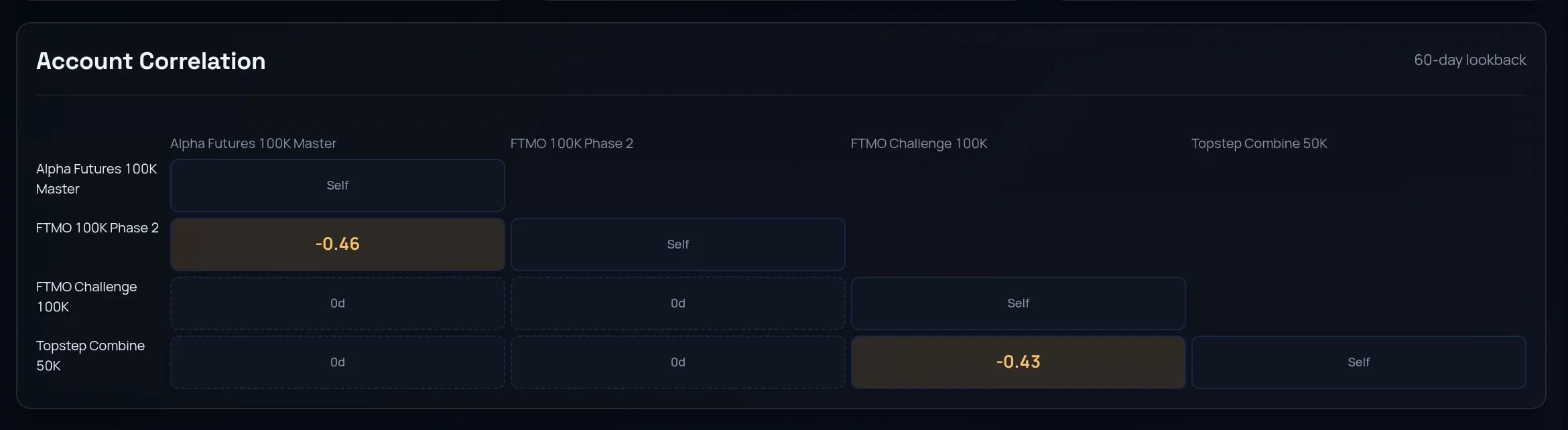
Scroll to Account Correlation on the hub. It compares daily results over a 60-day lookback.
Read the matrix
Each cell is the correlation between two accounts, from −1 to 1. Near 1 means they move together. A cell showing days, such as "4d", doesn't have enough shared trading days yet.
Open a pair
Click a cell to list the days both accounts lost.
Act on the warning
A Hidden correlation risk chip at the top of the hub means two accounts are strongly correlated over a meaningful number of days.
The panel needs at least two live accounts, and 10 or more trading days in common before a figure appears. Copying one idea across five accounts is one position, not five.
Save and reuse account templates#
You will save an account's setup once and create the next one in a click.
Save a template
On an account page, click Save as template, type a Template name, and click Save template. You can also save one on the wizard's last step.
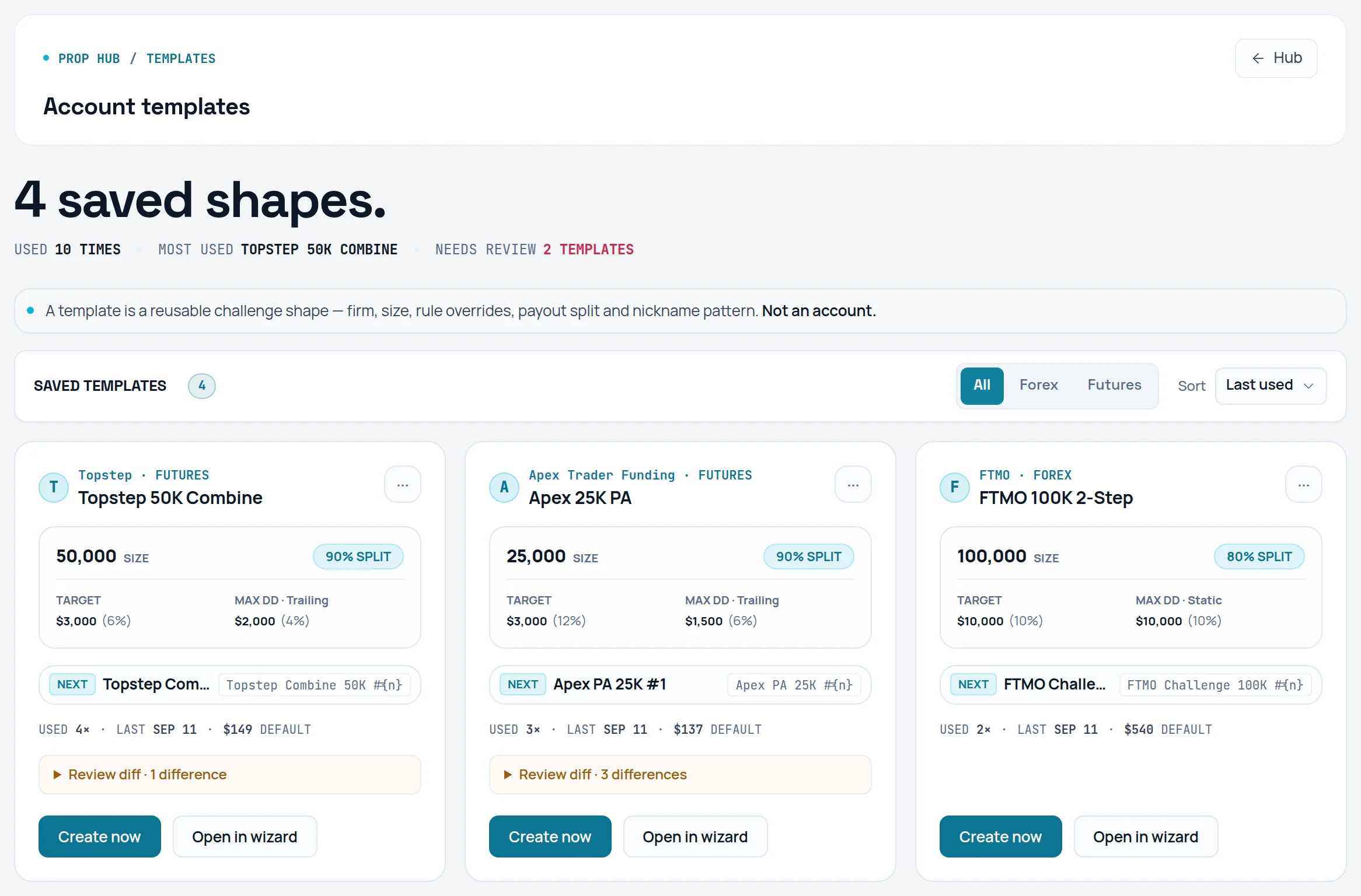
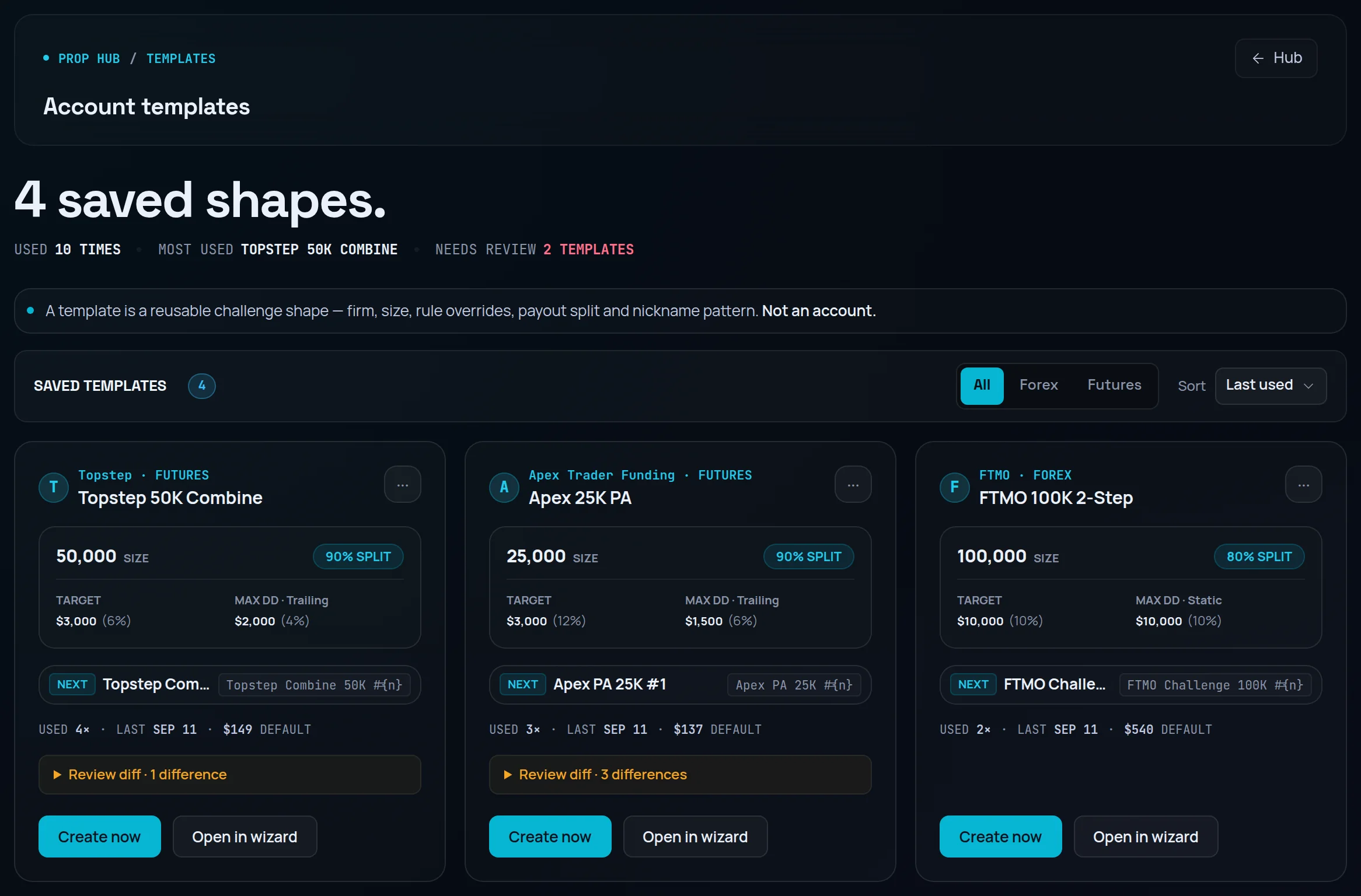
Open your templates
Click Templates at the top of the hub. Saved templates lists each one, sorted by Last used, Most used, Name or Size.
Create an account from it
Click Create now on a template. The new account gets the next nickname in the series.
Keep it current
Use Edit or Delete from the template's menu. The Needs review count at the top flags templates whose rules differ from the firm's latest seeded terms.
A template is a reusable challenge shape: firm, size, rule overrides, payout split and nickname pattern. It is not an account, and it has no trades.
Common problems#
Log Payout is greyed out. No account is Funded or Master yet. Payouts start at the funded stage.
My account's DD buffer shows "—". The account has no drawdown rule recorded. Open Edit rules, set Overall DD $ or Overall DD %, and click Create new rule version.
The Buffer in average losses figure is missing. It needs at least one losing trade on the account to know your average loss.
My trades don't appear on the prop account. They were imported into a different account. Re-import into the prop account, or use Link trading account when you set it up.
I can't add another account. Pro tracks up to 5 prop accounts. The hub offers Upgrade to Ultimate when you reach the limit.
The seeded rules don't match my firm. Firms change their terms. Click Edit rules, correct the fields, and click Create new rule version. Earlier versions are kept.
Frequently asked questions#
Which prop firms does Limbix support? Any firm. Limbix has pre-seeded rules for firms including FTMO, Topstep, Apex, FundedNext and TradeDay, and the wizard lists more for futures and forex. For any other firm, pick the Custom futures firm or Custom forex / cfd firm card and enter the rules yourself. Seeded rules are a starting point: firms change terms, so check the numbers against your firm's current rules.
Will Prop Hub stop me from breaching my account? No. Limbix has read-only access to your trade history and cannot place, change or cancel orders. Prop Hub warns you early: the Danger and Watch badges, the rule monitor and the bell's "Currently at risk" list. What you do with the warning is up to you.
What is a good buffer-to-loss ratio for a prop account? It is how many of your average losing trades the account can absorb before a breach. The more room, the more ordinary losing streaks you can survive. When the ratio drops to one or two losses, a single bad day can end the account. The exact bands are on the Buffer-to-Loss Ratio page.
Does a requested payout count as profit? No. A payout marked Requested shows under Pending and is left out of Received, Net prop P&L and ROI. It counts once you mark it Paid, at the amount you actually received. That keeps your net from showing money the firm hasn't sent yet.
Why does my pass rate ignore accounts I'm still trading? Pass rate is passed challenges divided by resolved challenges: ones you passed, failed or breached. An open challenge hasn't resolved either way, so counting it would pull your rate down for something that hasn't happened. See Pass Rate.