
02 · Guides
Trade log: review, edit and tag your trades
Use the trade log to find a trade, add its stop and target, tag emotions, link a playbook, mark rule breaks, read MFE/MAE and see how each changes your scores.
The trade log is where every trade in your Limbix journal lives, newest day first. From it you search and filter, then open a single trade to add its stop and target, tag how you felt, link the playbook, mark the rules you broke, write a note, and read the price chart with MFE and MAE.
Before you start#
Open Trade Log from the sidebar under Core. You need at least one trade: import or log one first.
The strip above the list shows Net P&L, Win rate, Profit factor, Avg R, Adherence and Matches for whatever the log is currently showing. Filters change those numbers too.
Filter and search your trade log#
You narrow the log to the trades you want to review, and the strip recalculates for just those.
Search
Press / or click the box that reads Search symbol or playbook. Type a symbol or a playbook name and press Enter.
Open the filters
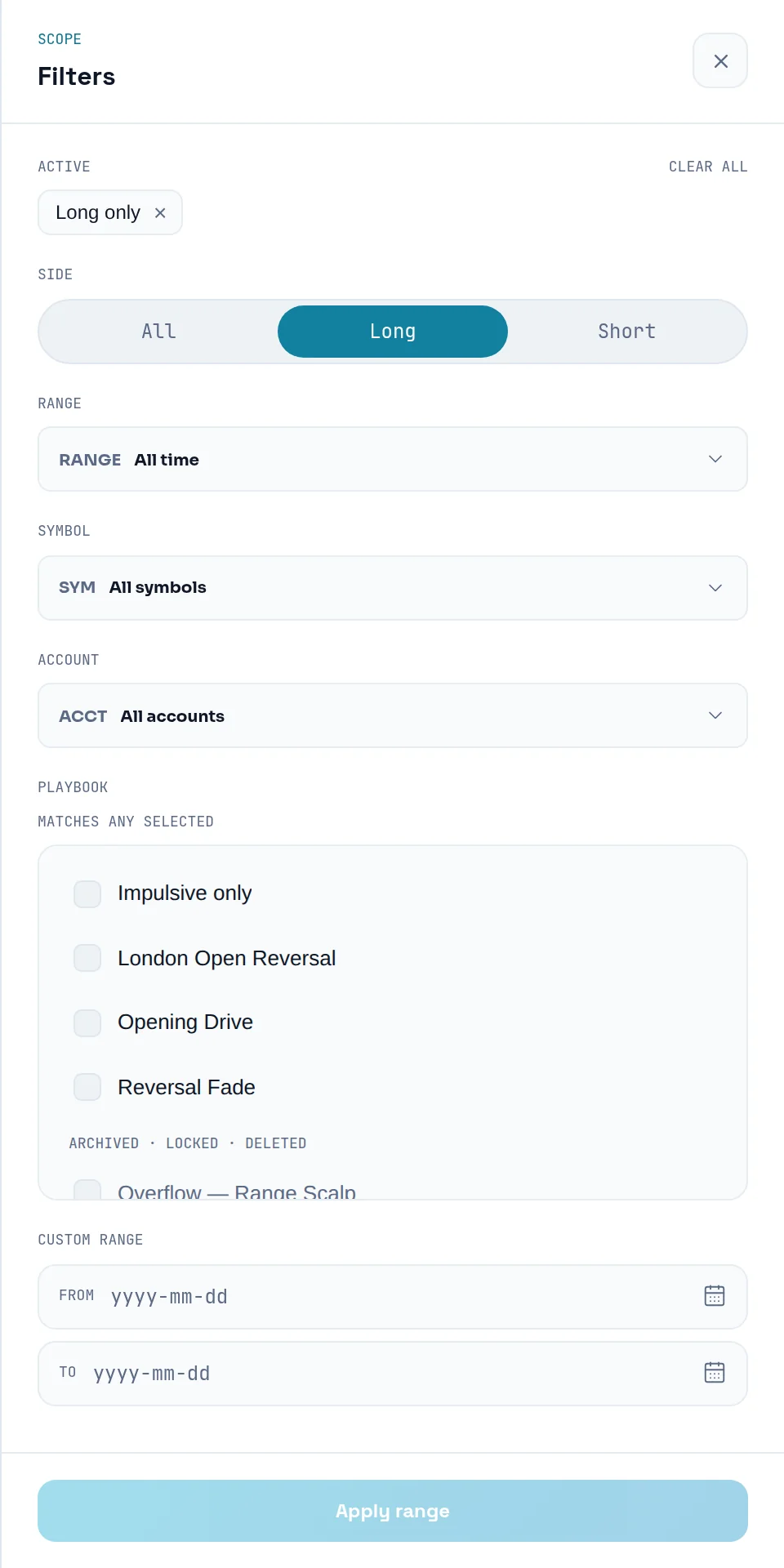
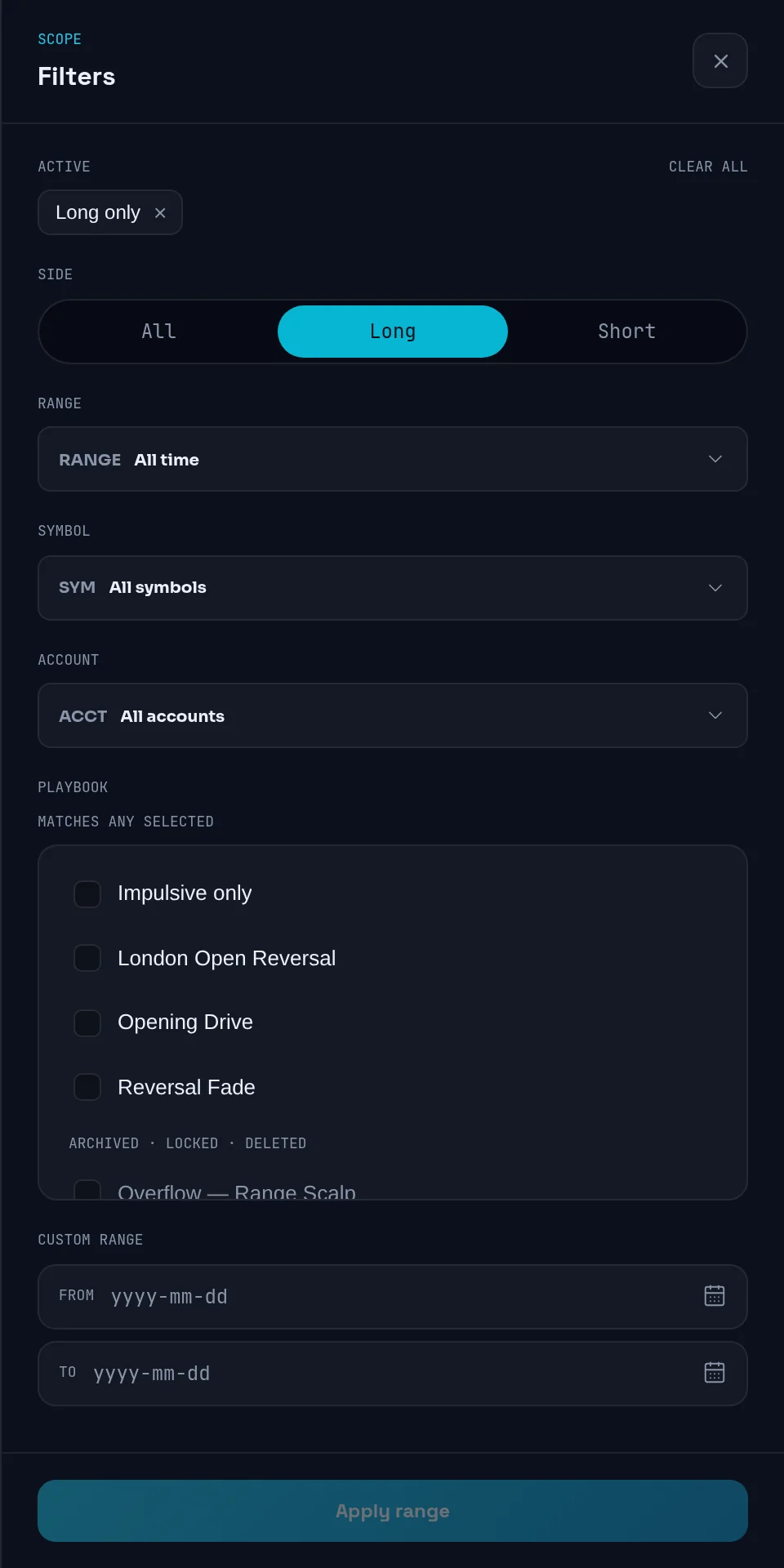
Click Filters beside the search box. A number on it counts the filters that are on.
Pick a side and range
Under Side, choose All, Long or Short. Under Range, choose All time, Today, This week, This month, Last 30 days or Year to date.
Narrow by symbol, account or playbook
Use Symbol and Account. Under Playbook, tick one or more playbooks. The list Matches any selected. Tick Impulsive only to see trades with no playbook.
Set a custom range
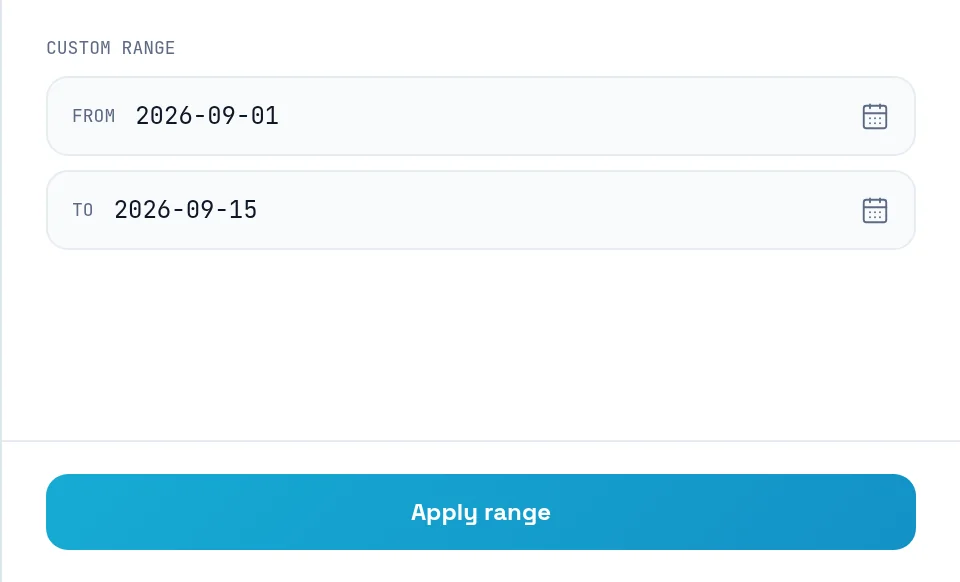
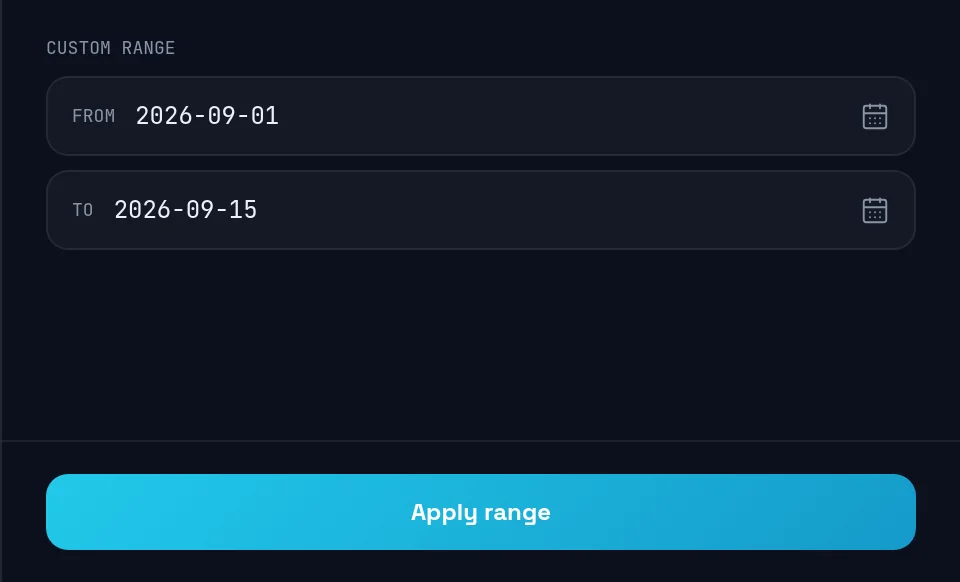
Under Custom range, pick From and To, then click Apply range.
Clear everything
Under Active, remove a single filter with its ×, or click Clear all.
Edit a trade#
You correct what the trade record says and set its review status.
Open the trade
Click a row in the log. The trade page opens, with Previous trade and Next trade arrows to step through the log.
Click Edit
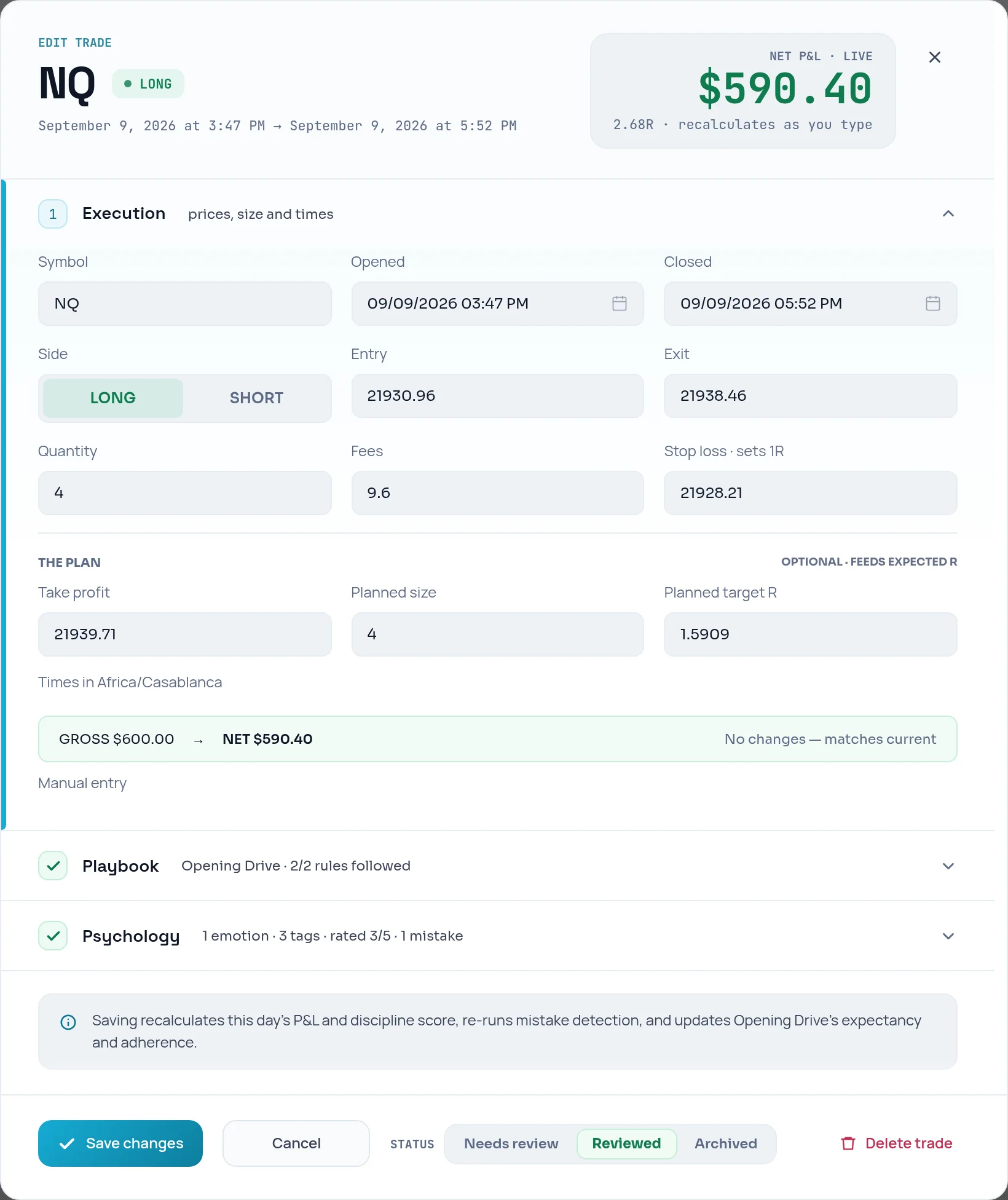
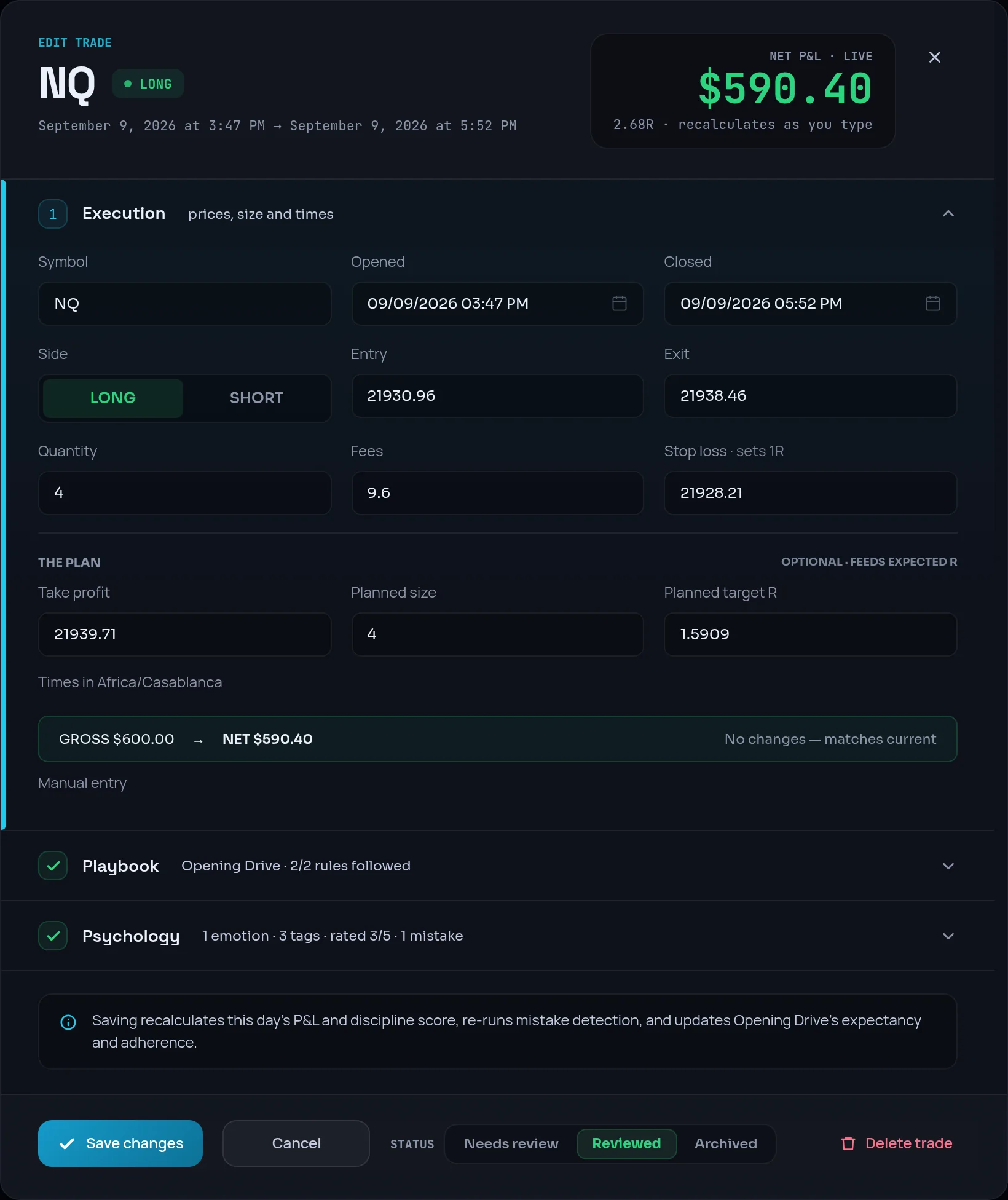
Click Edit in the bar at the top. The editor opens with three sections: Execution, Playbook and Psychology. The NET P&L · LIVE figure recalculates as you type.
Change what you need
Open a section and edit its fields. Each closed section shows a one-line summary, such as "no stop set" or "no emotion set".
Set the status
Under STATUS, choose Needs review, Reviewed or Archived. Reviewed takes the trade out of your pending-review queue. Archived keeps it in your stats but out of the queue.
Save
Click Save changes. The note above the button says what saving recalculates.
On imported trades, prices, times, side, quantity and fees come from your broker file and are read-only: the section reads "imported prices and times are read-only". The stop, take profit and plan fields stay editable. Trades you logged by hand can be edited in full.
Add a stop and target so R is computed#
Your trade gets a risk amount and an R-multiple, and it starts counting toward your Risk Score.
Open Execution
On the trade, click Edit, then open Execution.
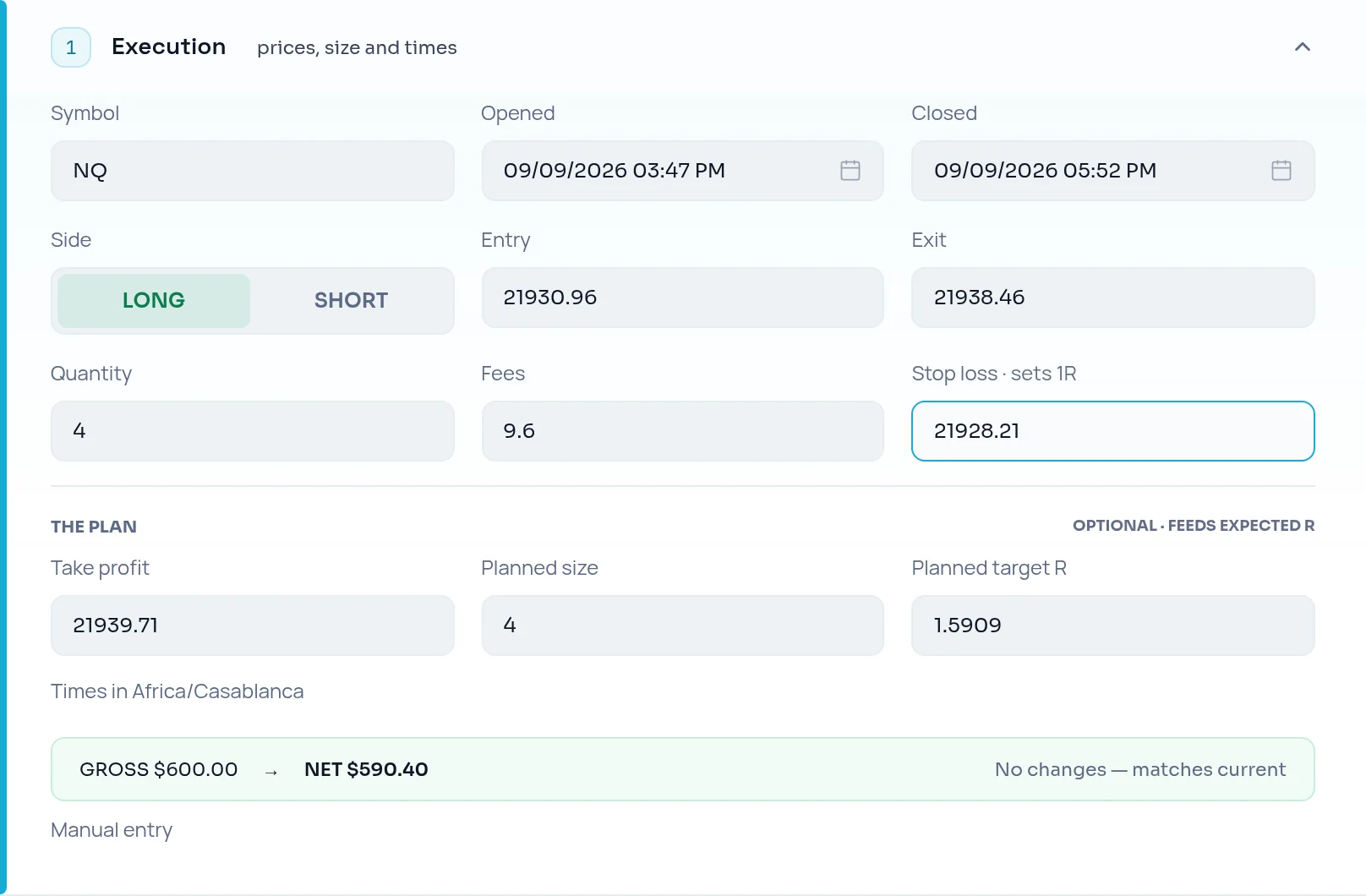
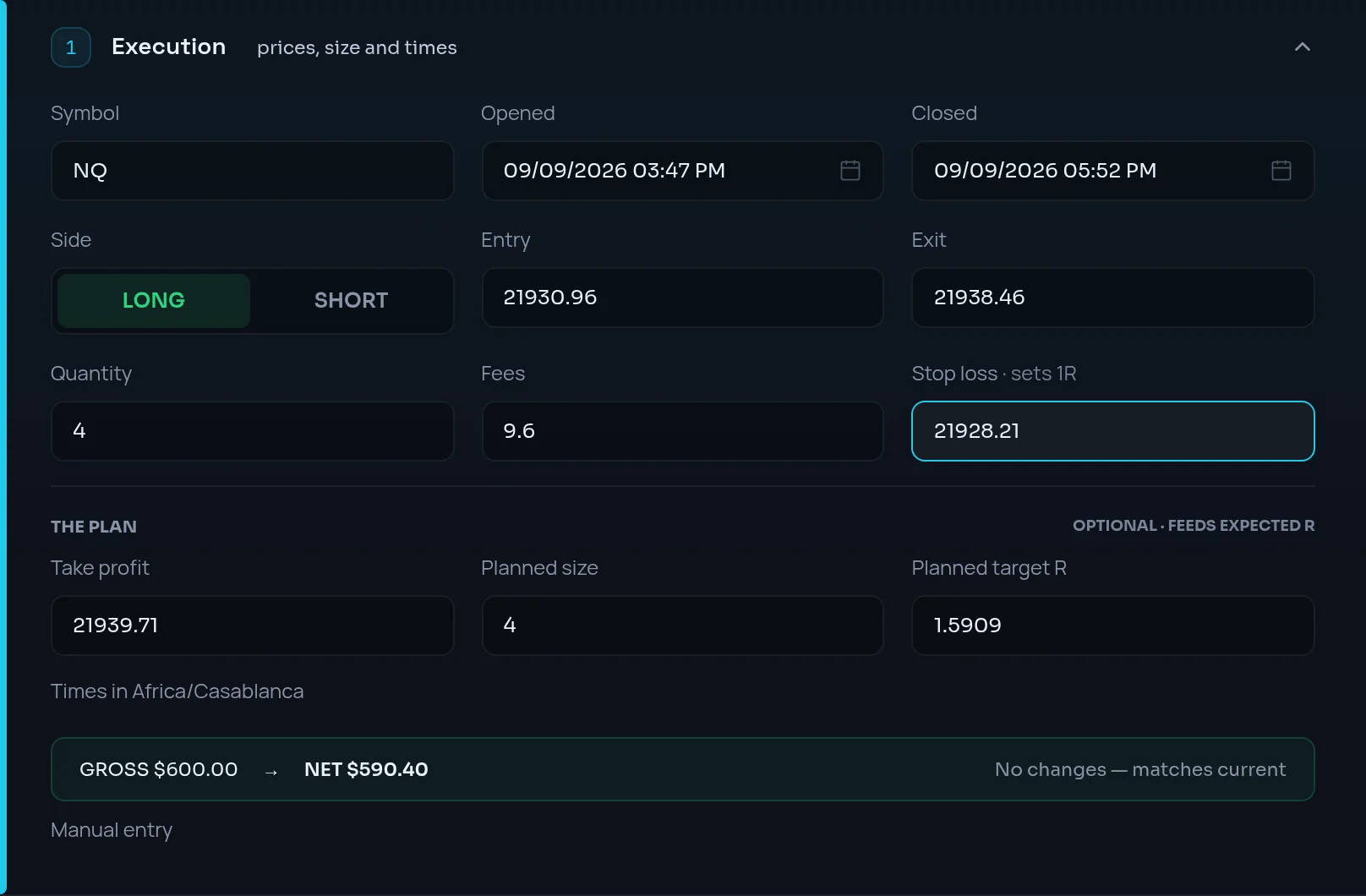
Enter the stop loss
In Stop loss (marked · sets 1R), enter the price your stop was at when you entered. Without it, the hint reads "Without it this trade's R is inferred from the exit, or not scored at all."
Enter the plan
Under THE PLAN, fill in Take profit. Add Planned size and Planned target R if you had them.
Save
Click Save changes.
What the stop and target feed:
| You enter | Limbix computes | Which scores use it |
|---|---|---|
| Stop loss | Risk amount = distance to stop × point value × quantity, then realized R | Avg R, R-multiple distribution, Loss Containment, Risk Consistency, the oversized position check |
| Take profit | Expected R:R | Risk Rule Adherence (against your playbook's minimum R:R) |
| Planned size | Planned vs actual size | Oversized and undersized position detectors |
| Planned target R | Progress to target | The cut-winner-early detector |
Worked example. You buy 2 contracts at 5,000.00 with a stop at 4,990.00, on an instrument worth €5 a point. Your risk amount is 10 points × €5 × 2 = €100. You exit at 5,015.00 for a €150 gain. Realized R is €150 ÷ €100 = +1.5R (before fees).
Tag emotions on a trade#
You record your state at entry, so Limbix can show which feelings cost you money.
Open Psychology
On the trade, click Edit, then open Psychology.
Pick your state at entry
Under STATE AT ENTRY, click every chip that fits: from Focused, Confident and Calm to Anxious, Frustrated, Anger, Tilted and FOMO. The counter reads "2 SELECTED", for example.


Add context tags
Under CONTEXT TAGS, type a tag and press Enter, or pick one under SUGGESTED.
Rate the execution
Under EXECUTION RATING, choose from Poor to Excellent.
Save
Click Save changes.
Link a playbook to a trade#
The trade gets checked against that playbook's rules, and stops counting as impulsive.
Open Playbook
On the trade, click Edit, then open Playbook.
Find the playbook
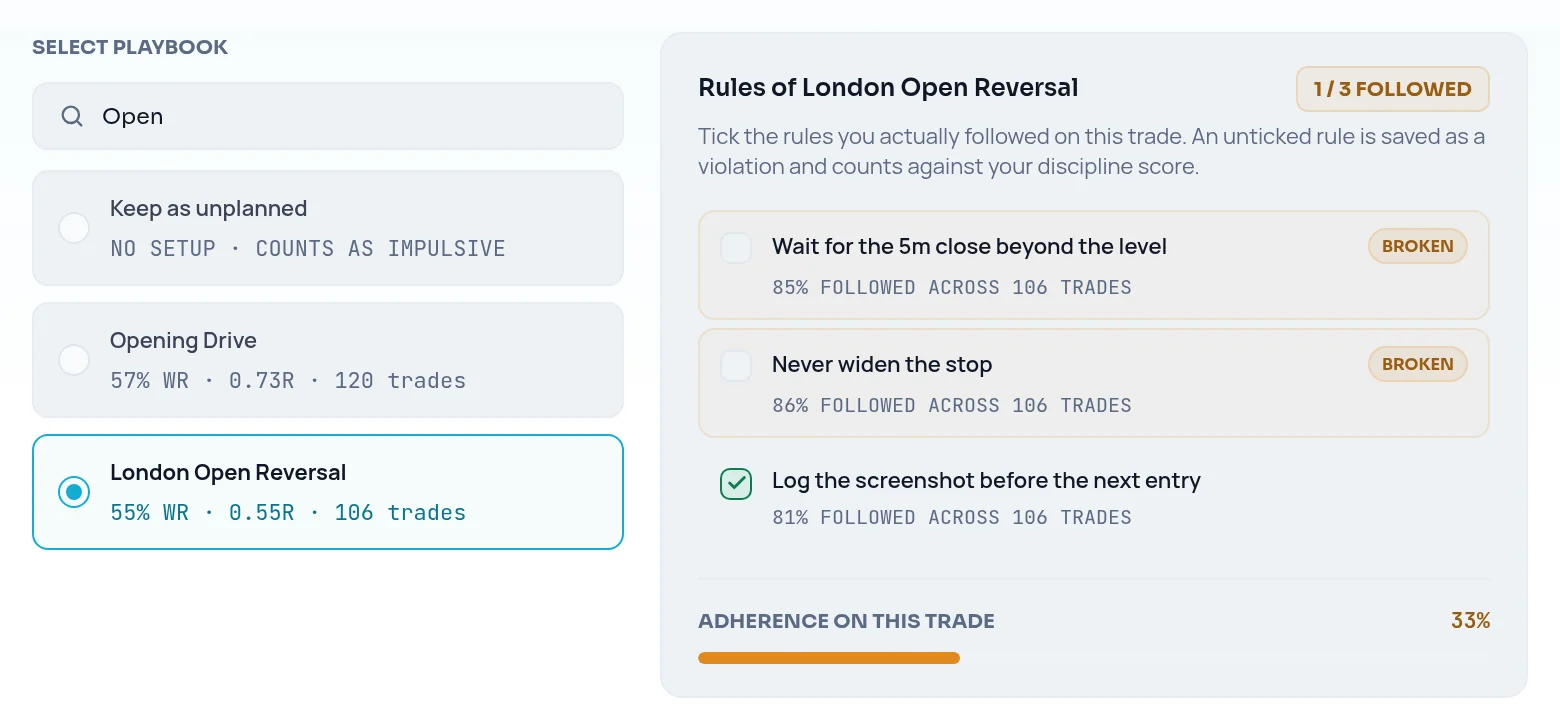
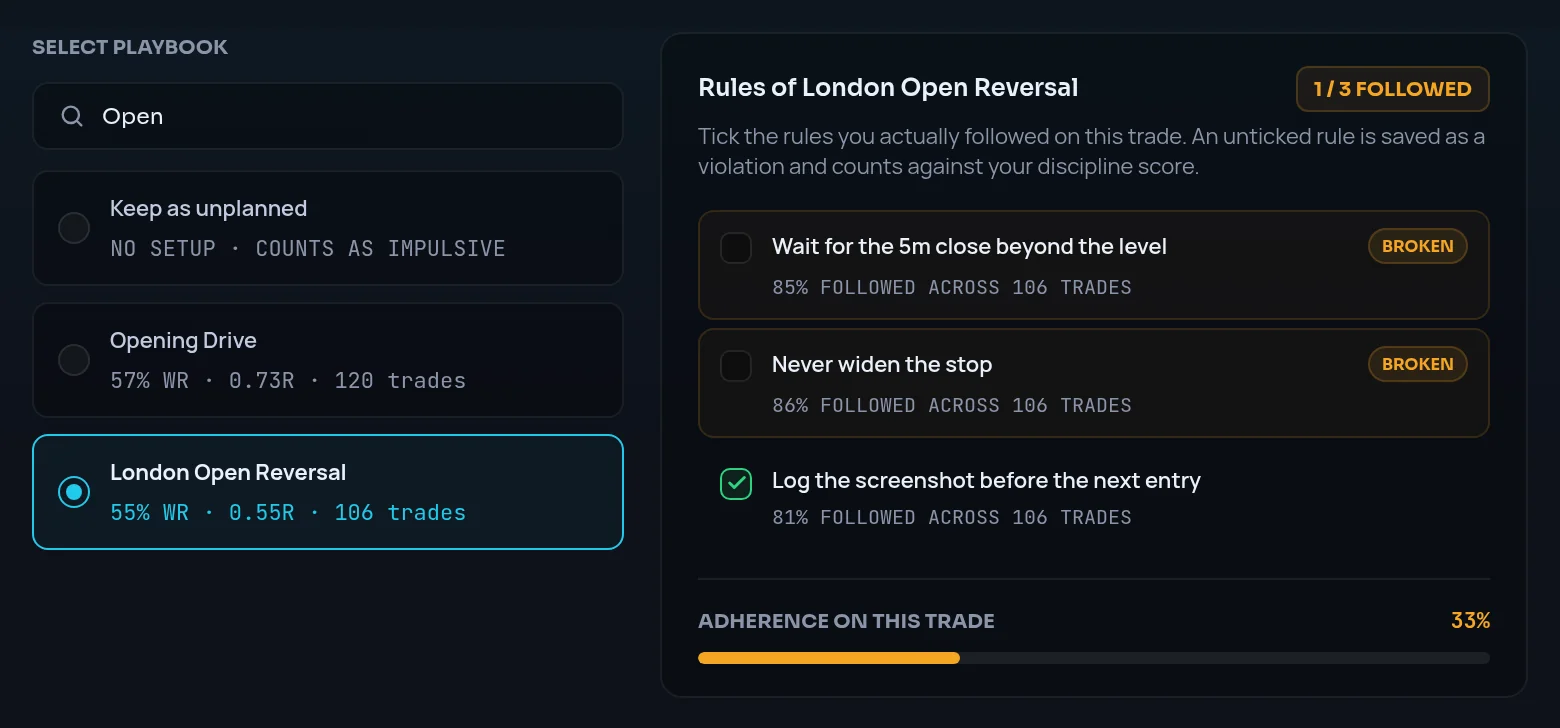
Under SELECT PLAYBOOK, type in the search box to filter your playbooks, then click one.
Or keep it unplanned
If there was no plan, click Keep as unplanned (NO SETUP · COUNTS AS IMPULSIVE). Be honest here. It is the point of the journal.
Save
Click Save changes. The note above it reads, for example, "Saving recalculates this day's P&L and discipline score, re-runs mistake detection, and updates [playbook]'s expectancy and adherence."
If the linked playbook was archived, deleted or locked by a plan change, the link is kept and cannot be changed here. See archive or delete a playbook.
Mark rule violations#
You record which of the playbook's rules you broke on this trade.
Open Playbook
On the trade, click Edit, then open Playbook. The linked playbook's rules are listed under it.
Untick what you broke
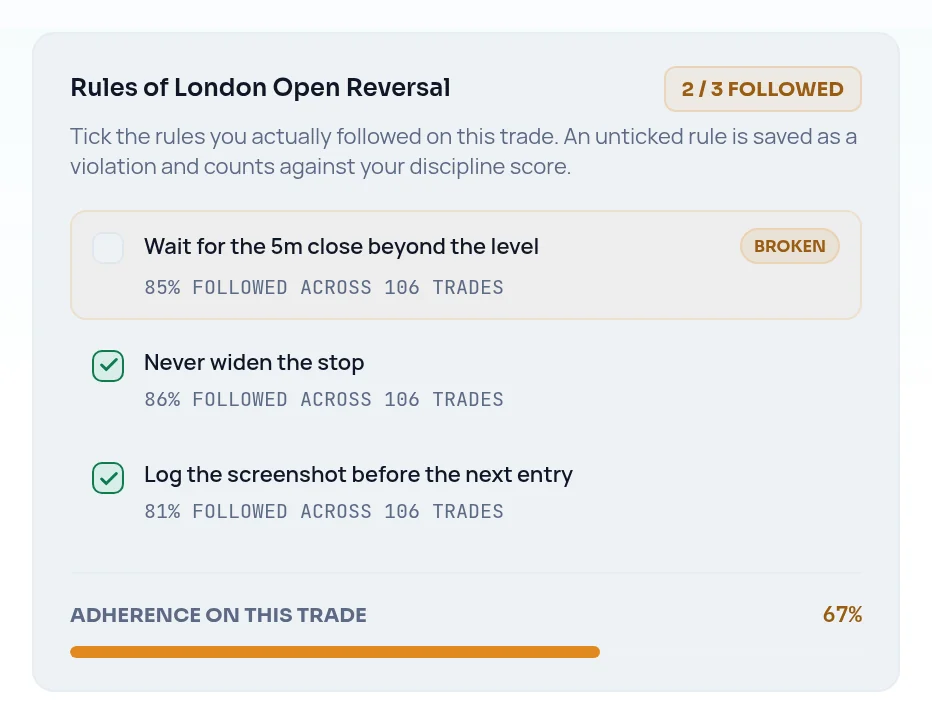
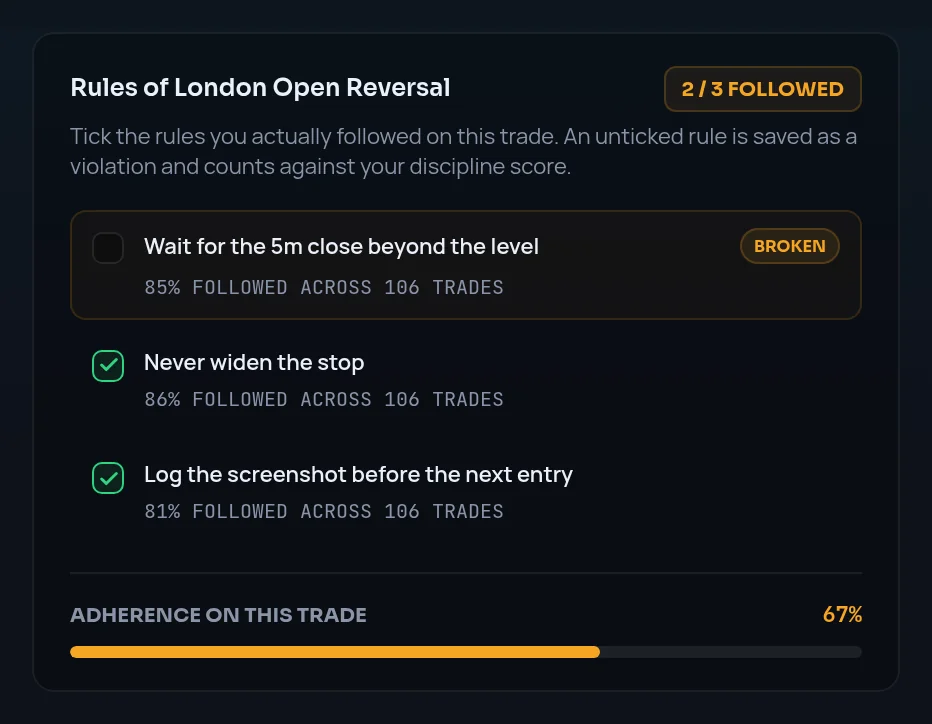
Every rule starts ticked as followed. Click a rule to untick it. "An unticked rule is saved as a violation and counts against your discipline score."
Check the adherence bar
ADHERENCE ON THIS TRADE shows the share of rules you kept. The section summary reads, for example, "2/3 rules followed".
Save
Click Save changes.
If you switch the trade to a different playbook, every rule resets to followed and a note says so. Review them again before saving.
Add a note and screenshots#
You keep the reasoning and the chart with the trade, so a later review has more than numbers.
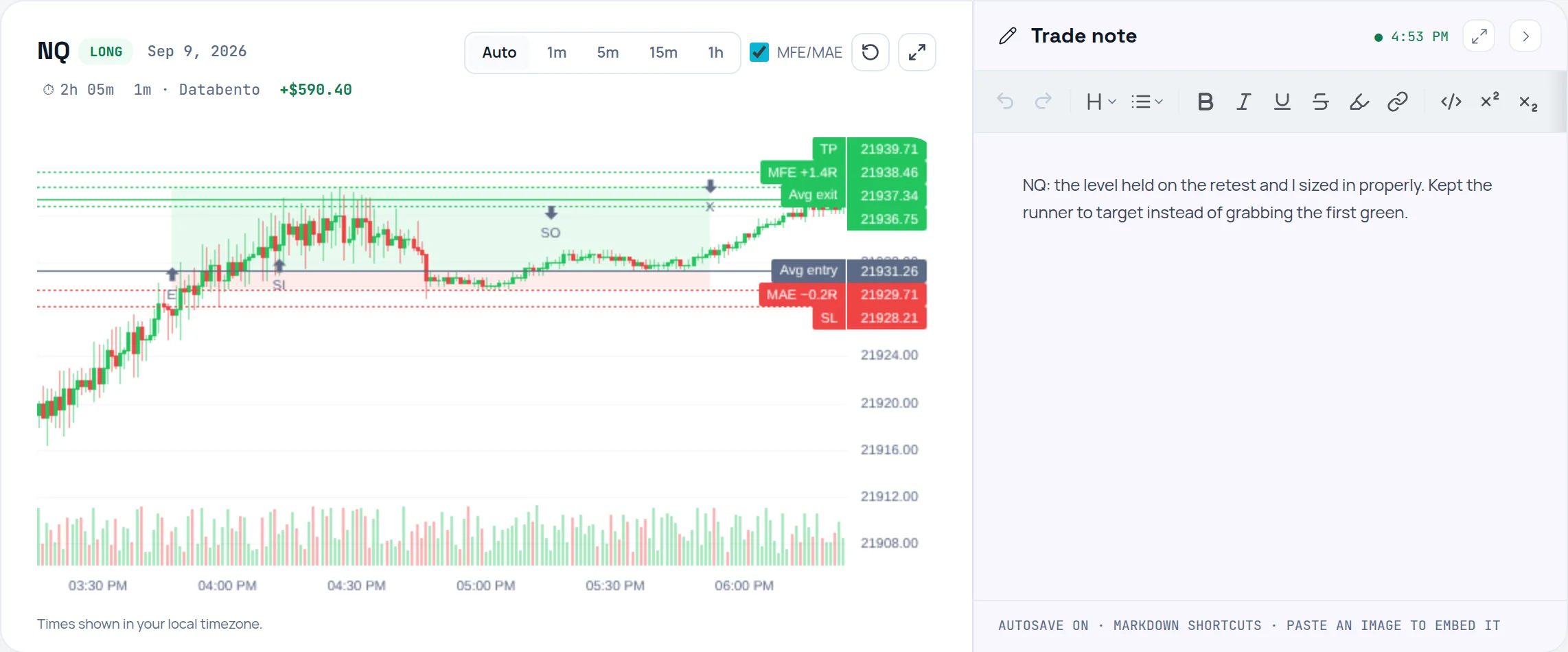
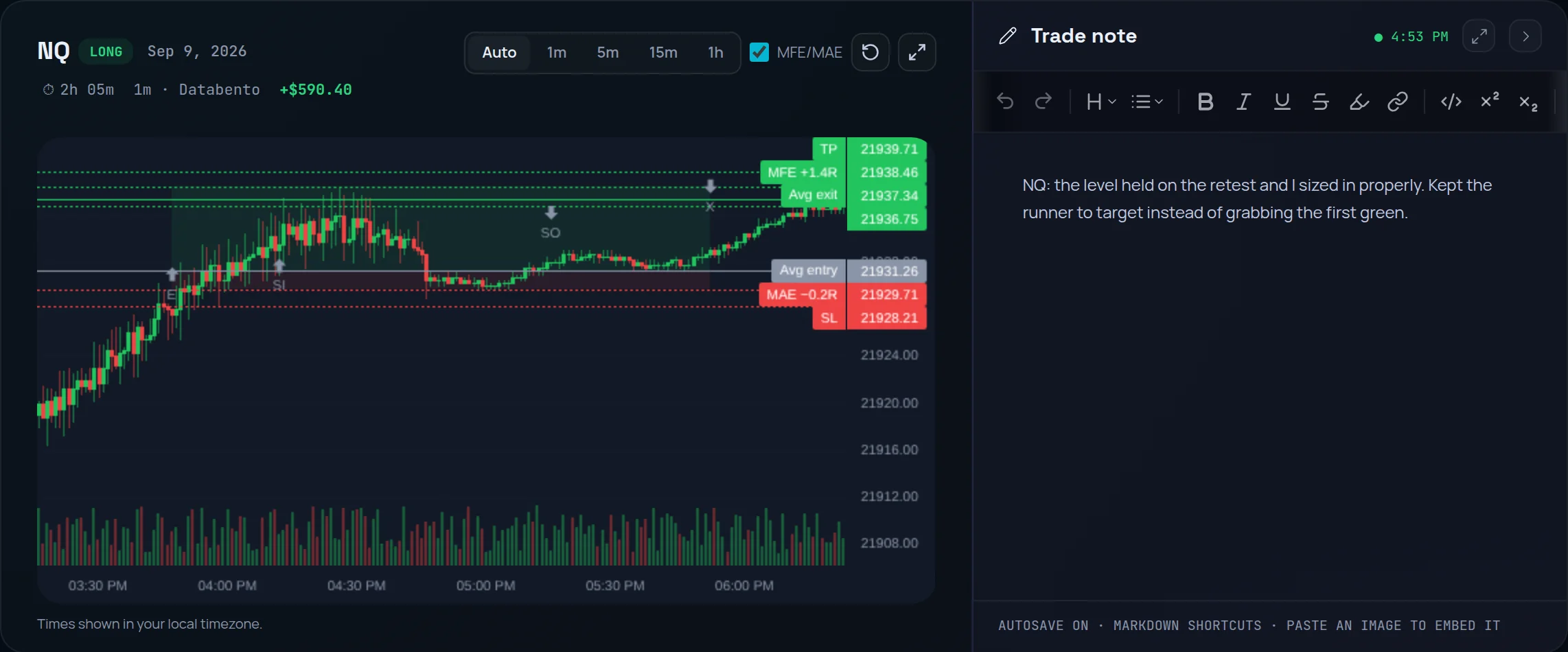
Write in the trade note
On the trade page, click the pencil marked NOTE to open the Trade note panel. It saves as you type. The footer reads AUTOSAVE ON · MARKDOWN SHORTCUTS · PASTE AN IMAGE TO EMBED IT.
Paste a chart
Paste an image into the note to embed it. To give the note more room, use the button that hides the price chart.
Attach screenshots to the record
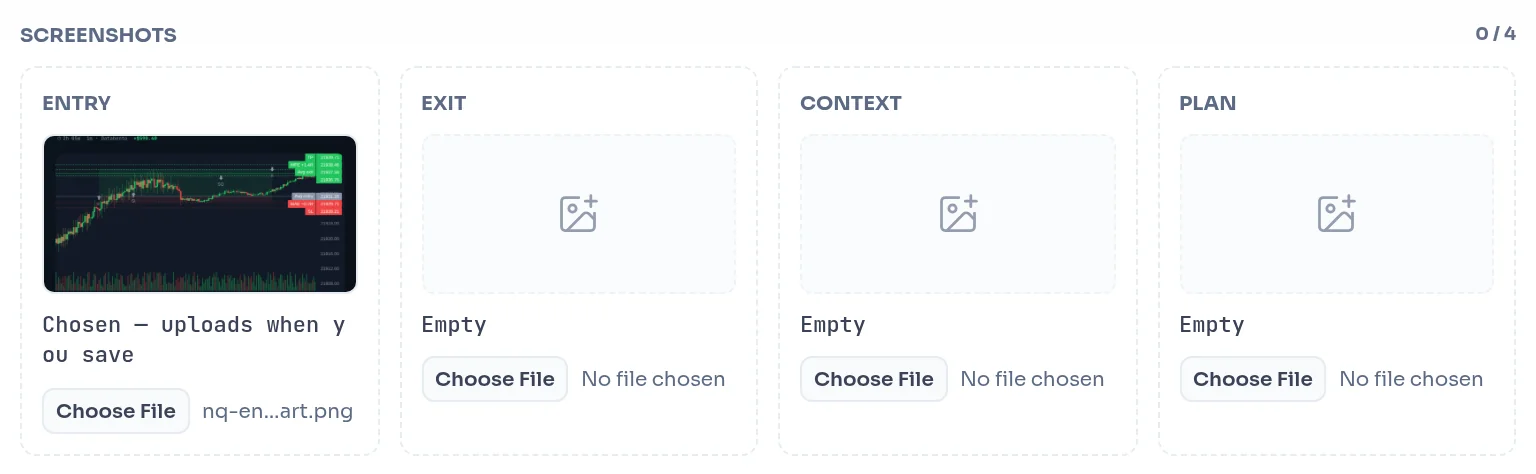
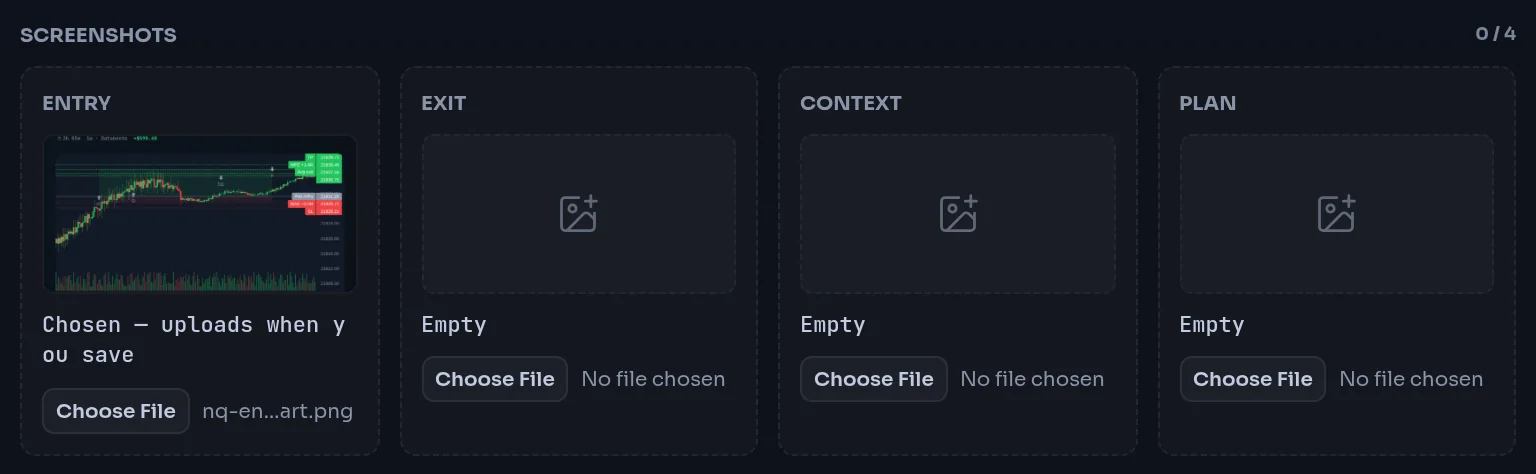
Click Edit, open Psychology, and under SCREENSHOTS add PNG or JPEG files to the ENTRY, EXIT, CONTEXT and PLAN slots. A new file shows "Chosen — uploads when you save".
Write the record note
In the same section, NOTE ON THE TRADE RECORD takes plain text that is exported in CSV. Click Save changes.
The trade note (rich text, autosaved) and the note on the trade record (plain text, saved with the form) are two separate fields. The trade page shows the record note under NOTE (FROM THE EDIT FORM).
Read the trade chart#
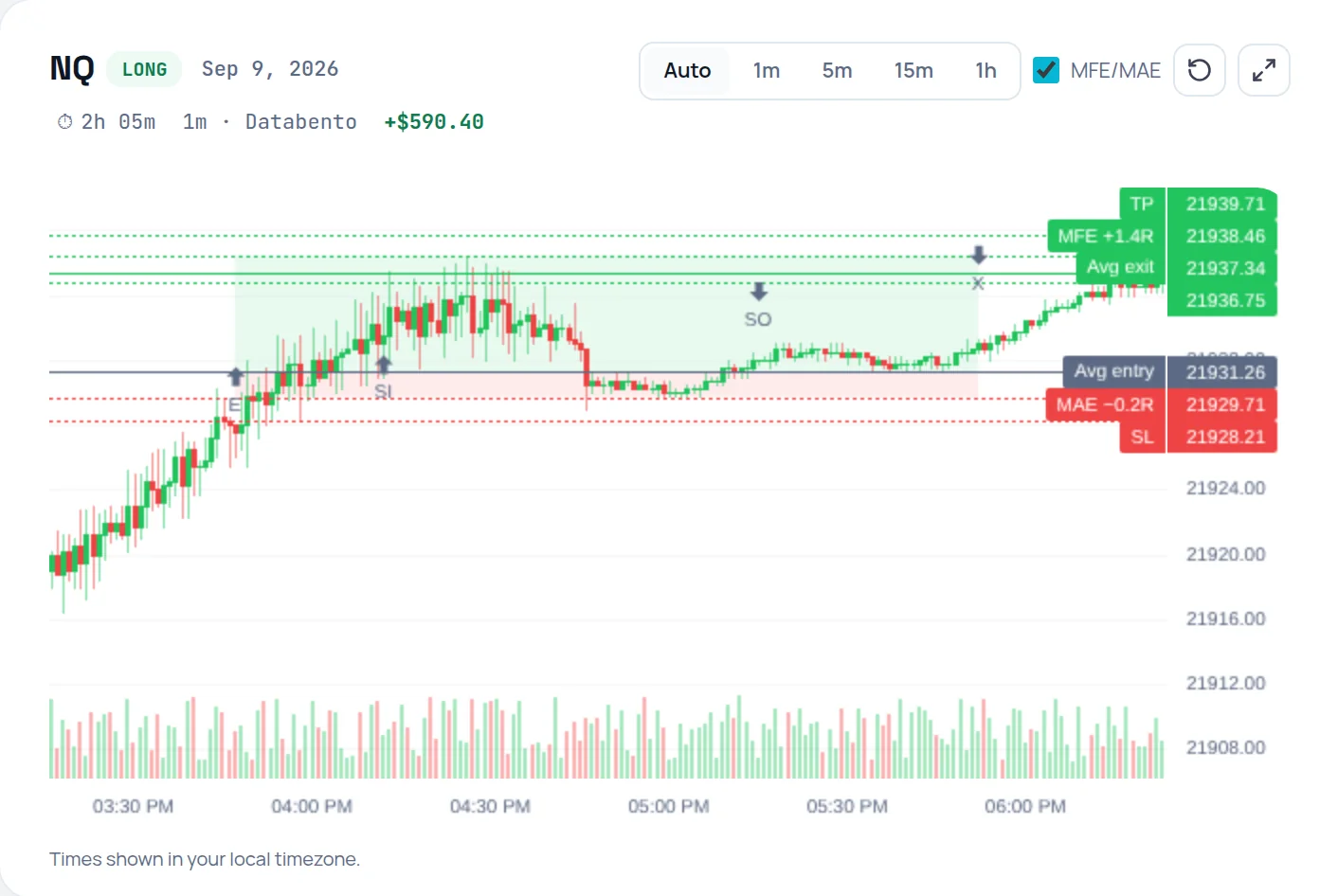
You see the trade on real price bars, with how far it went for you (MFE) and against you (MAE).
Open the trade
Click the trade in the log. The price chart sits at the top of the trade page for futures and forex trades.
Pick a bar size
Click Auto, 1m, 5m, 15m or 1h. The chip beside the date shows the bar size and the data source.
Read MFE and MAE
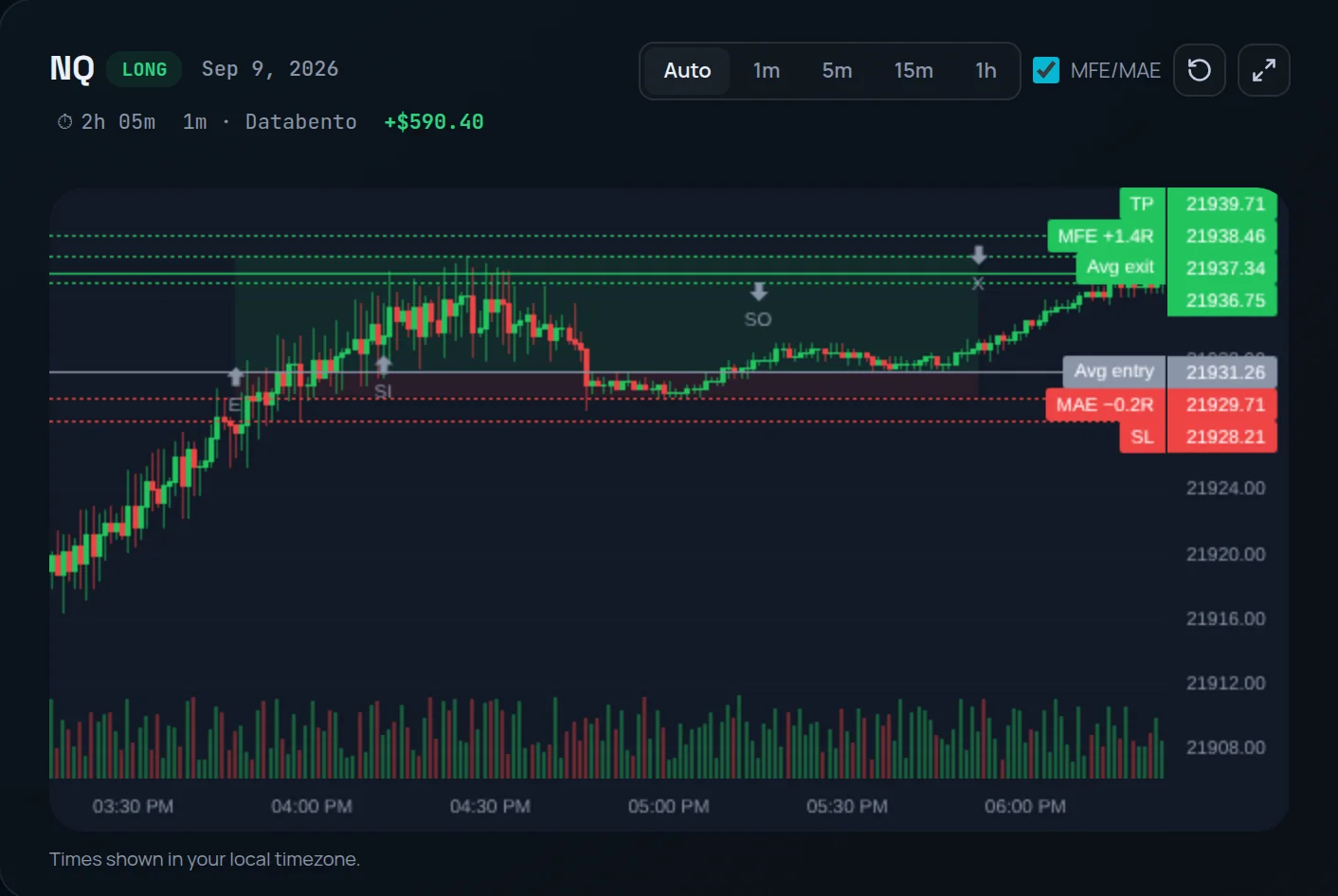
With MFE/MAE ticked, two lines mark the best and worst price reached while the trade was open. When the trade has a stop, they are labelled in R, such as "MFE +1.8R".
Zoom and expand
Zoom and pan on the chart, click the circular-arrow button (RESET ZOOM when you hover it) to fit the trade again, and click EXPAND for a larger view.
MFE (maximum favourable excursion) is the furthest the price moved in your favour between entry and exit. MAE (maximum adverse excursion) is the furthest it moved against you. A winner with MFE of +3R that you closed at +0.8R left money on the table. A loser with MAE well past −1R means the stop was not where your plan said.
If the chart reads "No market data for this period" or "Market data isn't configured for … trades yet", Limbix has no bars for that window. "These prices don't match this market" means the trade's prices fall outside the range traded: check the symbol and contract month.
The chart's times are in your browser's timezone, which the footer calls "your local timezone". The rest of Limbix uses the timezone in your profile, so the two can differ if you trade from another timezone.
See the mistakes on a trade#
You see what Limbix detected on the trade, and add what only you know.
Read the detected mistakes
On the trade page, the card MISTAKES DETECTED lists every mistake on the trade by name, or None. when there are none.
Open the mistakes editor
Click Edit, open Psychology, and scroll to MISTAKES. Detected ones appear as short labels, such as Overtrading or No rules followed. They carry an AUTO badge and cannot be removed.


Add your own
Type a mistake in your own words, such as "moved my stop", and click Add. Remove one of yours with its ×.
Save
Click Save changes. Saving also re-runs detection with your new stop, plan and emotions.
Common problems#
I can't edit the entry price or time. The trade was imported. Broker prices and times are read-only. Delete and re-log it by hand only if the broker file was wrong.
The trade has no R. It has no stop, and it was a winner or broke even. Add the Stop loss you had.
The playbook I want isn't in the list. It is archived, deleted or locked. Reactivate an archived playbook from Playbooks.
"Playbook changed — every rule was reset to followed." You switched playbooks. Mark the rules you broke again before saving.
The chart is empty. The trade is outside futures and forex, or no market data covers its window.
My filters seem stuck. A link from the dashboard applied them. Open Filters and click Clear all.
Frequently asked questions#
What is MFE and MAE in trading?#
MFE, maximum favourable excursion, is the furthest the price moved in your favour while a trade was open. MAE, maximum adverse excursion, is the furthest it moved against you. Limbix draws both on each futures and forex trade chart and labels them in R when the trade has a stop. Together they show whether you captured what the trade offered and whether your stop held where your plan said it would.
Why does my trade show no R-multiple?#
R needs a risk amount, and the risk amount needs a stop. If a winning trade has no stop, Limbix cannot know what you risked, so it gives no R rather than inventing a flattering one. A losing trade with no stop uses its exit as the stop and shows about −1R. Open the trade, click Edit, enter the stop loss you had in Execution, and save.
How do I mark a trade as impulsive?#
Open the trade, click Edit, open the Playbook section and click Keep as unplanned. The trade then counts as impulsive: it is flagged with the impulsive mistake and adds failed phantom checks to your Discipline Score. Use it only when there really was no plan. A planned trade left unlinked is scored the same way, so link it instead.
Does editing an old trade change my past scores?#
Yes. Saving recalculates that day's P&L and discipline score, re-runs mistake detection, and updates the linked playbook's expectancy and adherence. That is deliberate: your scores always describe the trades as you last recorded them. If you correct a stop or untick a broken rule on a trade from last month, last month's numbers change to match.
Can I delete a trade?#
Yes. In the trade editor, click Delete trade in the footer and confirm. The trade is removed from your journal and every score that used it. For a whole import batch you added by mistake, use Undo import in Import history while its undo window is open, which removes the batch in one step.